

If deleting files in Windows 11 gets stuck at 99% or 0%, it usually means the system is struggling to complete final tasks like clearing file handles, updating indexes, or verifying data. This article will talk more about this issue and help you get it resolved with proposed solutions.
Page Contents
Fix Deleting Files Stuck at 99% or 0% in Windows 11
Corrupted files, disk errors, antivirus interference, or background processes can cause this issue. Below are the most effective fixes to resolve it quickly.
Fix 1: Restart Your PC
A simple restart can resolve temporary glitches:
1. Save your work and restart your computer.
2. Try deleting the file again after reboot.
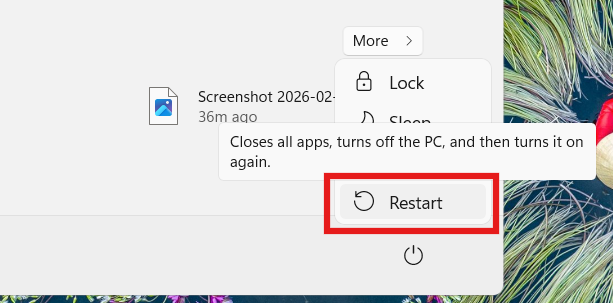
Restarting refreshes system processes and clears stuck operations.
Fix 2: Use Command Prompt to Force Delete
If normal deletion fails, force delete the file:
1. Open Command Prompt (Admin).
2. Run:
del /f /q "C:\path-to-file"
where /f = force delete
/q = no confirmation
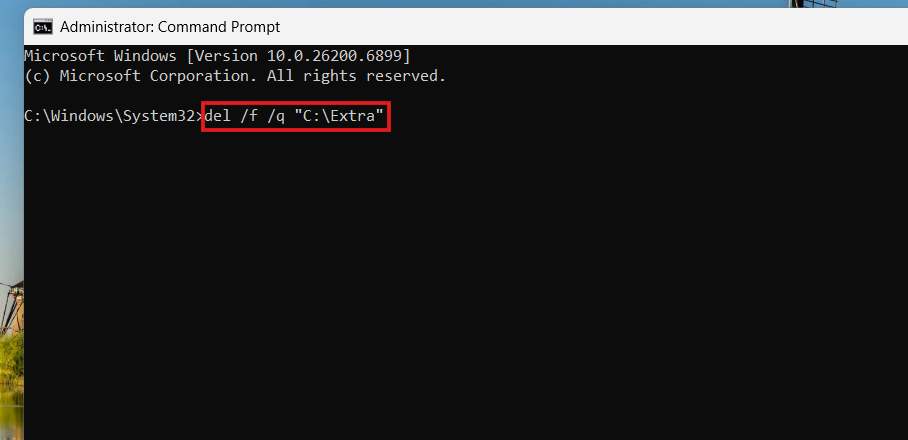
This bypasses File Explorer and removes the file directly.
Fix 3: Delete Files in Safe Mode
Sometimes files are locked by running processes.
1. Restart your PC and boot into Safe Mode through Startup Settings.
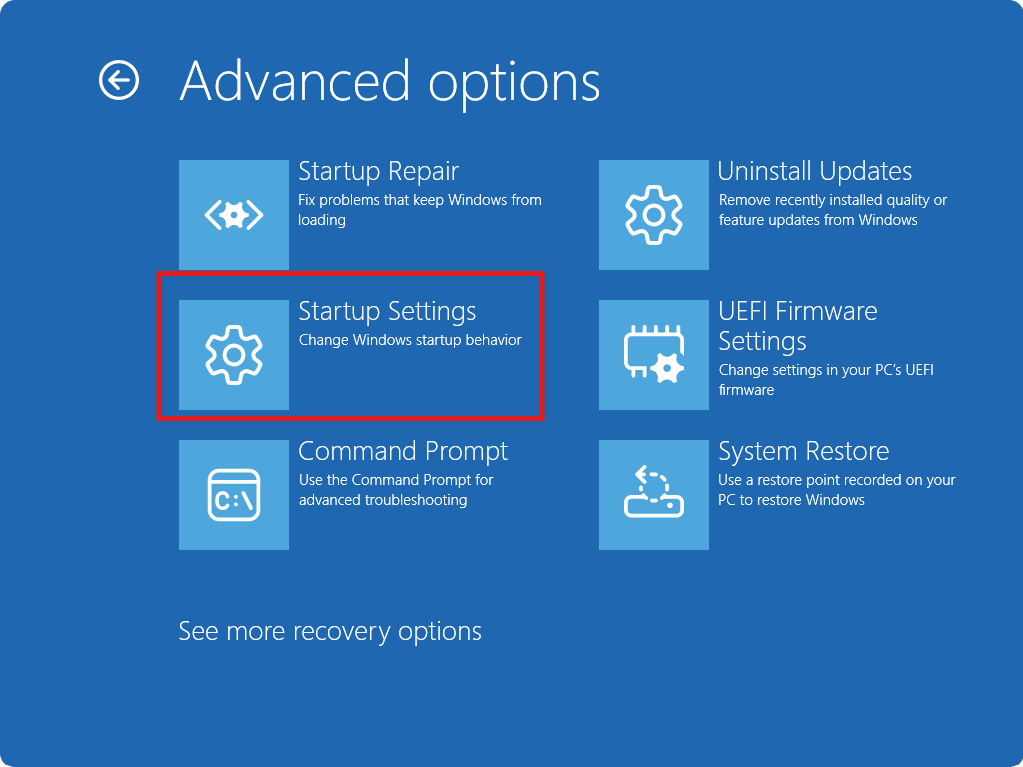
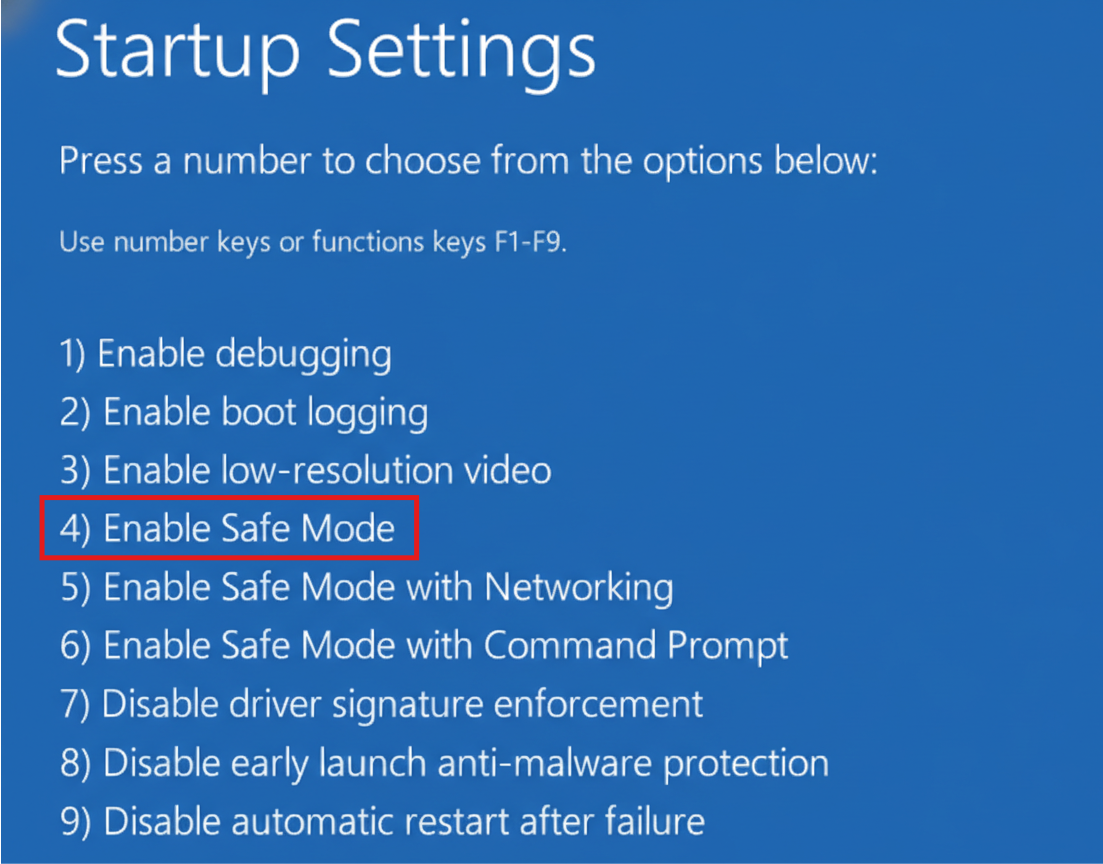
2. Locate the file and delete it.
Safe Mode loads minimal drivers, preventing apps from blocking deletion.
Fix 4: Run CHKDSK Scan
Disk errors or bad sectors can cause the deletion to freeze.
1. Open Command Prompt (Admin).
2. Run:
chkdsk C: /f /r
3. Then, restart your PC and let the scan complete.
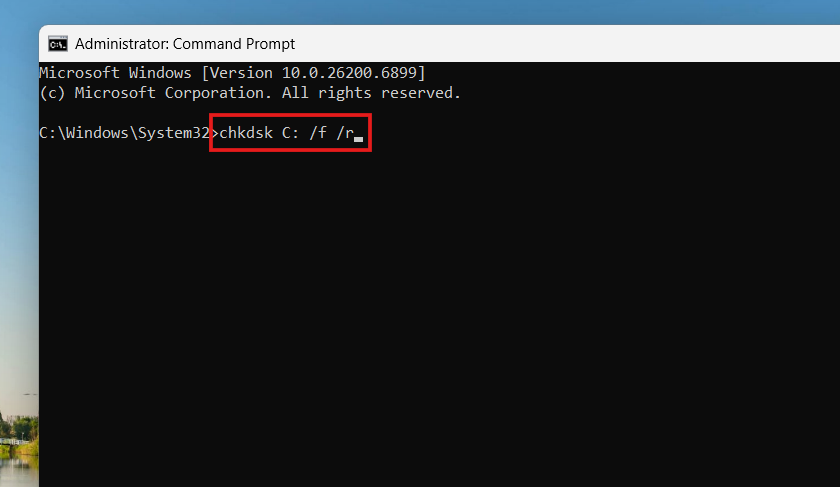
This checks and repairs disk issues that may block file operations.
Fix 5: Clear the File Explorer Cache
A corrupted cache can slow or freeze file operations.
1. Open File Explorer.
2. Click three dots and select Options.
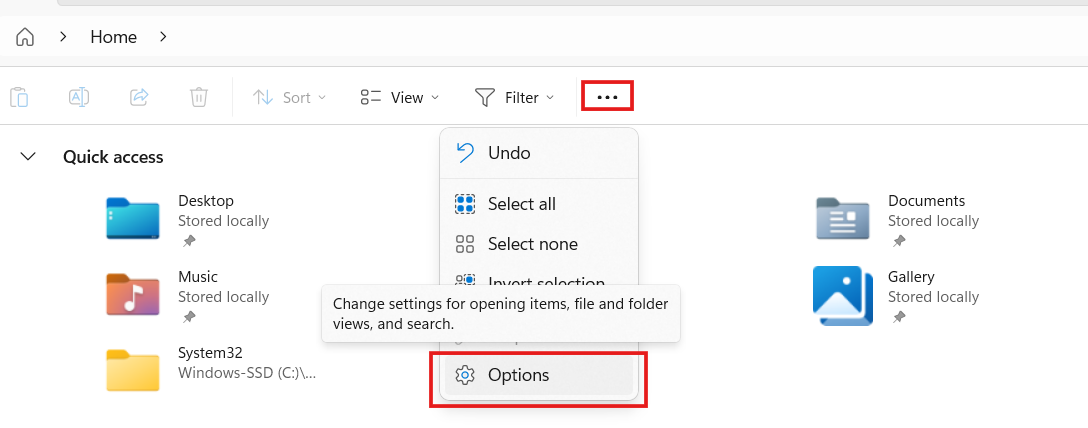
3. Under Privacy, click Clear.
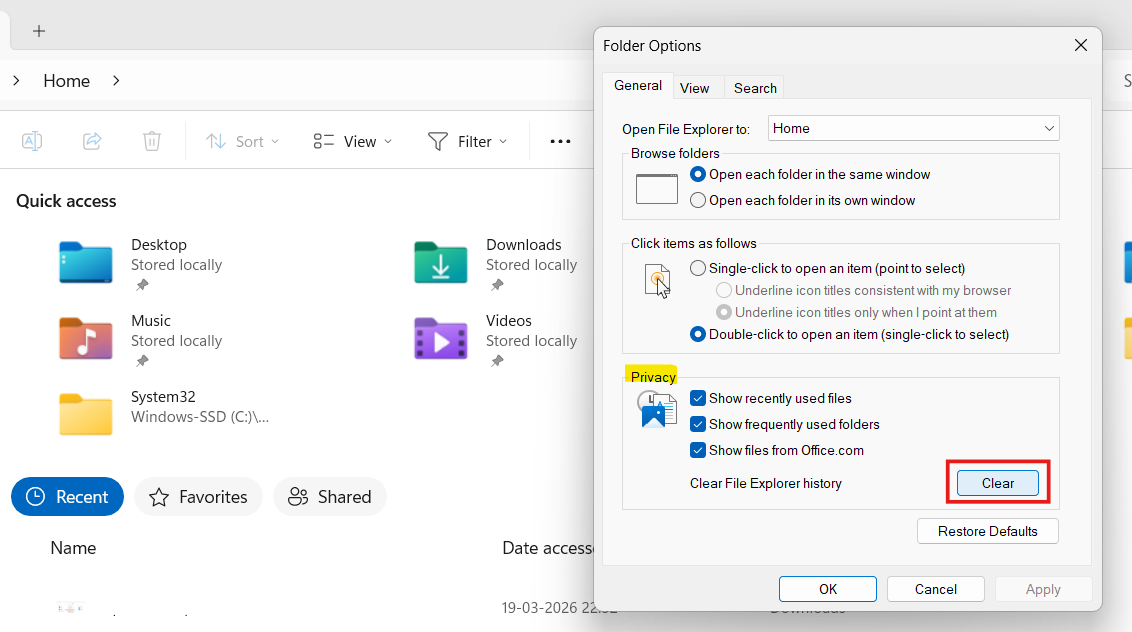
This removes cached data that may interfere with deletion.
Fix 6: Disable Antivirus Temporarily
Antivirus software may scan files during deletion, causing delays.
1. Temporarily disable your antivirus.
2. Delete the file.
3. Re-enable protection afterward.

If this works, consider adding the file/folder as an exception.
Fix 7: Repair System Files (SFC & DISM)
Corrupted system files can break file operations.
1. Open Command Prompt (Admin).
2. Run:
sfc /scannow
3. Then run:
DISM /Online /Cleanup-Image /RestoreHealth
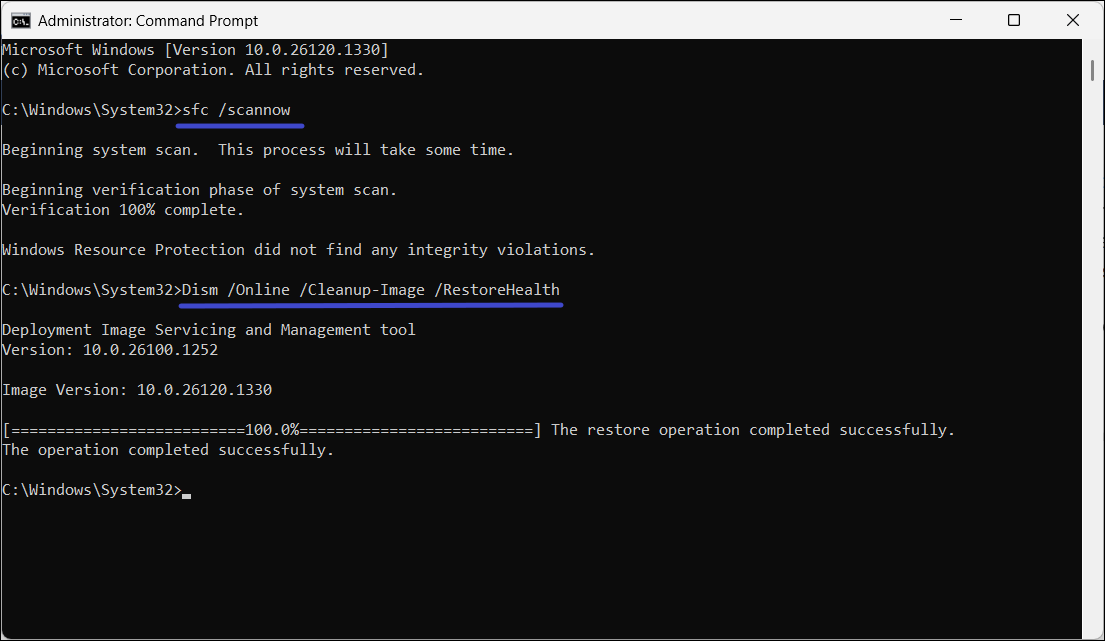
These tools repair Windows system files and restore stability.
Summary
When file deletion is stuck at 99% or 0%, it’s usually due to system glitches, disk issues, or file locks. Restarting your PC, using Command Prompt, running CHKDSK, clearing the cache, disabling antivirus software, or using Safe Mode are reliable ways to fix the issue and delete files successfully in Windows 11.




![Quick Access Crashes File Explorer in Windows 11 [6 Fixes]](https://www.kapilarya.com/assets/File-Explorer-1-768x552.png)
