Is your OneNote not working on Windows 11? OneNote is more than just a digital notebook. Students take notes in class, professionals plan meetings, and organise tasks and ideas for projects. OneNote is a necessary part of everyday life. Hence, there are times when using OneNote on Windows 11 is a real headache. In this article, you will be able to get the best solutions for OneNote not working and other issues on Windows 11 without losing your notes.
Page Contents
Fix OneNote not working on Windows 11
These solutions will help you troubleshoot if OneNote isn’t opening, not syncing, or if it gets stuck all the time.
Fix 1: Repair or Reset the OneNote App
OneNote will not open or continue to crash; repairing or resetting OneNote may fix the problem.
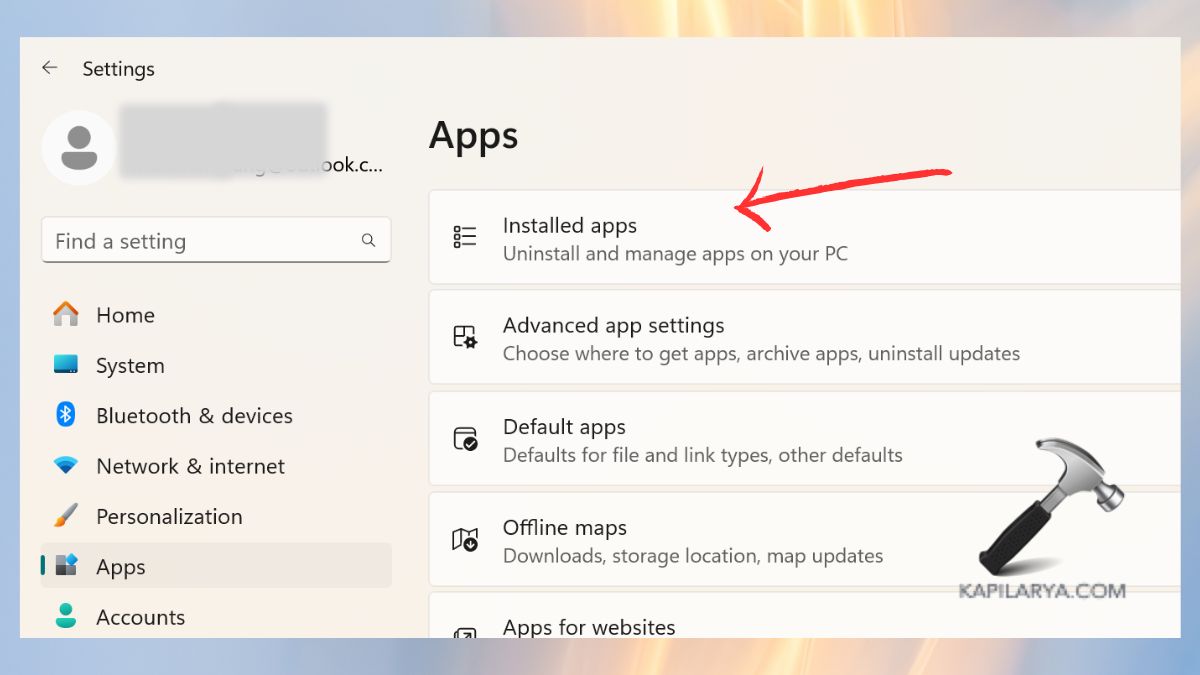
1. On Windows 11, open the Settings app. Tap Apps > Installed apps.
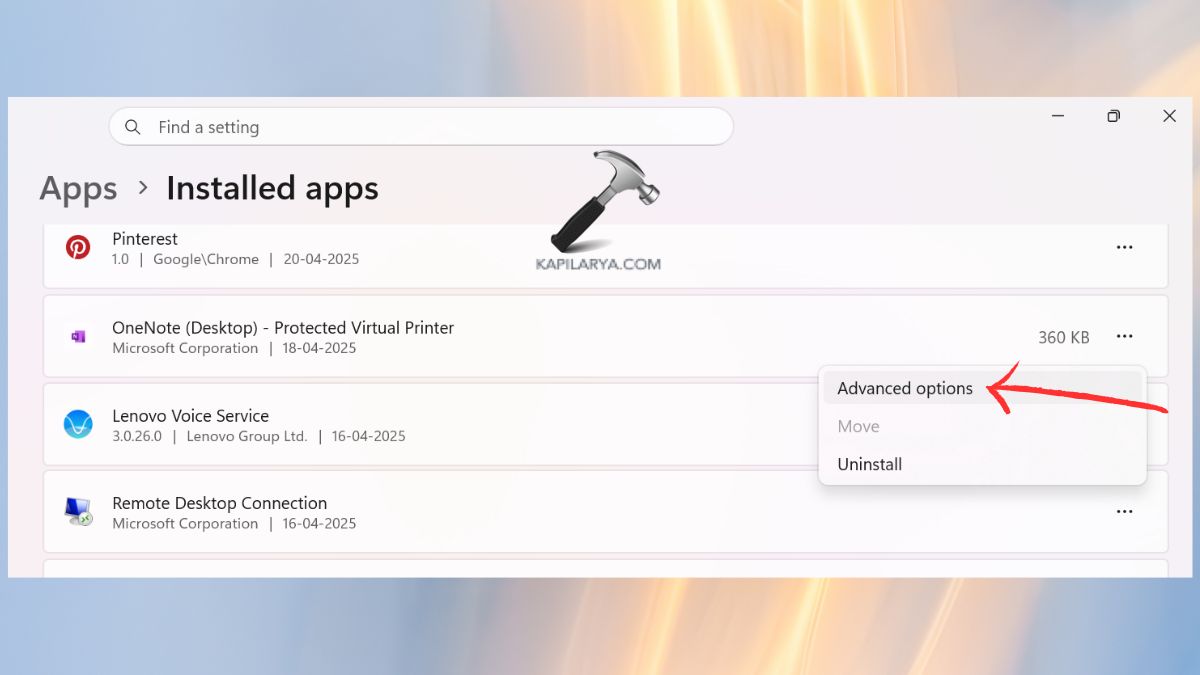
2. Search for OneNote. Click Advanced options.
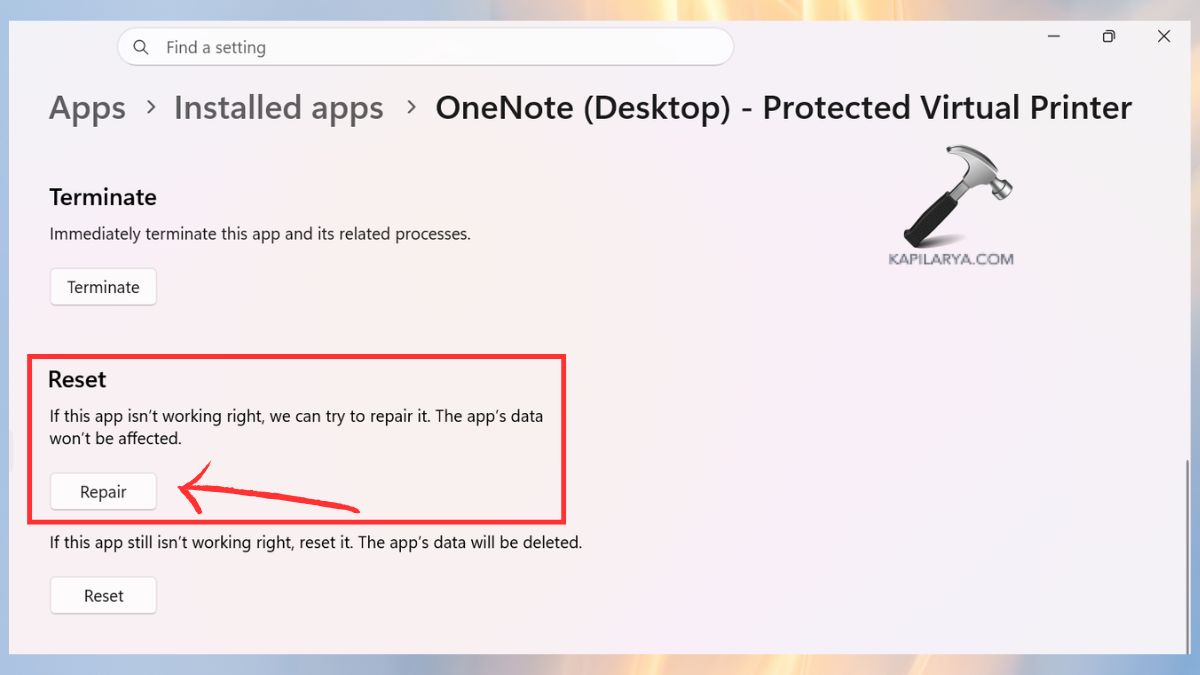
3. You should choose select Repair first (this will not remove your data).
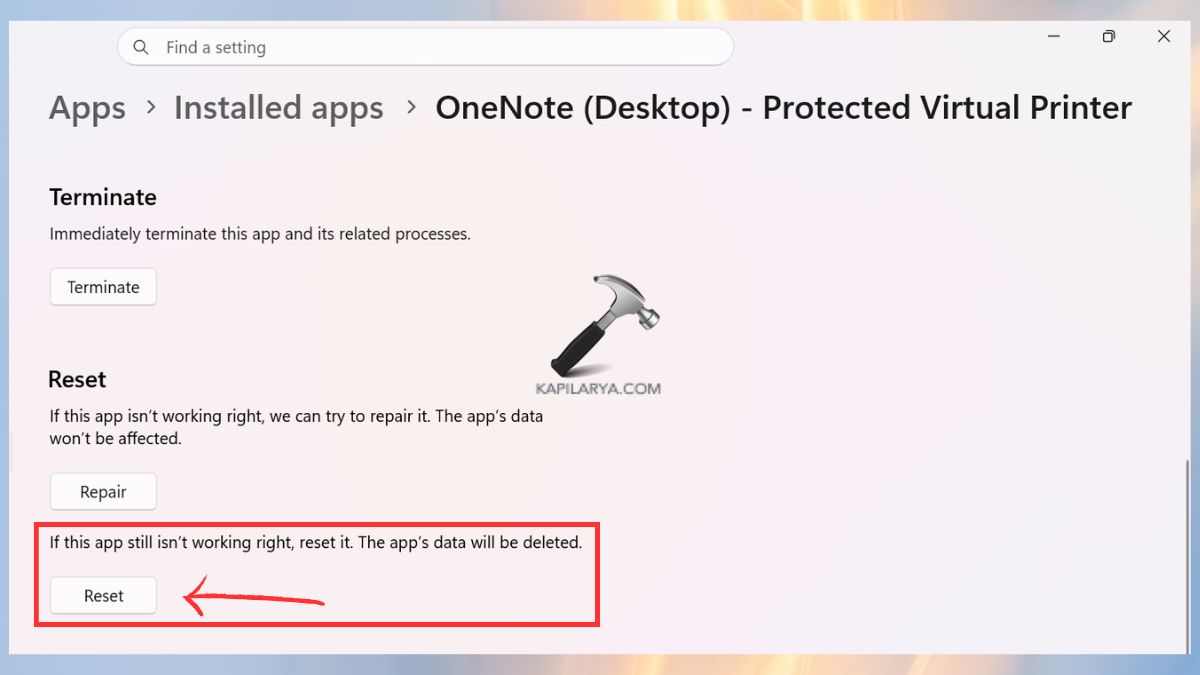
4. If the problem persists, select Reset. Resetting will reset OneNote back to the default files and settings, and remove any corrupted files.
Fix 2: Clear the OneNote Cache
Suppose you’re about to attend a meeting, and suddenly you realize that OneNote doesn’t open your critical project notes. There is a lot of people who panic and believe that they have lost everything. In 80% of those, however, the problem is simply a corrupted cache file.
1. Press Win + R keys and type this:
%localappdata%\Microsoft\OneNote\
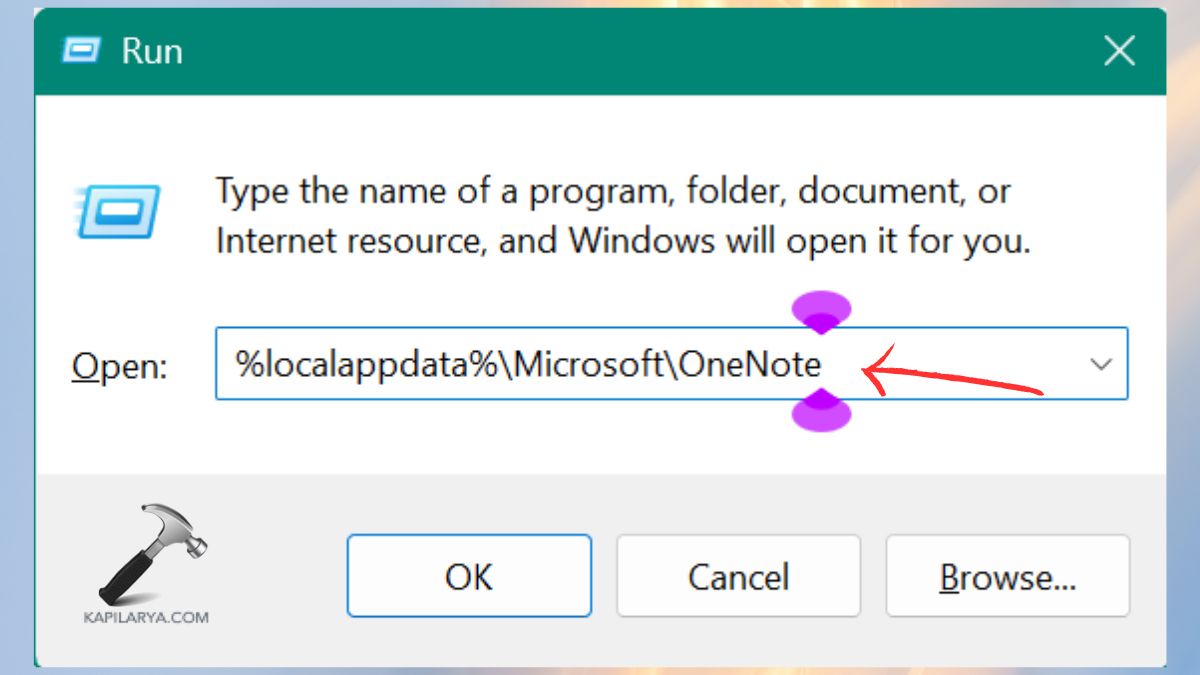
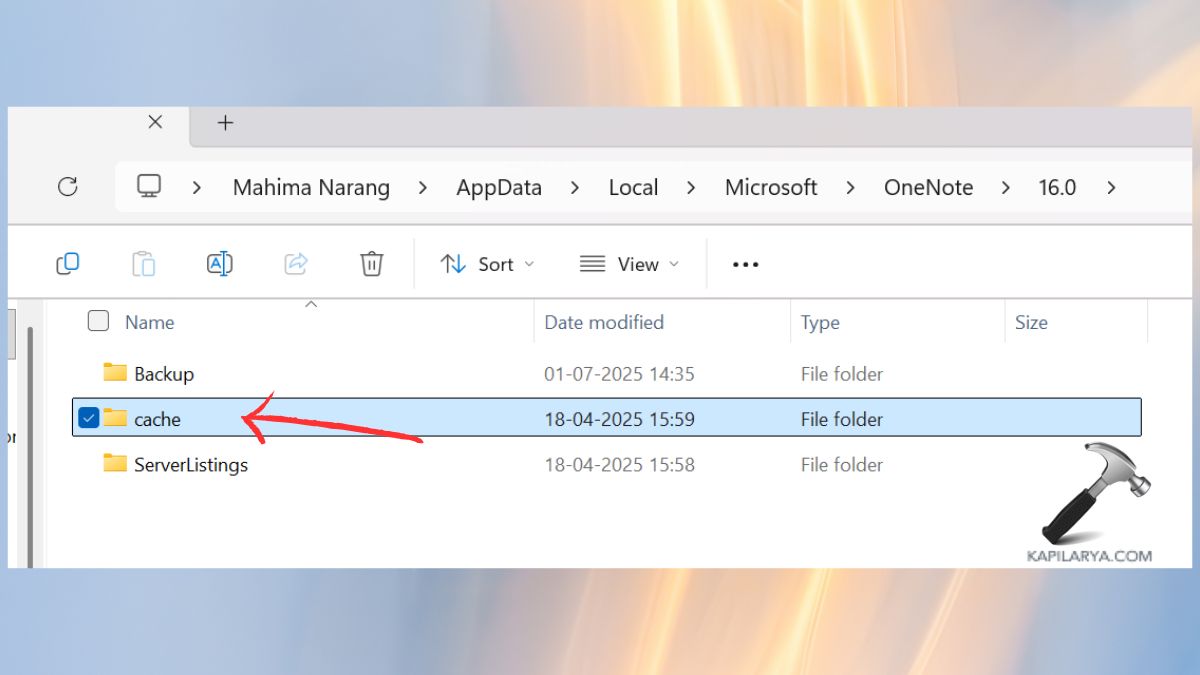
2. Unzip the file that contains your version of OneNote (e.g., OneNote_16.0). Find the Cache folder.
3. Clear the contents of it.
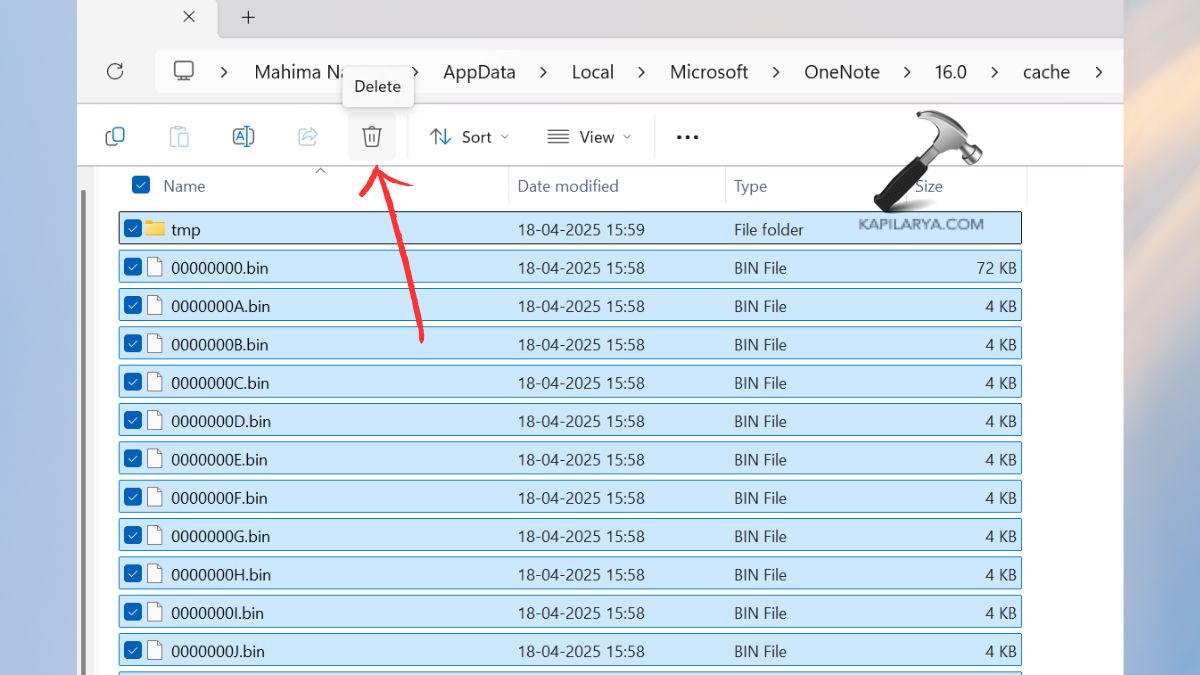
Restart OneNote. This solution helps to fix sync issues and random crashes in a timely manner.
Fix 3: Update OneNote & Office Apps Manually
Outdated Office components can cause issues, and many users don’t realize that OneNote is included in the Microsoft 365 suite.
1. Open Word or Excel. Click on File > Account.

2. Click “Update Options > Update Now”. After making the changes, go back to OneNote and test to see if the problem is fixed.

Fix 4: Turn Off Hardware Graphics Acceleration
There are compatibility problems with some systems with respect to graphics acceleration, which may result in OneNote crashing or becoming unresponsive.
1. Open OneNote Desktop. Select File > Options.
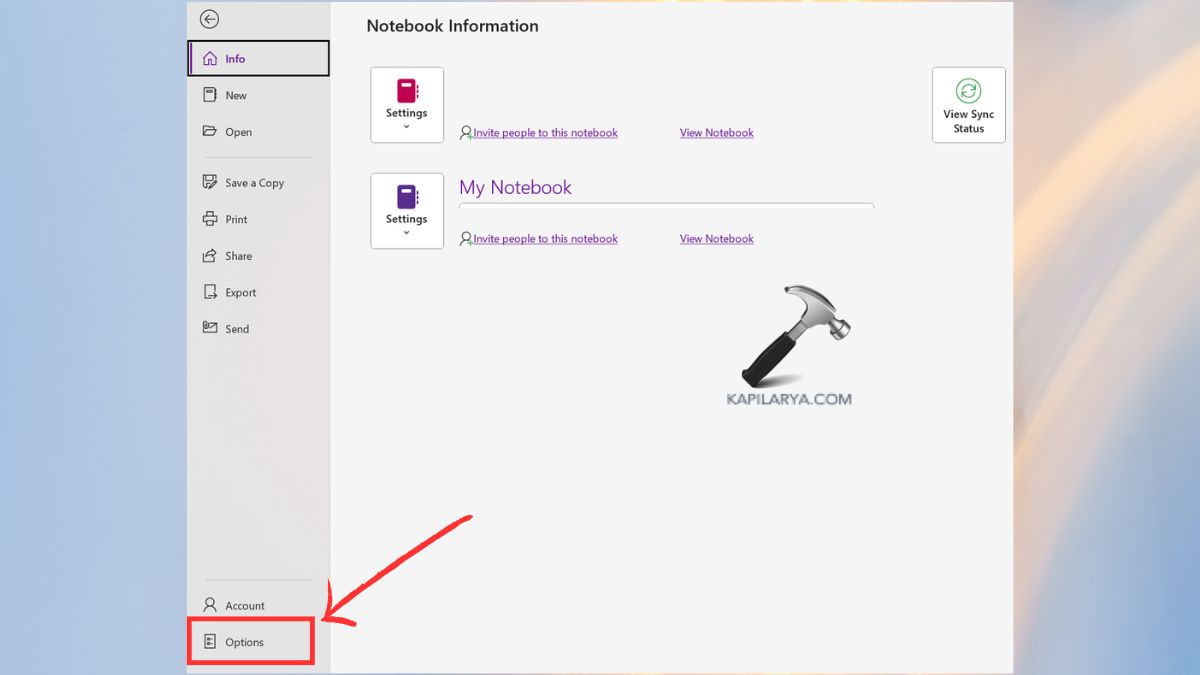
2. Click Advanced. Scroll to Display. Allow “Disable hardware graphics acceleration“.
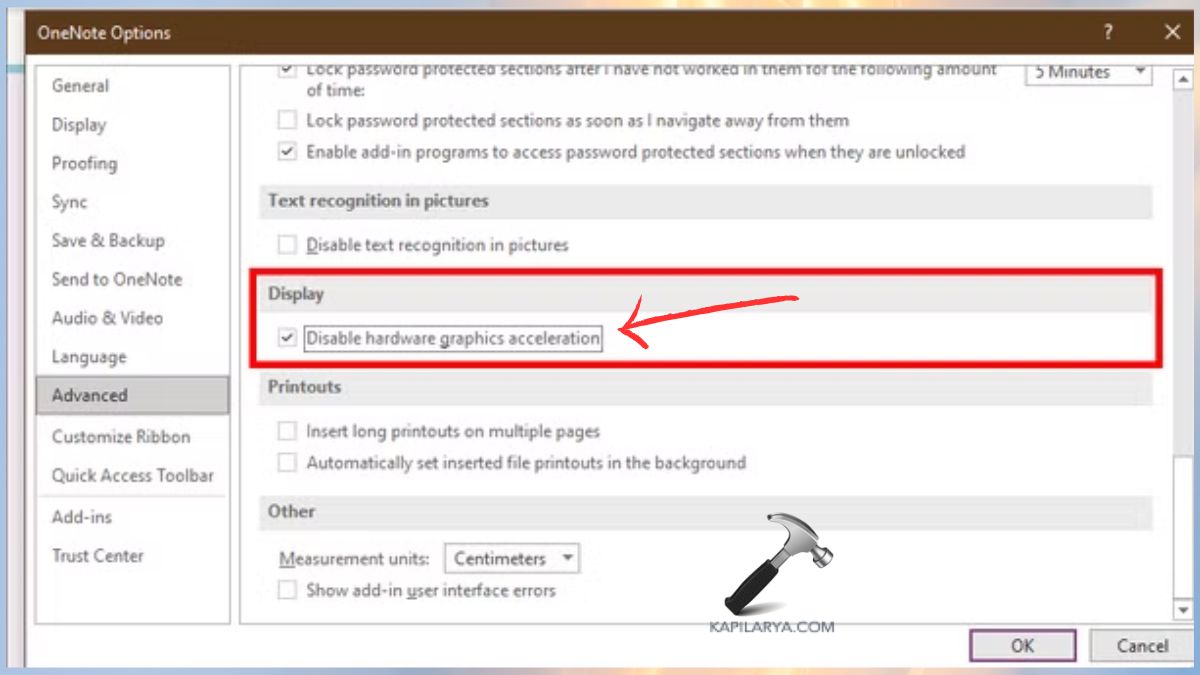
Restart OneNote. This patch will be particularly beneficial for low-end laptops.
Fix 5: Sign Out & Sign Back Into Your Microsoft Account
Notebooks may not synchronize or load properly if there are account conflicts.
1. Open OneNote. Tap on the little profile picture in your top right corner. Select Sign out.
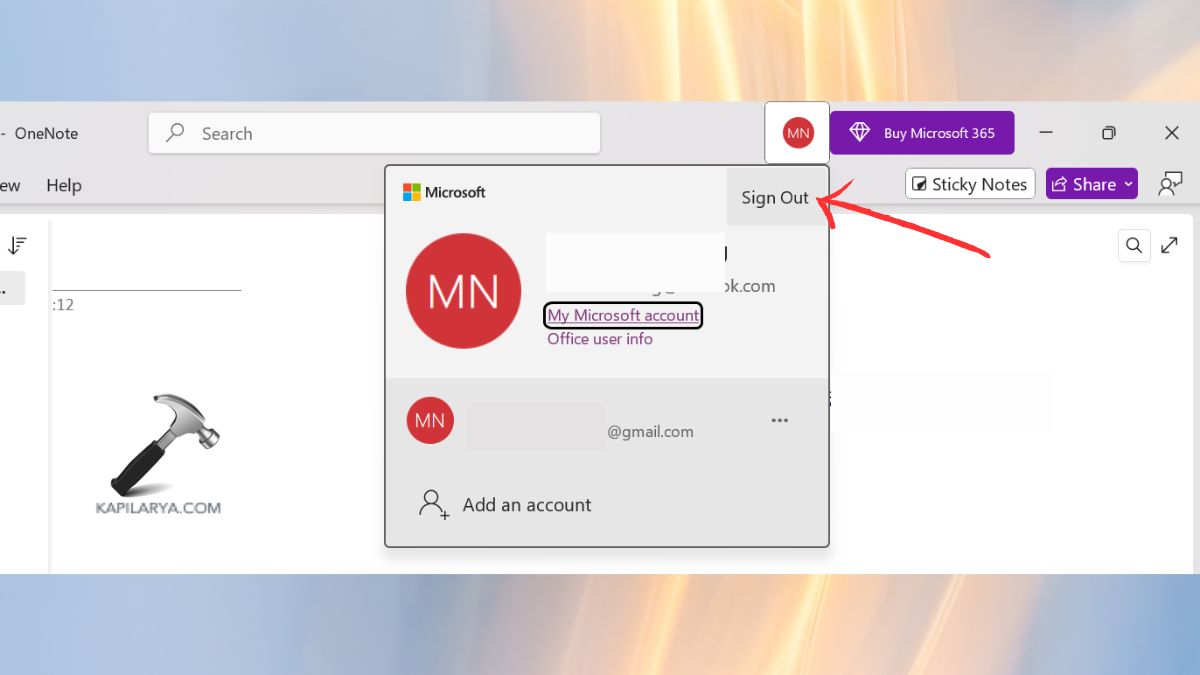
2. Close OneNote completely.
3. Log in again by using your Microsoft account. This refreshes permissions and fixes authentication issues.
Fix 6: Launch OneNote in Safe Mode
Safe Mode will start OneNote with no plugins, add-ons, or custom settings.
1. Click on Win + R. Enter this command in the Run box.
onenote /safeboot
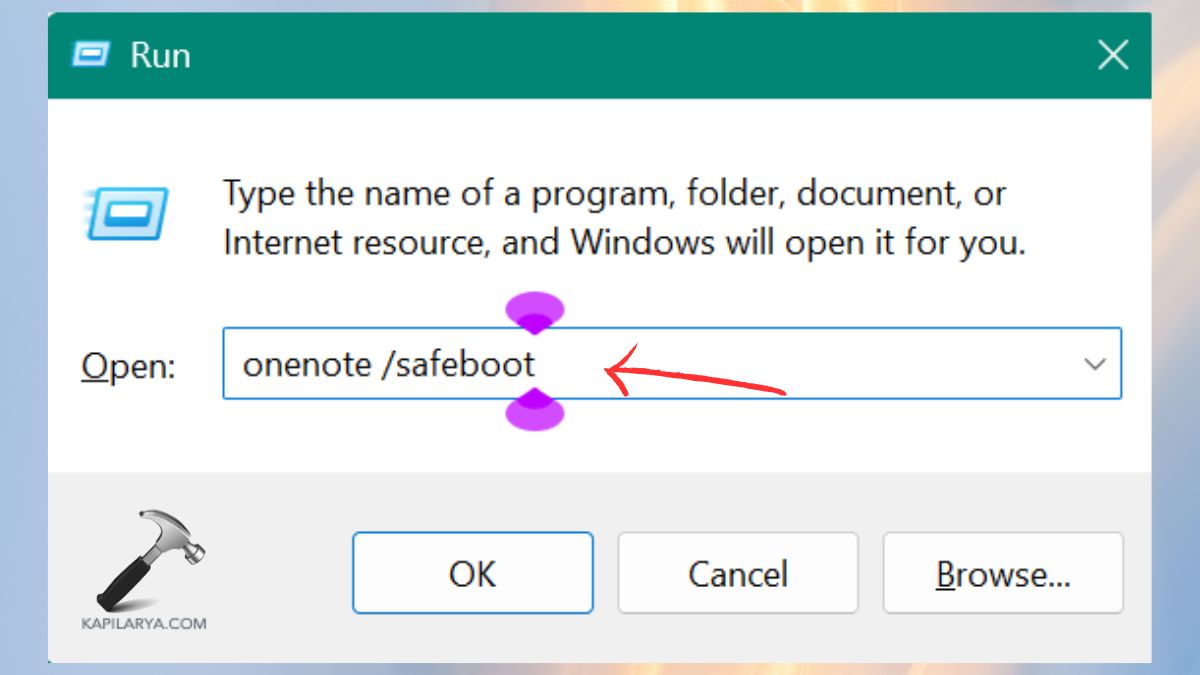
2. If OneNote operates in Safe Mode, then there is either a plugin conflict or the user settings are corrupted.
Fix 7: Use the OneNote Diagnostics Tool
Microsoft has an inbuilt diagnostic tool to scan and fix the more serious problems.
1. Go to the Microsoft Support site and search for the Support and Recovery Assistant (SaRA) application (https://www.microsoft.com/en-eg/download/details.aspx?id=103391).
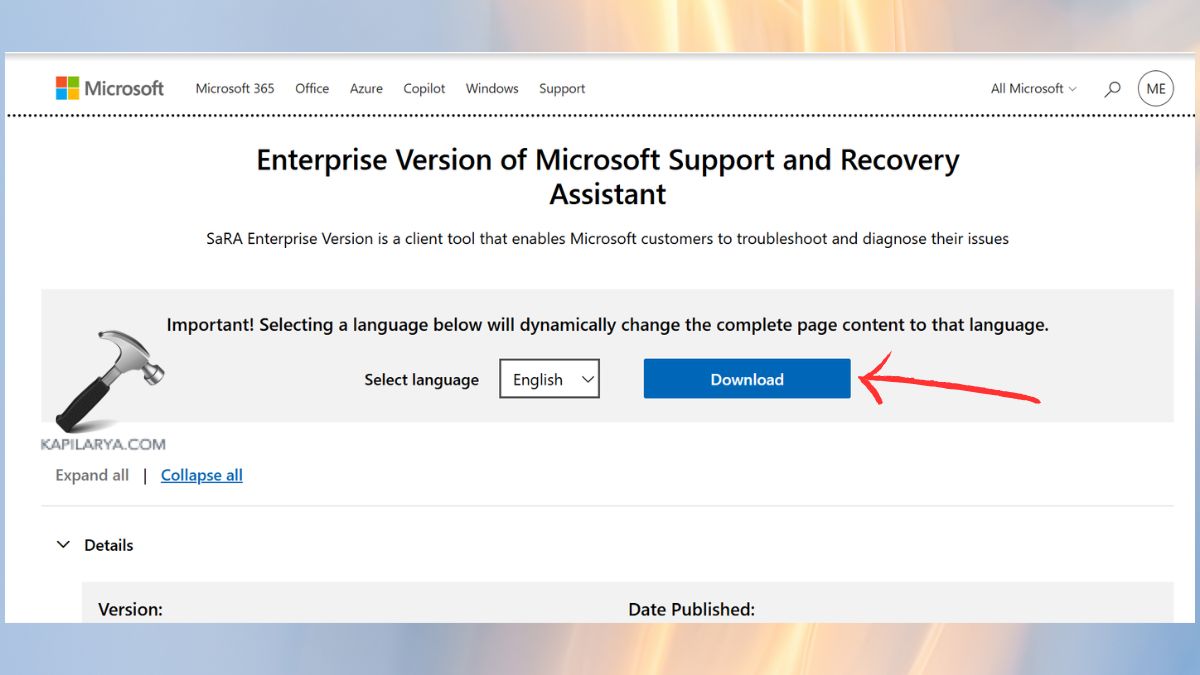
2. Install and execute it. Click OneNote, and then follow the on-screen troubleshooting instructions. This tool automatically detects broken files and fixes them.
Frequently Asked Questions (FAQs)
That’s it!