If your Windows 11 PC won’t wake up from sleep mode, the issue is usually related to power settings, drivers, BIOS configuration, or hibernation conflicts. Sometimes the screen stays black, while in other cases the keyboard and mouse stop responding completely.
Page Contents
Windows 11 Won’t Wake Up From Sleep
This problem commonly appears after Windows updates, driver changes, or incorrect power management settings. Below are the most effective ways to fix sleep wake issues in Windows 11.
Fix 1: Re-enable Hibernate Using Command Prompt
Sleep and hibernation are closely linked in Windows 11. If hibernation becomes corrupted, your PC might not wake properly from sleep mode. Resetting hibernation usually fixes the problem quickly.
1. Search for Command Prompt.
2. Select Run as administrator.
3. Run:
powercfg.exe /hibernate off
4. Restart your PC.
5. Open Command Prompt again and run:
powercfg.exe /hibernate on

This rebuilds the hibernation file used by Windows power management. It also clears corrupted sleep states that prevent wake-up functionality.
Fix 2: Allow Keyboard or Mouse to Wake the PC
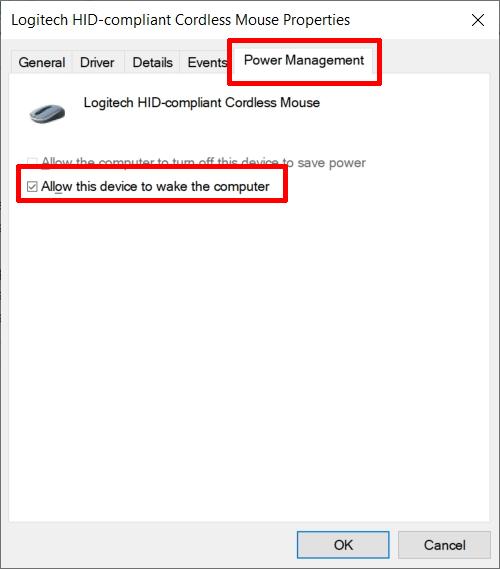
Occasionally, Windows disables wake permissions for input devices, so pressing keys or moving the mouse won’t wake the PC from sleep. This solution enables your keyboard or mouse to correctly trigger wake events. If the Power Management tab is absent, your hardware might not support this feature.
1. Open Device Manager.
2. Expand Keyboards or Mice and other pointing devices.
3. Right-click your device and select Properties.

4. Open the Power Management tab.
5. Enable Allow this device to wake the computer.
Fix 3: Run the Windows Power Troubleshooter
Windows includes a built-in troubleshooter that automatically detects sleep and wake problems. The troubleshooter automatically scans for common power-related issues.
It can repair broken power settings and restore default configurations.
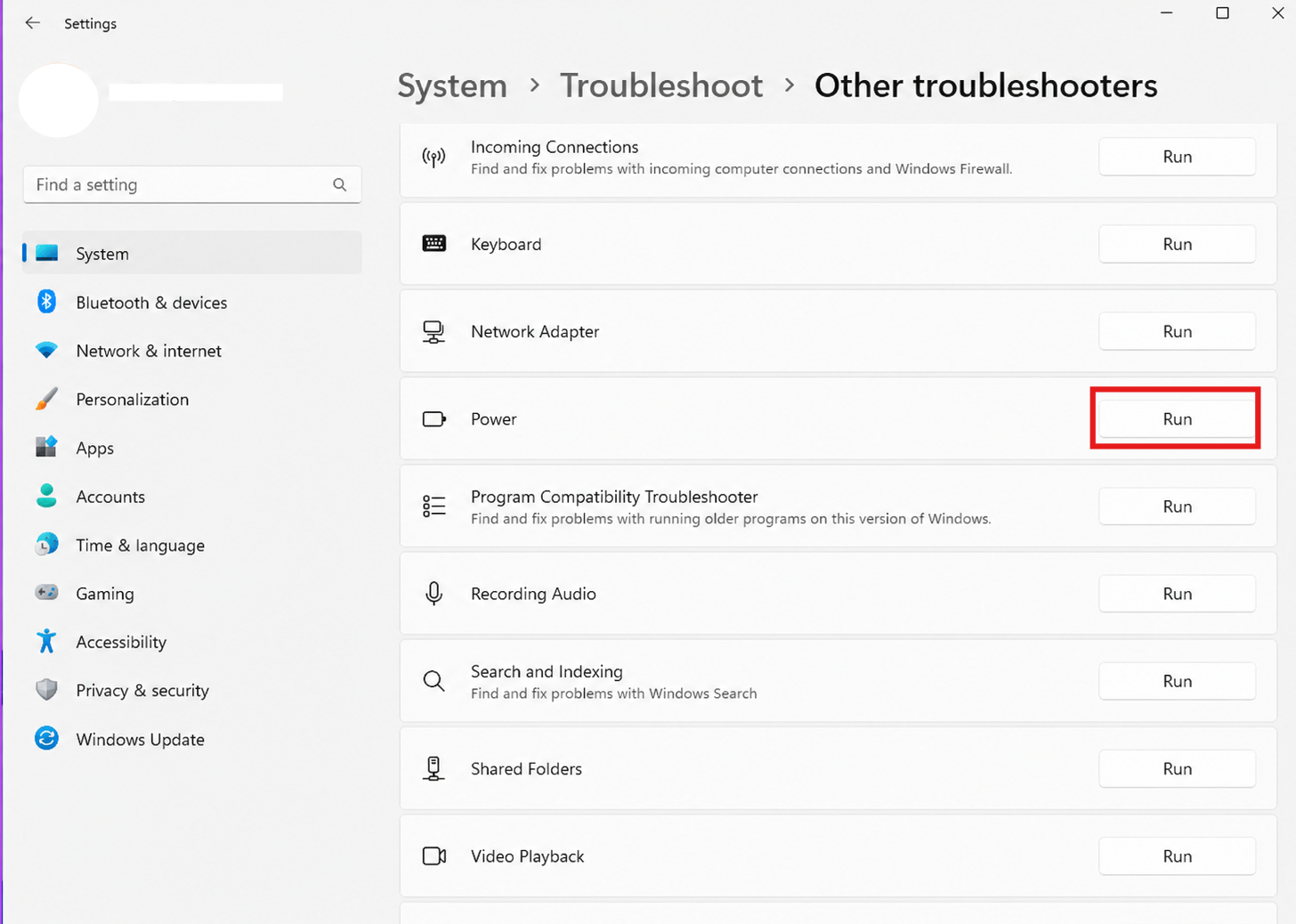
1. Open Settings and click on System. Go to Troubleshoot and choose Other troubleshooters.
2. Find Power and click Run.
It may also fix corrupted sleep timers or disabled wake settings.
Fix 4: Update BIOS, Windows, and Drivers
Outdated firmware or drivers can lead to significant sleep issues. Drivers for graphics, chipsets, and storage particularly influence power management. Updating these components is one of the best solutions after major Windows updates.
Install the latest:
- Windows updates
- Graphics drivers
- Chipset drivers
- BIOS firmware
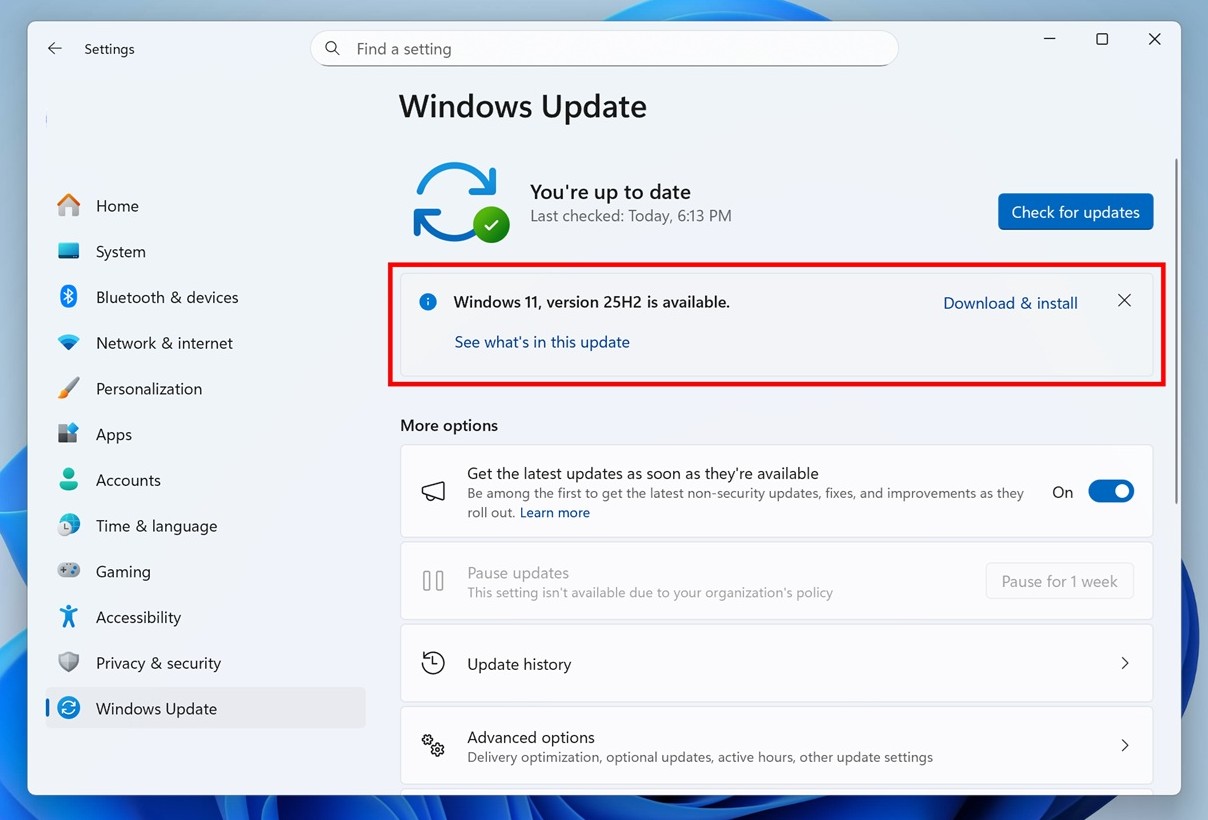
Driver and BIOS updates improve compatibility with Windows sleep states.
Fix 5: Restore BIOS Settings to Default
Incorrect BIOS settings can prevent the system from waking correctly. Restoring defaults safely resets all power-management configurations.
1. Restart your PC.
2. Press F2 or Del during startup.
3. Open BIOS settings.
4. Choose: Load Optimized Defaults.
5. Save and restart.

This restores default ACPI and sleep-related settings. It also fixes wake problems caused by accidental BIOS changes.
Summary
If Windows 11 fails to wake from sleep, the issue is typically related to power settings, device permissions, drivers, or BIOS configuration. The most effective solutions include re-enabling hibernation, granting wake permissions, updating drivers, and resetting BIOS settings. Usually, applying one of these fixes quickly restores proper sleep functionality.