The Settings app is one of the most important parts of Windows 11. You use it to manage most of the configuration for your Windows system, install update, change display settings, manage Bluetooth devices etc. So, it can be a little annoying when the Settings page opens as a blank white or grey screen.
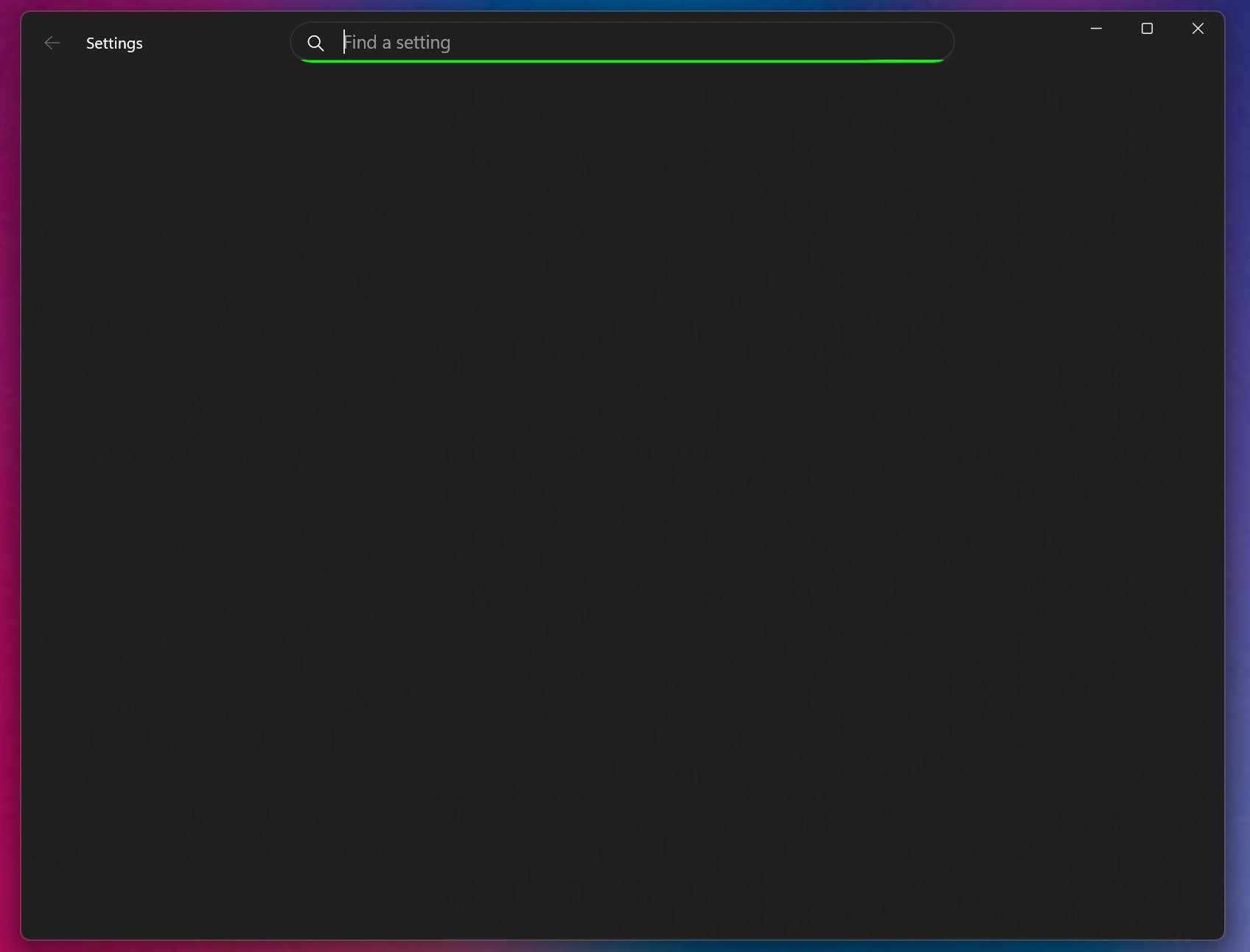
But don’t worry. We have a few easy fixes for you. Let’s try them to fix this issue.
Page Contents
Fix: Windows 11 Settings Page Blank
Windows 11 Settings Page Blank issue usually occurs due to damaged system files, broken app registration, or failed Windows updates. Below are fixes that you can do.
Fix 1: Restart Your PC
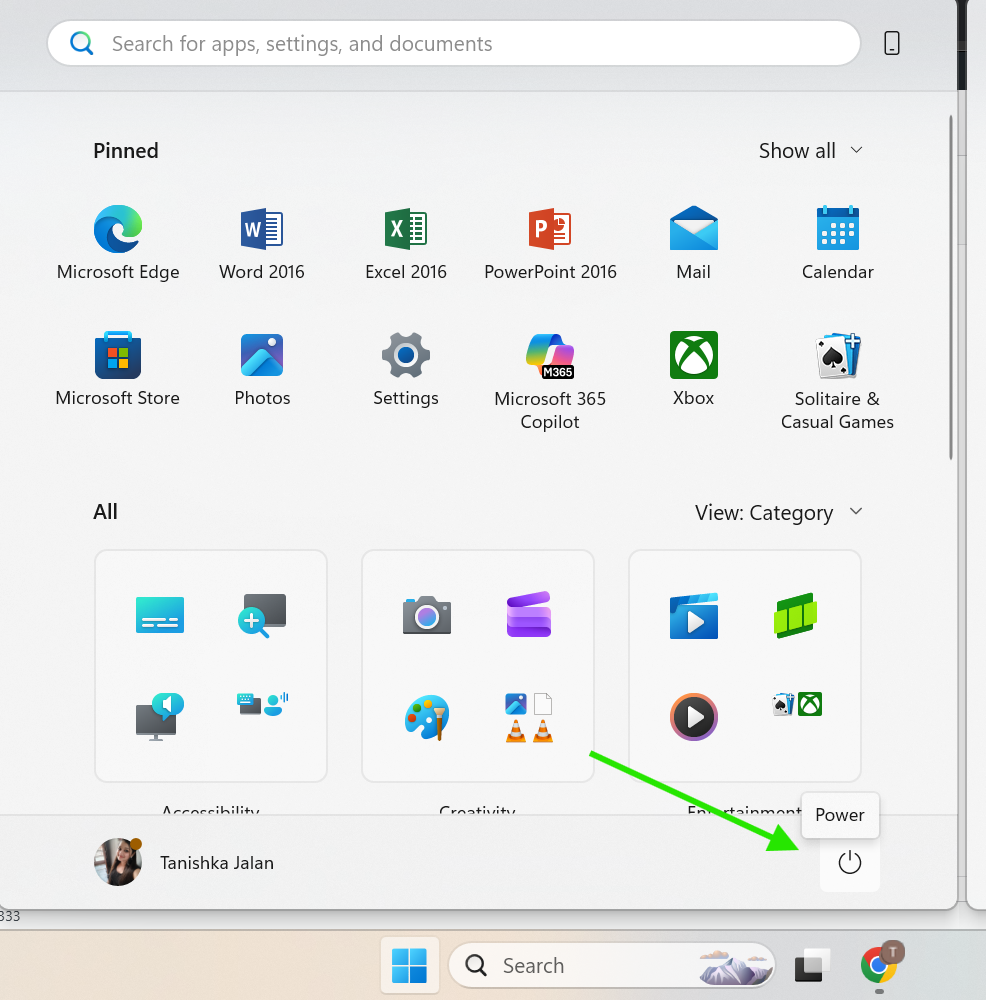
1. Click the Start button.
2. Select the Power icon.
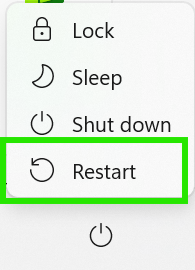
3. Click Restart.
4. Wait for the PC to reboot.
5. Open the Settings app and check if the issue is fixed.
Fix 2: Repair Corrupted System Files Using SFC and DISM
Running SFC and DISM scans can fix corruption with system files and hence may be helpful in this case.
Run SFC Scan
1. Press Windows + S and type CMD.
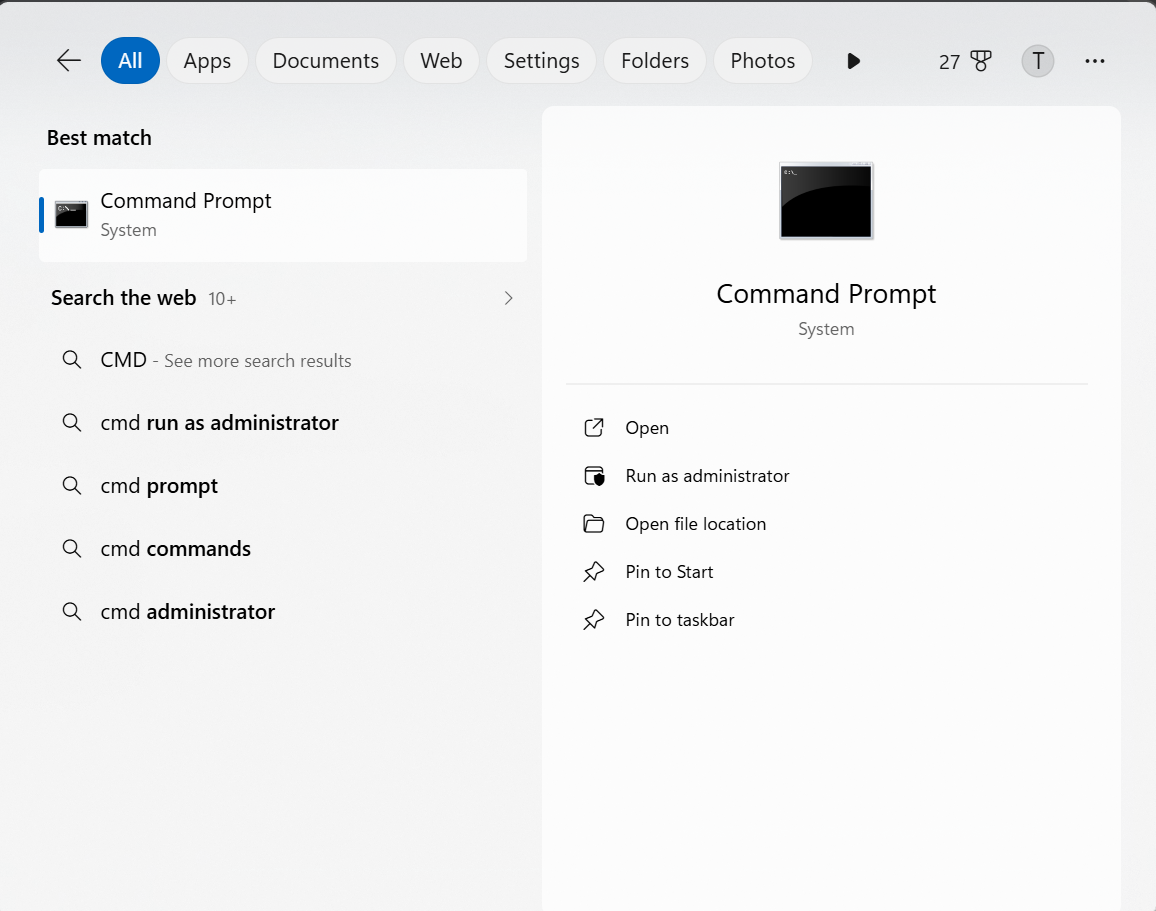
2. Right-click Command Prompt.
3. Select Run as administrator.
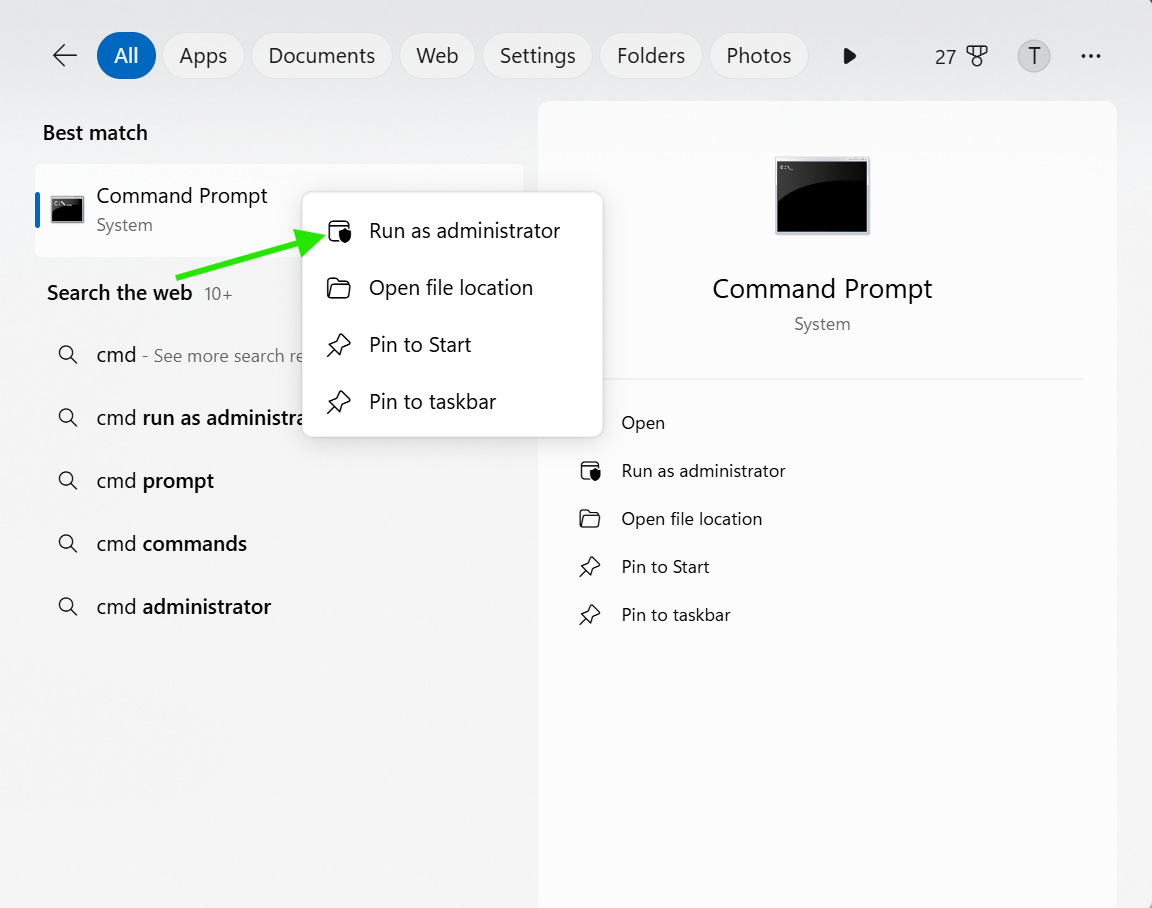
4. Type the following command and press Enter:
sfc /scannow
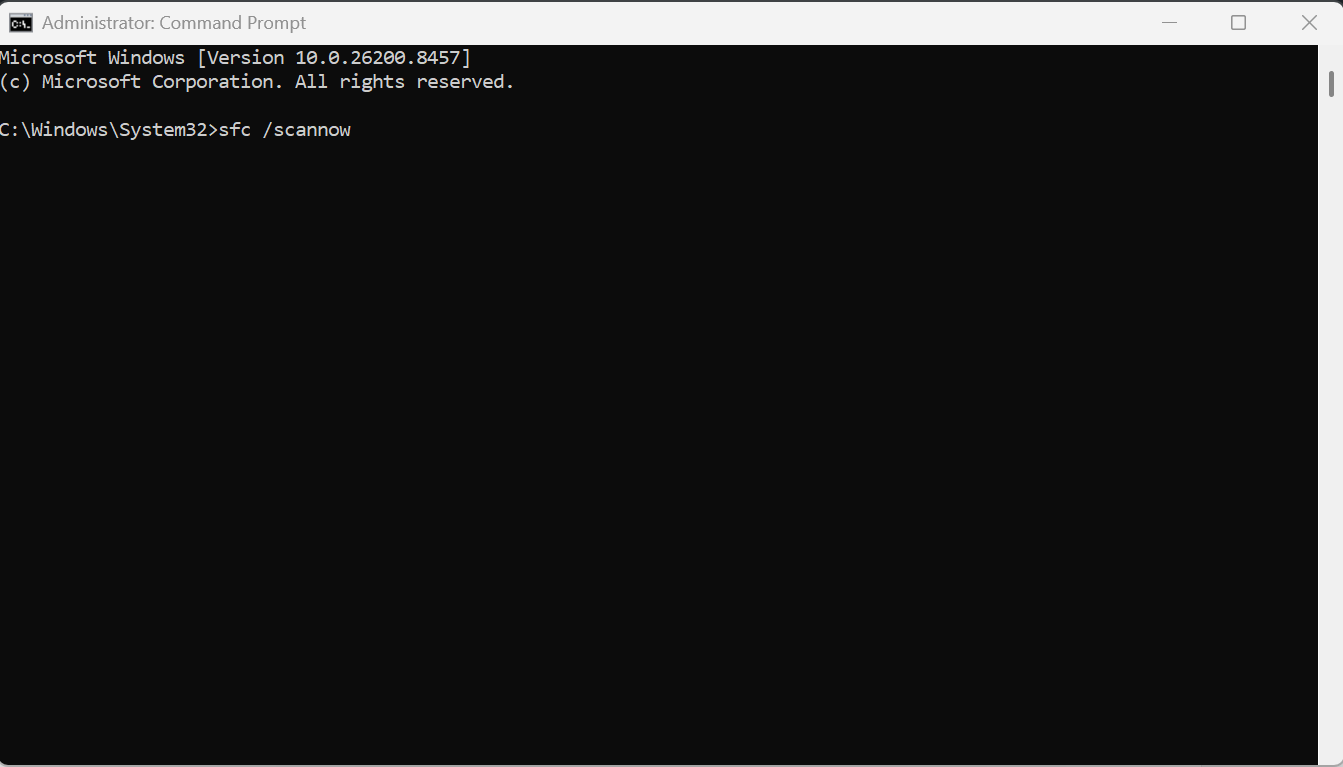
5. Wait for the scan to complete.
Run DISM Scan
1. In the same Command Prompt window, type the following command:
DISM /Online /Cleanup-Image /RestoreHealth
2. Press Enter.
3. Wait for the repair process to finish.
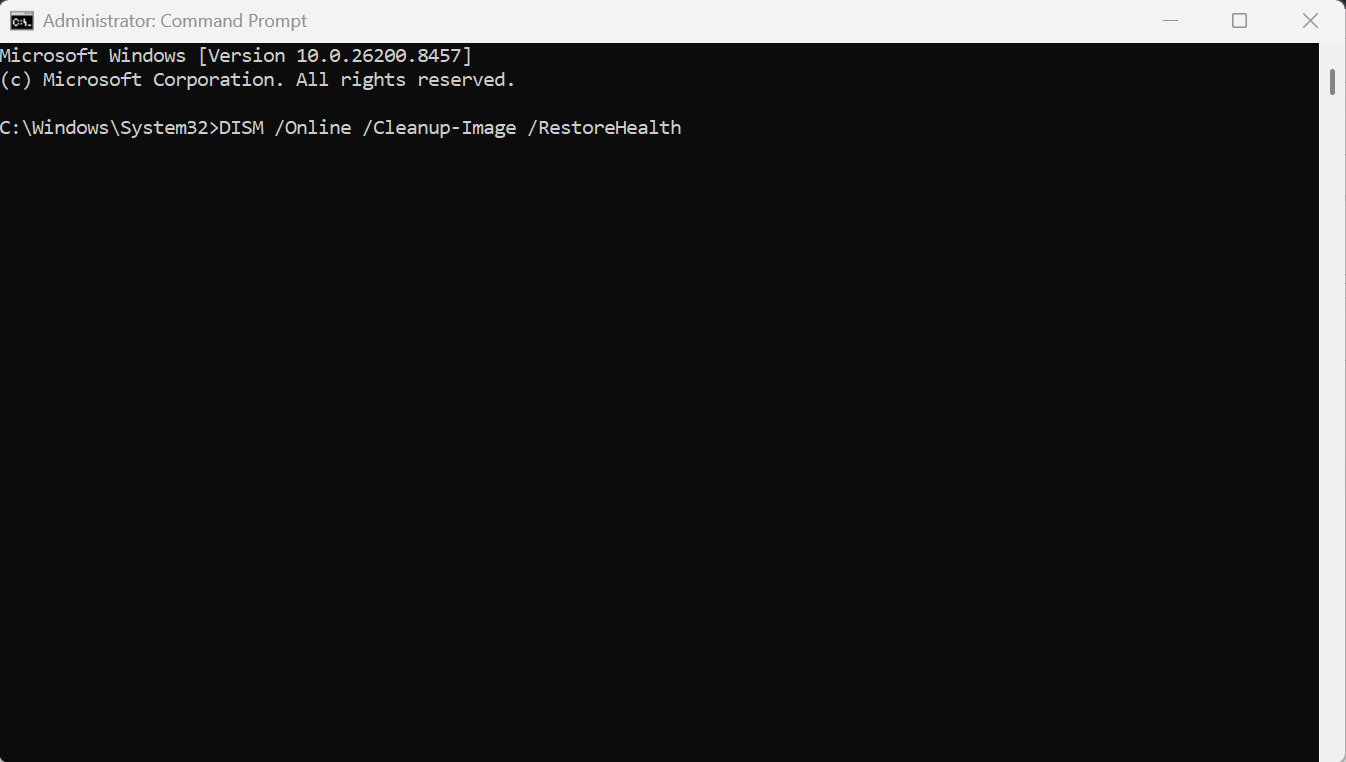
4. Restart your computer.
Fix 3: Re-register the Settings app
Re-registering the app may reset the app to default or factory reset configuration and hence help you to resolve this issue.
Re-register the Settings App
1. Right-click the Start button.
2. Select Terminal (Admin).
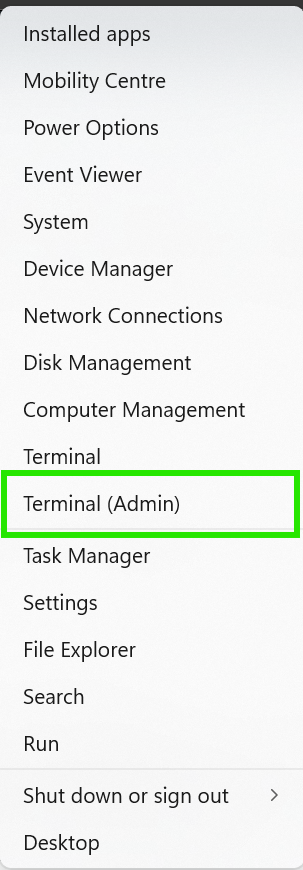
3. Make sure the PowerShell tab is open.
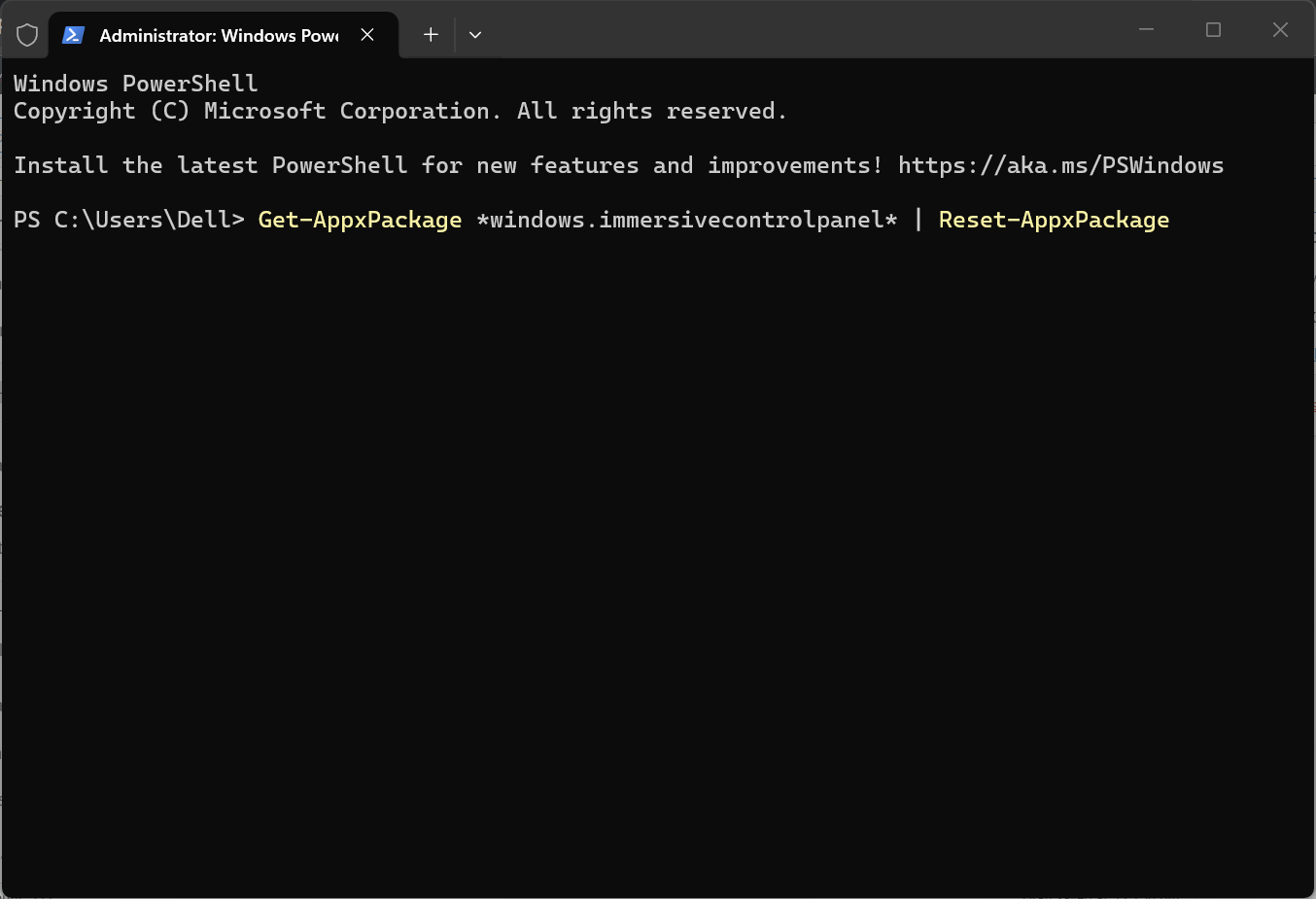
4. Run the following command and press Enter:
Get-AppxPackage *windows.immersivecontrolpanel* | Reset-AppxPackage
5. Wait for the process to finish.
Re-register All System Apps
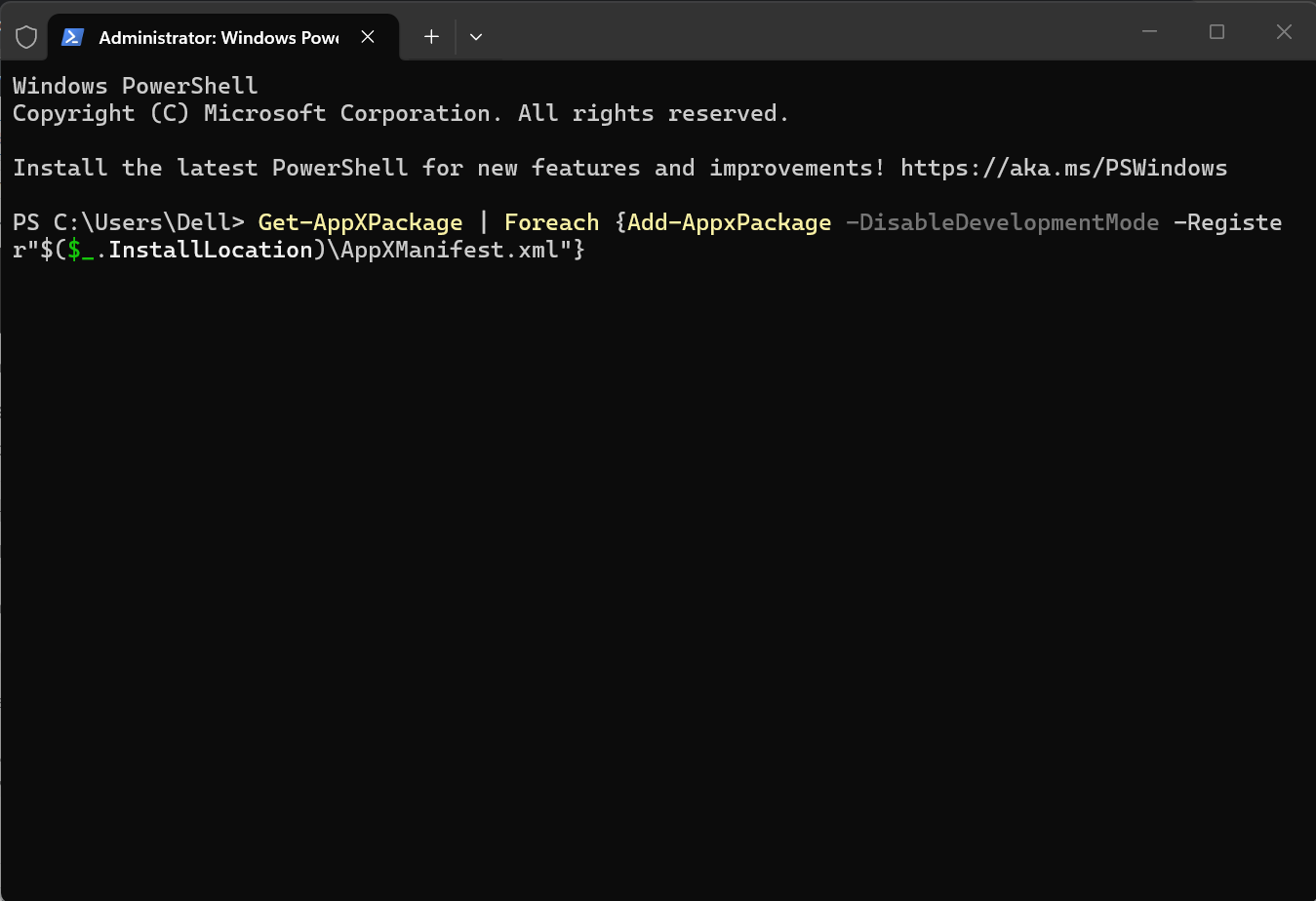
1. In the same PowerShell window, run this command:
Get-AppXPackage | Foreach {Add-AppxPackage -DisableDevelopmentMode -Register"$($_.InstallLocation)\AppXManifest.xml"}
2. Wait for the command to complete.
3. Ignore minor red error messages, if they appear.
4. Restart your PC.
Fix 4: Register Missing XAML Components
1. Open PowerShell as Administrator.
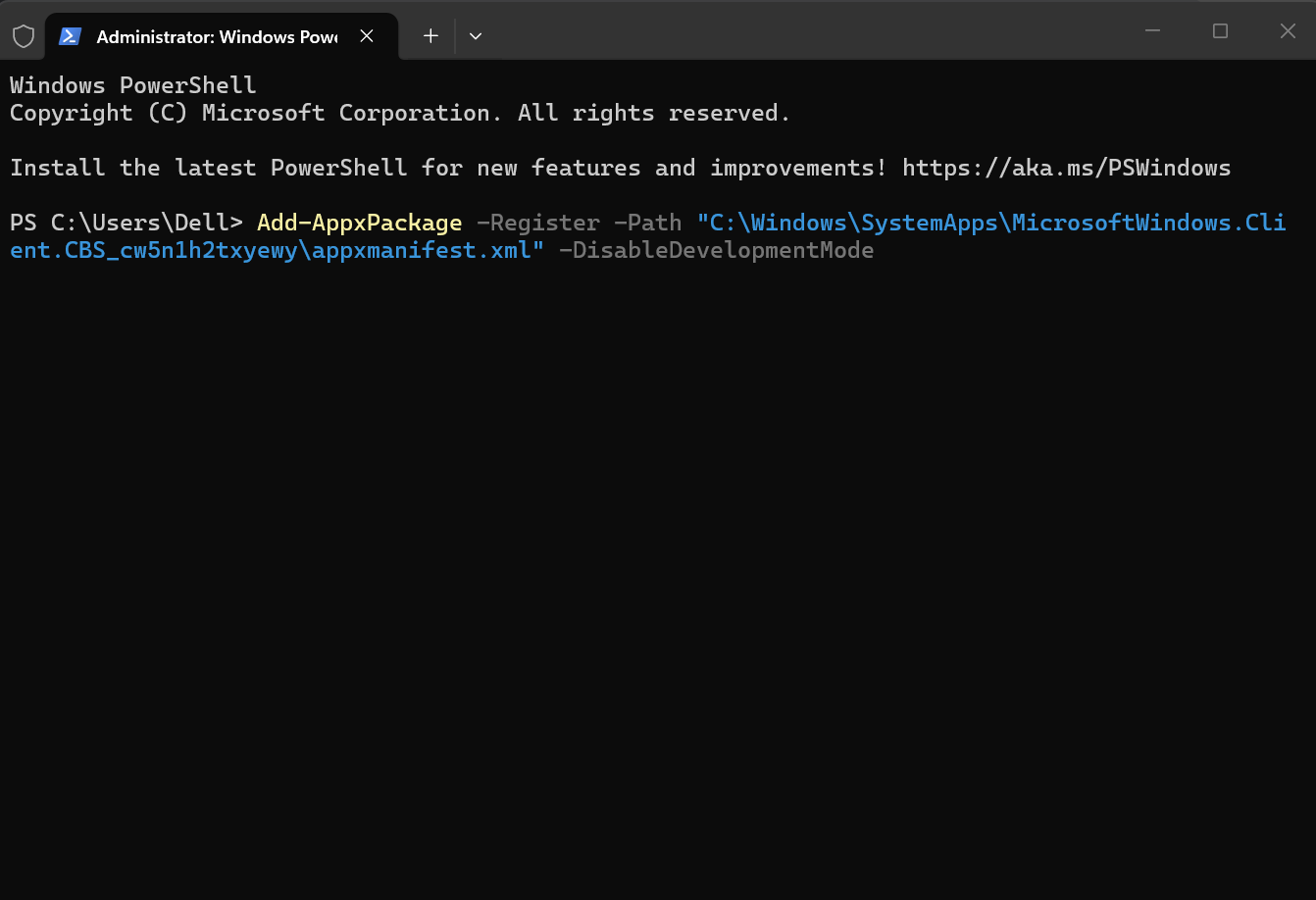
2. Copy and paste the following command and press Enter:
Add-AppxPackage -Register -Path "C:\Windows\SystemApps\MicrosoftWindows.Client.CBS_cw5n1h2txyewy\appxmanifest.xml" -DisableDevelopmentMode
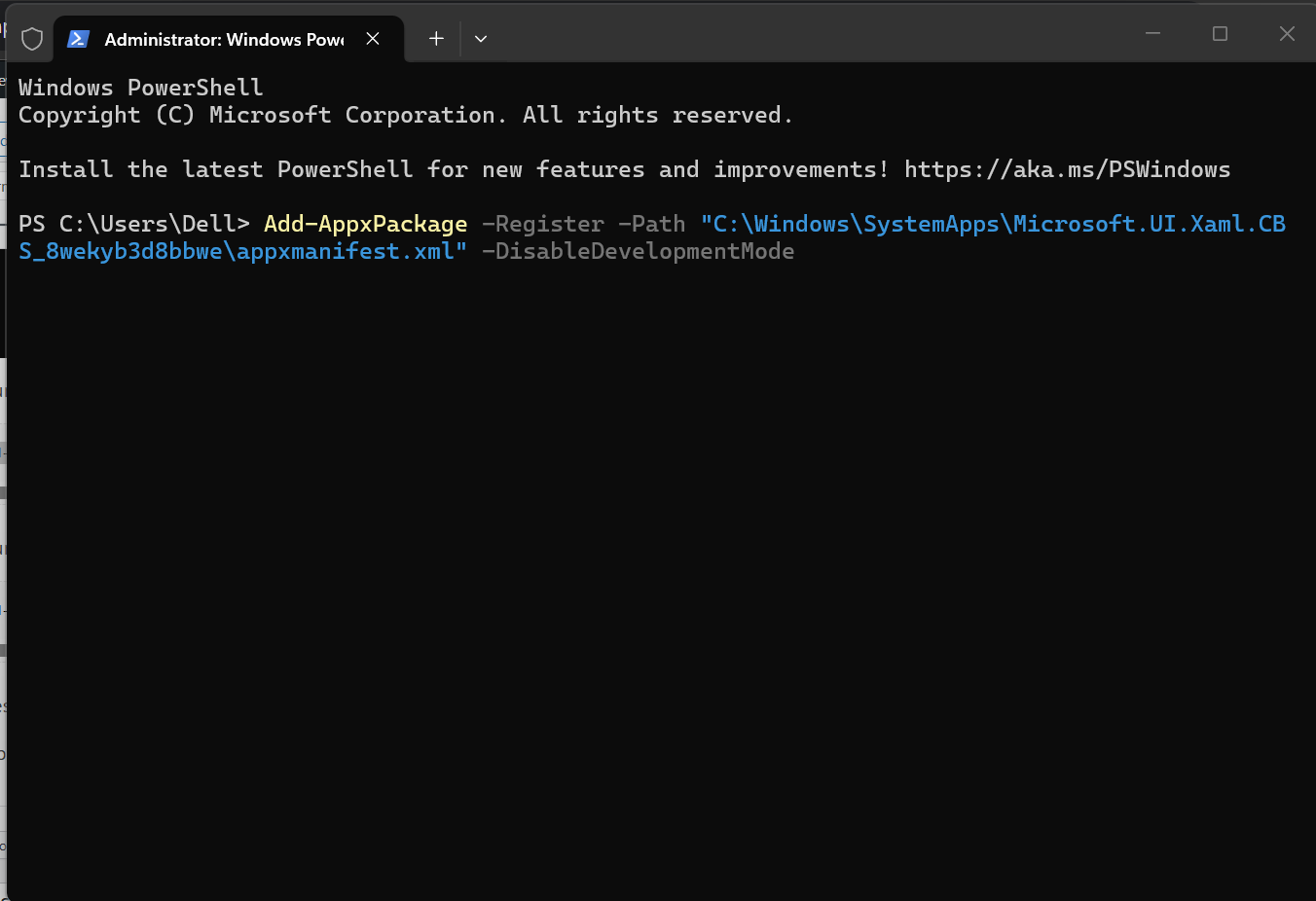
3. Run the next command:
Add-AppxPackage -Register -Path "C:\Windows\SystemApps\Microsoft.UI.Xaml.CBS_8wekyb3d8bbwe\appxmanifest.xml" -DisableDevelopmentMode
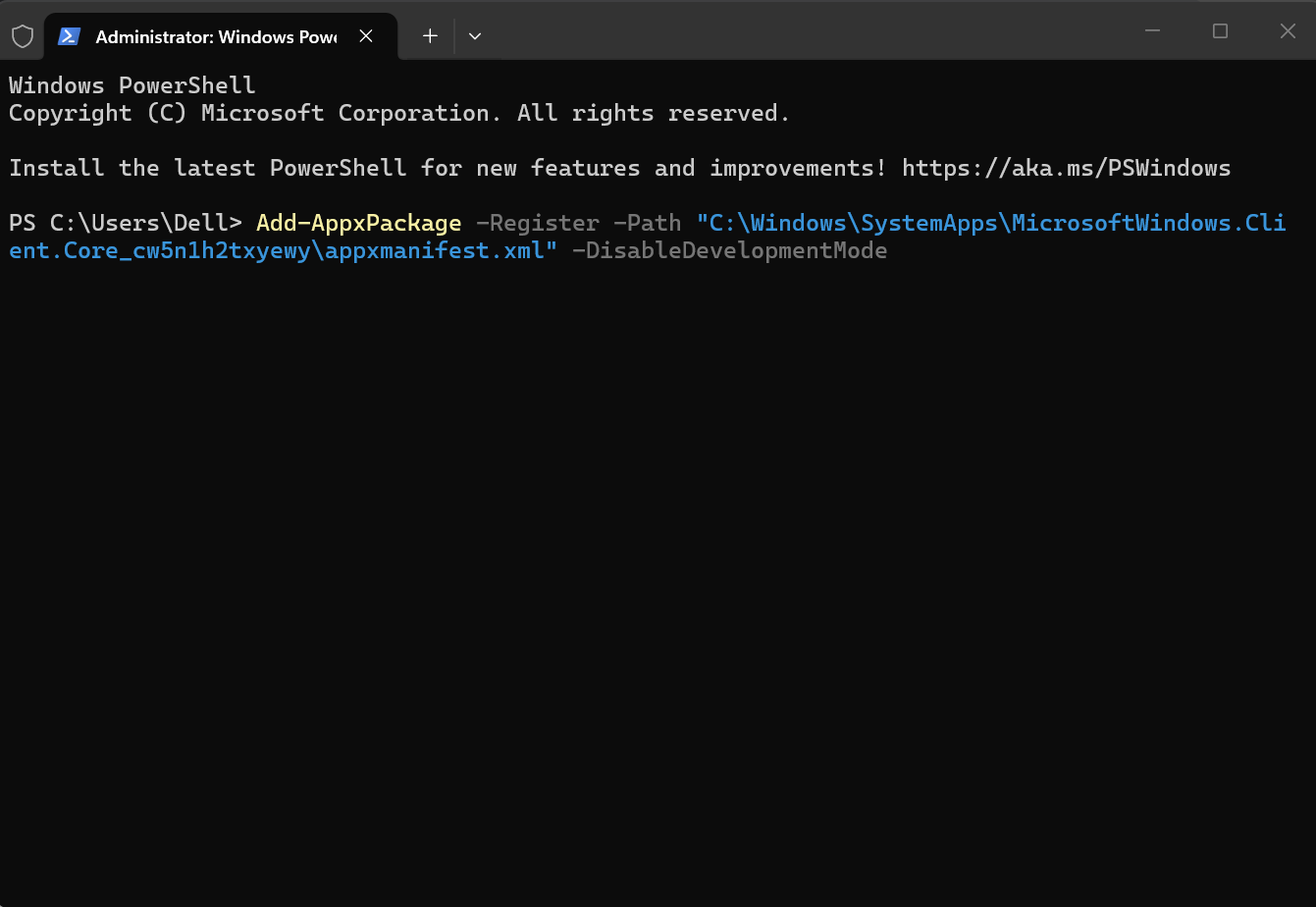
4. Run the final command:
Add-AppxPackage -Register -Path "C:\Windows\SystemApps\MicrosoftWindows.Client.Core_cw5n1h2txyewy\appxmanifest.xml" -DisableDevelopmentMode
6. Restart your computer.
7. Open the Settings app and check if the blank screen issue is fixed.
That’s it. If you have any queries, let us know in the comments.