You open the Microsoft Store to install an app. Everything seems fine. Then Windows 11 throws an error 0x803f8001. The download stops. Update fail. Sometimes apps you already own refuse to open. It usually happens because the store cannot verify your account, the cache gets corrupted, or Windows files become damaged.
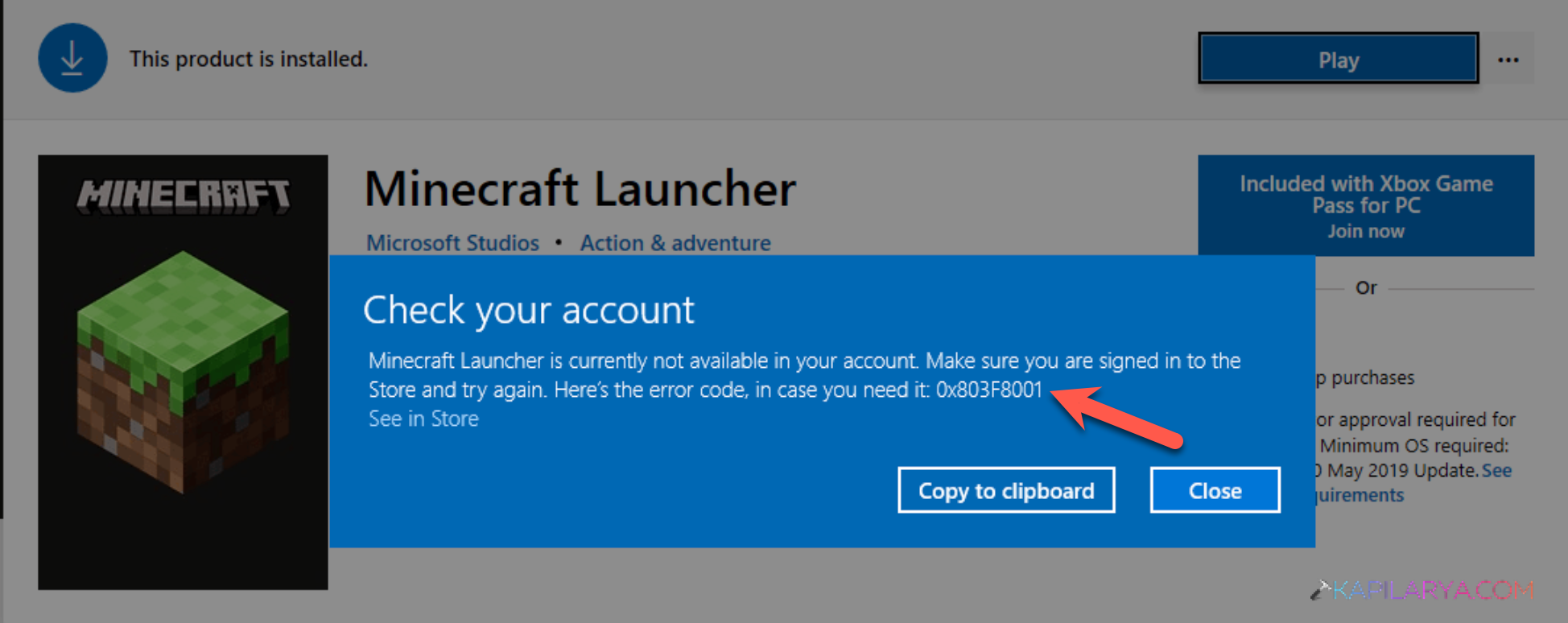
So, let’s take a look at how to fix the error.
Page Contents
Why Does Error 0x803f8001 Appear?
The most common reasons why this error occurs are:
- Corrupted Store cache
- Microsoft account issues
- Damaged system files
- Broken Store app files
- Incomplete Windows updates
- Registry problems
- Malware or security issues
- Conflicting third-party software
Fix: Store Apps Error 0x803f8001 In Windows 11
Let’s begin with the fixes:
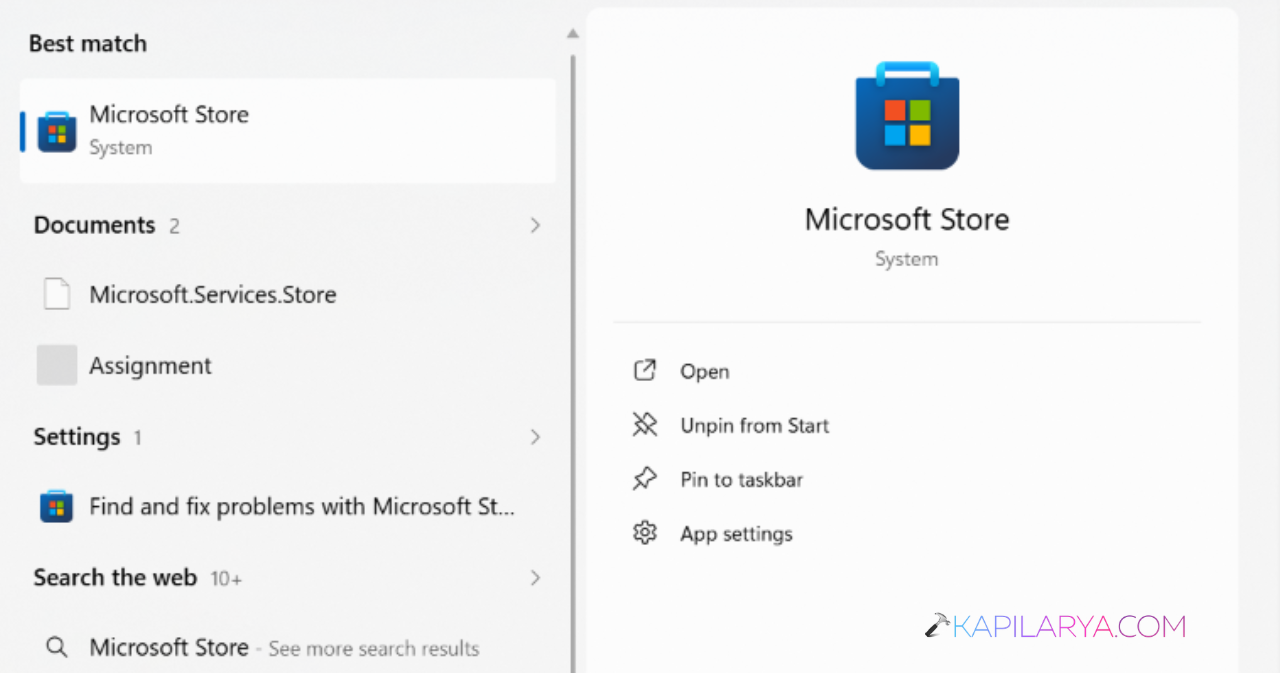
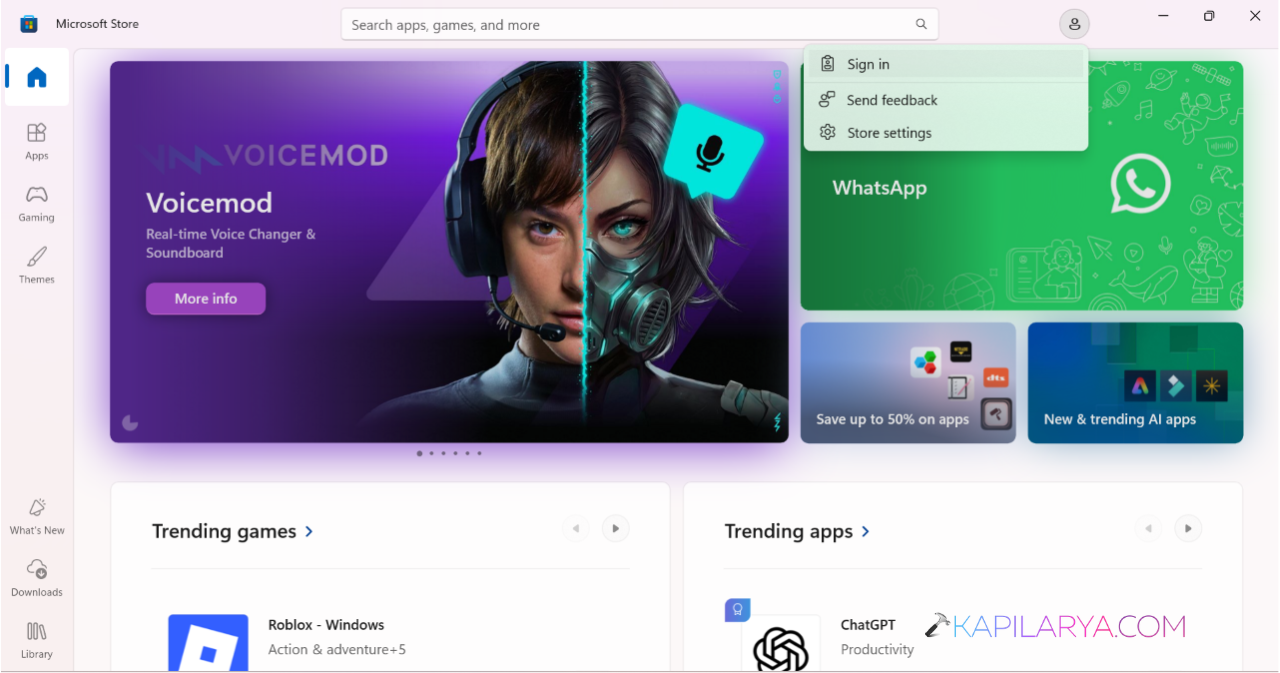
1. Open Microsoft Store.
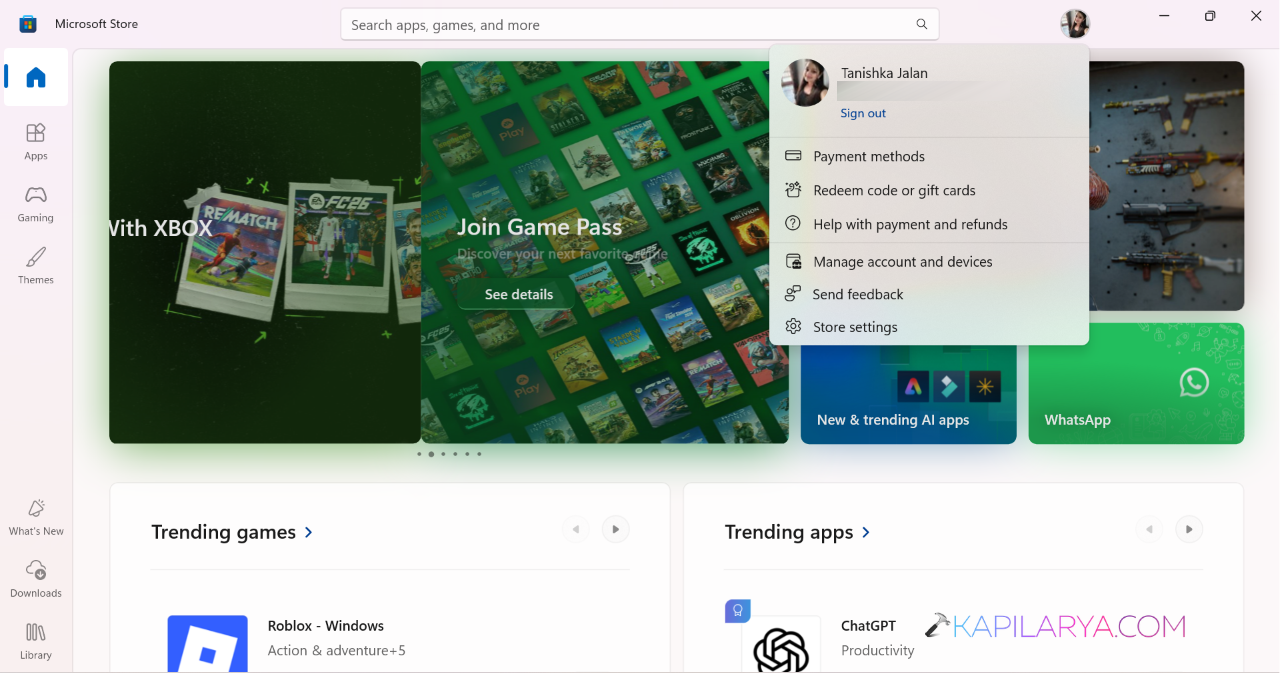
2. Click your profile picture.
3. Select Sign out.
4. Close the Store.
5. Open it again.
6. Sign in with your Microsoft account.
Fix 2: Clear Microsoft Store Cache
A broken cache can stop downloads and updates.
1. Press Windows + R.
2. Type wsreset.exe.
3. Press Enter.
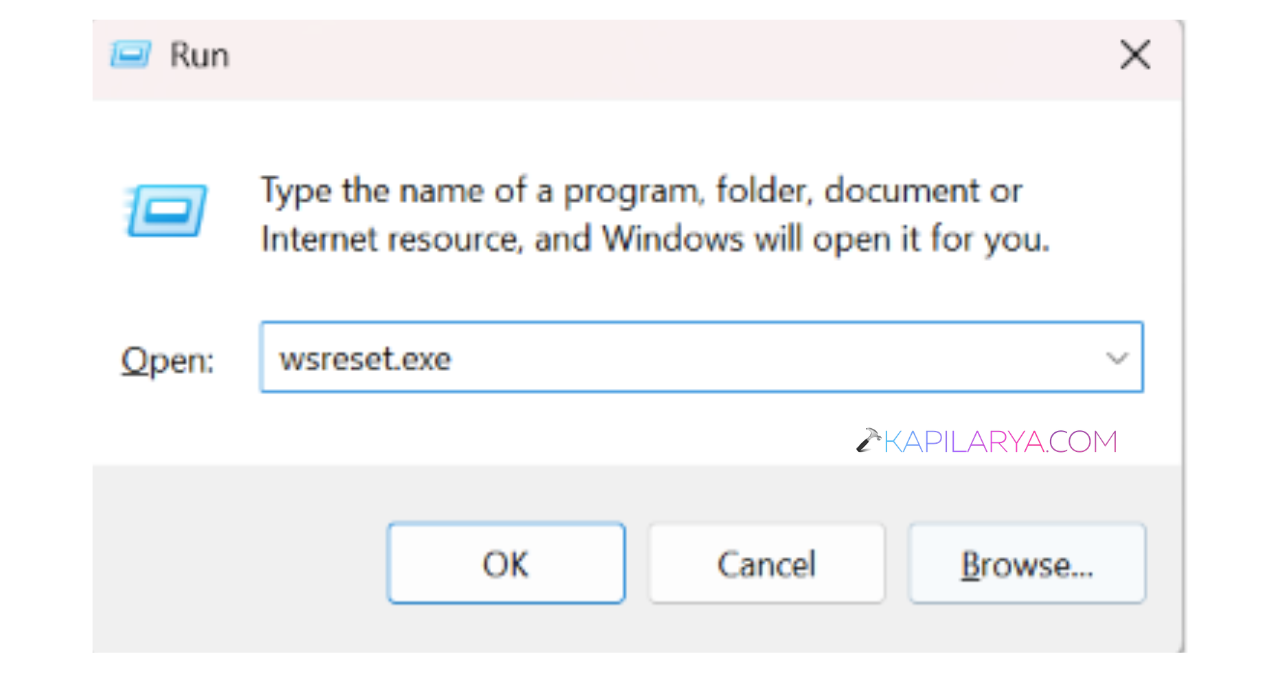
4. Wait for the Store to reopen automatically.
Fix 3: Run The Windows Store Troubleshooter
Windows can detect Store-related issues automatically.
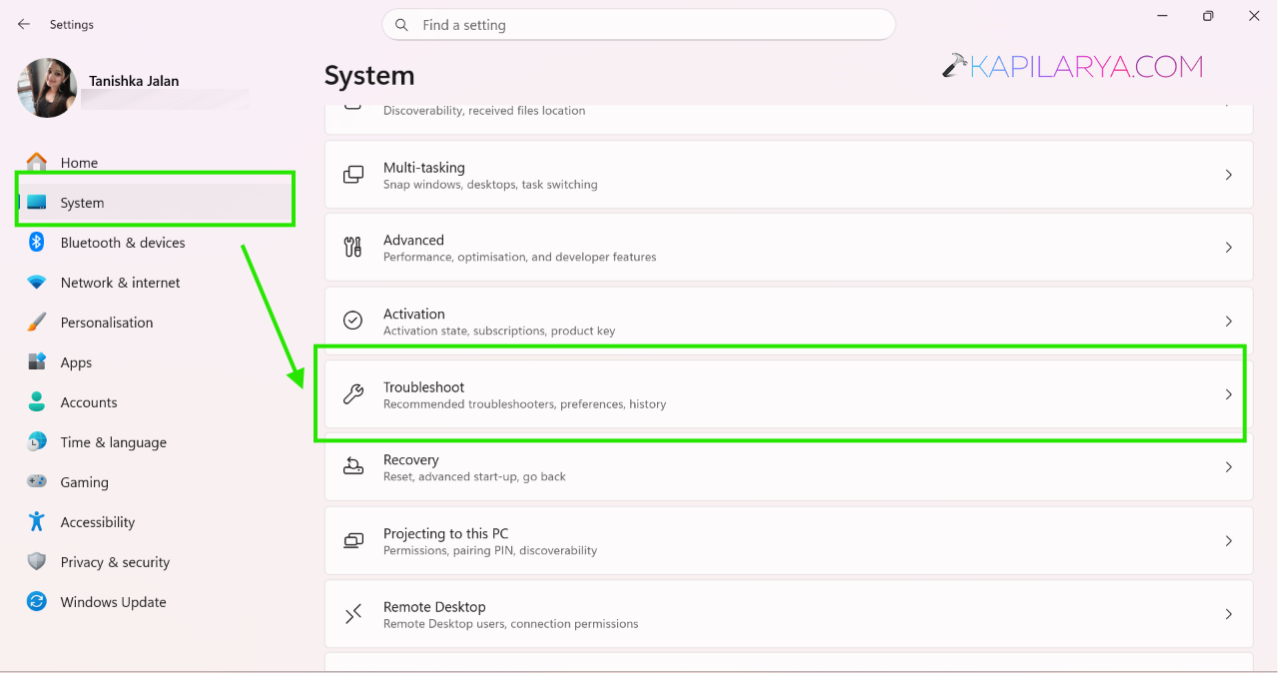
1. Open Settings.
2. Go to System > Troubleshoot > Other troubleshooters.
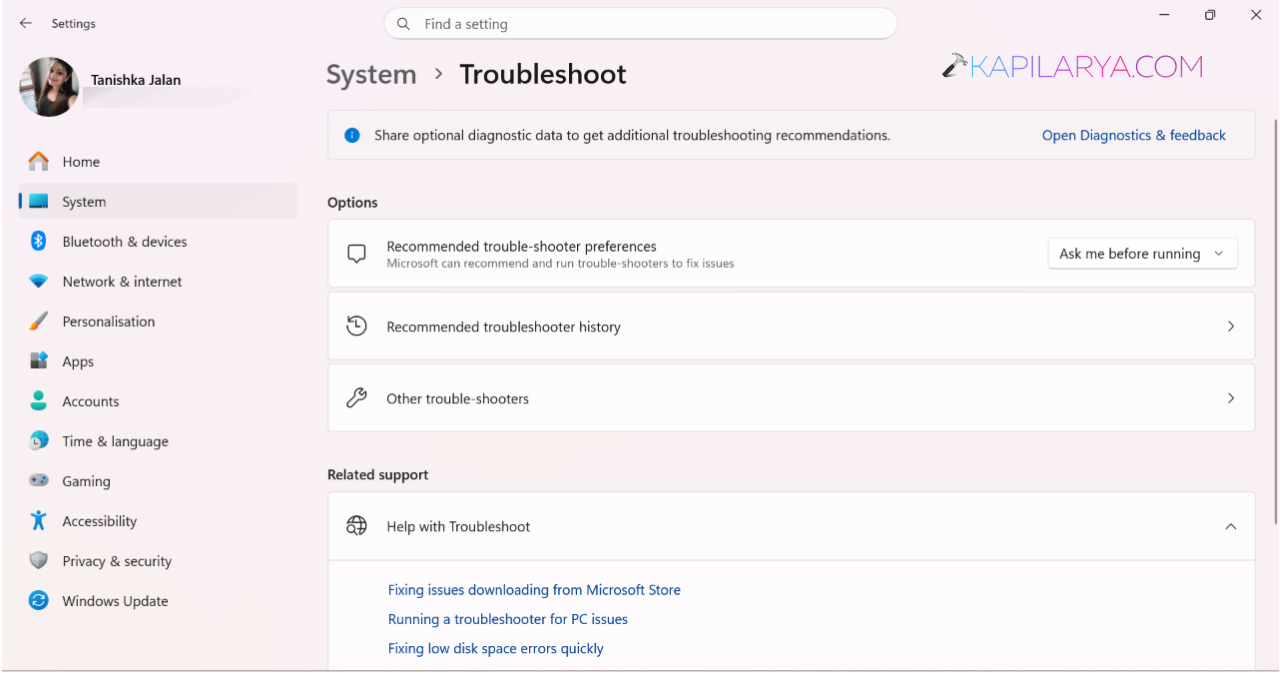
3. Find Windows Store Apps.
4. Click Run.
5. Follow the on-screen instructions.
Fix 4: Repair Microsoft Store
The app files may be damaged.
1. Open Settings.
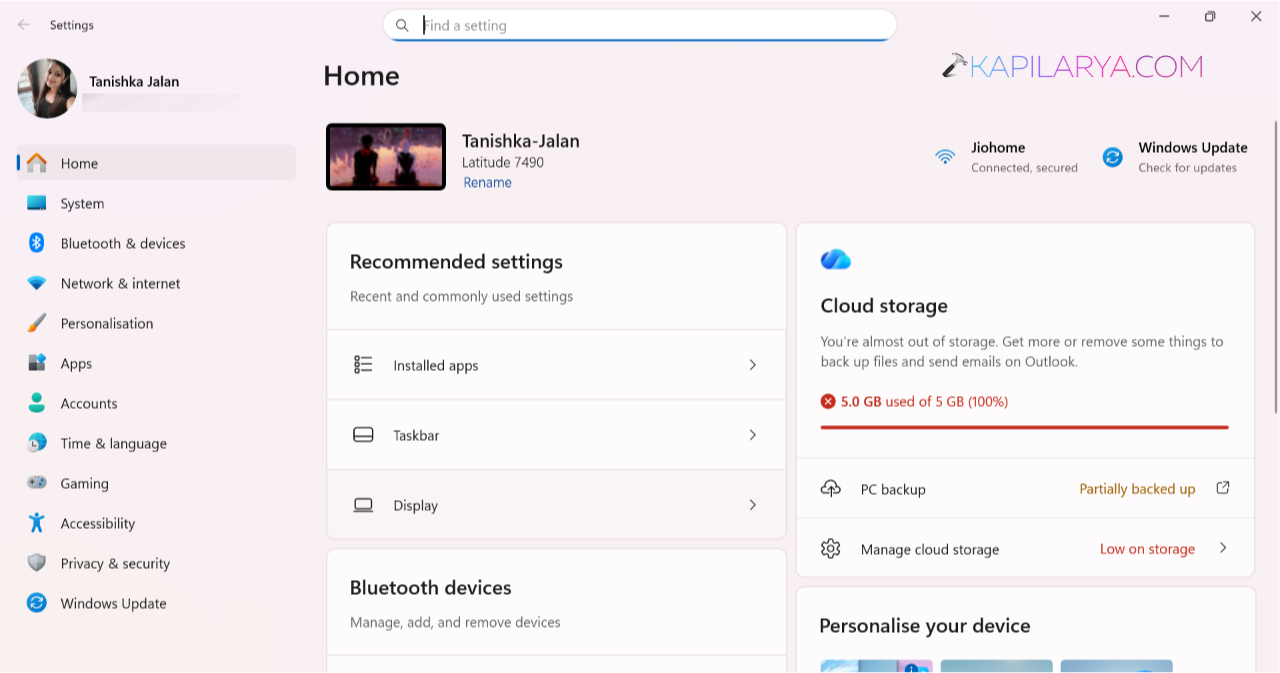
2. Go to Apps > Installed apps.
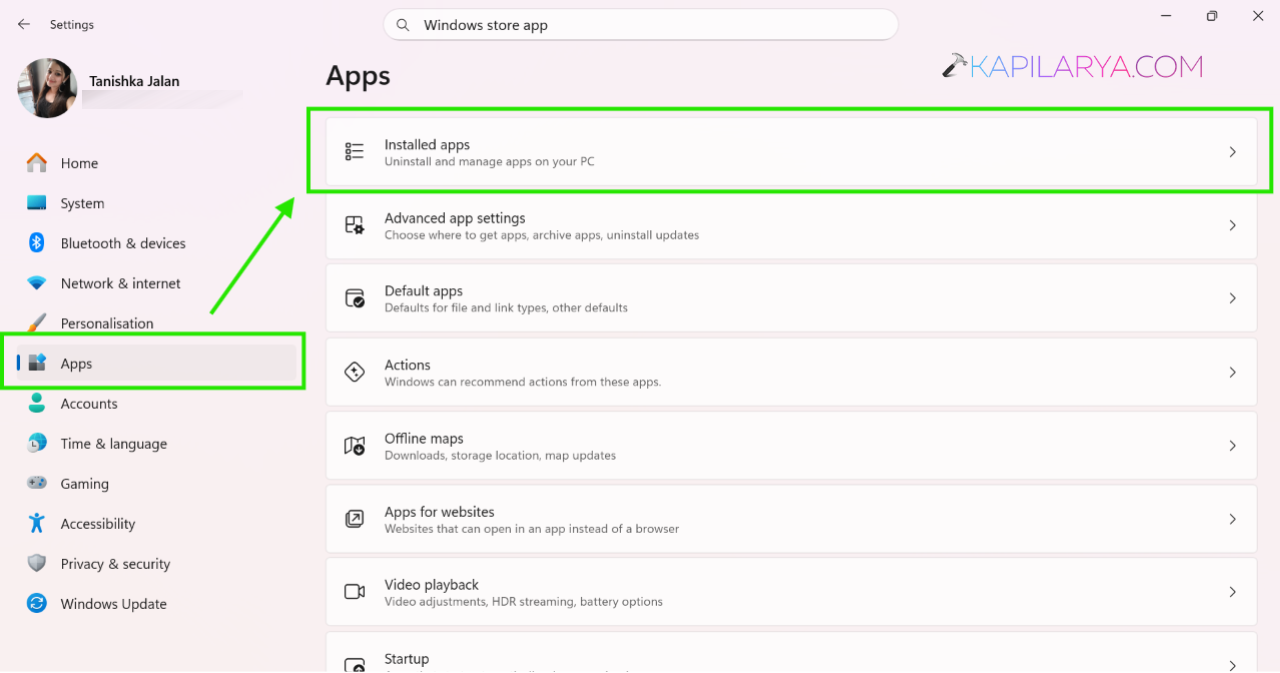
3. Find Microsoft Store.
4. Open Advanced options.
5. Click Repair.
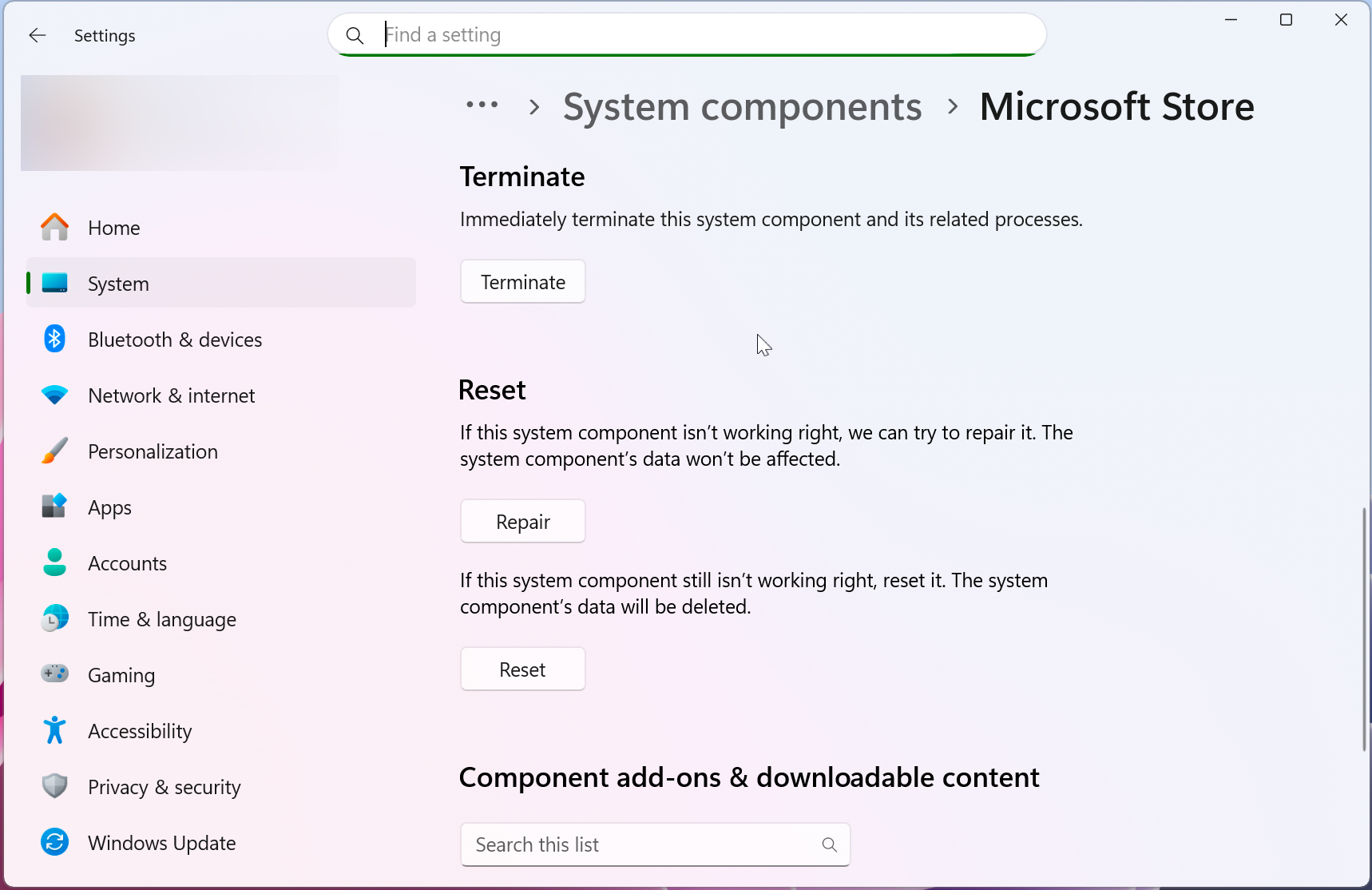
If Repair doesn’t help, reset the app by hitting Reset button.
Fix 5: Run SFC And DISM Scans
Corrupted Windows files can trigger this error.
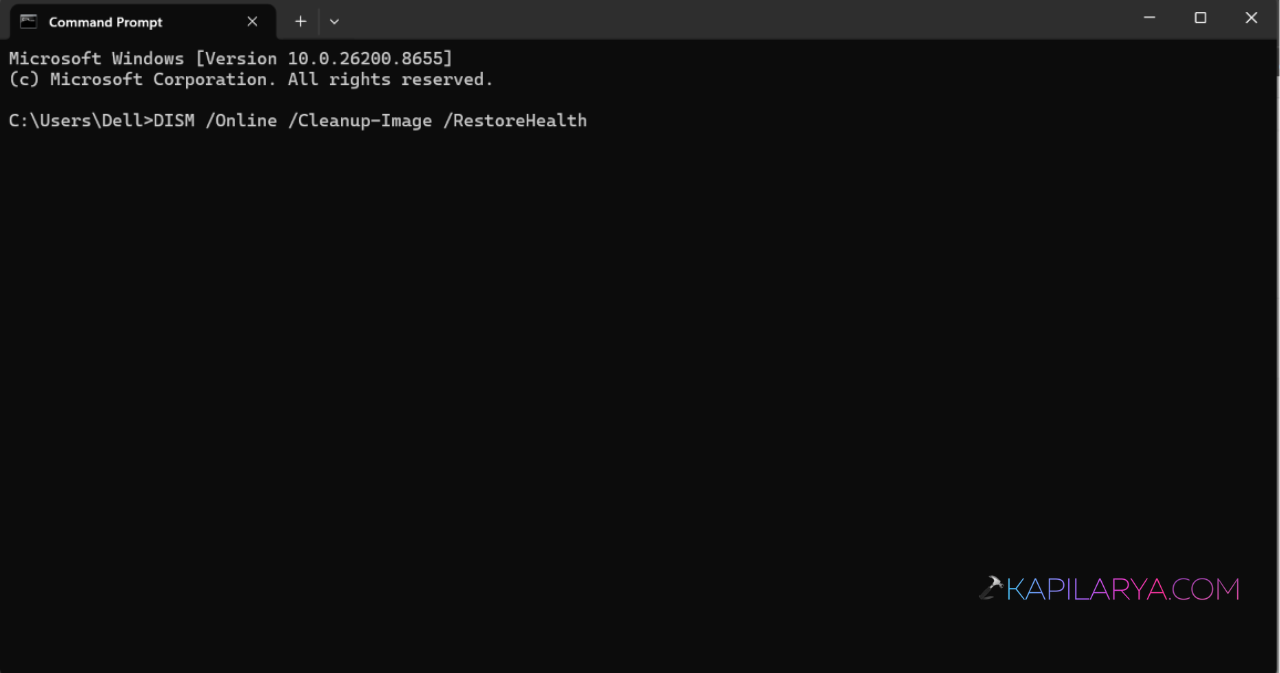
1. Open Command Prompt (Admin).
2. Run:
sfc /scannow
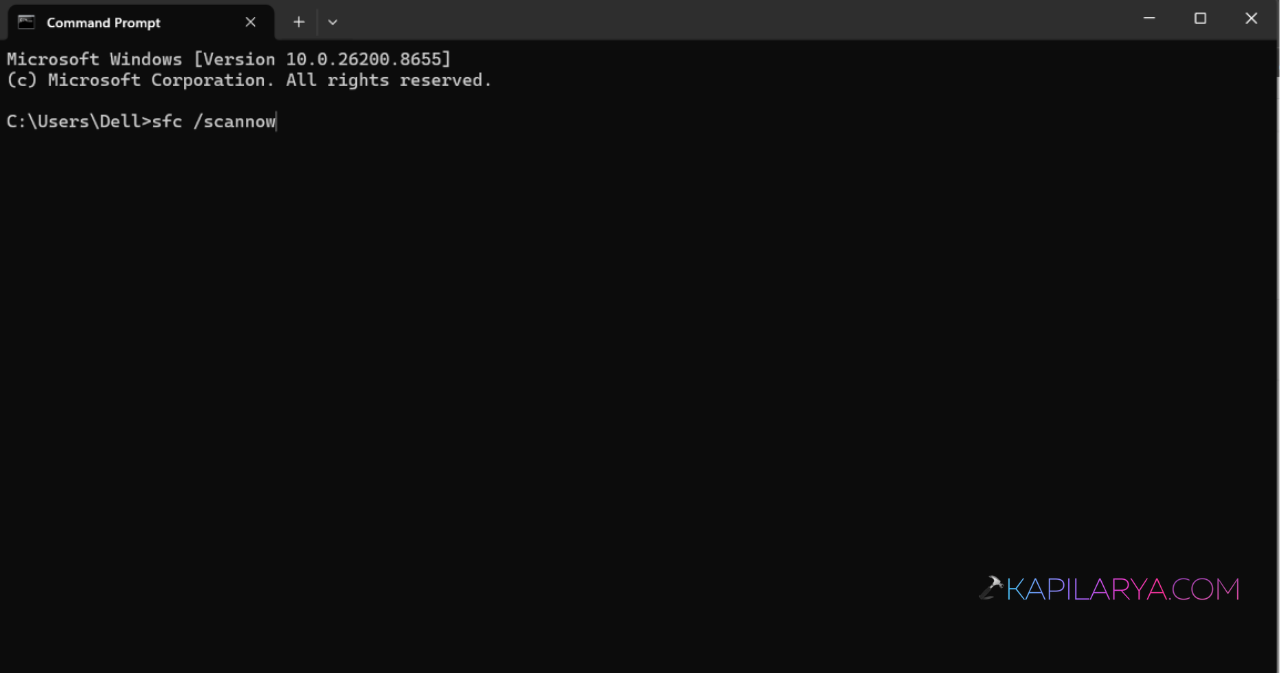
3. Then run:
DISM /Online /Cleanup-Image /RestoreHealth
4. Restart your PC.
Fix 6: Re-register Microsoft Store
This rebuilds Store components.
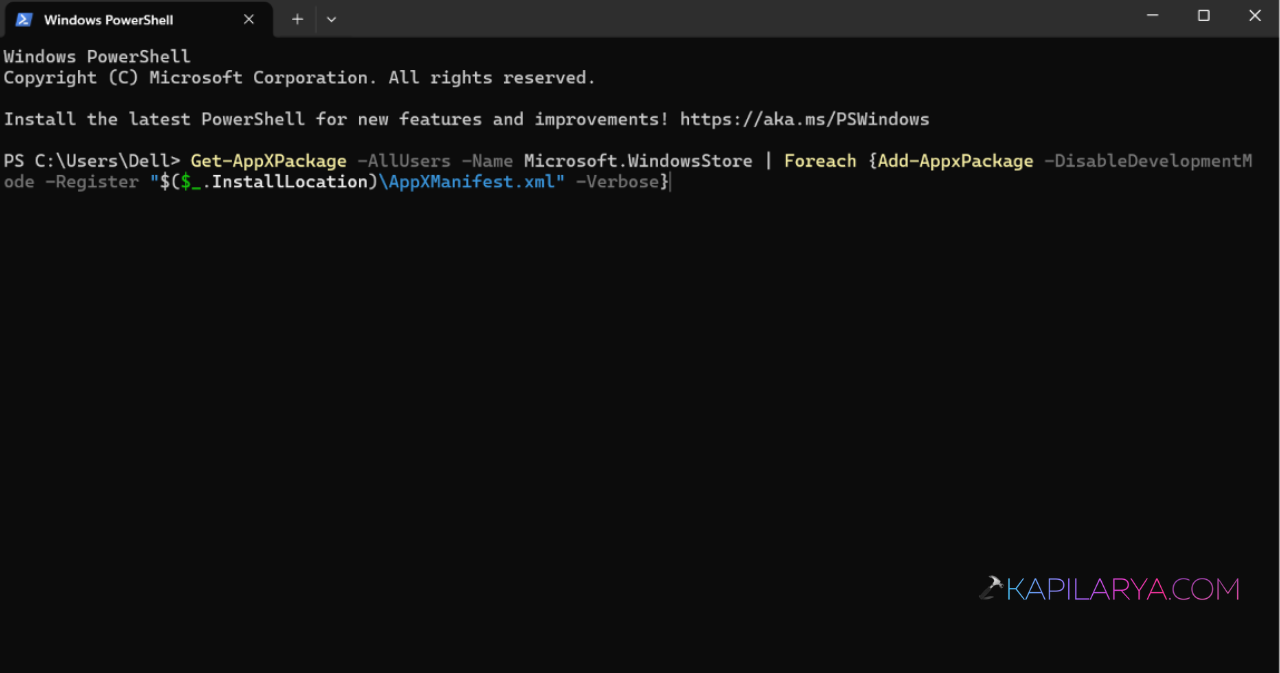
1. Open PowerShell (Admin).
2. Run the Store re-registration command.
Get-AppXPackage -AllUsers -Name Microsoft.WindowsStore | Foreach {Add-AppxPackage -DisableDevelopmentMode -Register "$($_.InstallLocation)\AppXManifest.xml" -Verbose}
3. Wait for the process to complete.
4. Restart the computer.
Fix 7: Remove Conflicting Software
Some OEM tools and utilities can interfere with the Microsoft Store.
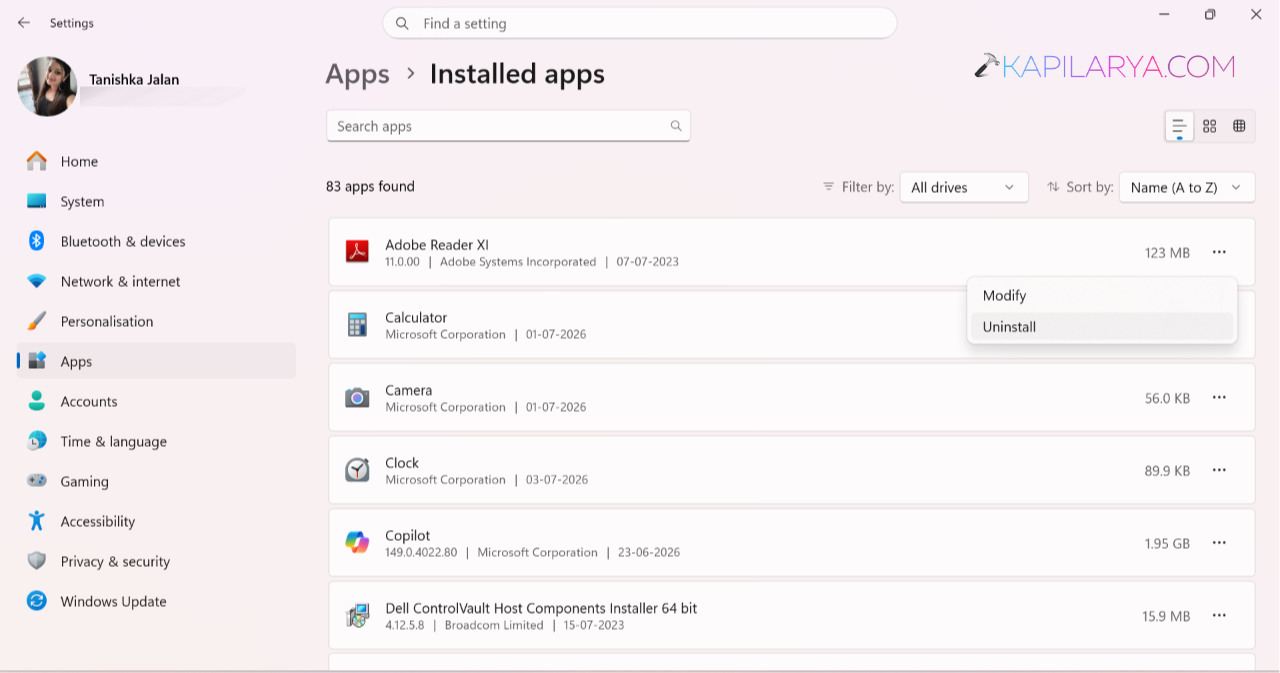
1. Open Settings > Apps > Installed apps.
2. Find recently installed software.
3. Uninstall the suspicious app.
4. Restart Windows.
That’s it!