You open your Microsoft account settings. And you noticed there is a passkey you added no longer use. Well, it might be that you have changed it. Or you have replaced your security key. Or you want to remove old sign-in methods. Whatever the reason is, Windows 11 makes it easy to remove the passkey.

Page Contents
Why To Remove A Passkey?
You may want to do it if:
- You no longer use the device.
- You replaced your security key.
- Outdated passkey.
- You want fewer sign-in options.
- You are improving account security.
Remove Passkey From Microsoft Account In Windows 11
We have two of the best methods for you, let’s take a look:
Method 1: Delete The Passkey From Windows Settings
If the passkey is saved in your Windows 11 PC. Then you have to remove it from settings by following the steps:
1. Press Windows + I to open Settings.
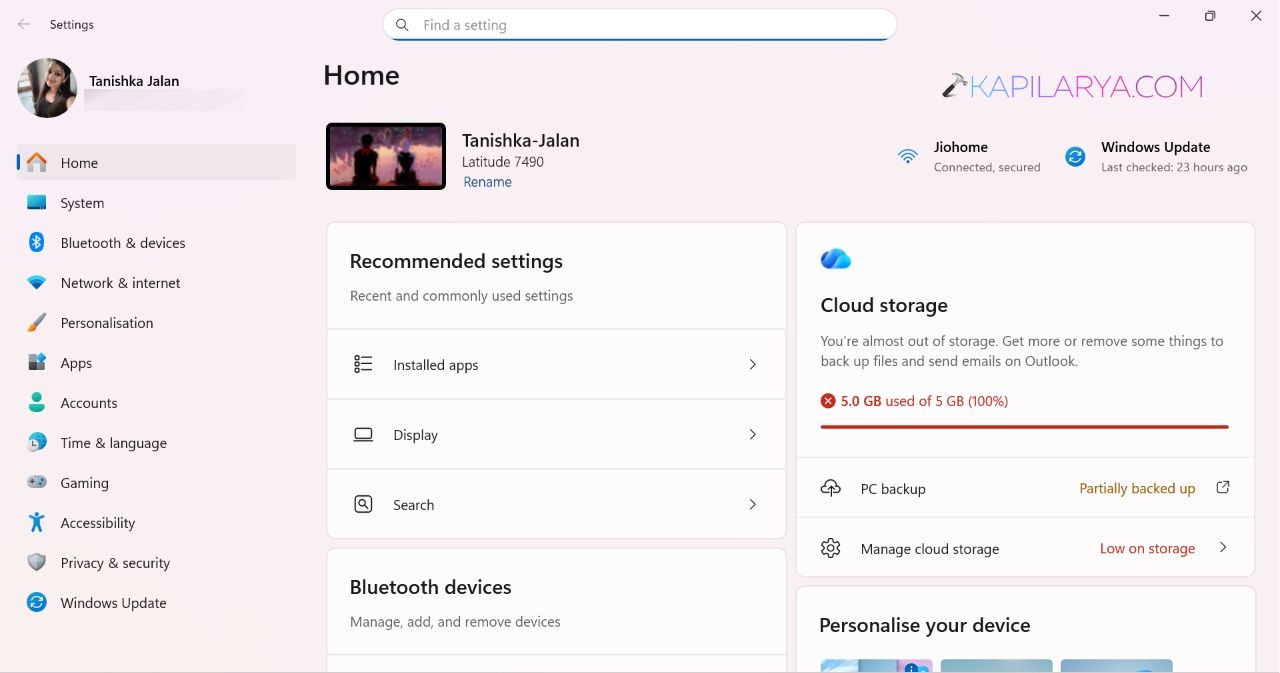
2. Click Accounts on the left side.
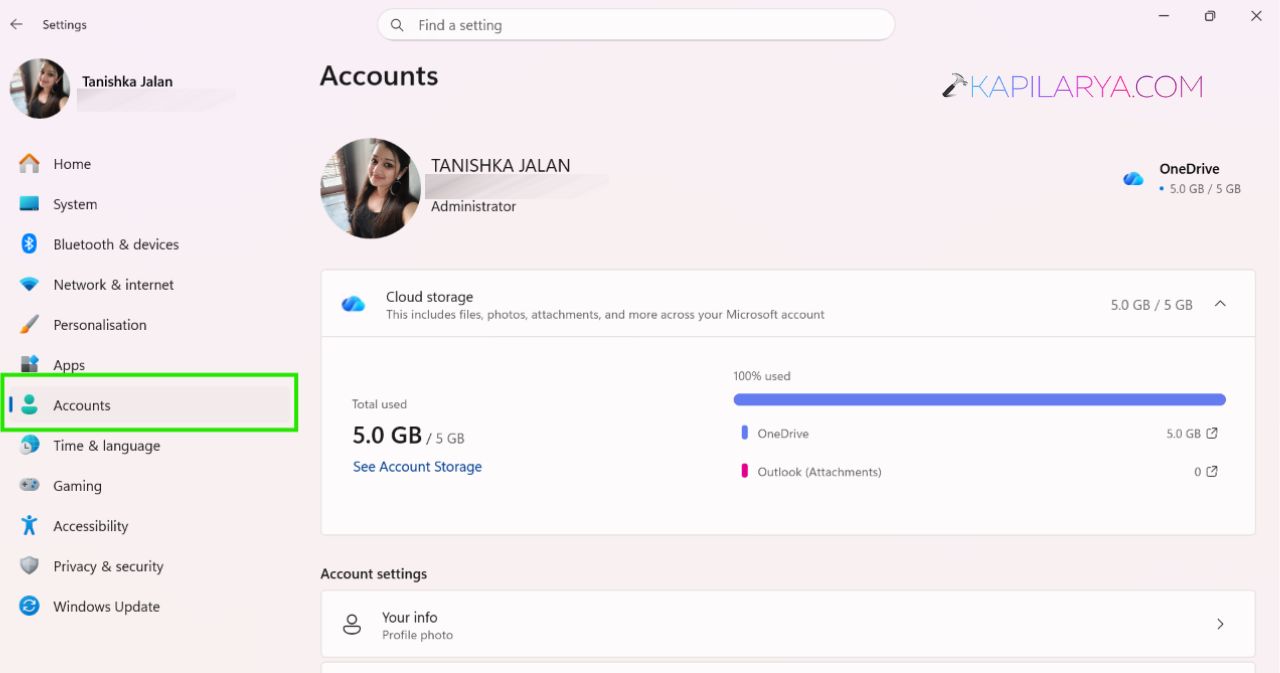
3. Select Passkeys.
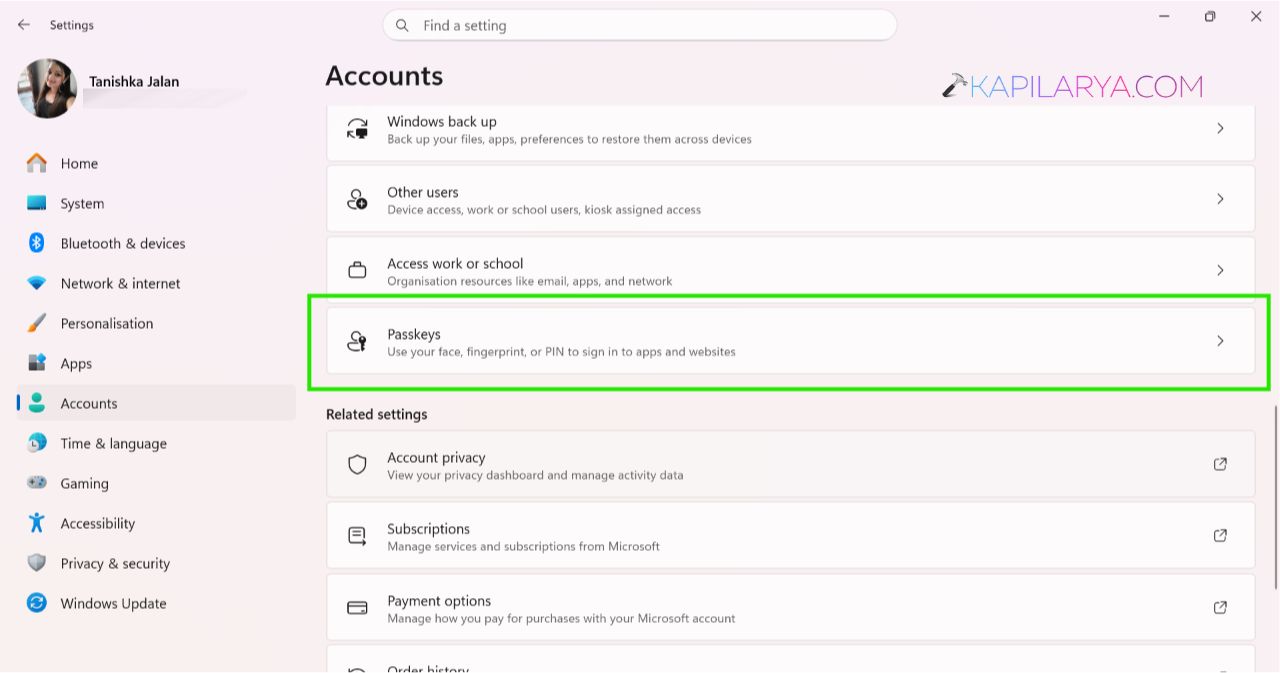
4. Find the Microsoft account passkey.
5. Click the three-dot menu next to it.
6. Select Delete passkey.
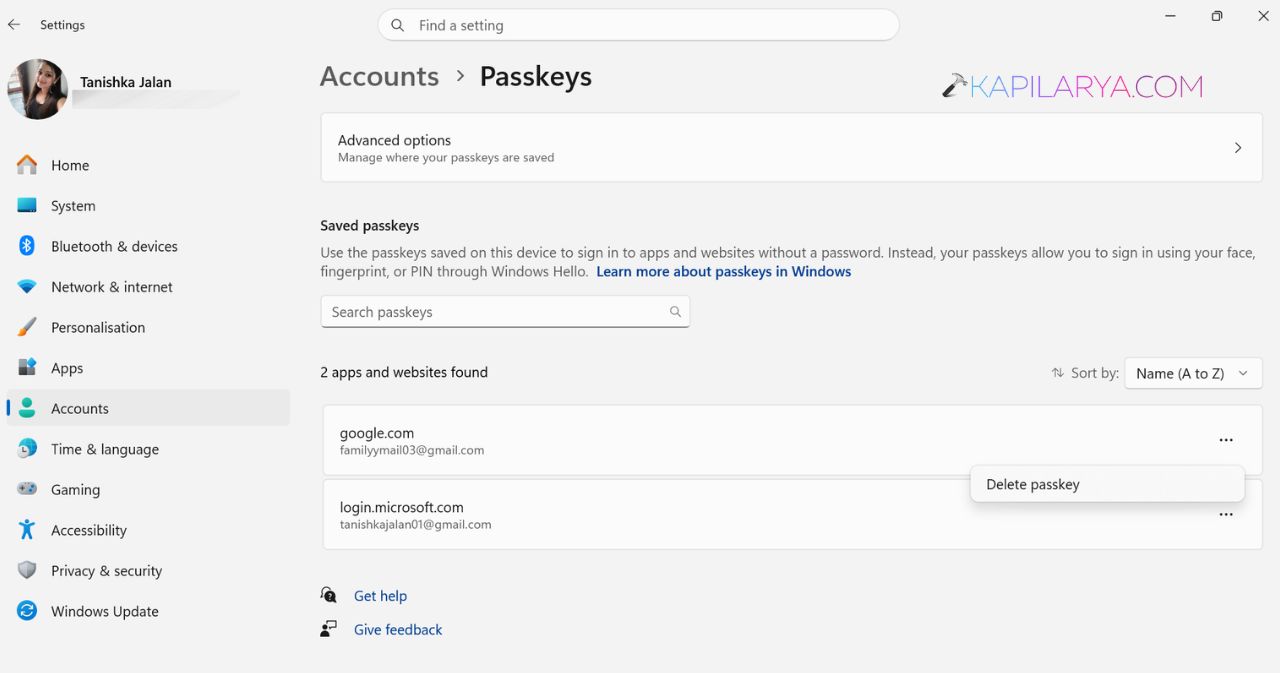
7. Confirm the removal.
And that’s how you can delete the passkey from your device.
Method 2: Remove The Passkey From Your Microsoft Account
If the passkey is linked to the FIDO security key. You have to remove it from your Microsoft account.
1. Open a web browser.
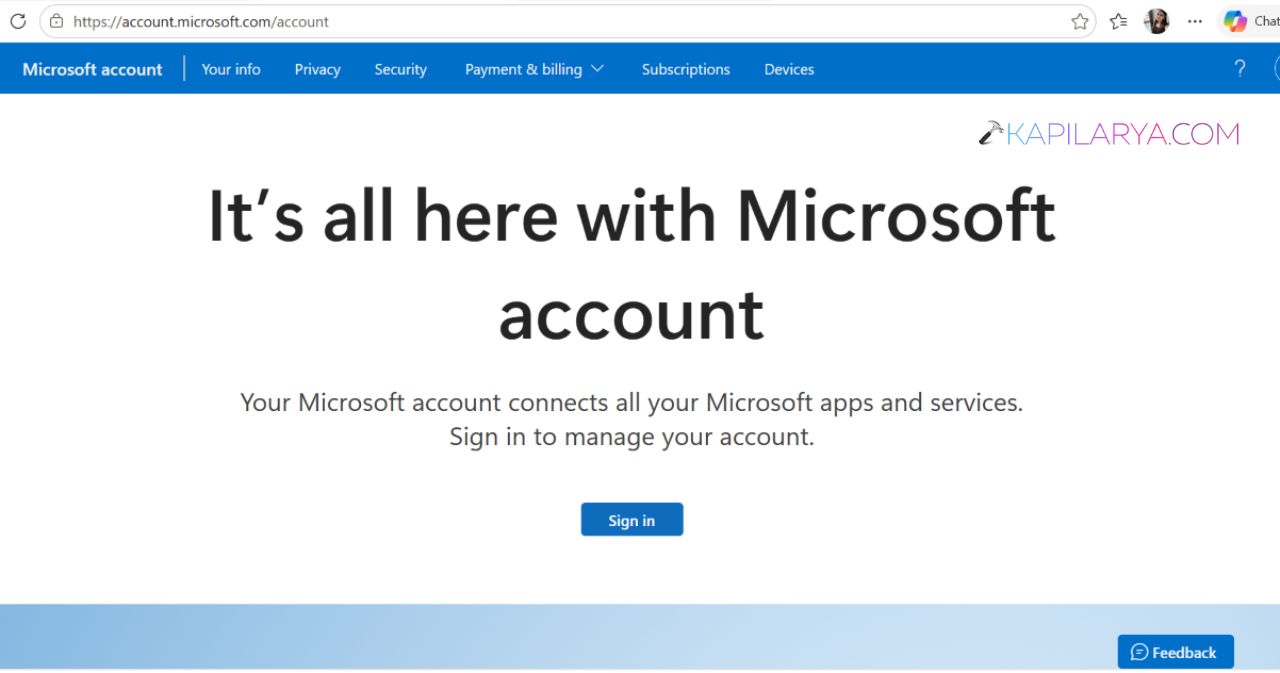
2. Sign in to your Microsoft account.
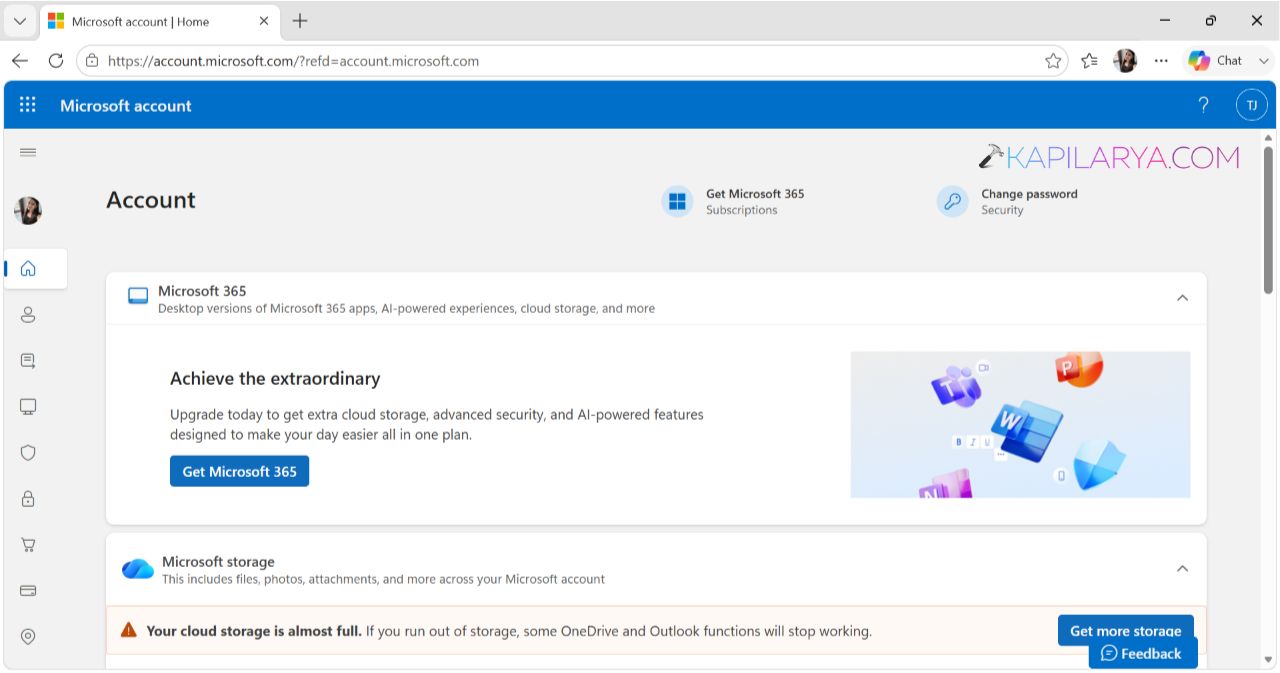
3. Go to Security.
4. Click on Manage how I sign in option.
5. Locate the passkey you want to remove.
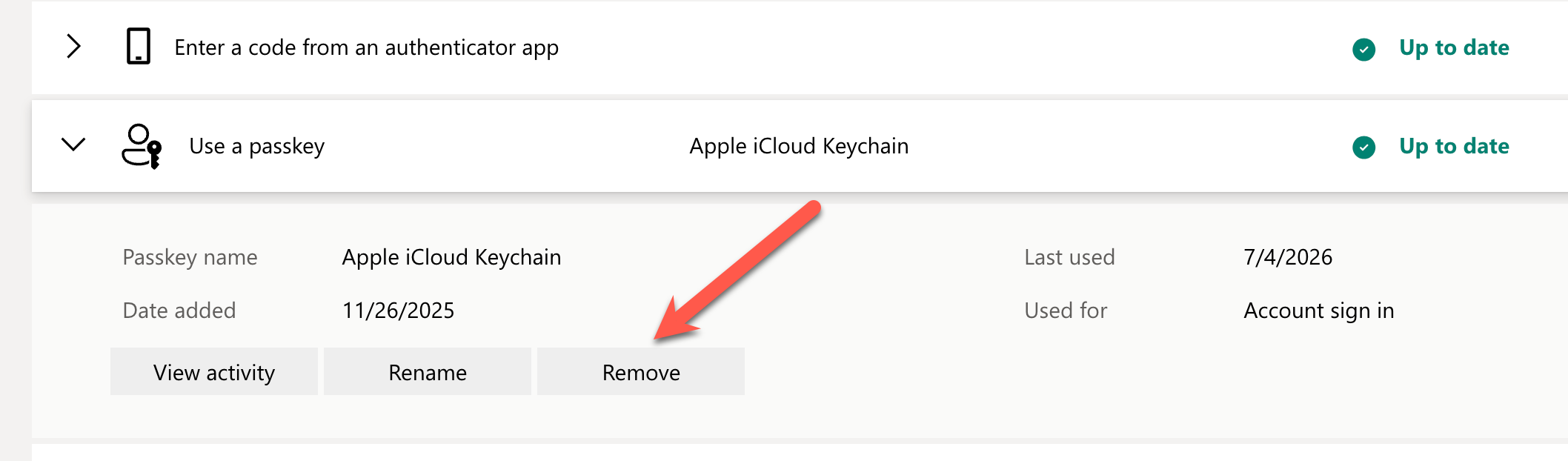
6. Click Remove or Delete.
7. Verify your identity if prompted.
8. Save the changes.
Video guide
Here’s a video guide to help you more on this:
That’s it! We hope both methods will work!
![Windows needs your current credentials [Fix]](https://www.kapilarya.com/assets/password_icon_1783831080.jpg)