The search feature in Windows 11 helps you to find the specific content you are looking for. You just click on the search icon present on the taskbar and start typing your search term. In a few seconds you will see the results being populated and you can pick the one which looks perfect to you. By default, the search feature in Windows 11 allows web search and enhanced displays web results. In this guide, we will see how you can enable or disable web search results in Windows 11 26H2.
When you search for a term, if the web results are displayed, you can click them to visit the webpage or link in the browser. In some cases, the local results may not be helpful and you might want to have a web result for better experience. For displaying the web results, Windows will use the Bing as default search engine. If you are on Windows 11 build 26300.8697 or later, you can use the respective option to enable or disable web search. Here is how you can configure that option.
Page Contents
Enable or disable web search results in Windows 11 26H2
Method 1: Using Settings
1. Right click on the Start button and select Settings.
2. Go to Privacy & security > Search. Expand Show suggested search results and then you will find the option Web searches. The option must be turned On by default. If you want to disable web search results, you can turn it Off.
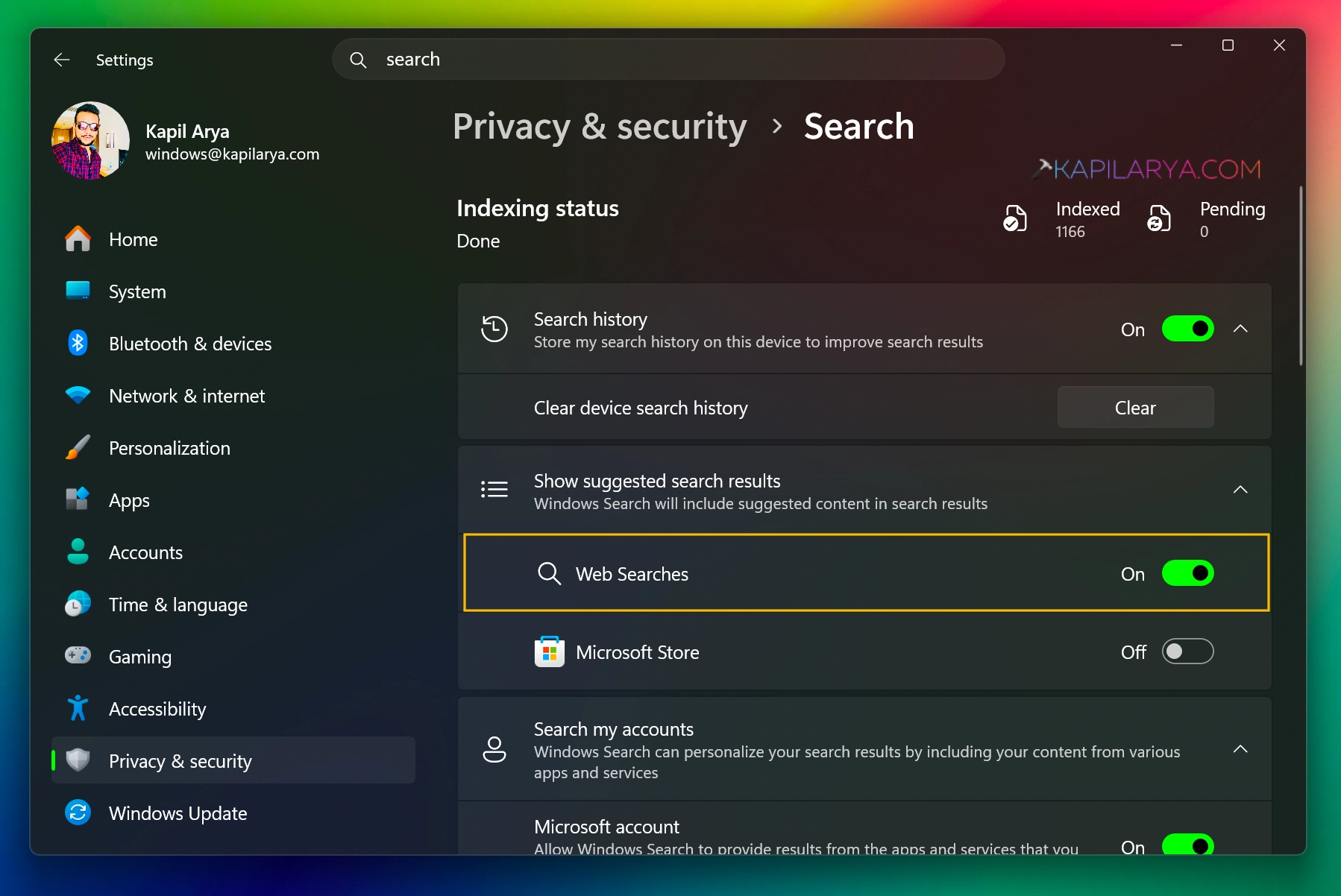
3. You can then close the Settings app and return to your work.
Method 2: Using Registry
1. Press Windows + R, type regedit and click OK to open Registry Editor.
2. Go to:
HKEY_CURRENT_USER\Software\Microsoft\Windows\CurrentVersion\SearchSettings
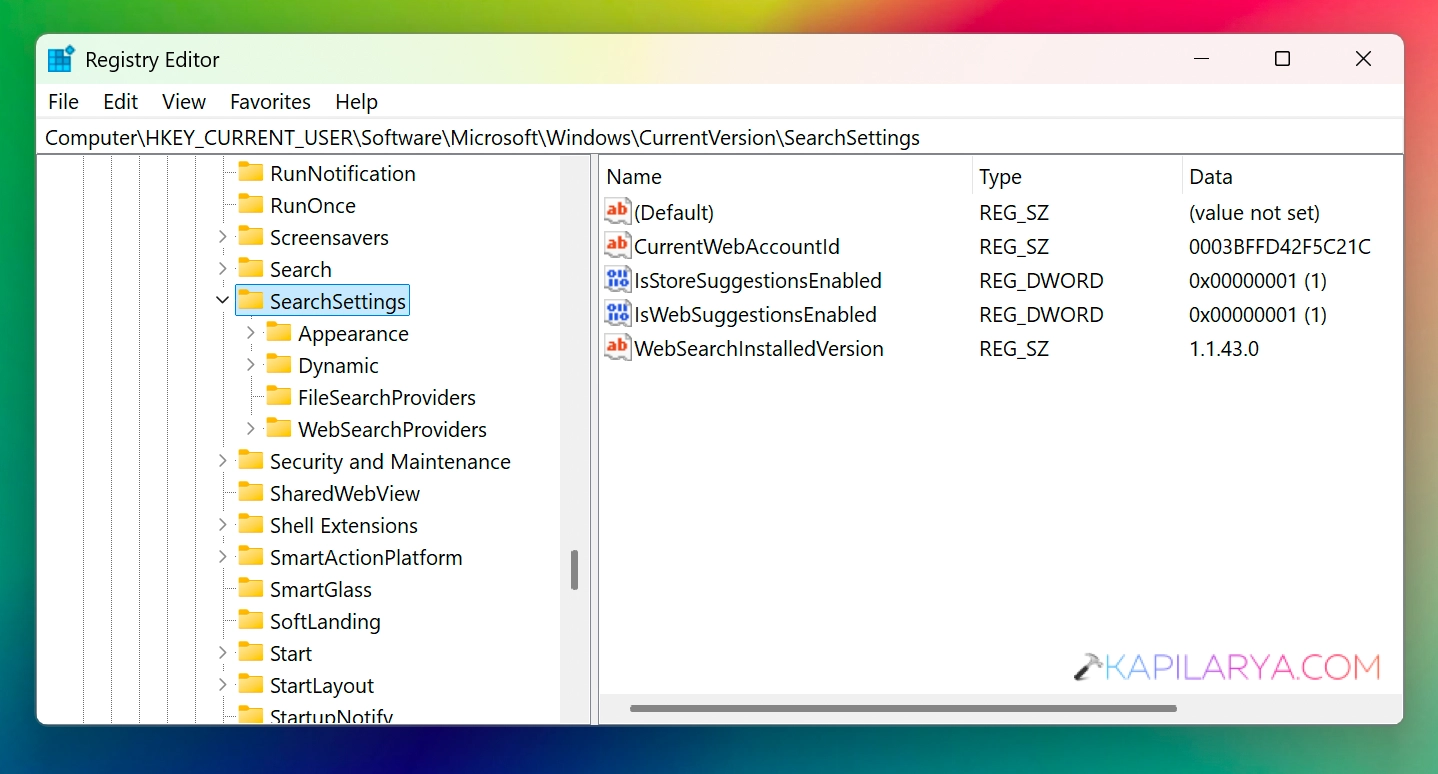
3. In the right pane of this Registry Editor window, locate the registry DWORD named IsWebSuggestionsEnabled. When it corresponds to Value data 1, this means web search results are enabled. You can just double click on it and set its Value data to 0 in order to disable web search results. The changes are applied immediately.
4. You can now close the Registry Editor and return to your work.
That’s it!