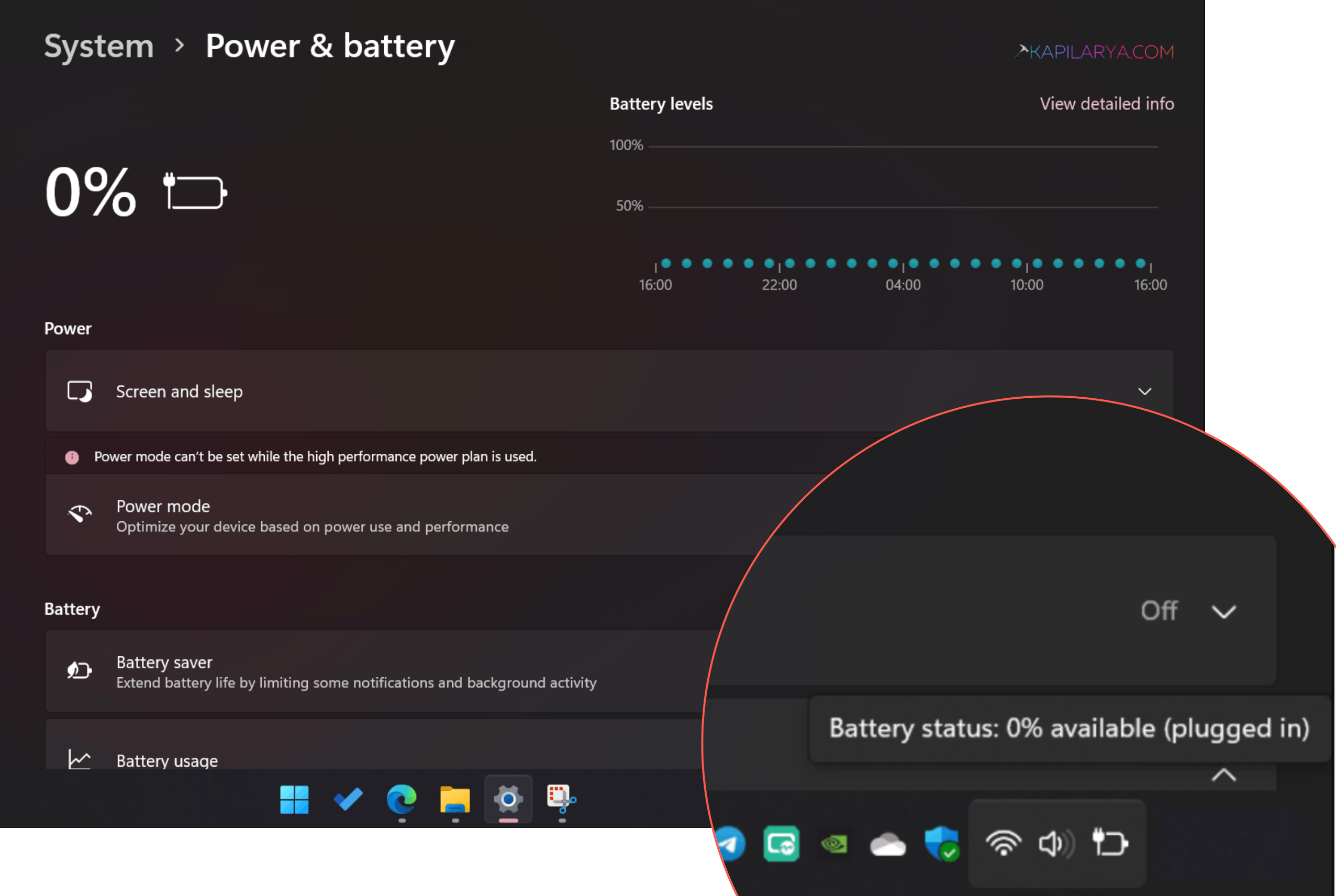
When Windows 11 laptop plugged in, not charging, it can be quite a puzzling problem that can leave you scratching your head. In some instances, Windows may show “Plugged in, not charging” or the battery may get stuck at a specific percent. Luckily, you may not necessarily have to swap out your laptop battery or go to a repair shop. In this guide, we’ll cover a few simple and advanced solutions to the Windows 11 plugged in not charging issue.In this guide, we’ll take you through some of the more simple and advanced solutions to the Windows 11 plugged in not charging issue.
Page Contents
Ways to Fix Windows 11 Laptop Plugged In, Not Charging
Go through the following solutions sequentially. Once each method is done, determine if the battery percentage begins to rise.
Way 1: Check Your Laptop’s Charging Limit
Some modern laptops have features that automatically cut off charging when they reach a specified level. This is to prolong battery life and minimize battery degradation over time.
For instance, some laptops report 80% charge even while it is plugged in.
1. Open the laptop manufacturer’s battery/device-management software.
2. Search for Battery Health, Battery Care, Conservation Mode, Charge Threshold or Battery Protection.
3. Test if there is a charging limit enabled or if Conservation Mode is off. Set the limit off or change the charging percentage limit.
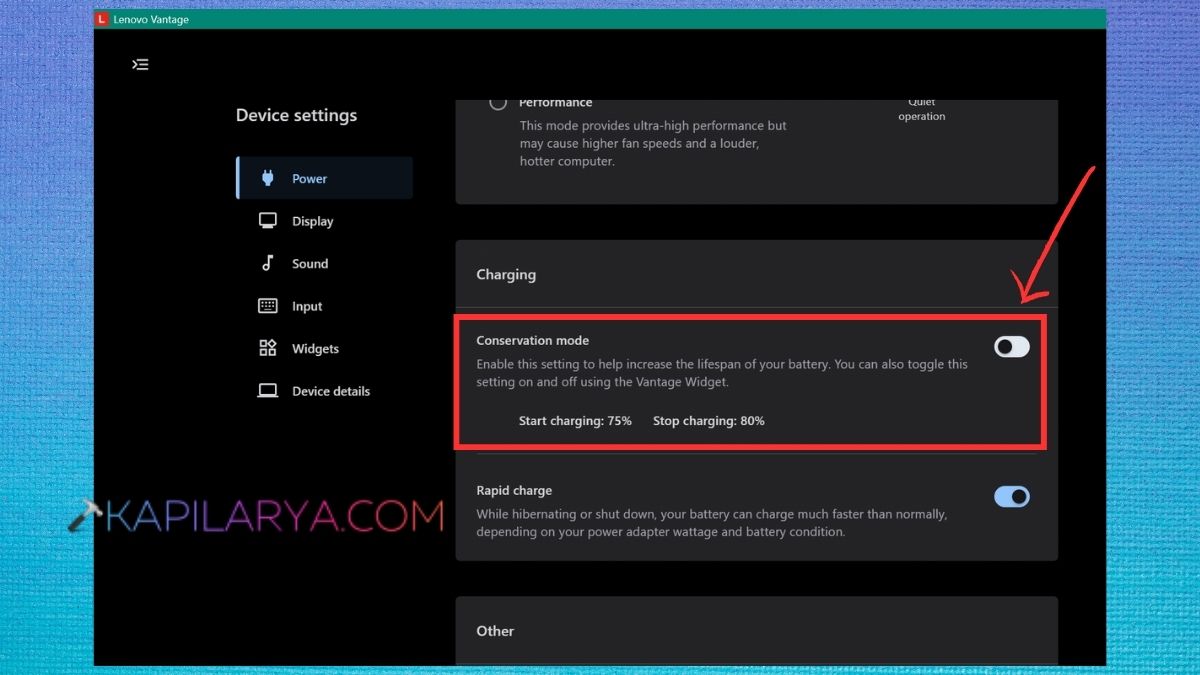
4. Reconnect the charger and allow to stand for several minutes. See if the battery percentage starts to rise.
The exact setting is dependent on the manufacturer of your laptop. If the battery has a tendency to stop charging at a fixed percentage (such as 60, 80 or some other percentage), the first thing to check is whether there is a charging limit.

Way 2: Check the Electricity Supply
At times, the problem is the power source, and the laptop is not getting charged. Your laptop adapter may not get sufficient power if the socket it is plugged into is loose, the extension board in the outlet is faulty, the power strip the adapter is plugged into is damaged, or there is an unstable power connection.
1. Unplug the charger from the power socket.
2. Connect another device that is working into the outlet.
3. Try to see if that device gets electricity.
4. You can use a different wall outlet for your laptop charger, if available.
5. Avoid using extension board or power strip to temporarily extend the socket.
6. Ensure that the adapter is securely plugged in to the power cord.
Test and see if the charging sign on your laptop lights up.
If your laptop begins to charge from a different outlet, then the original outlet could be the culprit.
Way 3: Inspect the Charging Cable and Adapter
Another common cause of a Windows 11 laptop that is plugged in but not charging is a faulty charging cable or power adapter.
Pay attention to the entire charging setup for the following:
- Frayed wires
- Bent connectors
- Burn marks
- Loose connections
- Cracks in the adapter
- Damaged or broken USB-C connector
- The most common cause of this is bending too close to the connector.
If you use a laptop with the USB-C charging port, ensure that you are using a charging port. Not all USB-C ports will support charging.
Use a compatible charger. If you can use a manufacturer-approved, known-good charger, use it with the laptop. However, if the replacement charger is operating correctly, the original charger or cable might need replacement.
Way 4: Check and Clean the Charging Port
The dust, lint or other debris inside the charging port may cause the connector to fail to make good contact.
1. Power down the computer.
2. Disconnect the charger.
3. Using a flashlight, check the charging port.
4. Check for dust or dirt that can be seen. Clean the port with a suitable non-metallic method if required, being careful not to damage the port.
5. Securely reconnect the charger.
6. Power on the laptop and check the battery condition.
Don’t shove the connector into the port. The port might be damaged if the charging port feels loose or the charging connection keeps disconnecting from the charger when the cable is moved.
Way 5: Reinstall the Battery Drivers in Windows 11
If Windows does not recognize the battery or charging status, it might be the result of a corrupted or faulty battery driver.
Reinstalling the battery drivers is a relatively simple way to troubleshoot the Windows 11 battery not charging problem.
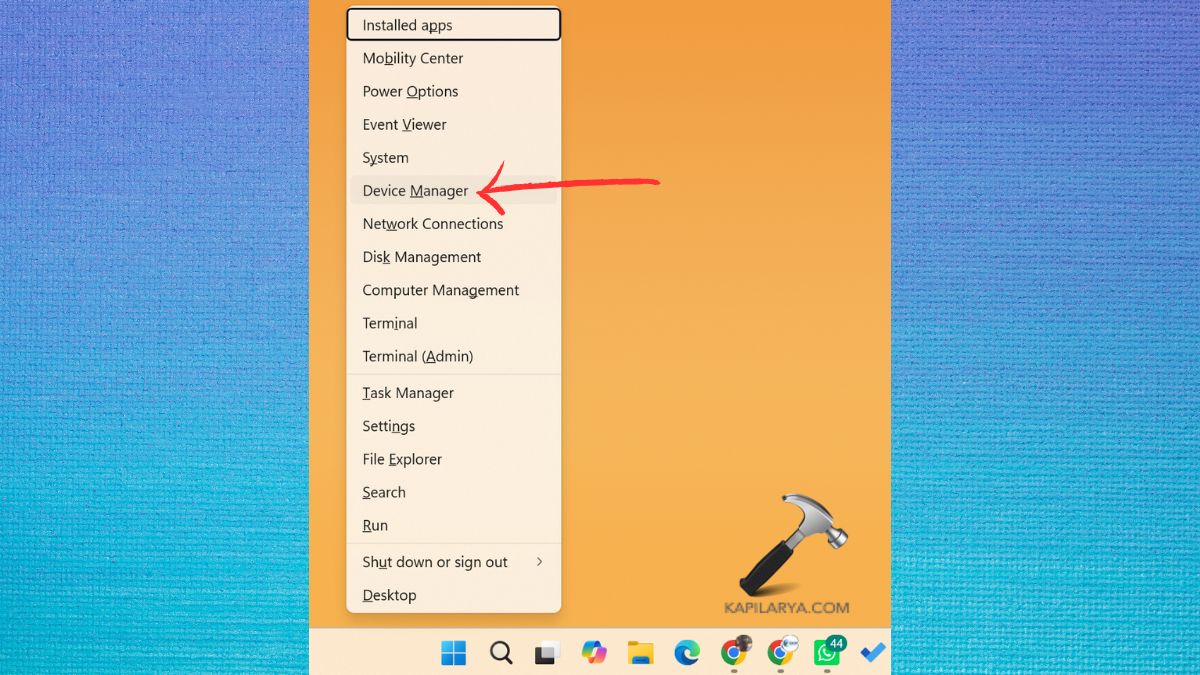
1. Click Windows + X and then select Device Manager.
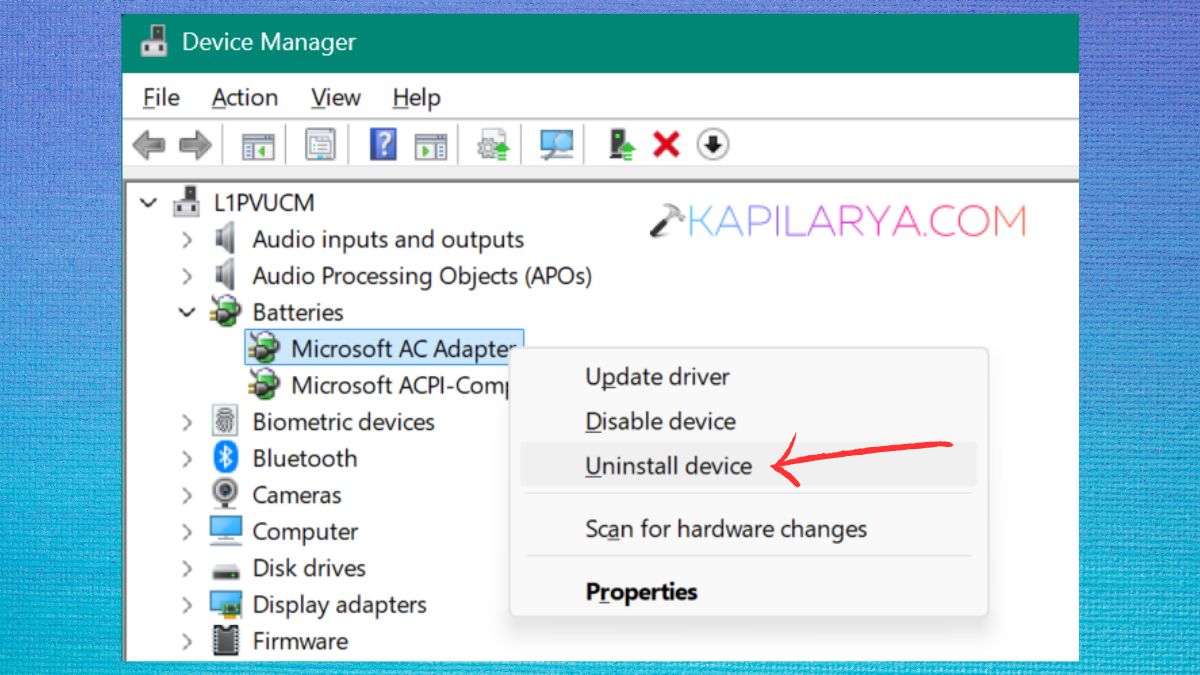
2. Expand Batteries. Look for Microsoft AC Adapter. Right-click and choose Uninstall device.
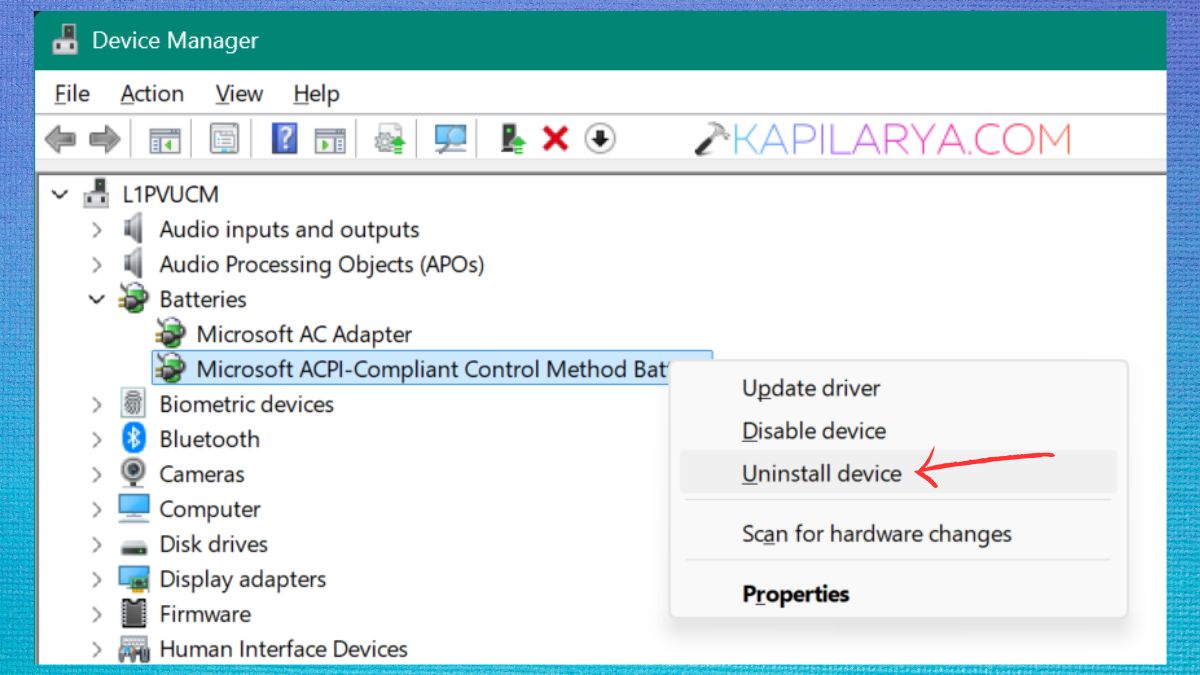
3. If Microsoft ACPI-Compliant Control Method Battery is found, right-click this also. Select Uninstall device.
Restart your laptop. The necessary battery drivers should be automatically detected and installed at restart time on Windows. Connect the charger once Windows has loaded and see if the battery starts charging.
Way 6: Update the Battery Driver
If reinstalling the driver didn’t solve the issue, see if Windows or your laptop manufacturer has a newer version of the driver.
1. Hold down the Windows and X keys. Click on Device Manager.
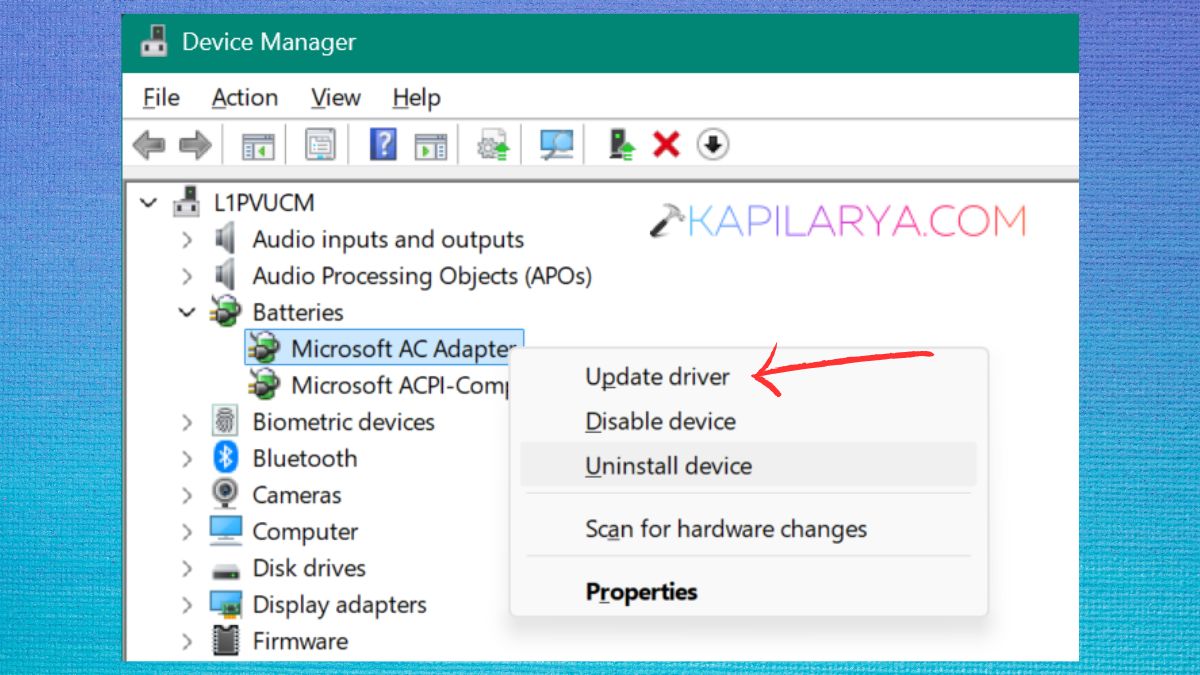
2. Expand Batteries. Right click the battery device that is of interest. Select Update driver.
3. Select Search for drivers. Apply any updates that can be installed.
Restart your laptop. Also, be sure to visit your laptop’s official support website for BIOS, chipset, power-management and device-driver updates targeted for your laptop model.
Way 7: Let the Laptop Cool Down
The battery could cease to charge temporarily as a safety measure if it is overheated. If your laptop is warmer than usual, particularly around the battery, charging port or bottom, unplug the charger and let the laptop cool down. Also, do not place the laptop on a soft surface like a bed or blanket, as this can make it harder to get air circulation and heat out of the laptop.
Way 8: Check BIOS and Firmware Settings
The BIOS manages various hardware-level functions, such as power and battery management. The charging problem may be due to an outdated BIOS or firmware.
1. Determine the exact model number of your laptop.
2. Go to your device manufacturer’s official support page.
3. Search for name/model of your laptop, or you can opt for “Detect my device” if the option is available.
4. Click on Drivers, Downloads or BIOS/Firmware. See if there is an updated BIOS version available.
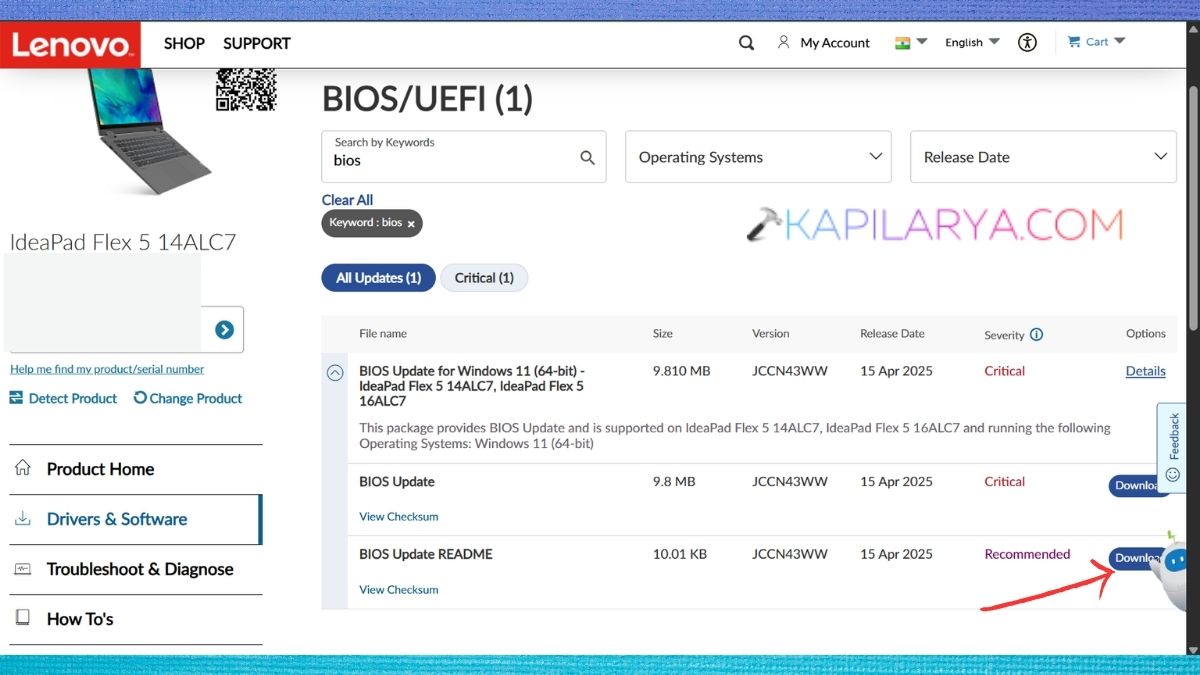
Carefully read the manufacturer’s instructions before updating. Plug in the laptop to a stable power source while updating. Don’t interrupt BIOS updates. That means if power is lost or the laptop is off while in progress, serious system problems can result.
Way 9: Restart Windows 11 and Perform a Full Power Reset
Sometimes, a temporary power-management glitch can cause Windows to wrongly indicate the battery’s status. It is often enough to try to simply restart, before proceeding to further troubleshooting.
If the laptop’s battery is removable, it’s possible that a full power reset can be done by shutting down the laptop, unplugging the power cord, taking the battery out, holding down the power button for several seconds, and then putting the battery back in and reconnecting. Finally, follow the manufacturer’s instructions for your particular model.
Way 10: Check Windows Update
The updates for Windows may contain fixes related to power management, drivers, compatibility with firmware and other hardware issues.
1. To access Settings, press Windows+I. Select Windows Update.
2. Now, click Check for updates. Install any needed software updates. If the computer is prompted, restart.
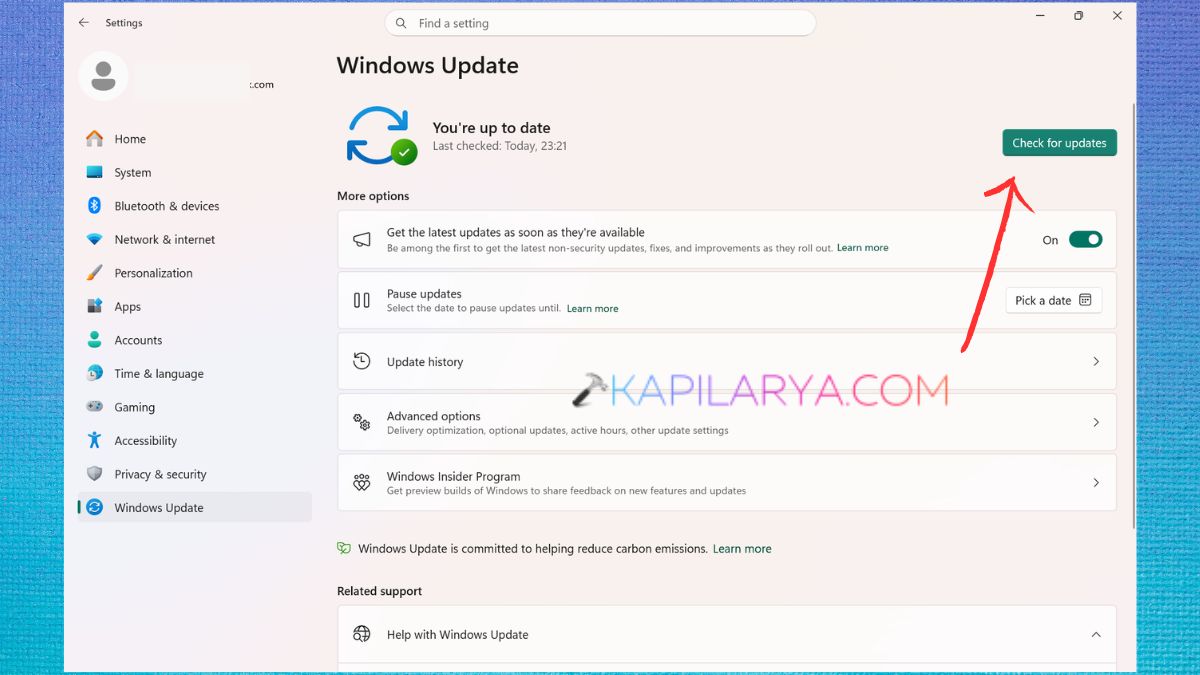
If the charging issue occurred straight after a specific update, please verify the support information provided by Microsoft and the support services from your manufacturer before trying to delete an update.
Way 11: Run Windows Battery Diagnostics
There are inbuilt tools in Windows that can help you to check the condition of your battery. A helpful feature is the battery report, which will give you details on battery capacity and usage.
1. Click on the Windows key. Look for Command Prompt. Click Run as Administrator.
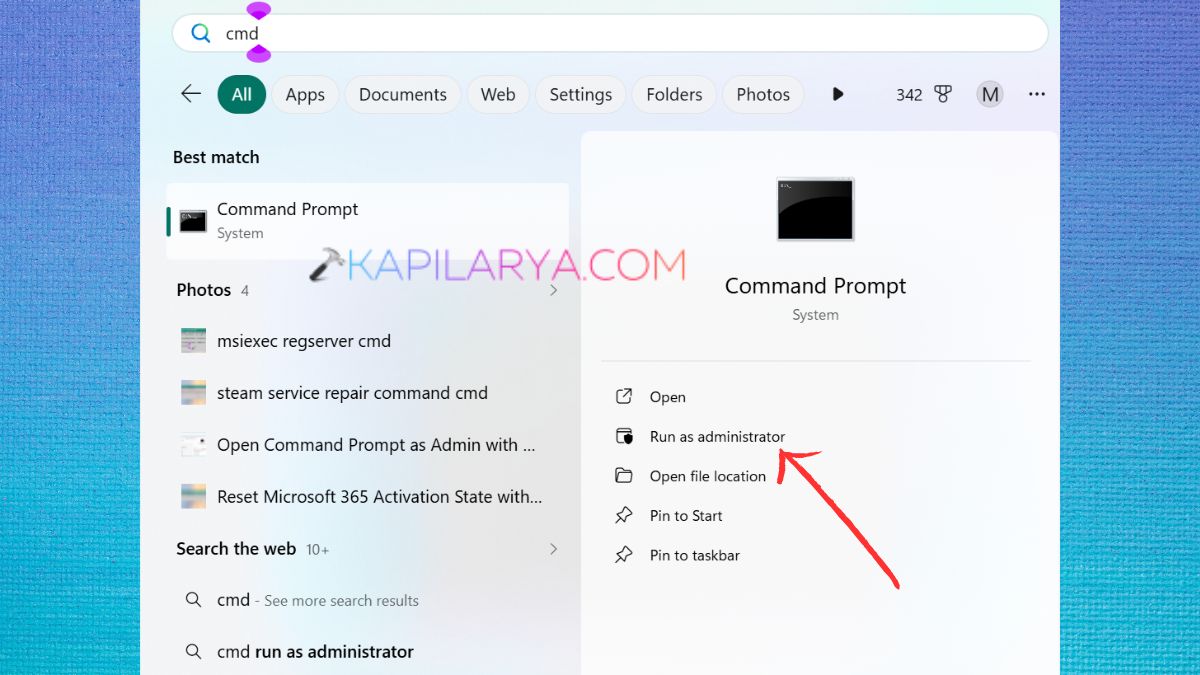
2. Use this command in it, you can copy & paste.
powercfg /batteryreport
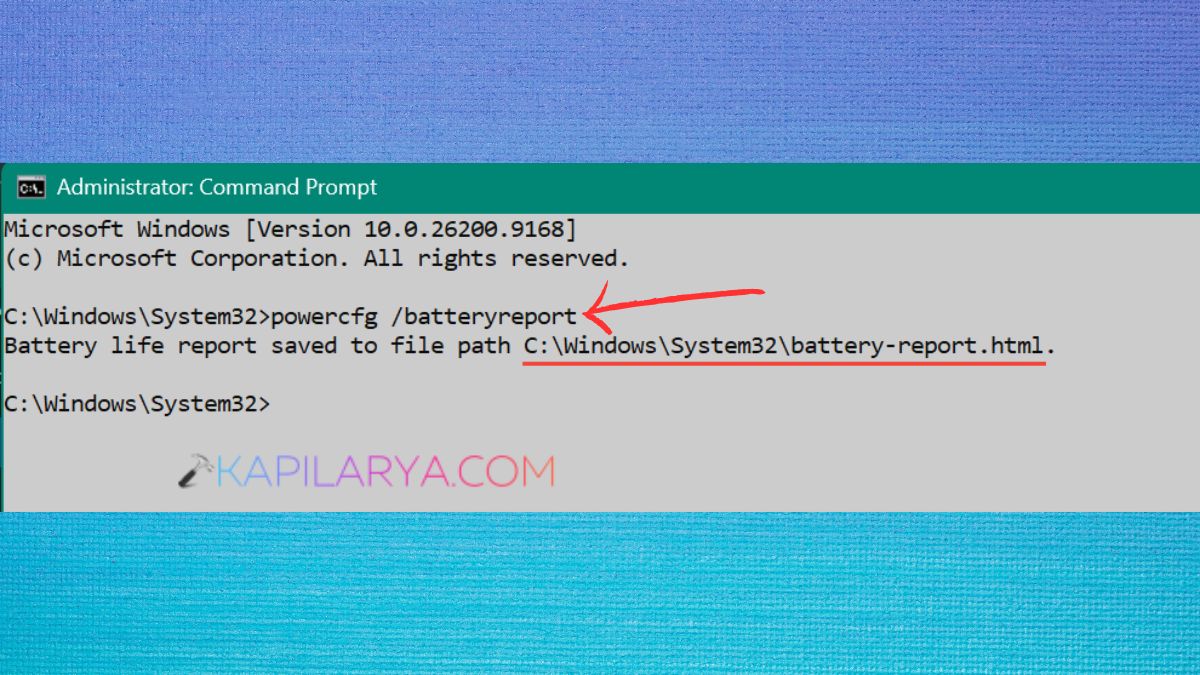
3. Windows will create a battery report and show you where the battery is. Access the file from the given path and open the report in your web browser.
Be mindful of Design Capacity & Full Charge Capacity. If the charge capacity has significantly decreased from its original design capacity, the battery could be in serious condition of wear.

Way 12: Check Whether the Battery Is Recognized
Battery charging may not function correctly if Windows is unable to determine the battery’s presence.
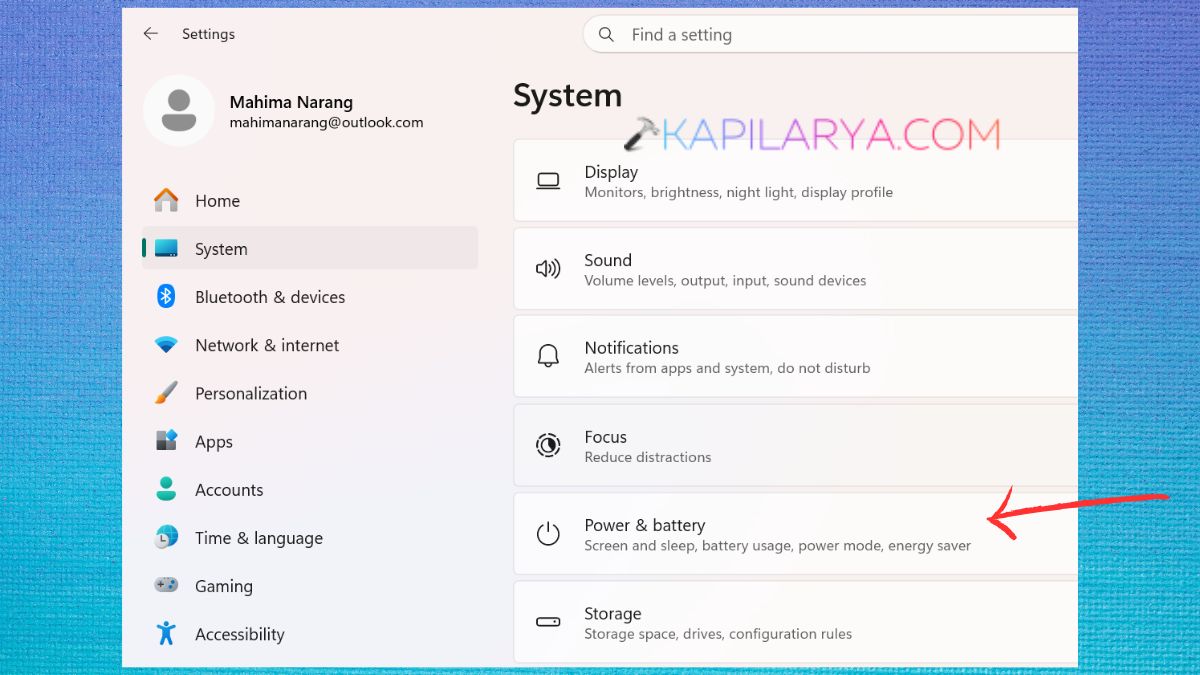
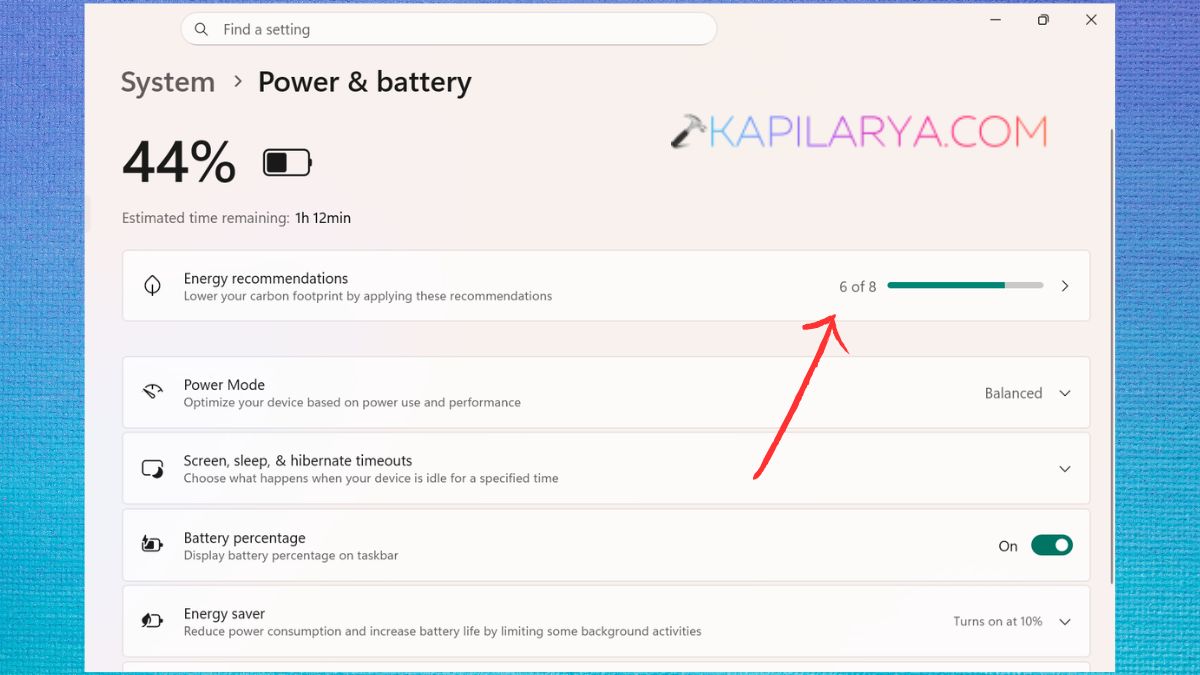
1. Open Settings. Click on System > Power & battery.
2. Check the information about batteries. See if Windows can detect the battery. Also, check out for strange alerts or charging messages.
Way 13: Consider a Windows Repair or Reinstallation
However, if everything looks okay with the charger, battery, port, drivers, BIOS and the power source, it could be a problem with Windows. Please back up any important files prior to installing Windows. A clean install of Windows 11 is usually a software troubleshooting step of last resort and not the first choice when dealing with charging issues. In case the laptop still doesn’t charge after reinstalling Windows, then it is more likely to be a hardware or firmware issue.
Way 14: Check for Hardware Damage
If all the software troubleshooting techniques fail, the battery or charging hardware could be damaged.
Here are some potential hardware issues:-
- Worn-out battery
- Damaged charging port
- Defective AC adapter
- Damaged charging circuit
- Loose connection of internal battery.
- Failure of motherboard or power management.
The battery may have a lower capacity if it is older in comparison and may need a replacement.
If these issues are experienced only when the laptop is plugged in at a specific angle, if it continually unplugs and replugs or if it does not recognize a known good charger, professional laptop inspection may be required.
When Should You Replace the Laptop Battery?
Consider replacing batteries in these cases:
- The battery is in poor condition.
- The laptop shuts down unexpectedly even with a high percentage displayed.
- The battery drains very quickly.
- System warns: Battery health warning.
- Laptop can only operate on AC power.
- The battery is physically damaged.
Note that, never attempt to repair or perforate a Lithium-Ion battery that is pre-installed in the equipment. Get it checked or replaced by a professional.