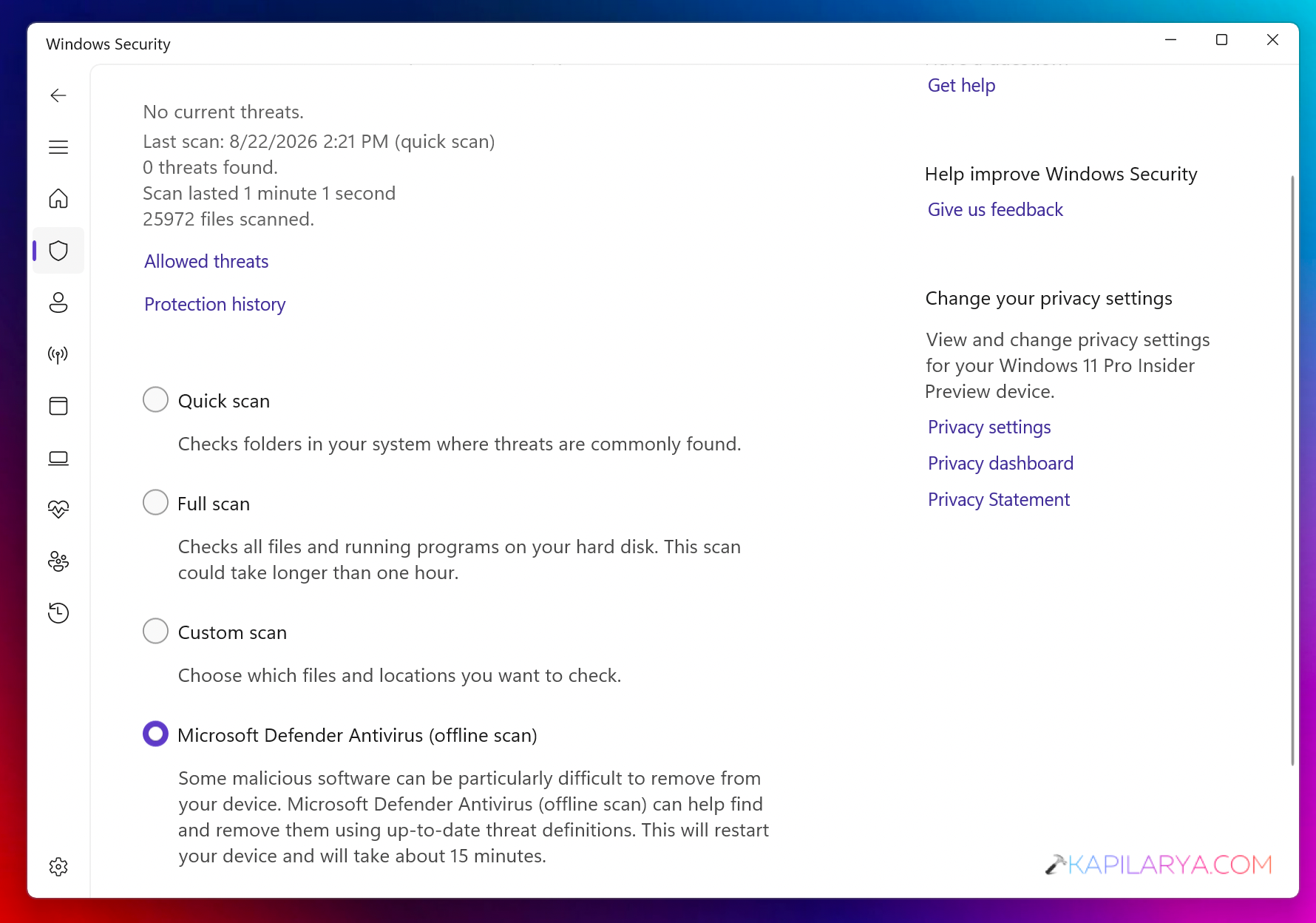
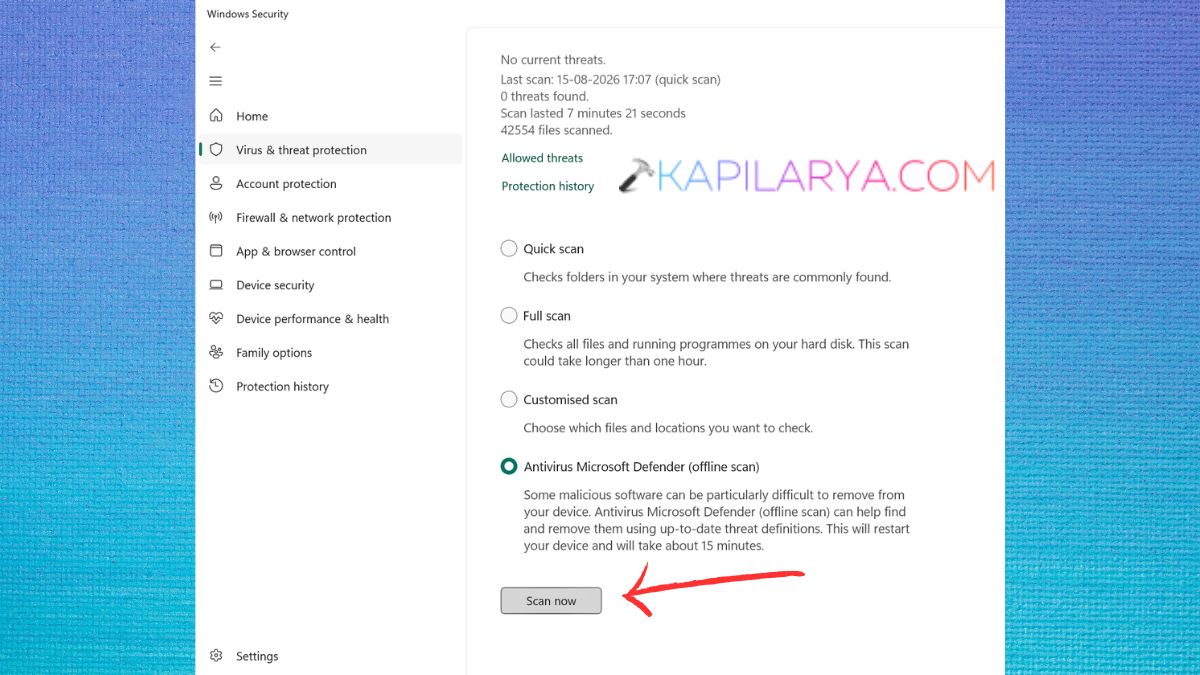
Windows Security is built-in antivirus available in Windows 11. You can use its offline scan feature to run a scan on local system files and to find malware infecting the system. However, if Windows Security Offline Scan not working, this guide would help you to deal the situation.
Page Contents
Why Is Windows Security Offline Scan Not Working?
One or more of the following problems may be causing the scan to not start up or to fail unexpectedly:
- A third-party antivirus program is causing a conflict with Microsoft Defender.
- Windows Security does not have the required permissions.
- Damage or corruption to system files.
- There is a problem with the Windows Defender components.
- Some problem with the system that just occurred with recently updated Windows.
- Windows recovery tools have been corrupted.
- System Restore or backup configuration is not consistent.
Fix Windows Security Offline Scan not working
Make sure that Windows is up to date and restart the computer once before moving to more advanced solutions. If the problem persists, then you can try the following techniques.
Fix 1: Remove Third-Party Antivirus Software
While some security applications can run concurrently with Windows Security, third-party security applications can block or interfere with some Defender features. This may cause the offline scan to not start correctly.
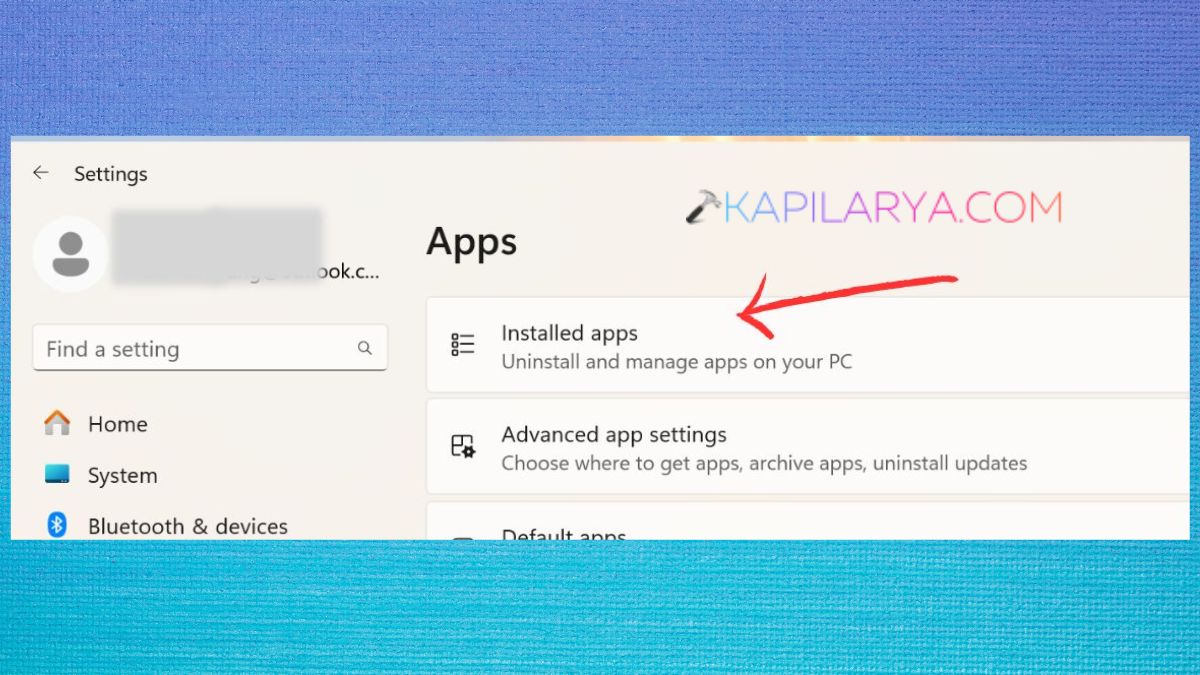
1. Open Settings (Windows + I). Select Apps. Click Installed apps.
2. Look for third-party antivirus or security software. Tap on the three-dot menu that follows it. Select Uninstall.
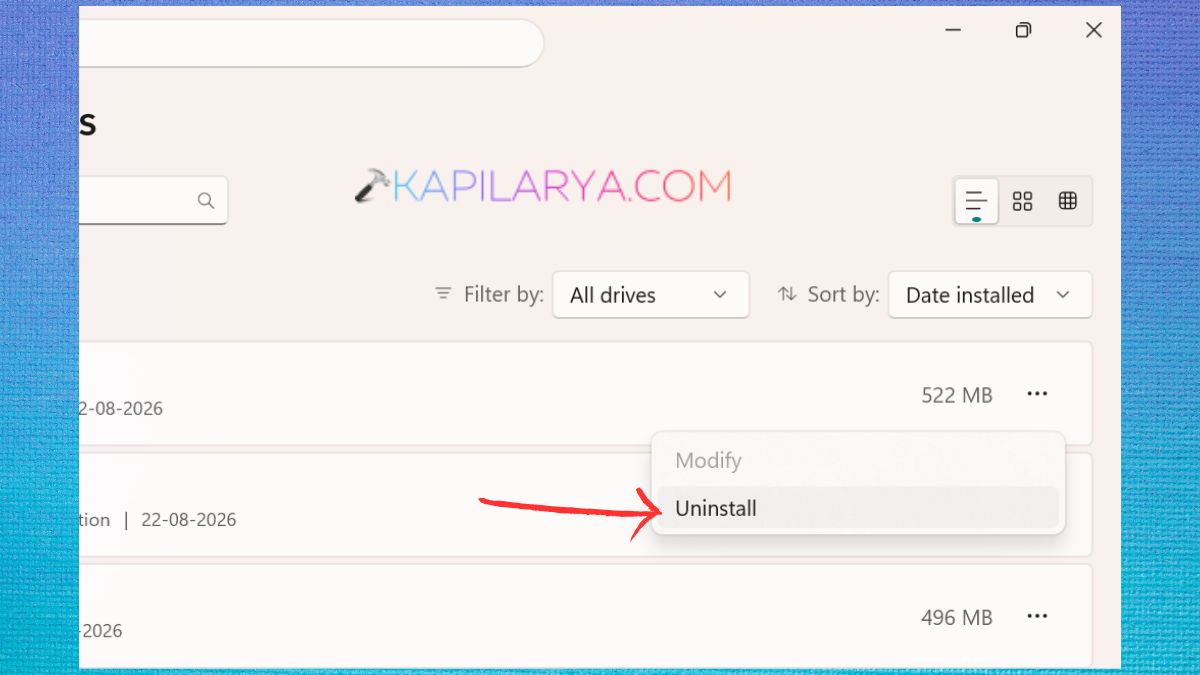
Follow the directions on the screen. Restart your computer.
Fix 2: Start Windows Security With Administrator Permissions
The typical process of installing required permissions on Windows Security is performed automatically, but if the permissions are an issue and are preventing the scan from being completed, then the use of related tools with elevated privileges can assist.
1. You should run Windows PowerShell or Terminal in administrator mode. Click on Windows + X, then Terminal (Admin) or Windows PowerShell (Admin).
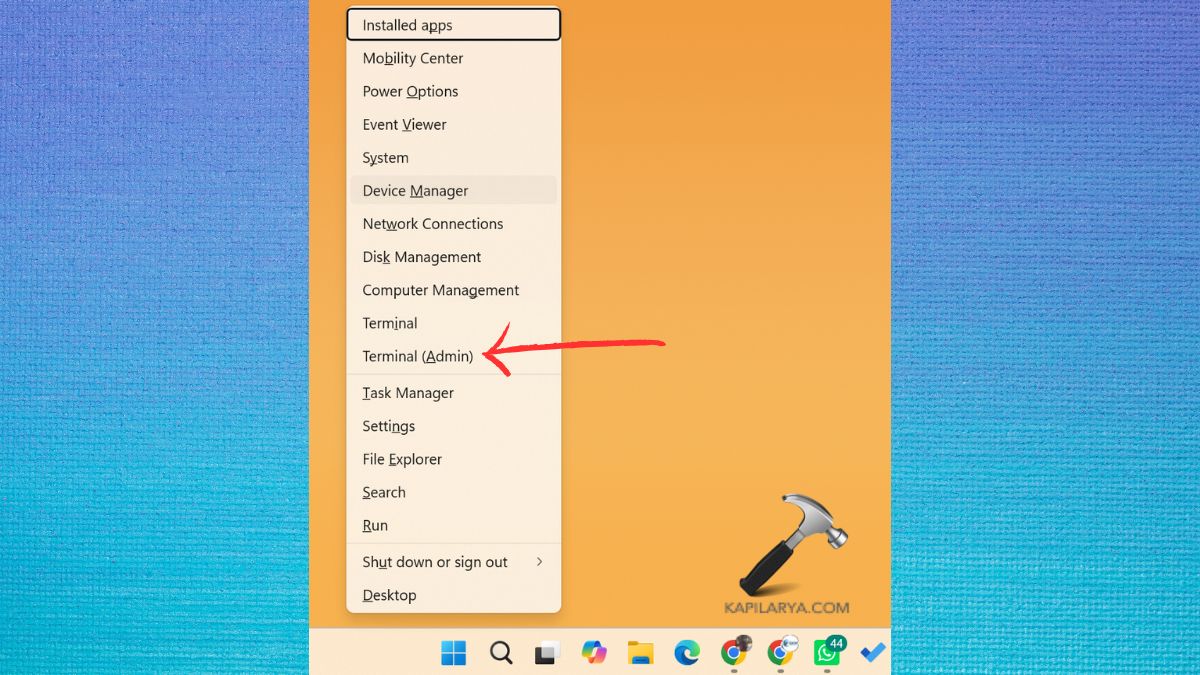
If the User Account Control dialog appears, click Yes.
2. Run the appropriate Defender command for your Windows installation.
Start-MpWDOScan
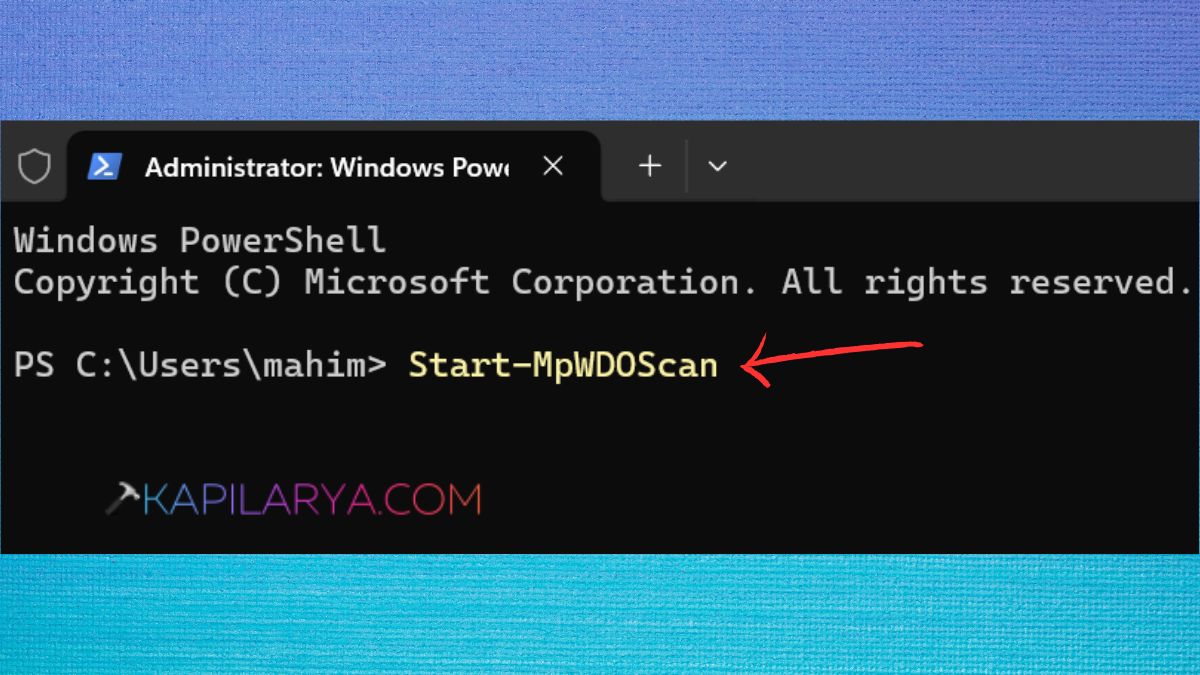
Please restart your PC and then once again run Microsoft Defender Offline Scan. If the scan continues to not start, proceed to the next solution.
Fix 3: Repair Corrupted Windows Files With DISM and SFC
Multiple Windows Security features could be misbehaving due to damaged Windows system files. A Windows Defender Offline Scan may not be able to start: Repairing the Windows component store and protected system files might resolve the problem.
1. Click Windows + S and then search for Command Prompt (Admin). If you see User Account Control, click on Yes.
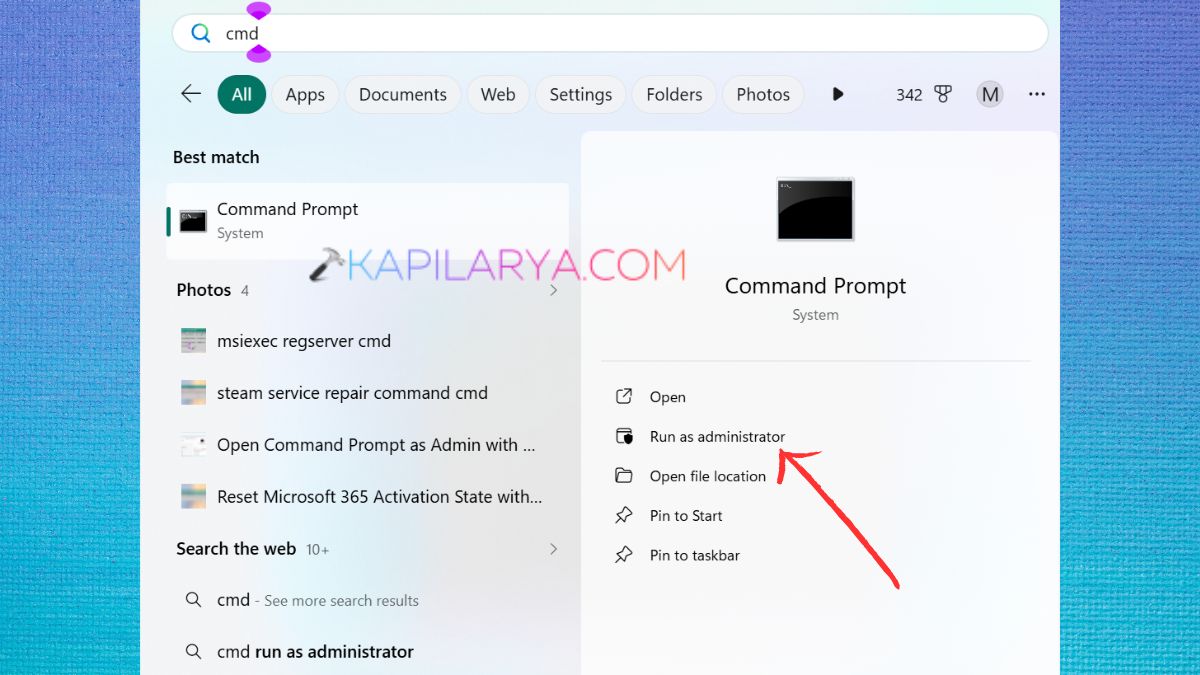
2. Type the following command in.
DISM /Online /Cleanup-Image /RestoreHealth
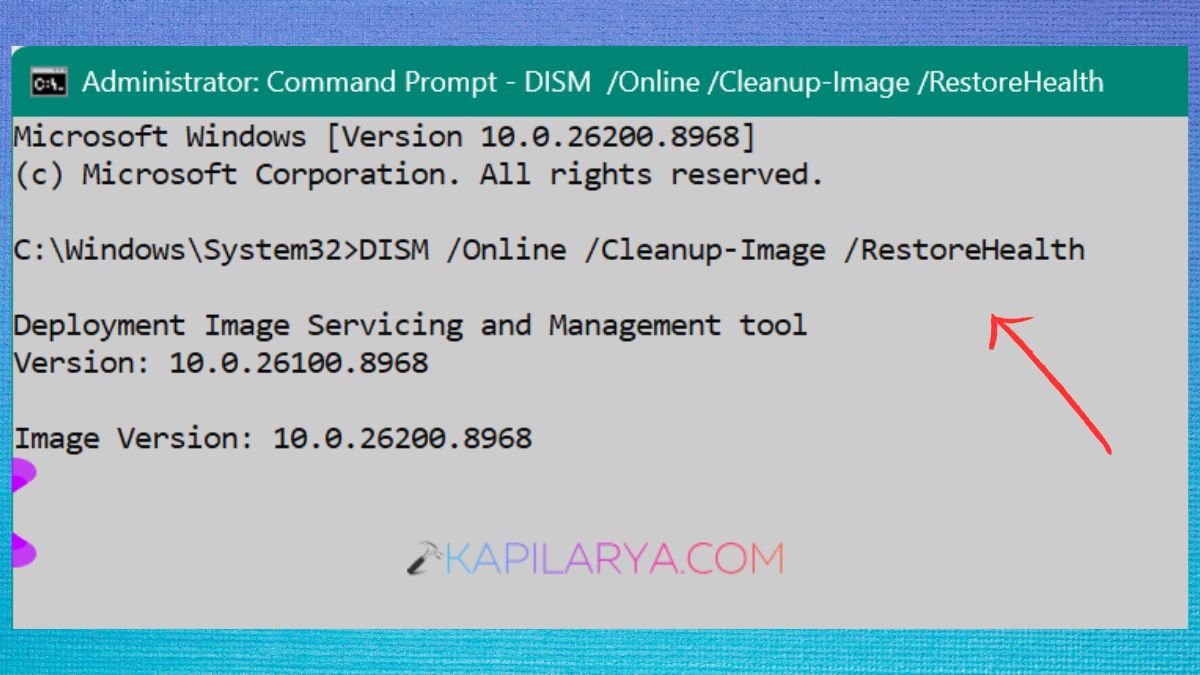
It may take a little while, so don’t close the Terminal window while DISM is in operation.
3. Once DISM has completed its task, run this.
sfc /scannow
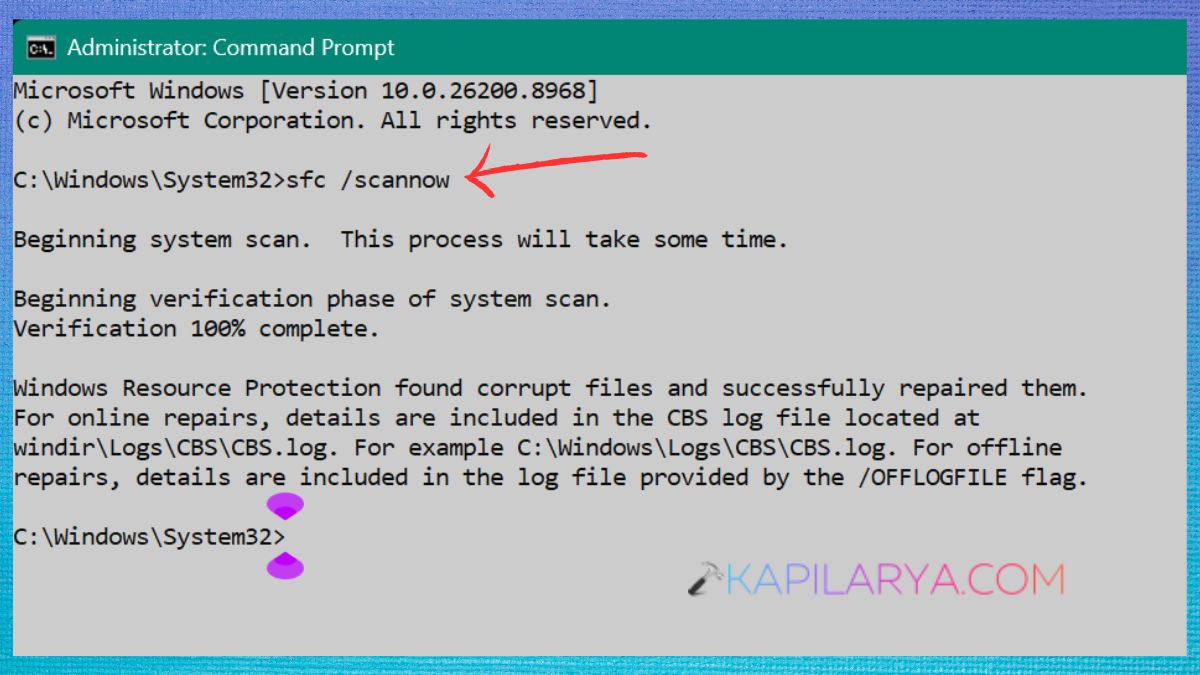
Once the scan is finished, reboot the computer and repeat the offline scan.
Why can DISM and SFC help?
DISM fixes the Windows component store, which is used by Windows to restore damaged components, and SFC scans the system files and replaces damaged files if they are found. Concurrently operating both tools can thus correct any underlying corruption in Windows that may be impacting Microsoft Defender.
Fix 4: Try System Restore
System Restore may be able to resolve issues that may have prevented Windows Security Offline Scan from working after you installed new software, changed a driver, or made a system change. If you are first time creating it, you can follow our guide on How to create a System Restore point in Windows 11.
1. To open the Run box, press Win + R. Type this command.
rstrui.exe
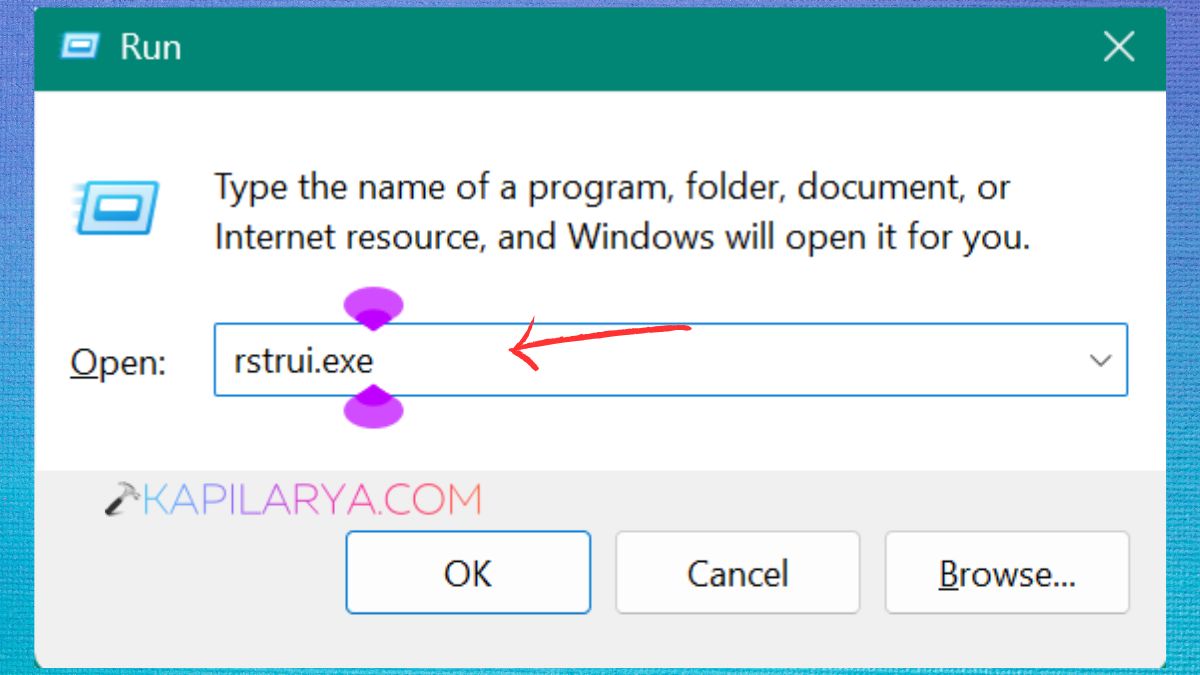
2. Select a restore point that was made prior to the Windows Security issue. Choose Next and Finish. Windows will reboot while doing this.
Fix 5: Reset This PC
If you’ve tried the above solutions without success, you can try Reset this PC as a last resort. It can restore Windows and reset many system components to their default settings.
1. Click the Windows button + I, then click System. Select Recovery.
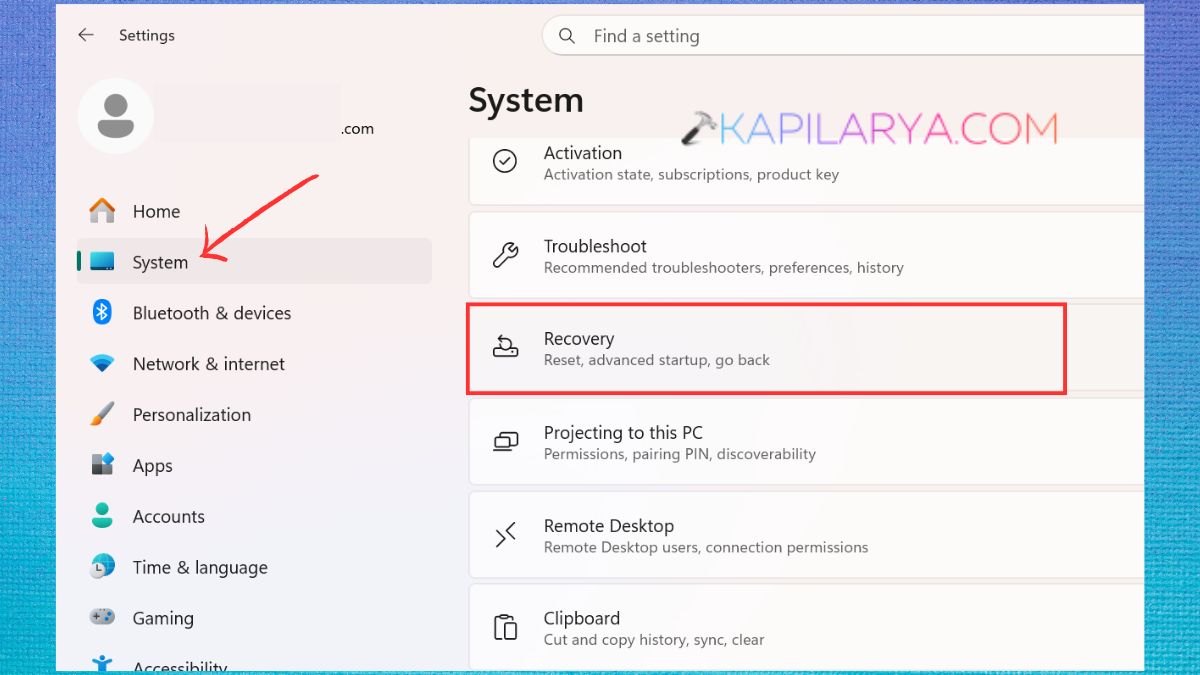
2. Tap on Reset PC.
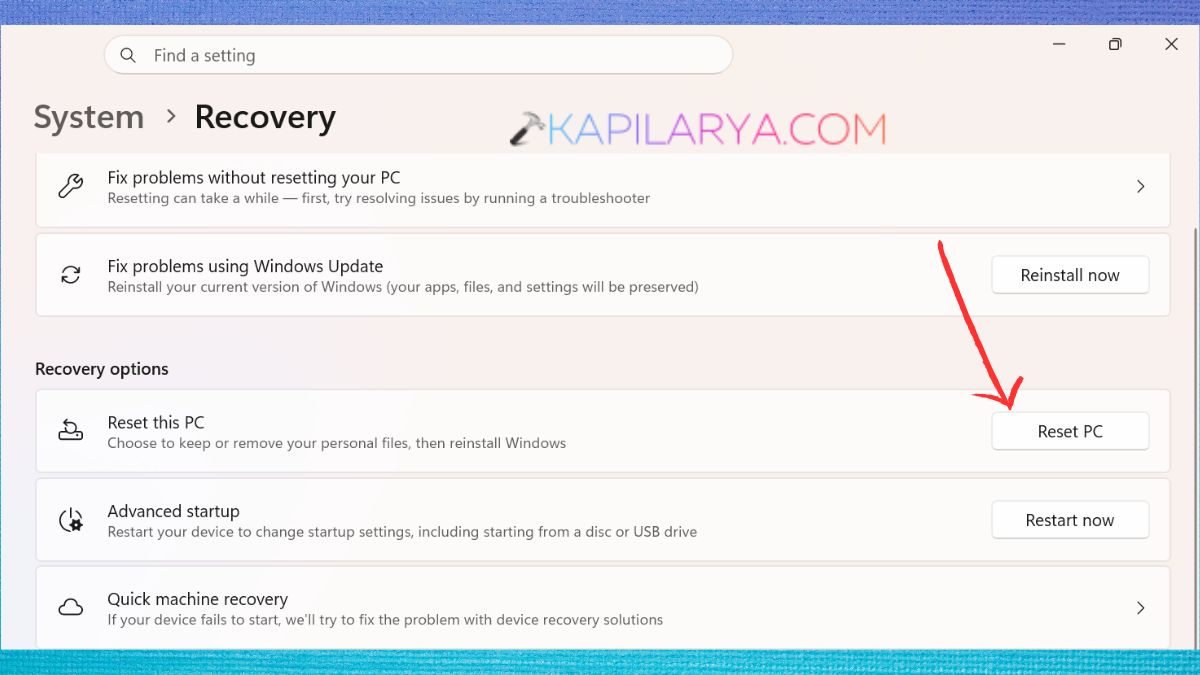
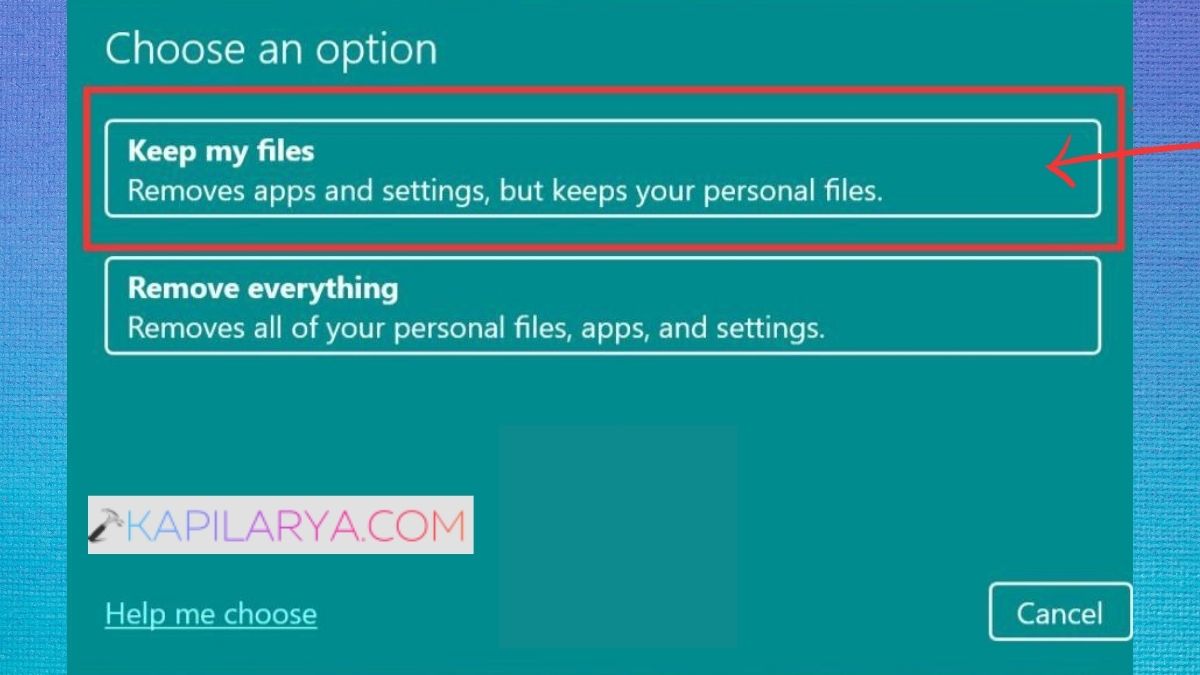
3. Select either Keep my files or Remove everything. Follow the on-screen directions.
Fix 6: Restore Windows From a Backup
Restoring a known-good backup may also be a technique for getting rid of ongoing Windows Security Offline Scan issues, if backups are regularly being created. This is useful if the problem started after a significant system change and you have a recent backup that you have made prior to the problem. A backup restore may restore applications, settings or files created since the date of the backup, so be careful when choosing the restore options.
Frequently Asked Questions (FAQs)
That’s it!