In Windows 11, error code 0xc0000001 can prevent booting up the OS normally. Sometimes you might see a blue or “recovery” screen that contains a message like “Your PC needs to be repaired” or “An unexpected error has occurred“.
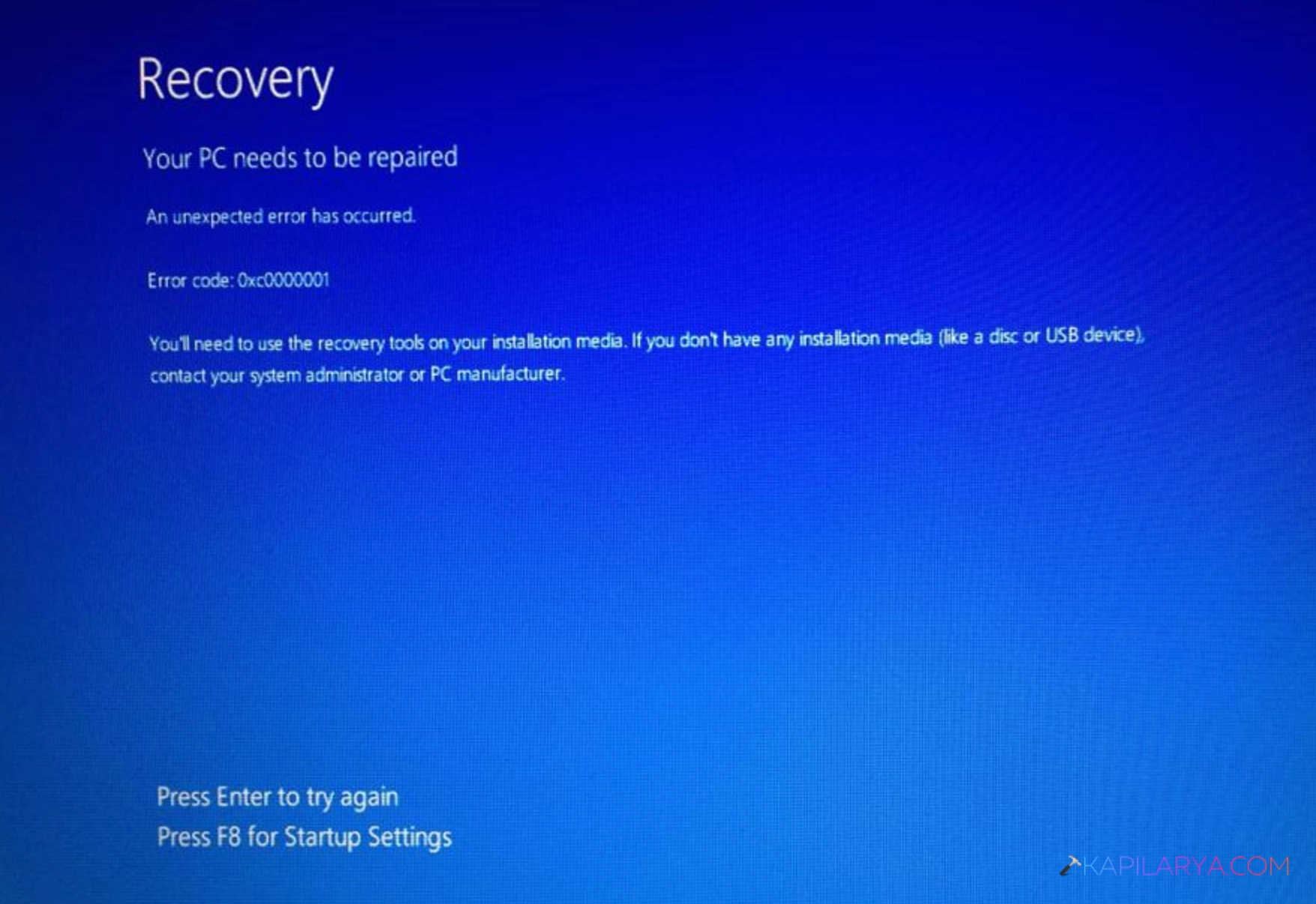
Typically, this Windows 11 boot error means that the operating system has crashed in the process of loading some vital boot files or system components. The Windows 11 Startup Recovery comes with a set of tools to help repair Startup files, restore system components, and recover an non bootable PC.
We will take you through a few widely used methods to resolve the error code 0xc0000001 in Windows 11, with increasing complexity from the simpler context recovery options to the more advanced ones.
Page Contents
Before You Start to Fix Error 0xc0000001 in Windows 11
Below are most of the solutions that will need the use of the Windows Recovery Environment (WinRE). You can press F8 to startup settings and access Advanced Recovery options.
Fix: Error Code 0xc0000001 in Windows 11
Error Code 0xc0000001 in Windows 11 can hamper accessing the Windows desktop. This doesn’t necessarily entail a complete reinstall of Windows, though. You can solve this error by following the 5 methods below.
Fix 1: Run Startup Repair
When your Windows 11 fails to boot up due to any reason, you will see this error code 0xc0000001. Also, you can fix this error code using the Startup Repair option. A Windows utility program that searches for common Windows startup problems such as bad startup files, and/or startup configuration problems.
1. Press on the button to turn on the computer/laptop. And, let the Windows Recovery screen appear.
2. Now, click Troubleshoot > Advanced options.
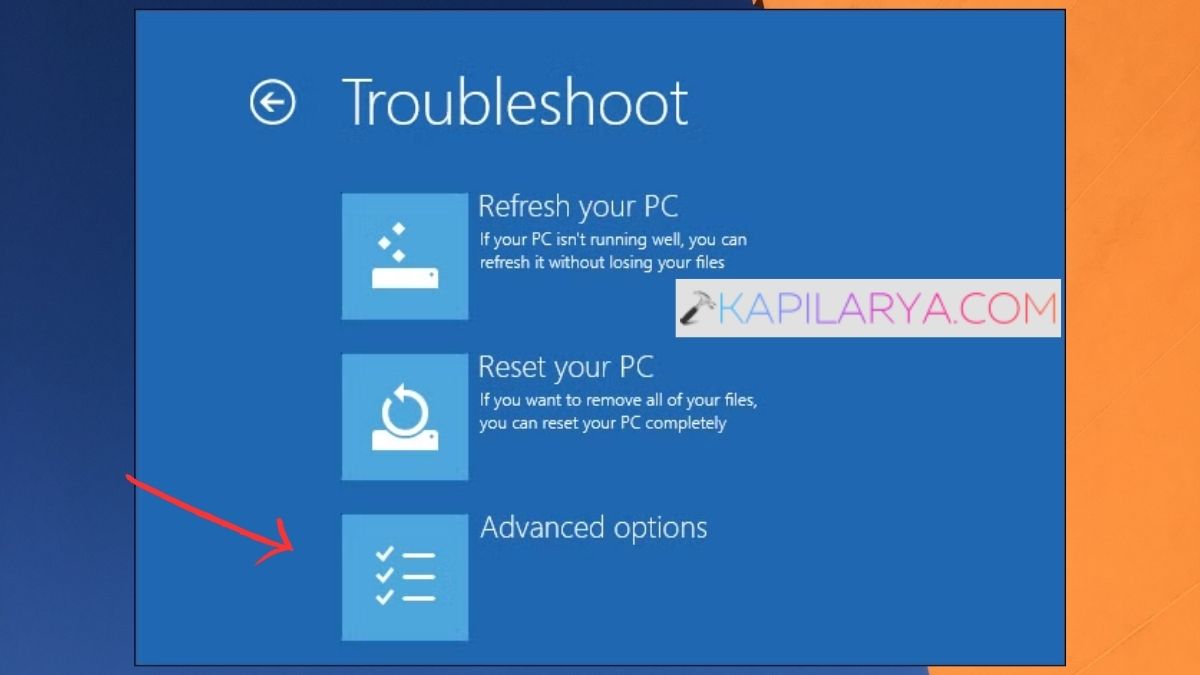
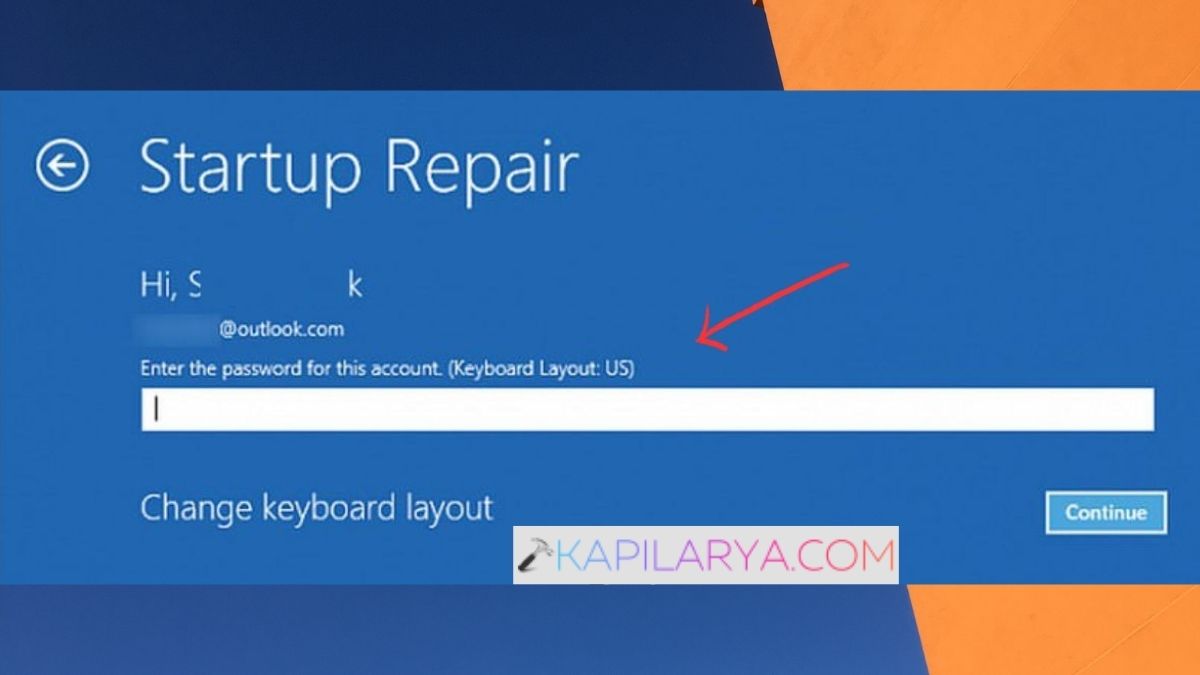
3. Select Startup Repair. Log into your user account; if asked for your password, do so.
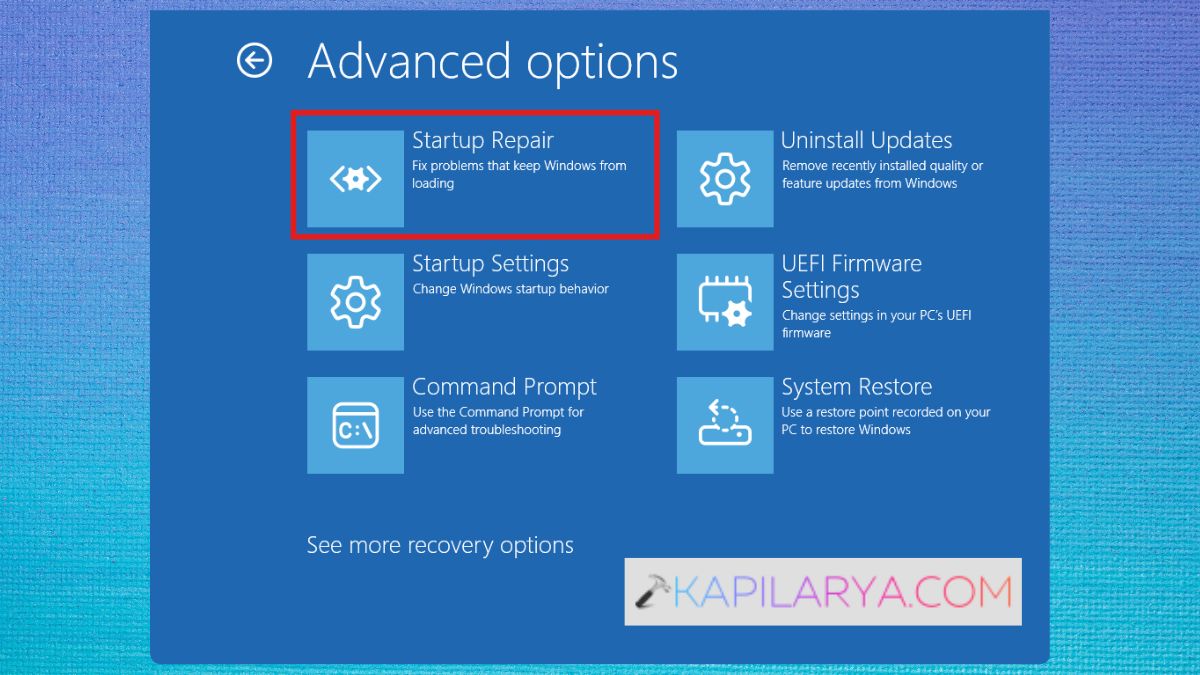
Let Windows identify and troubleshoot start-up issues. When finished, reboot. If Startup Repair doesn’t solve the problem, proceed to the next method.
![[FIX] Your PC Needs To Be Repaired. Error Code: 0xc0000225](https://htse.kapilarya.com/FIX-Your-PC-Needs-To-Be-Repaired-Error-Code-0xc0000225.png)
Fix 2: Run System Restore
If any applications, drivers or system updates were installed or changes were made to your system, then System Restore may be able to help you. It undoes the changes made when the system was restored back to a previous restoration point. This helps bring back system settings and important system files. This generally won’t affect personal files.
1. Go to Windows Recovery Environment (WinRE). Then, navigate to Troubleshoot > Advanced options> System Restore.
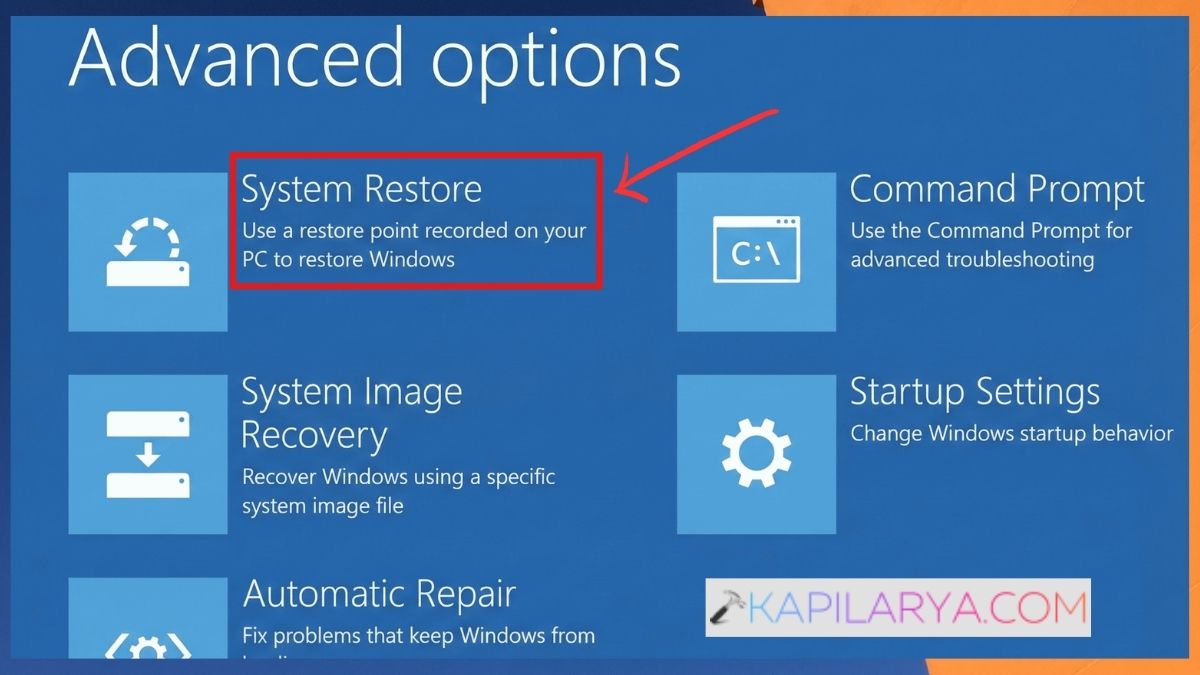
2. Click on your Windows user account. If needed, enter your password.
3. Remember to select a restore point prior to when Windows was behaving normally. Tap on Next > Finish and confirm the restore. Once the process has completed, restart the computer.
Fix 3: Use Command Prompt to Repair Boot Files
Error 0xc0000001 in the boot could be a result of damaged Boot Configuration Data (BCD) or other boot files. In WinRE, you can rebuild the boot configuration using Command Prompt.
1. Click on the option in Troubleshoot > Advanced options > Command Prompt.
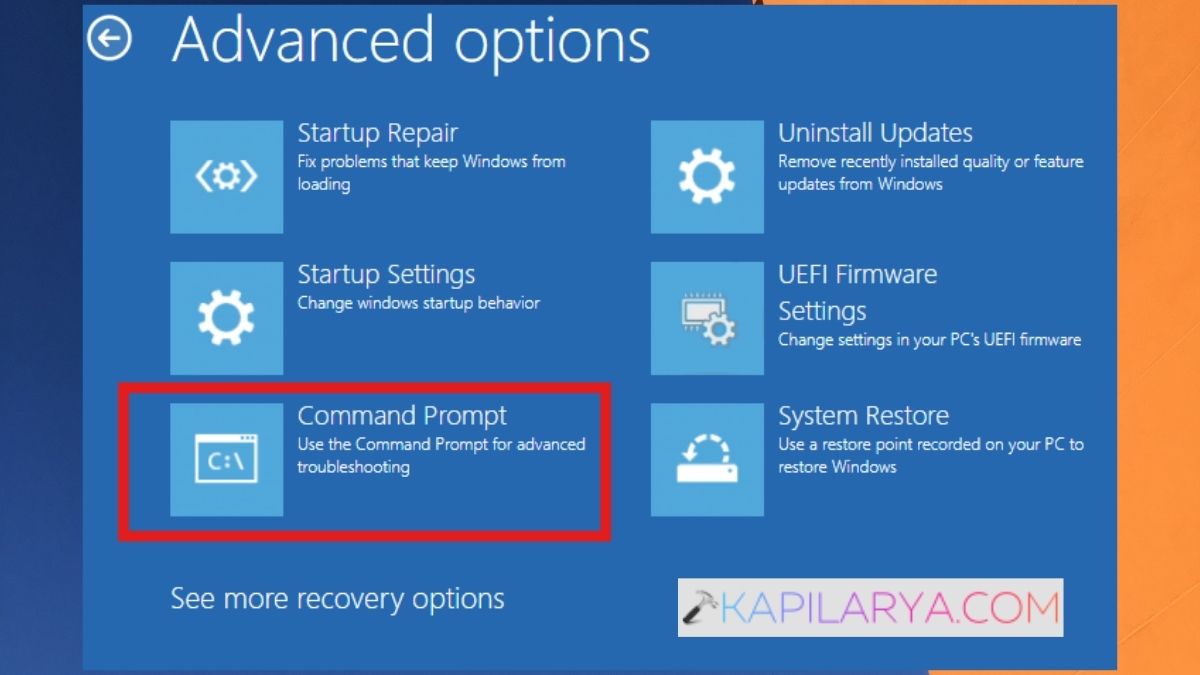
2. Run the following command.
bootrec /scanos
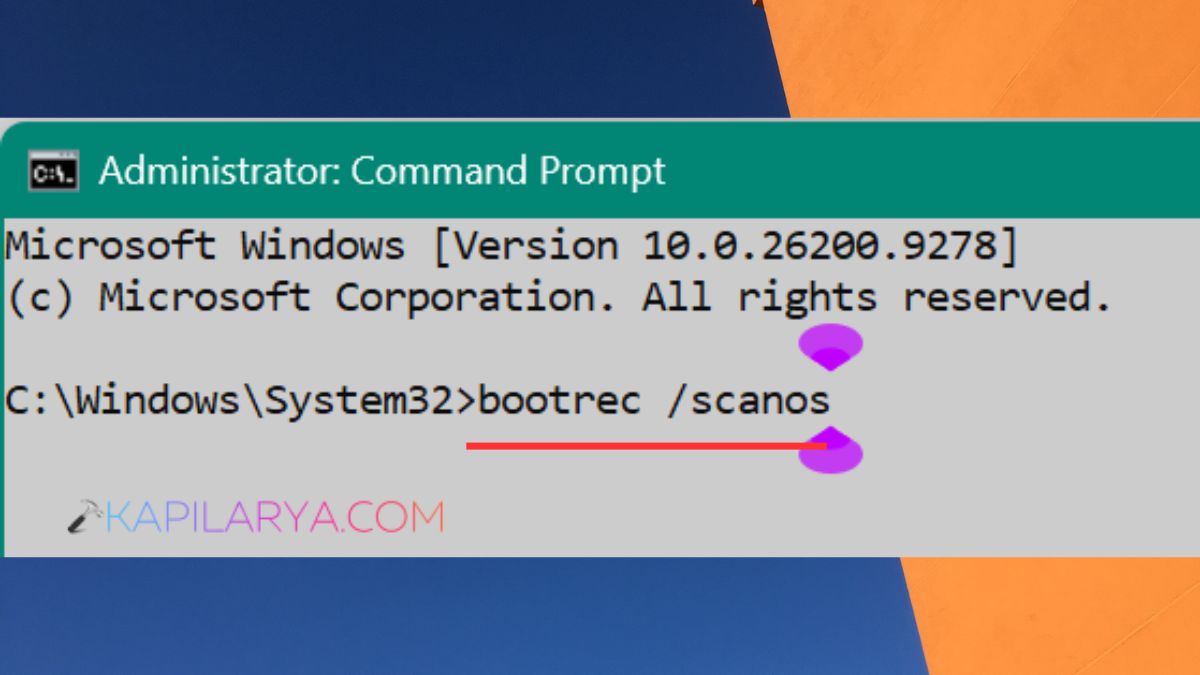
3. Then run.
bootrec /rebuildbcd
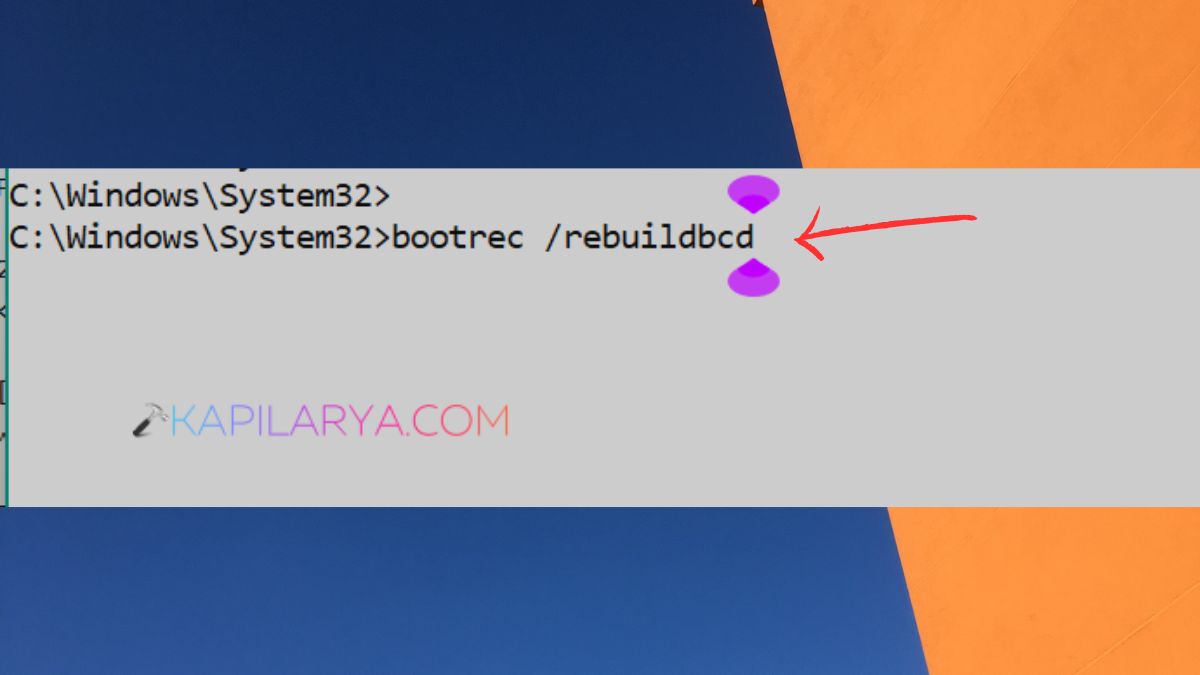
If a Windows installation is found, follow the on-screen instructions to add it to the boot configuration.
4. You can also use the following command.
bootrec /fixmbr
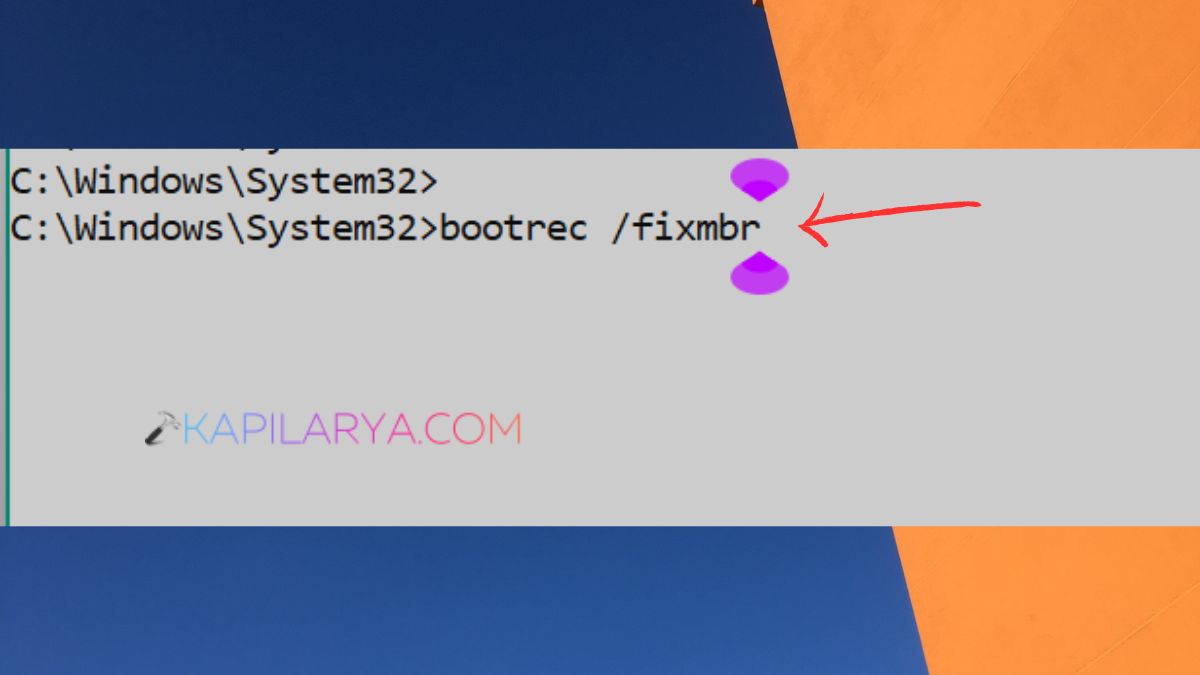
Restart your computer and see if Windows starts up normally. For some UEFI systems “bootrec /fixboot” might show an access-denied error. If that is the case, use “bcdboot” to rebuild the EFI boot files might be more appropriate.
Fix 4: Run SFC to Repair Corrupted System Files
Caused by corrupted or missing Windows files, Error Code 0xc0000001 appears in Windows 11. System File Checker (SFC) can check for and fix corrupt protected system files if it can.
1. Press F8 to start the Windows Recovery Environment, and then press ‘R’ to open Command Prompt.
2. Determine where Windows is installed. For example:-
dir C:\
Search for the “Windows” folder. If it doesn’t appear, then use a different drive letter.
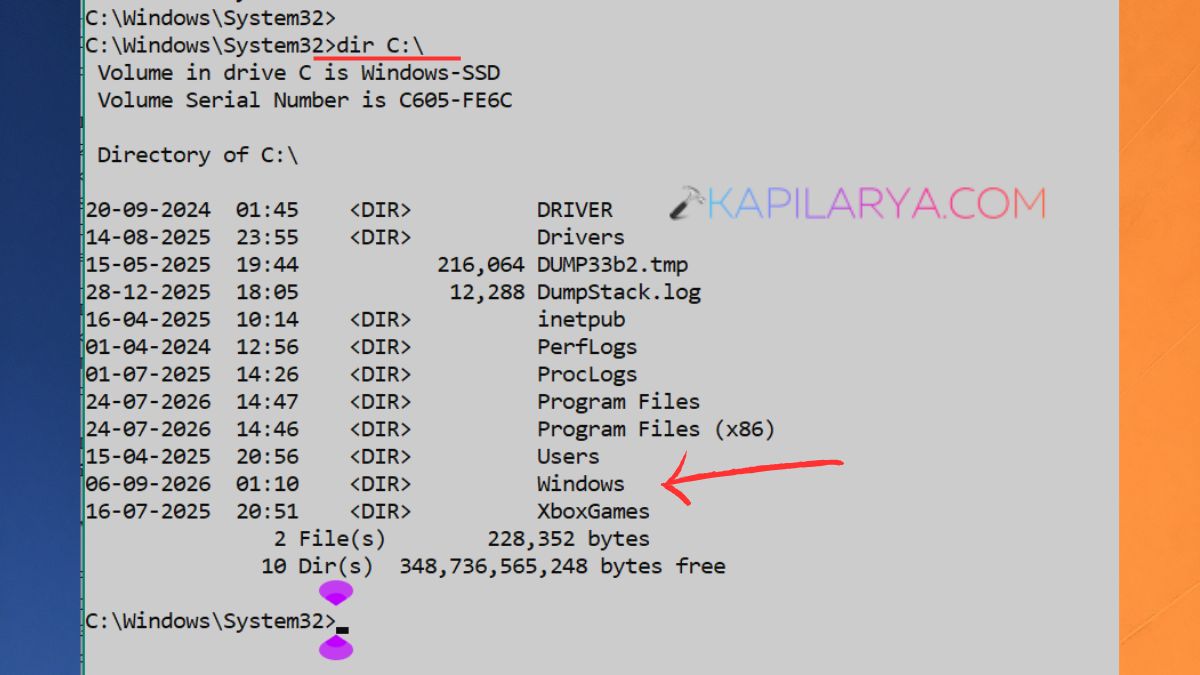
3. Once the proper drive is determined, run.
sfc /scannow /offbootdir=C:\ /offwindir=C:\Windows
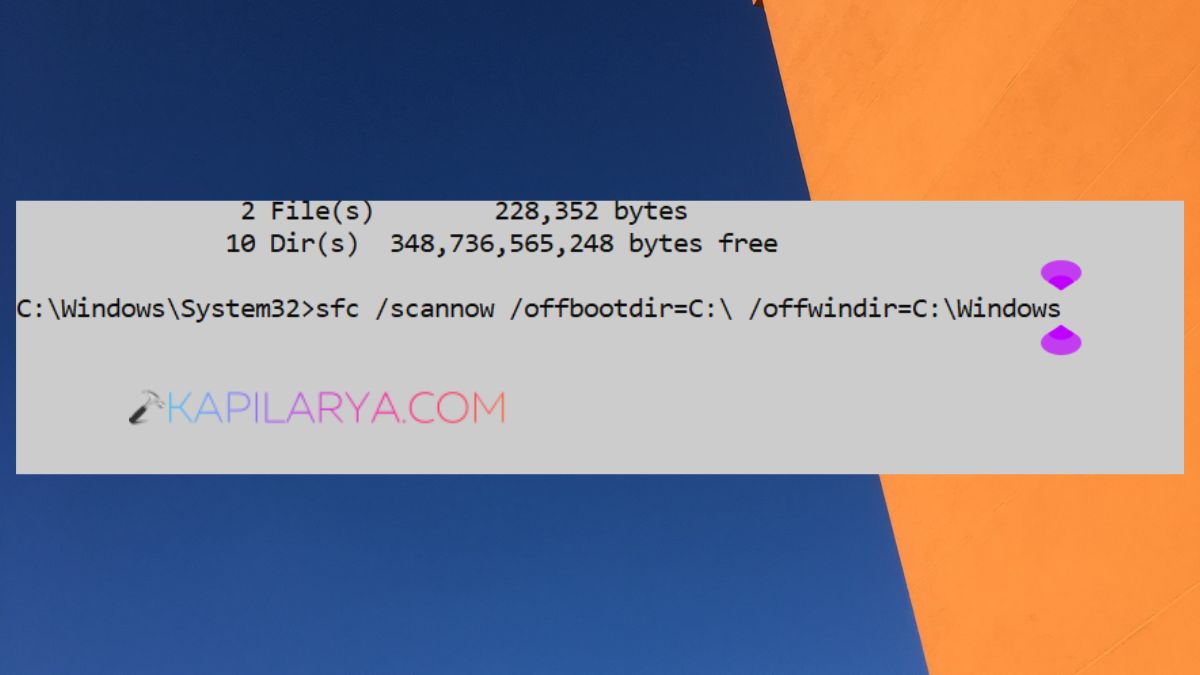
Update – If applicable, change the drive in the C: to the appropriate Windows drive. Now, wait until the scan is complete (100%). If so, it’s likely you’ll need to restart the system and see if the startup error has been corrected.
Fix 5: Repair a Damaged SAM File
It is an advanced solution and should be used with caution since the replacement of Registry files may make Windows non bootable in the event that incorrect Registry files are replaced. Whenever possible, make a copy of the existing files before proceeding.
1. Again, open Command Prompt in the Windows Recovery Environment.
2. Determine the drive you are installing Windows onto:-
cd /d C:\Windows\System32\config
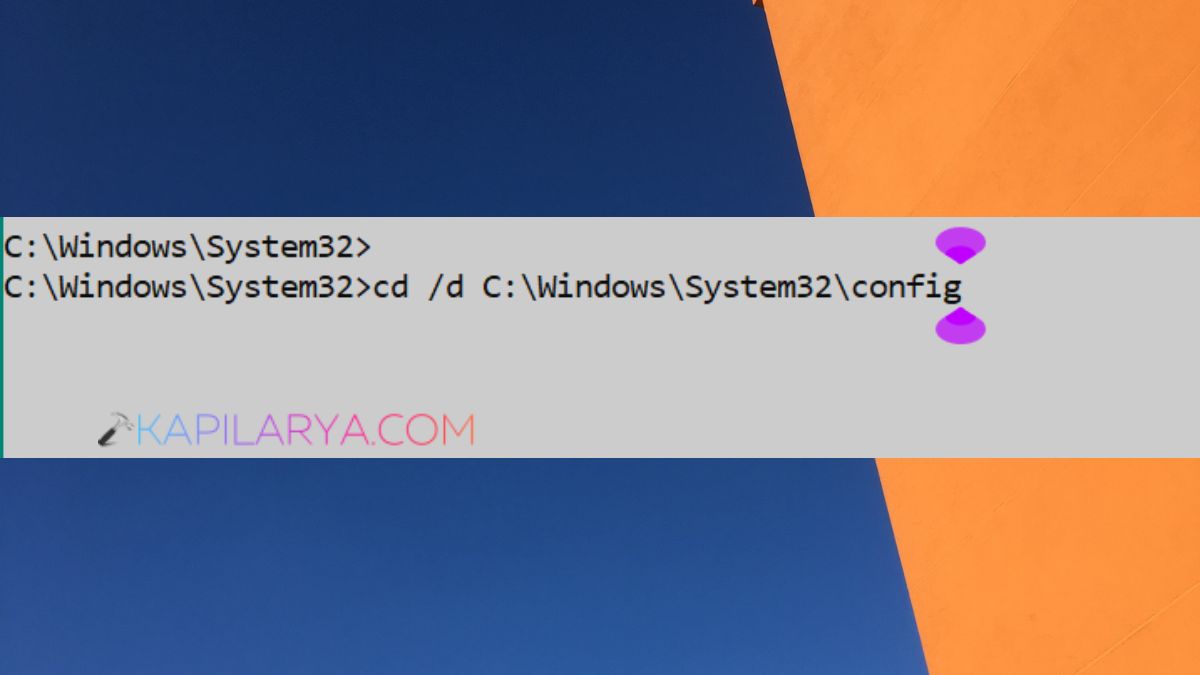
3. Go to the ‘Registry configuration’ folder. Test to see if there is a Registry Backup:-
dir RegBack
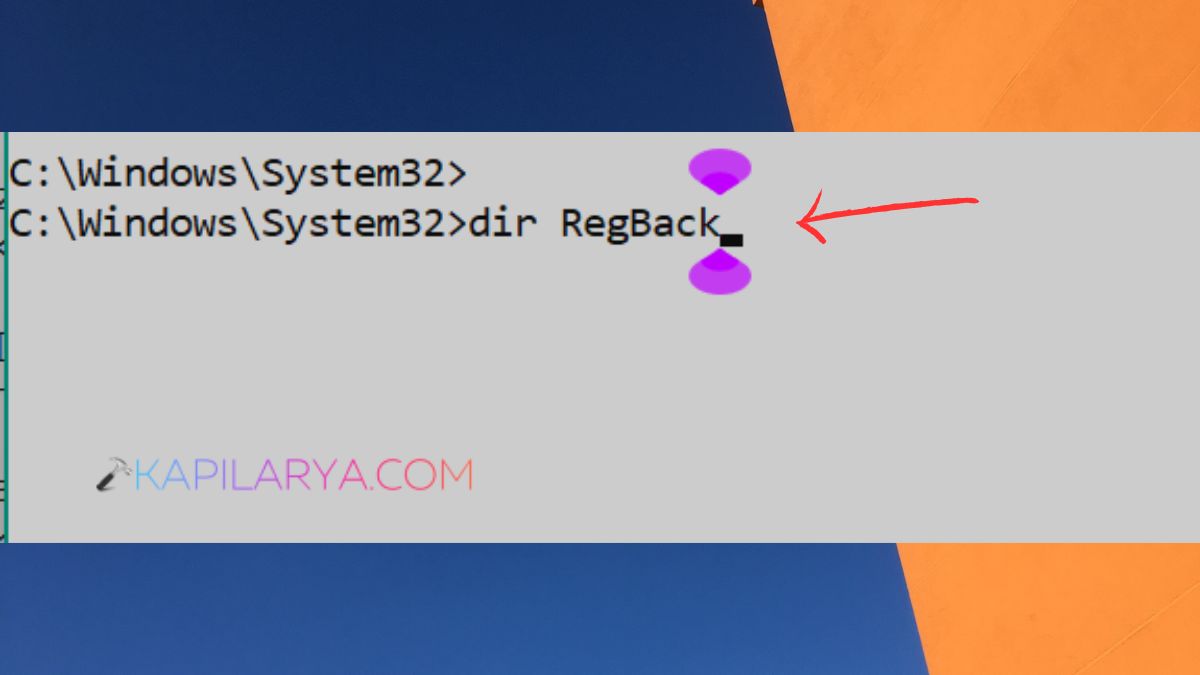
If backups can be used, do not delete and replace the existing SAM file. RegBack might not include any valid automatically created Registry backups for a modern Windows installation. If you have a known good system backup or restore point, then utilize that recovery option instead.
Frequently Asked Questions (FAQs)
What causes Error Code 0xc0000001 in Windows 11?
Some common causes of Error Code 0xc0000001 on Windows 11 are corrupt system files, boot configuration data, installation failure, Registry failure, disk failure or unexpected shutdowns.
How do I fix 0xc0000001 in Windows 11?
You can repair 0xc0000001 Windows 11 errors using all the methods given in this article. If these techniques do not provide the desired recovery, then you can use advanced Registry or SAM recovery.
Can SFC fix the 0xc0000001 boot error?
Yes, SFC can correct the Windows system file repair error (0xc0000001). This is when these corrupted or missing Windows system files are causing the boot error. If unable to start Windows, use the Windows Recovery Environment to run an offline SFC scan using the correct Windows drive letter.
Will resetting Windows fix Error Code 0xc0000001?
To reset Windows will solve the problem of serious software corruption and error code 0xc0000001, but only as a last resort. Do all the troubleshooting options you can include Startup Repair, System Restore, SFC, and boot repair. Always back up important files prior to resetting or reinstalling Windows.
That’s it!