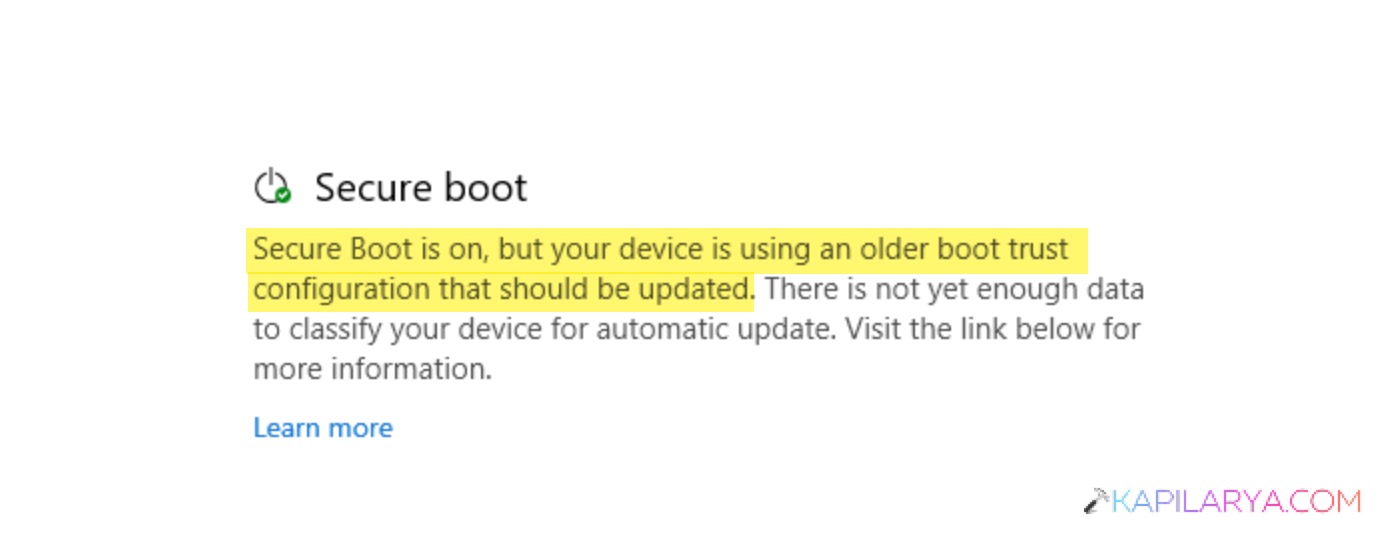
You just opened Windows Security and saw a warning “Secure Boot Is on, but your device is using an older boot trust configuration”. This looks alarming. However, it usually means your Windows 11 PC has not yet received or applied Microsoft’s latest Secure Boot certificate updates. The older Secure Boot certificates are set to expire in June 2026.
Well, there are many ways to resolve this issue.
Let’s see how:
Page Contents
Why Secure Boot Is On, But Using An Older Boot Trust Configuration Appears?
You see this warning because:
- Microsoft is updating the older secure boot certificate.
- The older certificates are nearing their expiration date (June 2026).
- Your PC has not yet received the latest certificate update.
- The updated certificate is downloaded, but not applied yet.
- Microsoft is still validating your device before automatically installing the update.
Fix “Secure Boot Is On But Using An Older Boot Trust Configuration” In Windows 11
Here is how to fix this issue:
Fix 1: Install All The latest Windows Updates
Windows delivers Secure Boot certificate updates through Windows Update. So, here are the steps to install them:
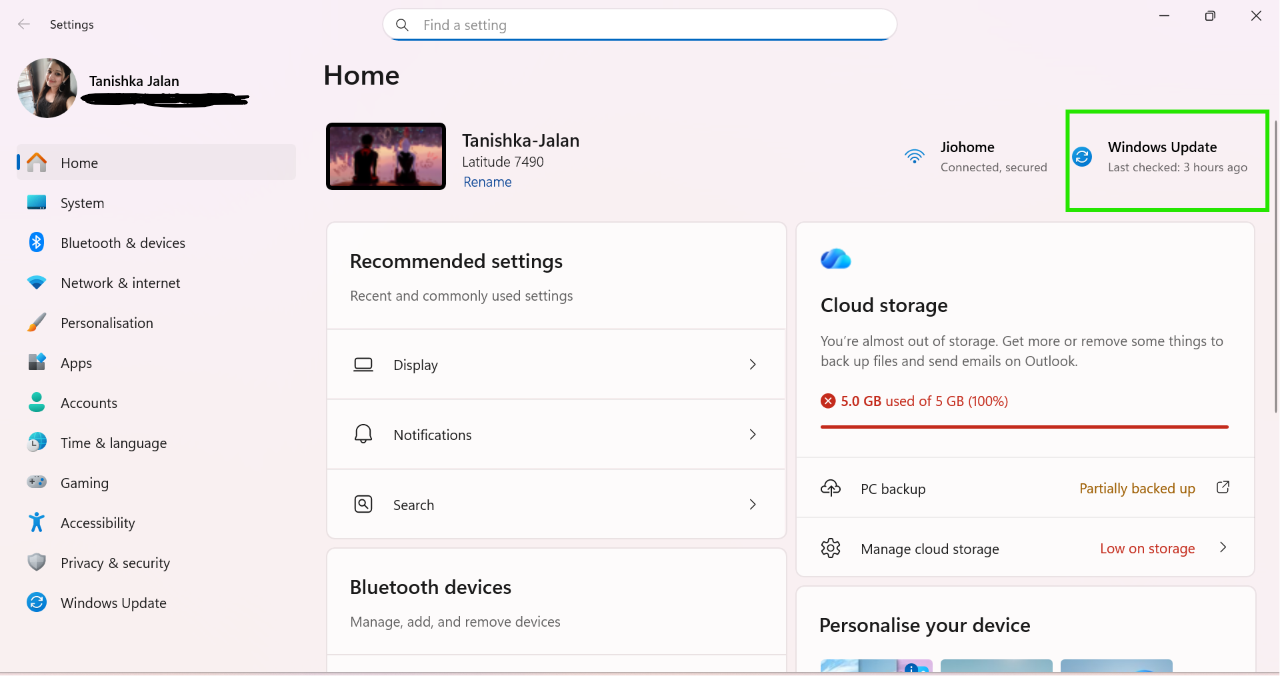
1. Open Settings > Windows Update.
2. Click On Check for Updates.
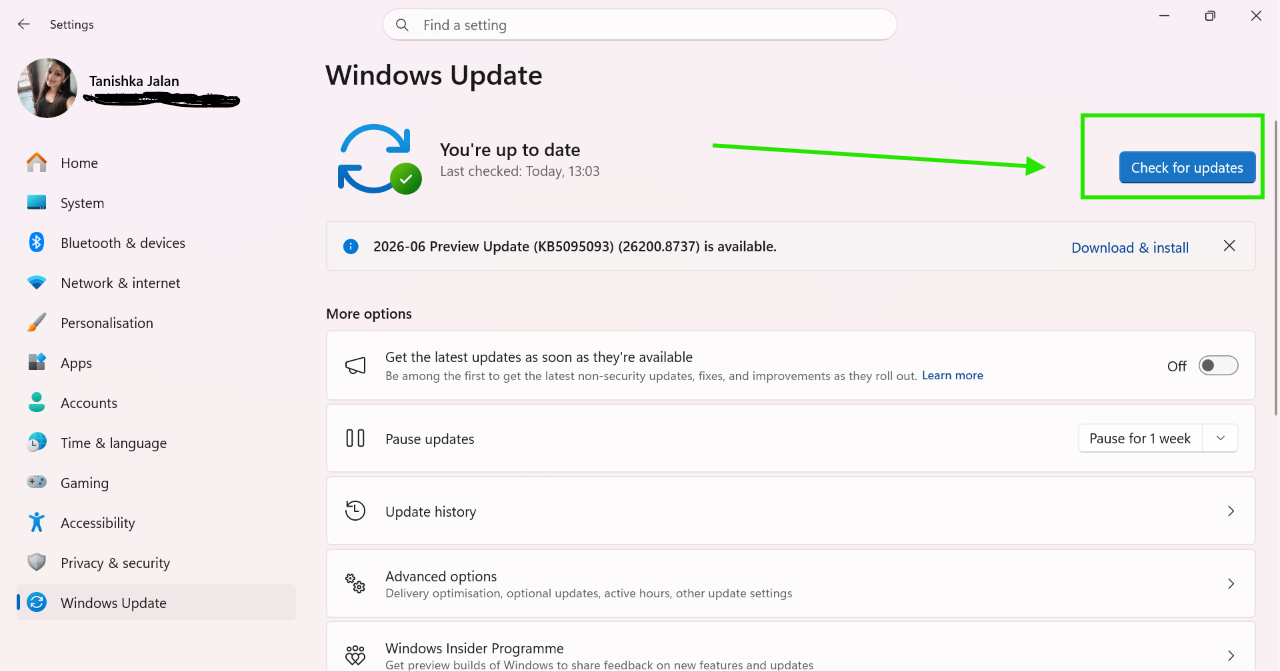

3. Install all the available updates.
4. Now restart your PC.
Fix 2: Update BIOS Or UEFI Firmware
An outdated BIOS may prevent the new certificates from being applied. Follow the steps:
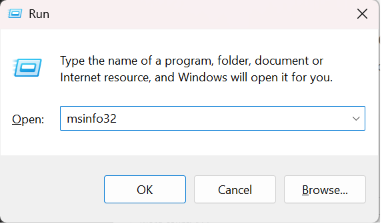
1. Press Win + R and type msinfo32, then Enter.
2. Check your current BIOS version.
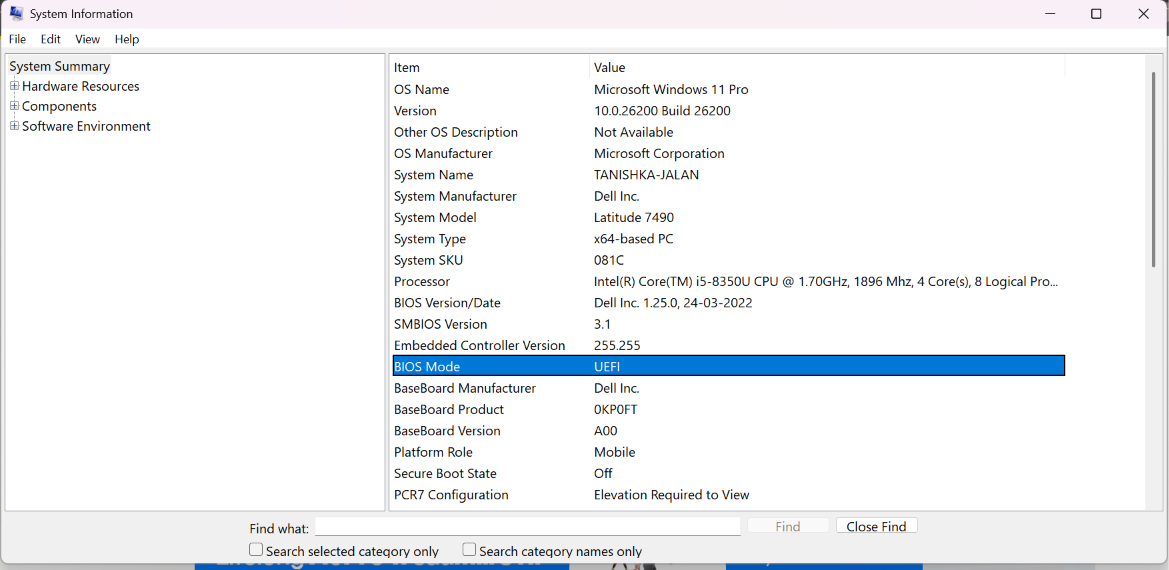
3. Visit your PC manufacturer’s support website.
4. Download and install the latest BIOS update.
5. Restart the computer.
Fix 3: Make Sure To Secure Boot Is Enabled
Secure Boot must be turned on for the certificate update process to work. Here is how to do it:
1. Open System Information.
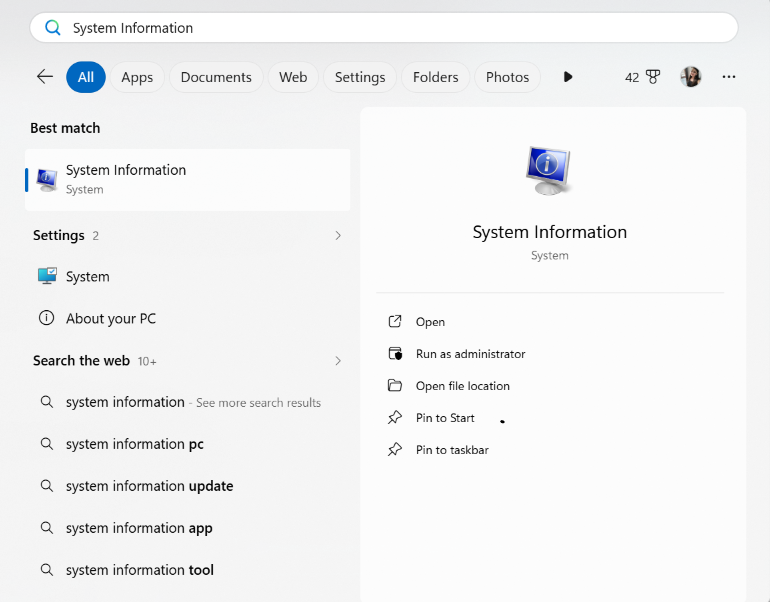
2. Locate Secure Boot State.
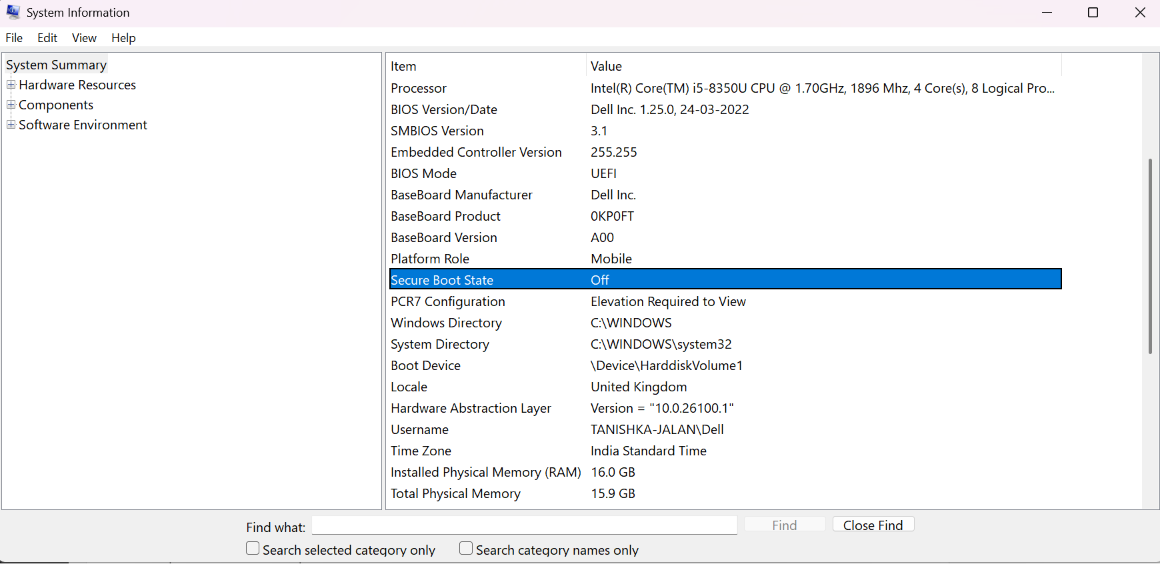
3. Verify it shows On.
And whether it is turned on or off, it is in the BIOS/UEFI settings.
Fix 4: Enable Diagnostics Data
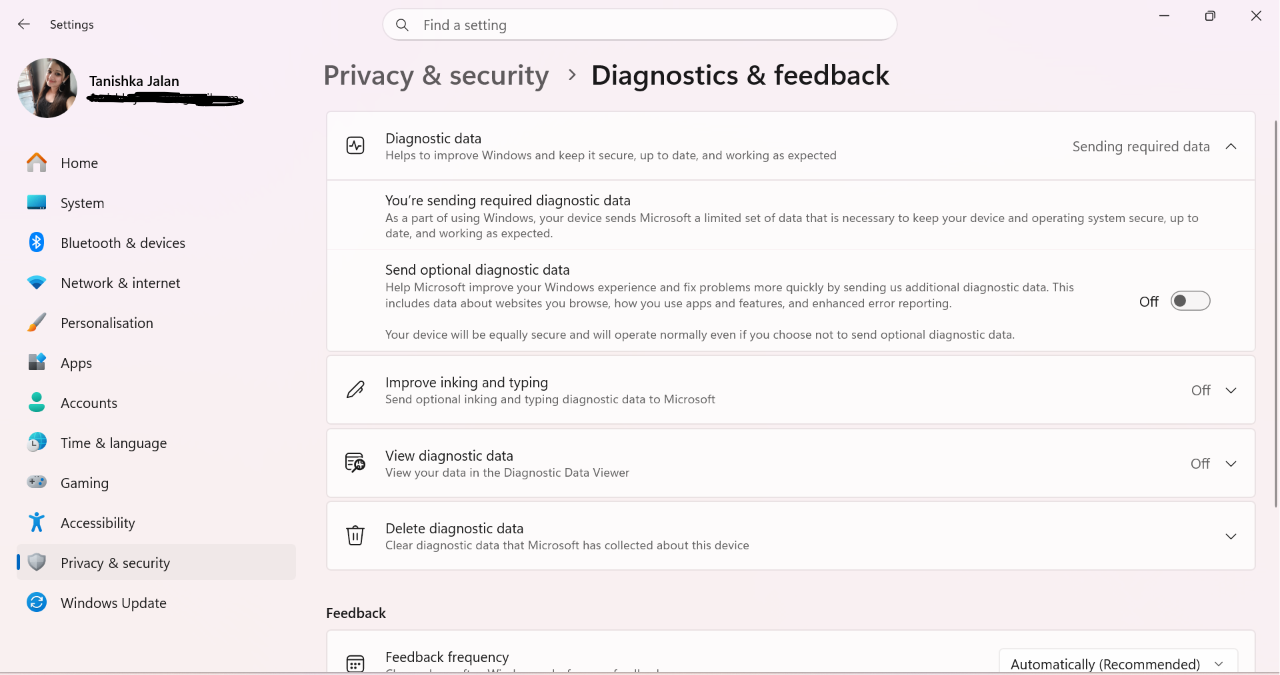
Microsoft can use the diagnostic information in order to validate eligible devices for automatic certificate updates. So ensure your device have diagnostic data enabled.
1. Open Settings > Privacy & Security.
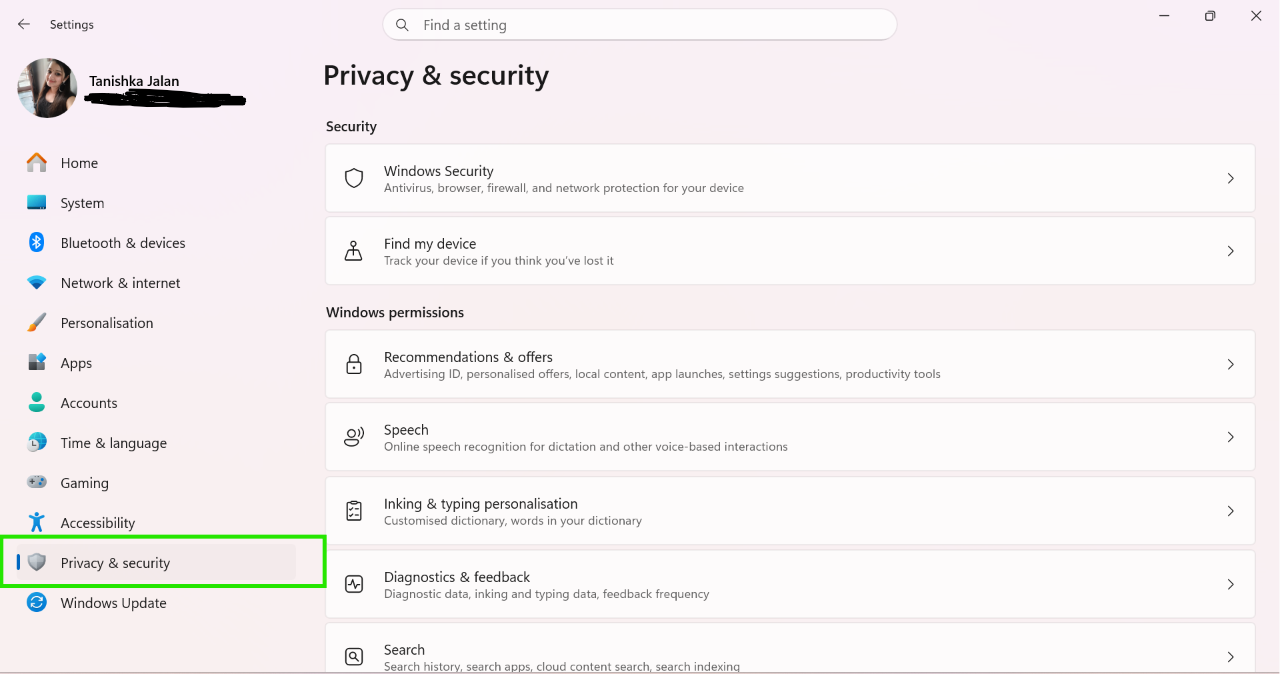
2. Select Diagnostics & Feedback.
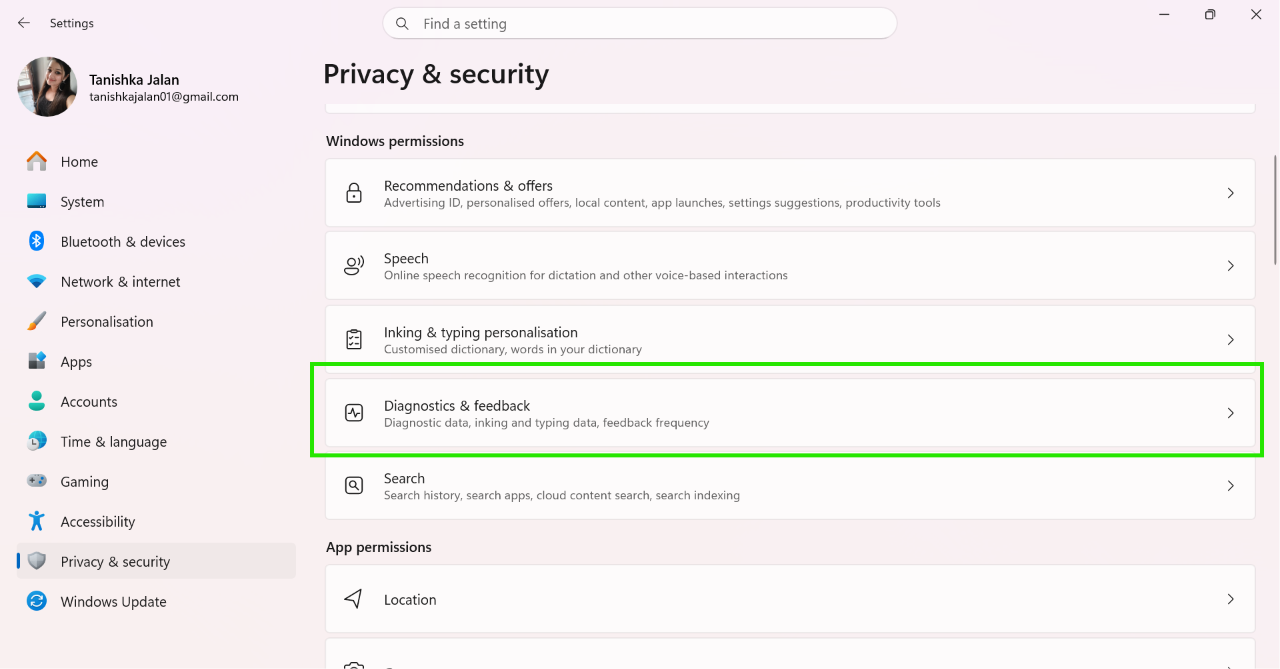
3. Turn On Send optional diagnostics data option.
Fix 5: Check Event Viewer
You can verify whether the updated certificate has already been downloaded.
1. Open Event Viewer.
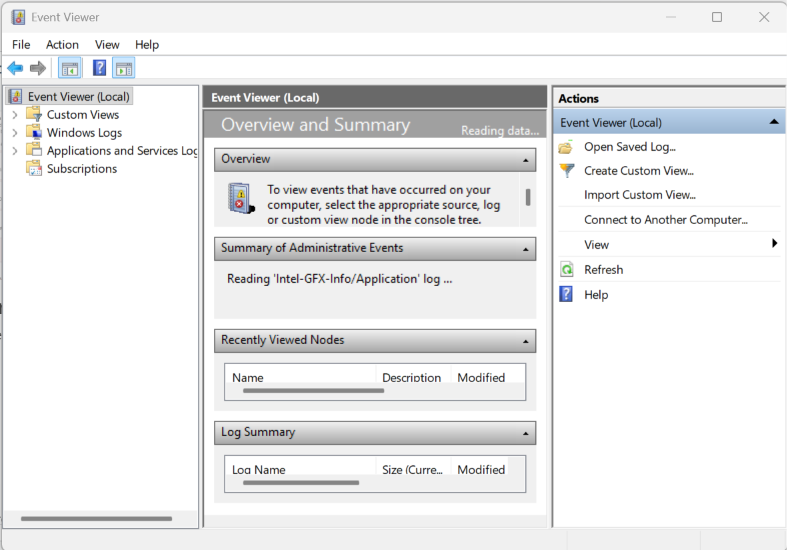
2. Navigate to Windows logs.
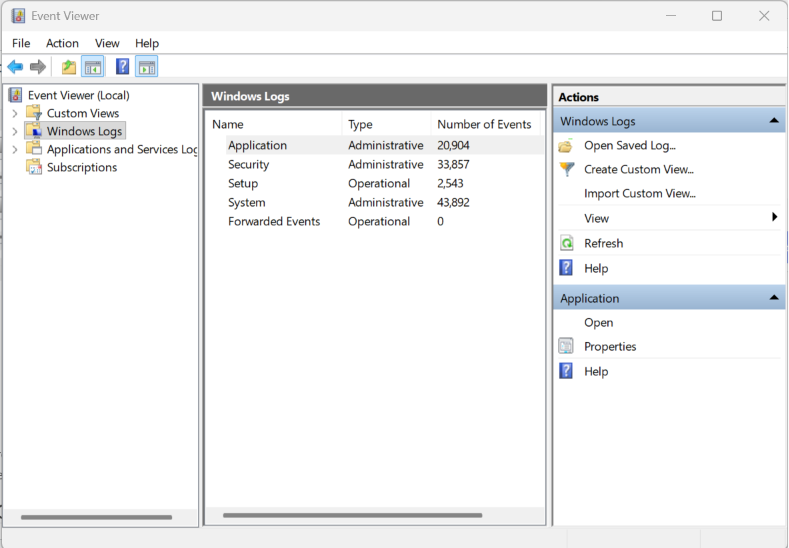
3. Search for Event ID 1808.
Fix 6: Upgrade OR Enroll In ESU (Windows 10 users)
Windows 10 users must be enrolled in the Extended Security Update (ESU) programme to receive the latest Secure Boot certificate updates. If ESU is unavailable, upgrading to Windows 11 may be necessary.
Fix 7: Contact Your Device Manufacturer
If the warning remains after installation updates and firmware upgrades, contact your device manufacturer’s support team for further assistance.
That’s it. If you have any questions, comment below!