

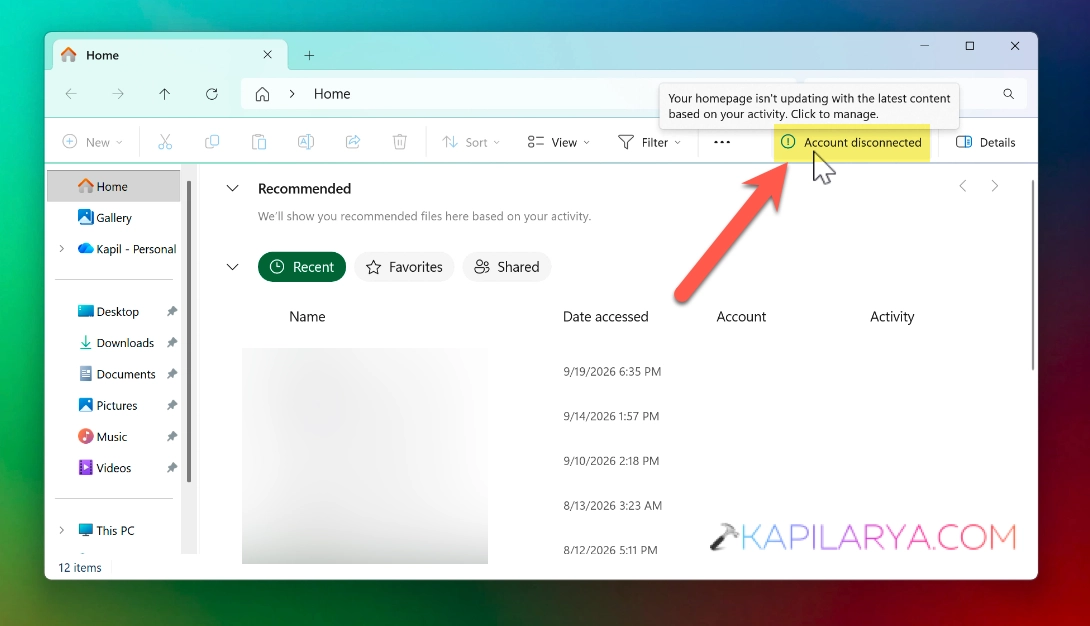
If you are getting Account disconnected button while opening File Explorer Home in Windows 11, this article is for you. The most probable cause for this, could be update to work or school account. The effect of having Account disconnected notification is, you cannot have update on the resources from work or school account.
When you’re using work or school account, if you update it’s password, you need to re-authenticate your device. But, if you do not re-authenticate your device there stays a permanent Account disconnected button in the file explorer. If you’re also feeling the same issue on your Windows 11 device, you can try out the fixture mentioned below and see if they helps you to resolve the issue.
Page Contents
Fix Account Disconnected in Windows 11 File Explorer home
Fix 1: Re-authenticate your work or school account
1. Simply click on the Account disconnected button in the File Explorer Home.
2. After this, you will see a pop-up window appearing asking you to sign in.
3. In this window, you have to sign into your work or a school account. Verify your identity using the identity verification method you have applied to the account.
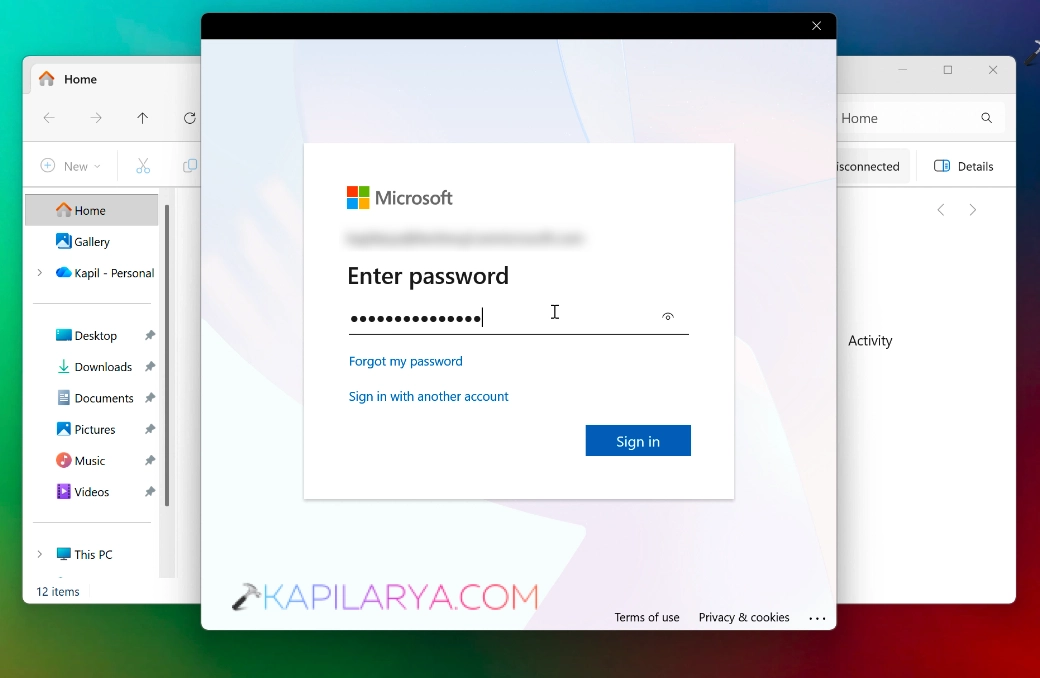
4. Once you sign in successfully, click on the Account disconnected button again and it would automatically disappear.
Fix 2: Using Folder Options
If Fix 1 doesn’t helps you, you can try this alternative method.
1. While you are on the File Explorer Home, click on the three dots(•••) and select Options.
2. Next, in the Folder Options window, on the General tab, and uncheck the options:
- Include account– Based insights, recent, favorite and recommended files
- Show recommended section (optional)
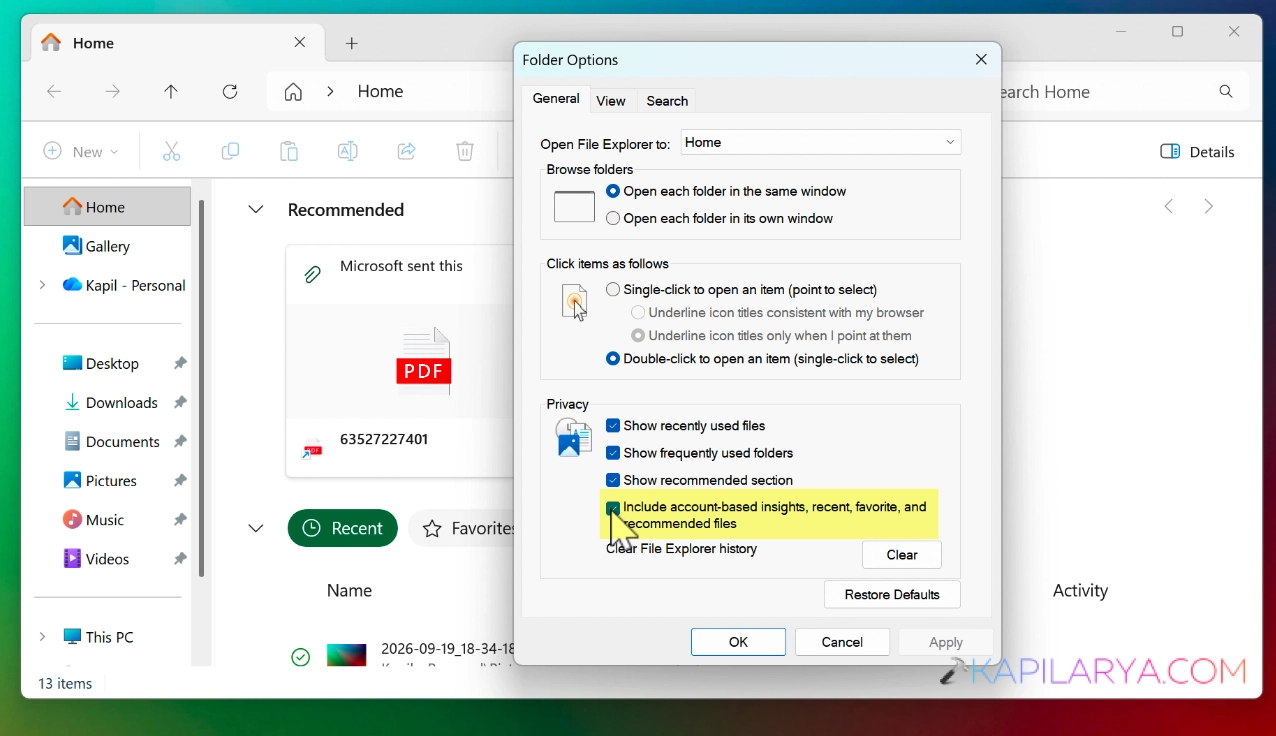
3. Finally, click on Apply followed by OK.
Once you uncheck the options, the recommended section would be entirely removed from the Windows 11 file explorer home. Hence, it would be finally avoiding the error.
But in case if you do not want to remove the recommended section, strictly go with the Fix 1.
Video fix
To help you more on this issue, here is a video fix:
That’s it!



![Quick Access Crashes File Explorer in Windows 11 [6 Fixes]](https://www.kapilarya.com/assets/File-Explorer-1-768x552.png)
