Using passkeys is recommended sign-in option in Windows 11. The benefit is it saves you from manually inputting the traditional password. With passkey, you can go passwordless and use your biometrics to sign into your Windows 11 device. Unlike passwords, passkeys are stored as secrets on a device and can use a device’s unlock mechanism using biometrics or PIN. This makes the passkeys has more secure, convenient and faster sign in option. However, if you can’t delete passkey in Windows 11, this guide can help you.
There could be anonymous reasons why you want to remove a passkey from Windows 11 device. The most common reason could be the person using the passkey is no longer available. Or if you want to remove someone’s account to take over the device. Whatever maybe the reason, the goal is to remove the passkey.
Page Contents
Fix: Can’t delete passkey in Windows 11
To remove a passkey from Windows 11 device, you can simply go to Passkeys page in the Settings app. However, while removing the pass key you might receive this message:
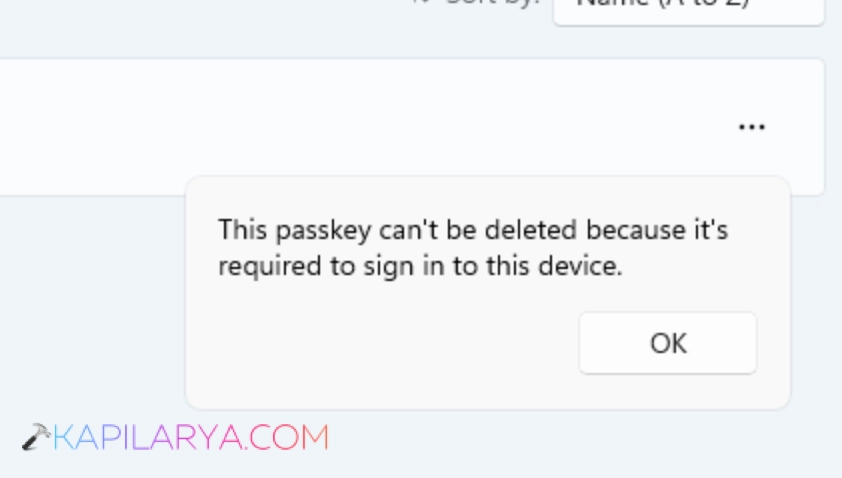
In this condition, you can try out the following fixes and see if they helps you to resolve the issue.
Fix 1: Remove the associated account
1. Right click on the Start button and select Settings.
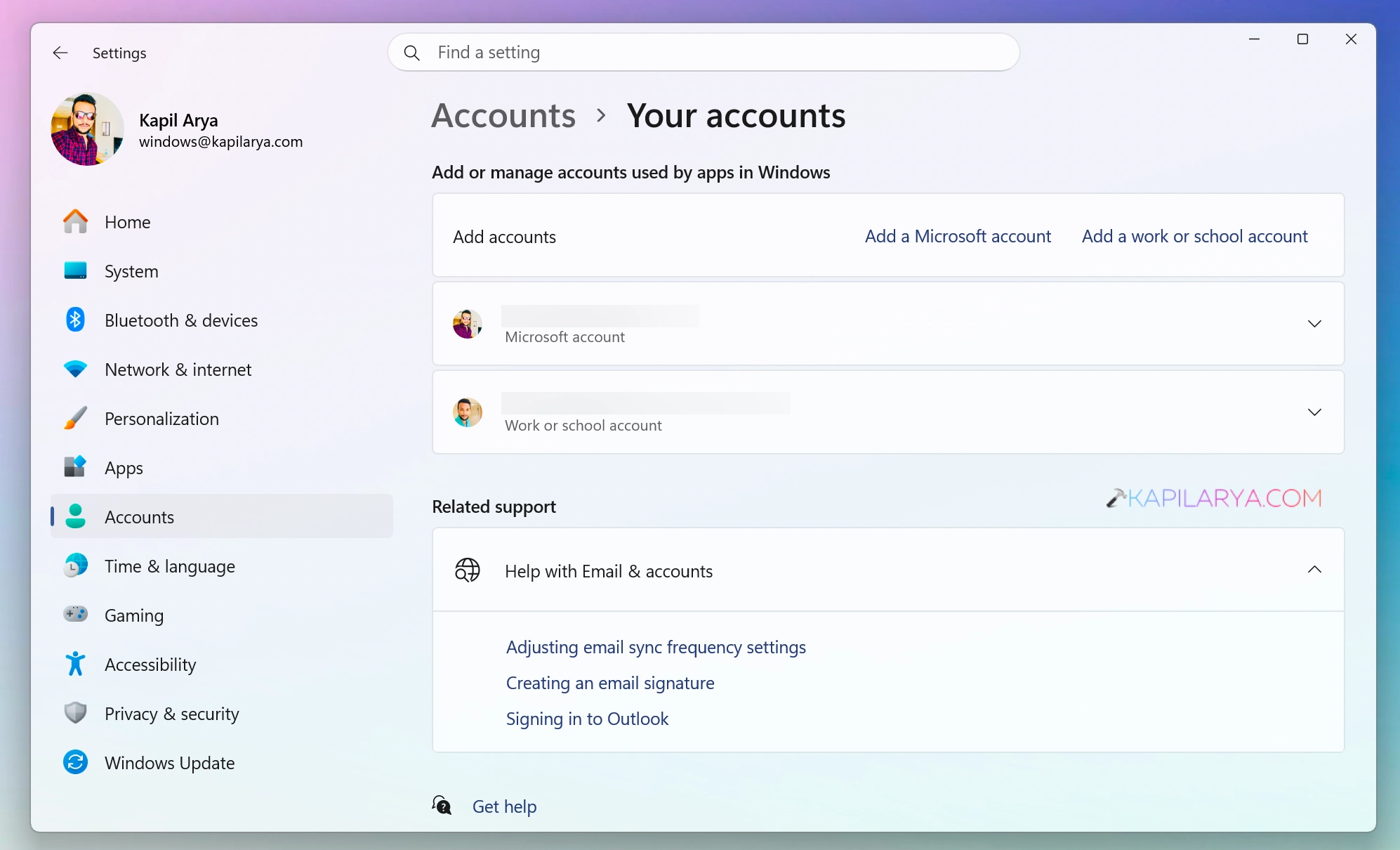
2. Once the Settings app opens, go to Accounts > Your accounts (Or Email & Accounts).
3. Locate the account associated with the passkey and remove it from your device. If you can’t remove the account, you can try alternative methods in below guide.

Fix 2: Using Command
1. Open the administrative Command Prompt.
2. Paste the following command and press the Enter key:
certutil.exe -DeleteHelloContainer -v
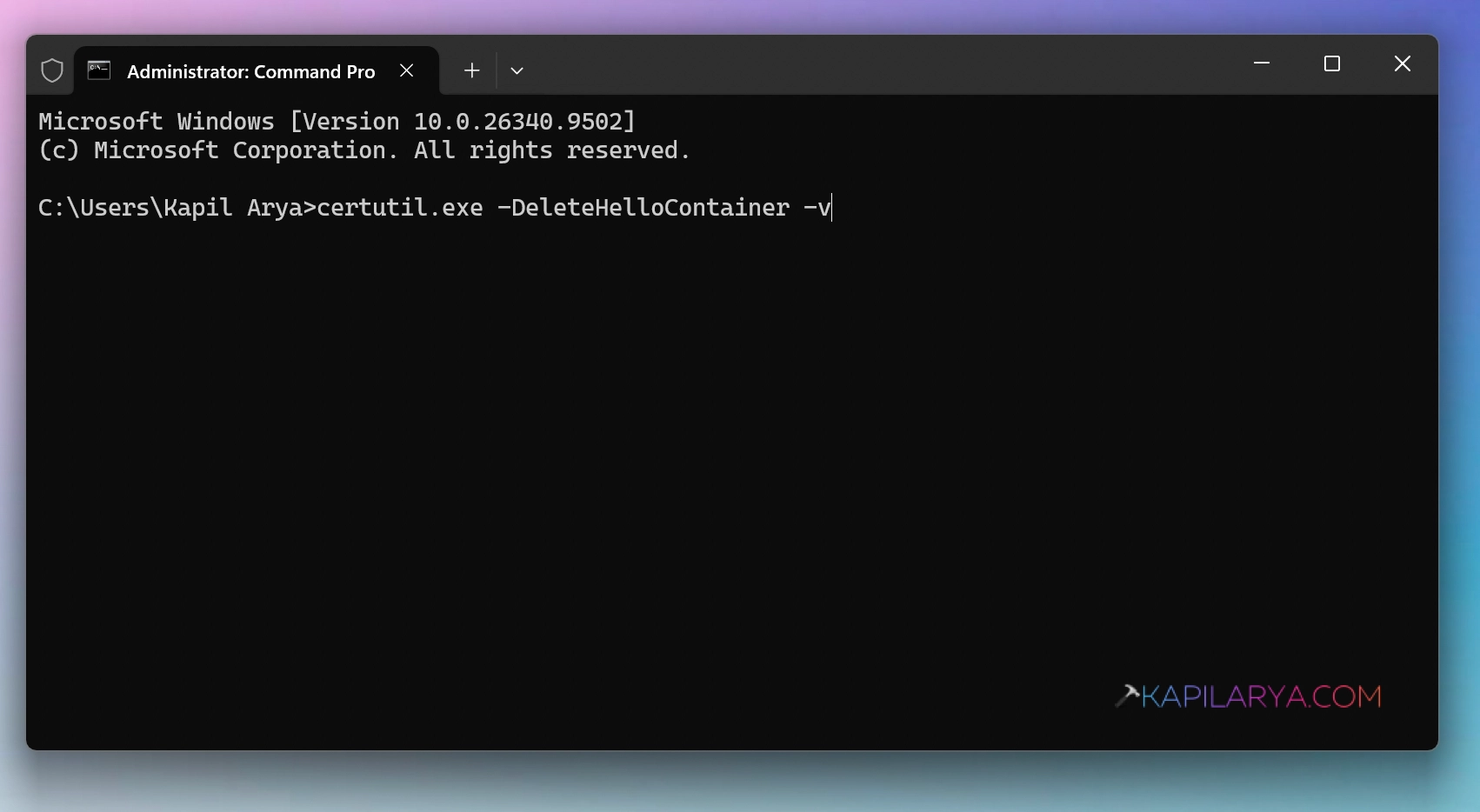
3. You will see a command prompt window flashing for a few seconds. And then Command Prompt window automatically closing.
4. After this, Shut down or Restart your system.
After restarting the system, you can go back to the Settings app > Accounts > Passkeys and you will find that the passkey has been successfully removed.
In case if the issue still persists, drop me a comment and I’ll be happy to help you.