Sometimes you may get Your account is temporarily locked to prevent unauthorized use error while signing in to Microsoft account. This error appears when there is invalid sign-in attempt, suspicious login activity, unusual activity, and other security alerts are raised by Microsoft. In this guide, we’ll see how you can avoid this error.
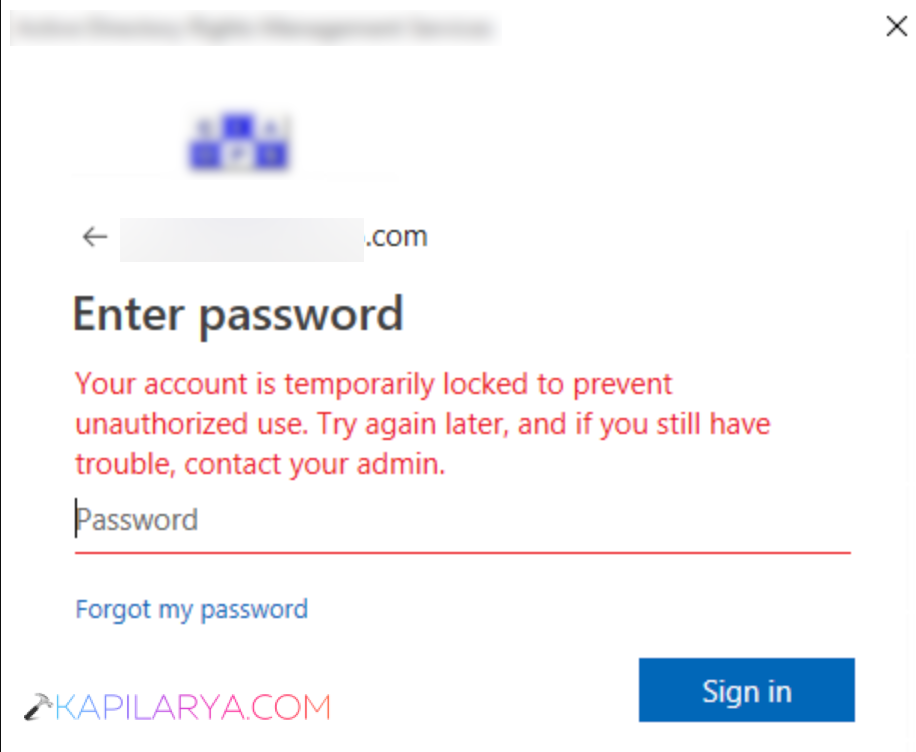
The recovery process varies from one another as per the following: Sometimes proof of identity is the only requirement, and sometimes the password can be reset. If an organization account has been signed into, the administrator might have to remove the sign-in time block or explore a risky user or sign-in.
If the message appears, do not re-enter the password any more. Rather, see the solutions below for safely restoring access in Windows 11.
Page Contents
Fix Your Account Is Temporarily Locked to Prevent Unauthorized Use
This can be done by Microsoft’s own security systems. When travelling, for example, or logging in with a new app use a new device. The precise recovery process is hence contingent with which Microsoft account is locked.
Way 1: First Identify Whether It Is a Personal or Work/School Account
If you have several fixes in mind, it is best to discover the sort of your Microsoft account first. This way you won’t follow the wrong recovery procedure.
Personal Microsoft account
Microsoft offers consumer account recovery, verification codes, and password reset for these accounts, in addition to the Microsoft account Sign-in Helper.
Work or School account
If your email is an organizational or educational domain (such as an Office 365 tenant), it is possible that the organization is managing your email via Microsoft 365 and Microsoft Entra ID.
At this point, the administrator of your organization could control your disaster. Any missing details that clearly call for your admin are pretty important flags you may have that you are an organization-managed account.
Way 2: Wait and Try Signing In Again
If you have been locked our for a limited period of time after entering in multiple incorrect passwords, please do not enter your password again. Not until the password unlock expiration period is over. Moreover, the length of time the account can be locked out may be set by Microsoft Entra security policies on a work or school account.
1. Close the sign-in screen of Windows 11.
2. Please wait for the time that Microsoft has stated in error.
3. Try to log in again with your default device & network.
If the error still persists, then go to the next solution.
Way 3: Reset Your Microsoft Account Password
You may have typed an incorrect password or perhaps the password was suspected by Microsoft Corporation – in this event, you are able to reset your password and unlock your account.
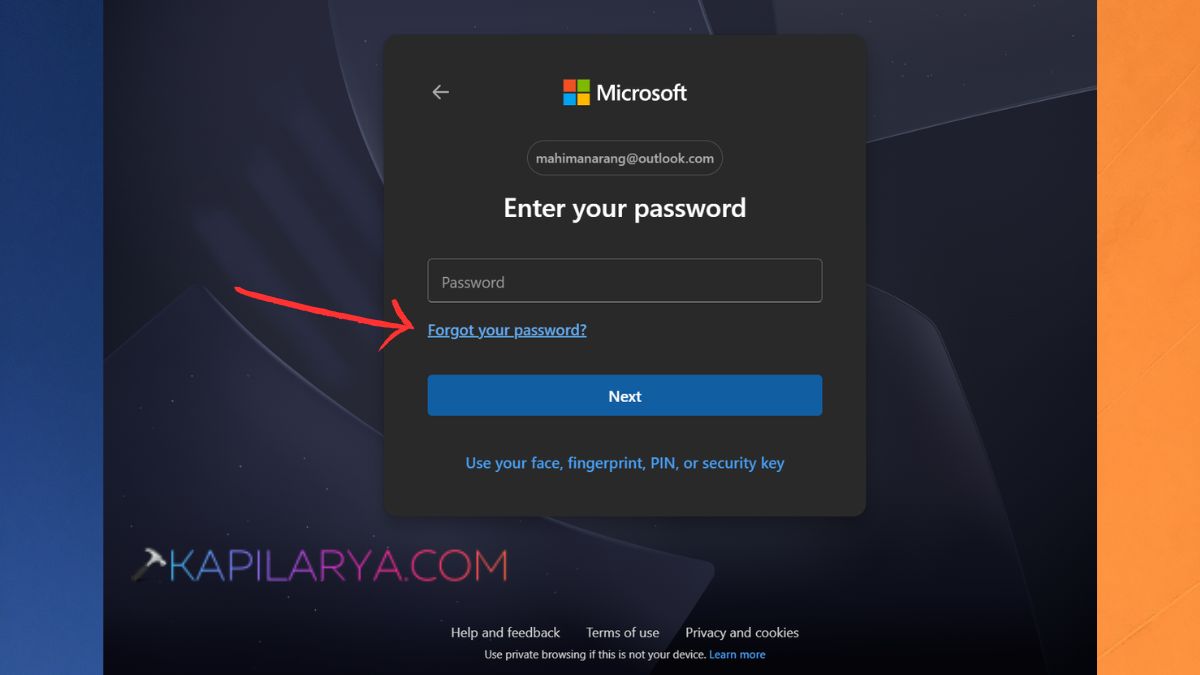
1. For Microsoft: Go to their sign-in page and click “Forgot your password?”.
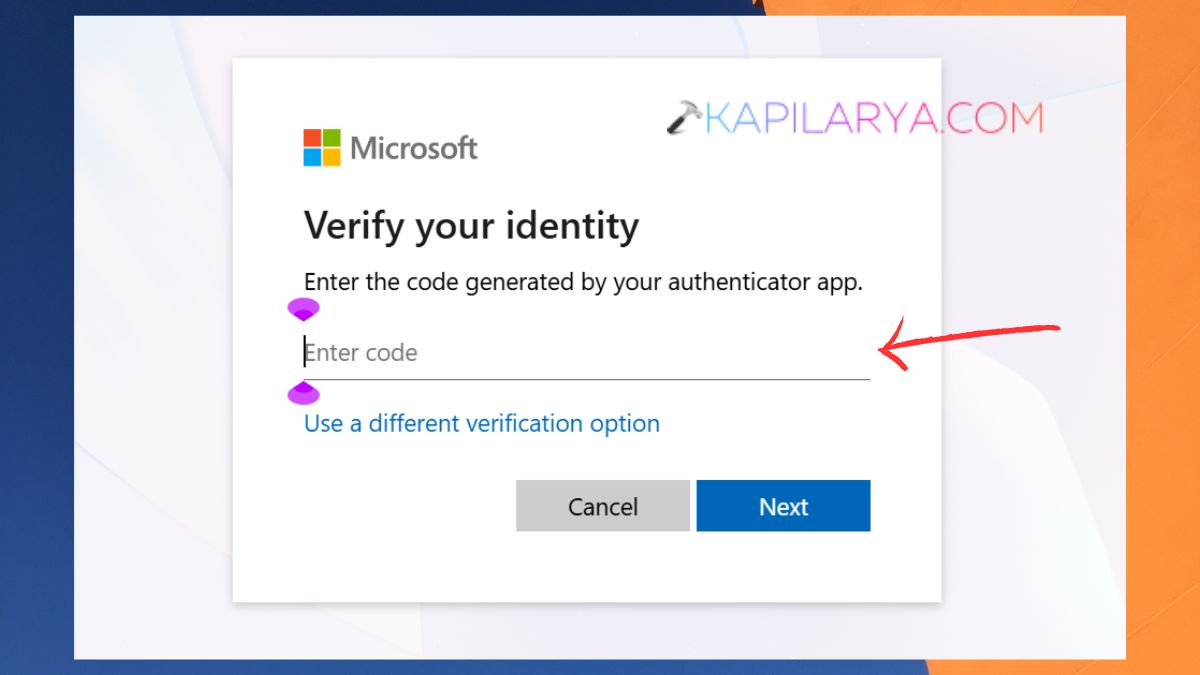
2. Select a verification option that is available. Here, I have got the “Verify your identity; Enter the code generated by your authenticator app” as I have earlier set up authenticator app to login. You can still choose to select “Use a different verification option”.
3. Then, come up with a new and secure password to change.
4. Now, use the new password to log in. In the event that you do not have methods for verification, use Microsoft’s Sign-in Helper or account recovery procedure.
Way 4: Review Recent Microsoft Account Activity
Look at your recent log-ins and if another login was attempted by someone, you should block them.
1. You must log in once you regain access.
2. Go to the Security settings of your Microsoft account. Select “Recent activity” or “View my sign-in activity”.
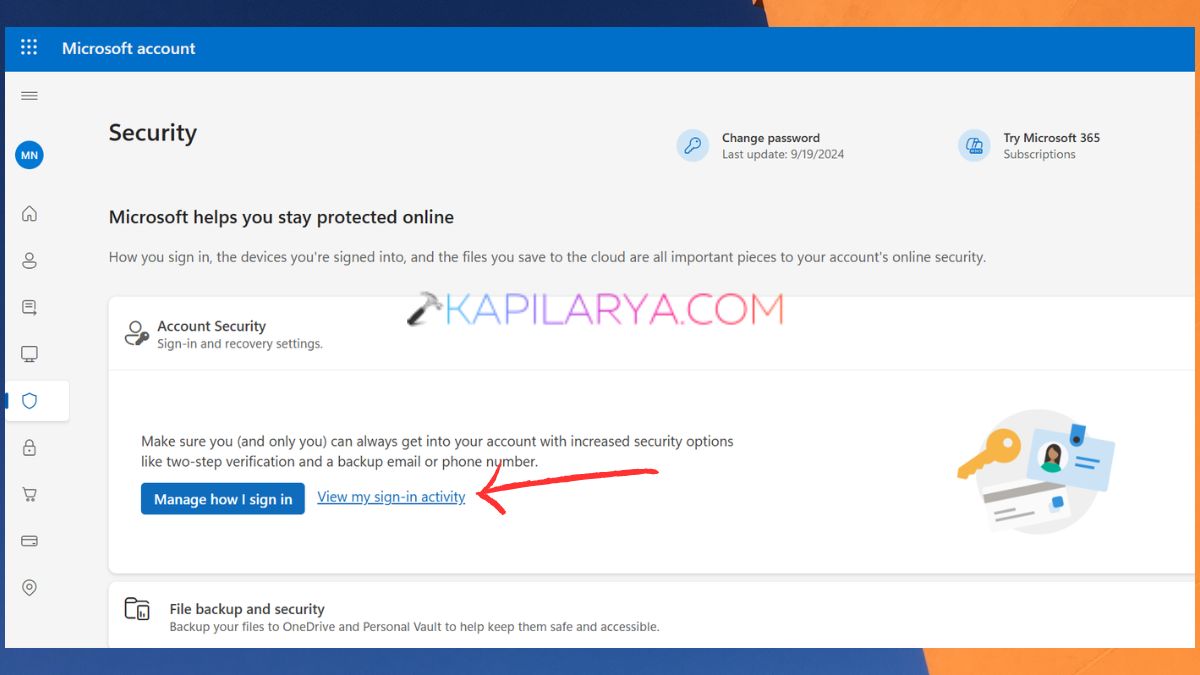
3. Check out something new or unknown, such as a place, device, or app. If it is not your activity and you are prompted for it, do the security prompts of Microsoft and change the password. For further security, you can also set up a passkey and/or 2-step verification.
Way 5: Secure the Account After Unlocking It
When your MS Account is unlocked, secure it right away.
1. If you think anyone has used your account, change your password.
2. Inspect all devices and unplug any unfamiliar devices.
3. Read the information in the recovery information sent via e-mail and your phone.
4. Enable two-step verification. You may want to use a passkey. Moreover, unauthenticated sessions have to be logged off.
Way 6: Check Microsoft Entra Risky Users and Sign-Ins
Look at, for administrators, if Microsoft Entra ID discovered a risky user/sign-in.
1. Go to the Microsoft Entra admin center. The Microsoft Entra admin center was displayed when clicking Untitled – Square.
2. Select User (Protection) > Risky users. Choose the account that is affected.
3. Check out risk information and log in activity. Remediate the user if it is found that they are safe.
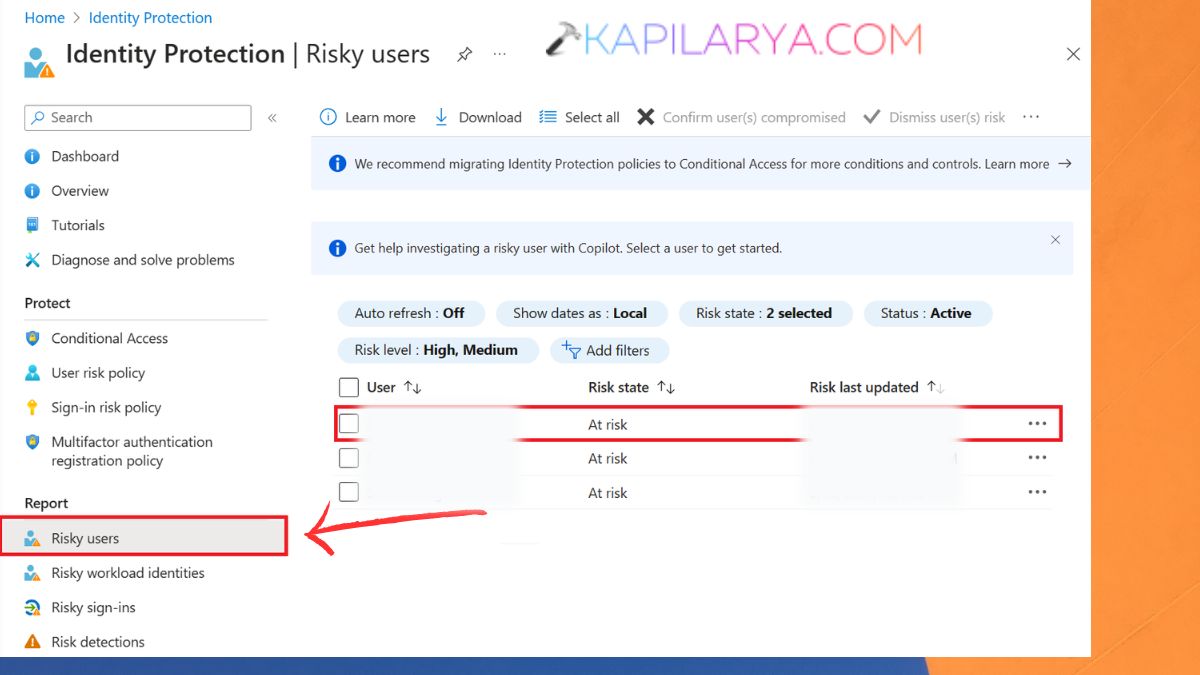
4. Look out for unusual sign-ins on the login page of the website.
What to Do If Microsoft Still Says Your Account Is Locked
If you are still not finding any solutions, you should try Microsoft’s recovery solutions, not logging every few minutes.
When signing up for a personal Microsoft account, you should first use the Microsoft Account Sign-in Helper. Asks the user for their email or phone number and attempts find the best way to recover.
If your work or school account, reach out to the IT admin or Microsoft 365 admin of your organization. They can review an account’s risk, edit a sign-in’s credentials, perform audit sign-ins and identify if there are administrative policy restrictions preventing sign-ins.
Frequently Asked Questions (FAQs)
That’s it!