Page Contents
Introduction
When you delete something, you’re not immediately wiping it. Modern Android encryption, storage management, and subsequent device use can affect recoverability
One of the big downsides is that Android doesn’t have a single clearly defined Trash bin for your deleted files. Your photo might still reside in Recently Deleted, there might be a backup copy from WhatsApp, but for other kinds of files the phone keeps on writing new data and the chance of getting your file back decreases. That is when Android data recovery app becomes very useful.
So, if something important has just vanished, where should you look first—and what should you avoid doing before checking? Let’s find out!
Part 1. Deleted a File by Mistake? Start Here
Wondering where to look for deleted files? Here is the complete workflow!
Step 1. Check Google Photos for deleted photos and videos
Open Google Photos → Collections → Trash. Backed-up photos and videos are retained in Trash for 60 days. On the other hand, items not backed up will remain in the Trash for 30 days only.
Step 2: Review deleted files with Files by Google
You may have removed a document, ZIP, APK, audio, or any other file through Files by Google. Go to Files by Google → Menu → Trash. Items remain in Trash for 30 days before being automatically deleted. Files deleted during the Junk files cleanup feature are permanently deleted.
Part 2. Things That Can Make Recovery Harder
Recovery is not guaranteed, especially if the phone has continued to write new data to its storage.
- Using your phone regularly: Deleted data can become harder to recover when new photos, videos, downloads, app data, or updates overwrite the same storage space.
- Downloading recovery apps to the phone: Installing an app writes new data to the phone’s storage, which can overwrite deleted data and reduce the chances of recovery.
- Changing app data or uninstalling apps: These actions can remove local app files or data that may still be needed for recovery.
- Factory resetting the phone: A reset removes the current device data and can make recovery much more difficult. Avoid resetting if the deleted files are important.
- Waiting without interrupting phone use: There isn’t a set length of time after which a file is erased automatically. The risk depends on how the storage is reused, so stop unnecessary activity as soon as you notice the deletion.
Part 3. Scanning and Previewing Deleted Android Data
If the file isn’t in the Trash folder and you don’t have another copy, you can try scanning the phone for recoverable data. You can use a recovery tool to scan the phone and view results of the scan before any recovery is done, and you can see if missing files are present.
Dr.Fone – Data Recovery (Android) provides a broader scanning range by supporting not just 14+ file types and 6,000+ devices but also allows phone storage scanning, accessing Google Drive backup data, and phone recovery for broken phones. You can preview available photos, videos, contacts, WhatsApp data, messages, documents, and other supported files, then save only the files you select to your computer.
Remember that just because you can see a file in a scan does not necessarily mean you will be able to recover it. Results rely on various factors such as the device, Android version, type of data, source of recovery, and whether the deleted data has already been overwritten.
Part 4. Recovering Deleted WhatsApp Chats and Media
Wondering how do you retrieve deleted WhatsApp messages on Android? Dr.Fone has a solution for that as well!
If the deleted WhatsApp conversation or media is missing on your phone, check for the available chat, media files or the Google Drive backup first. When none of the above is helpful, try Dr.Fone – Data Recovery (Android) to scan directly the supported Android handsets or a Google Drive backup file.
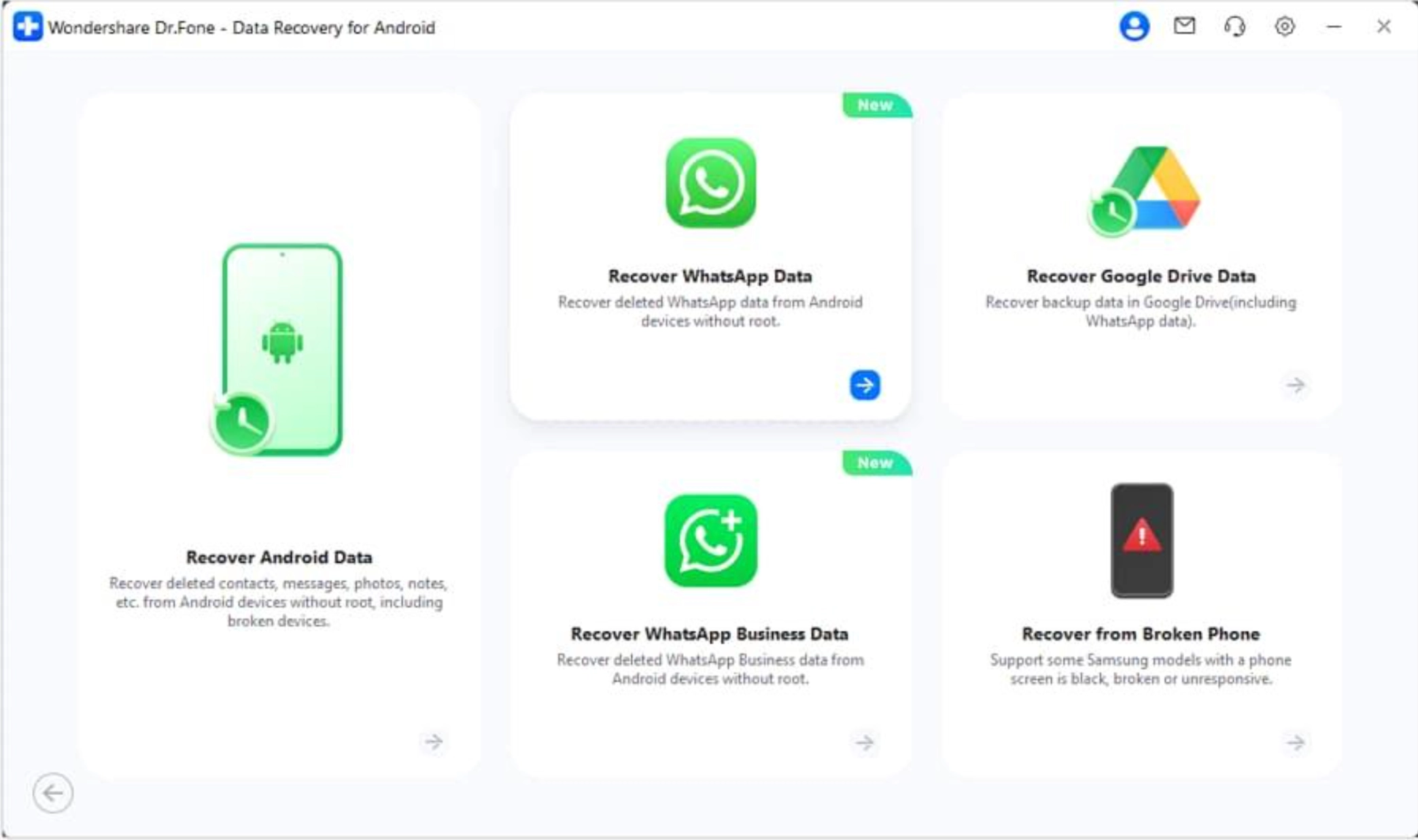
Step 1. Launch Wondershare Dr.Fone on your computer, then click Toolbox > Data Recovery. Pick Android, then select Recover WhatsApp Data.
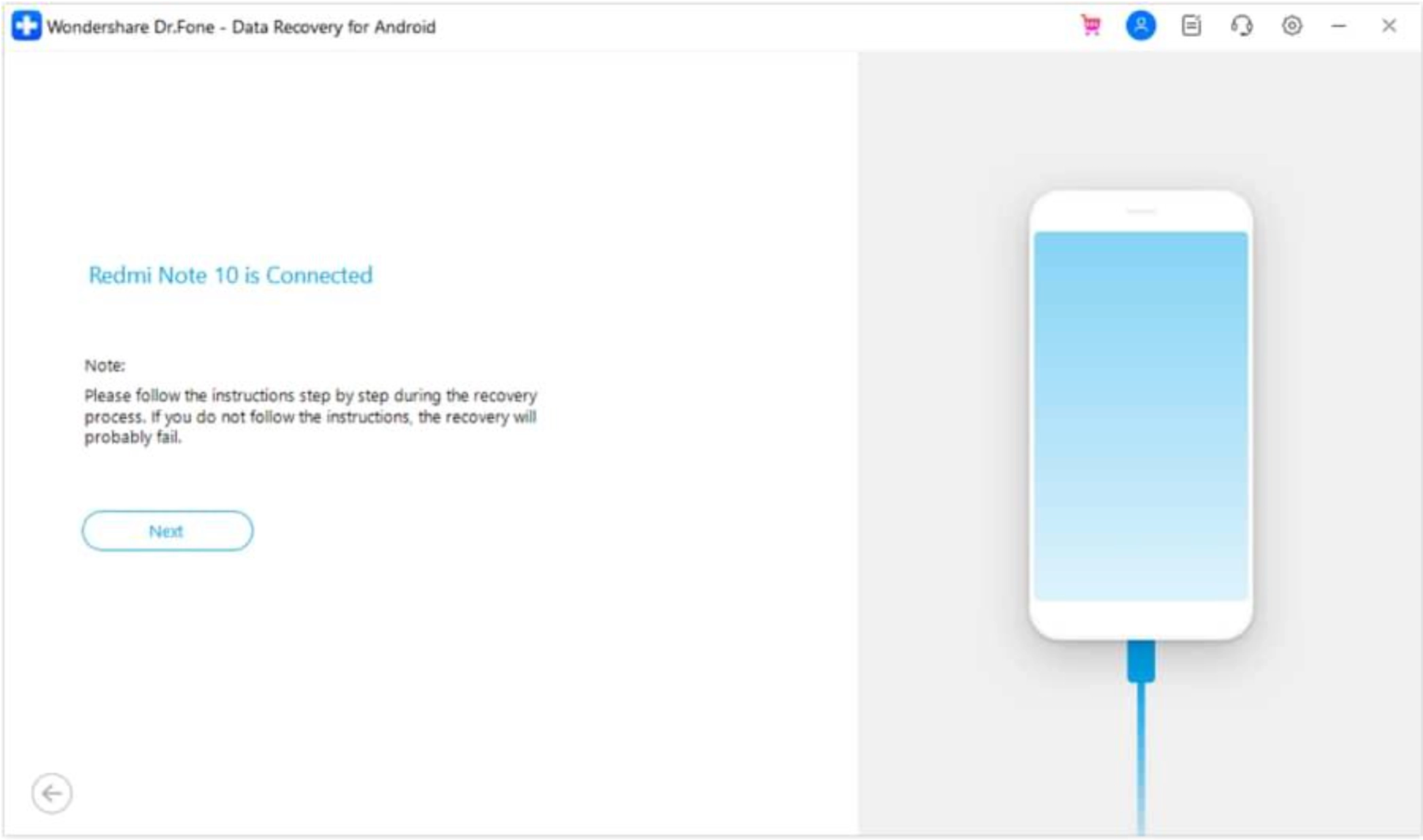
Step 2. Connect your Android phone to the computer. Once Dr.Fone detects it, follow the on-screen instructions and click Next to start the recovery process.
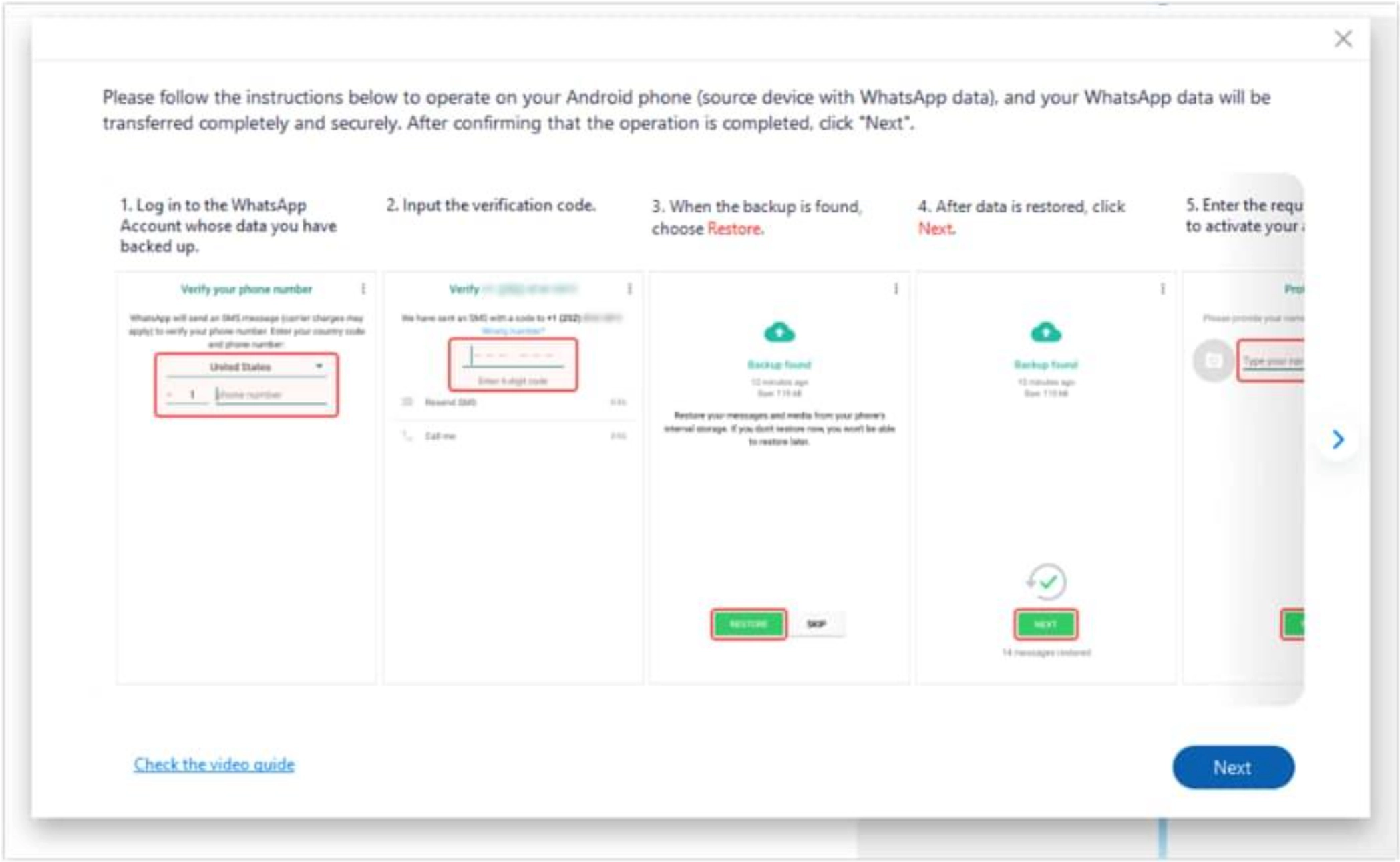
Step 3. Follow the prompts to reinstall WhatsApp on your Android phone. Grant the necessary permissions, confirm your registered phone number, and recover your WhatsApp data if available when asked. Click Next on the computer.
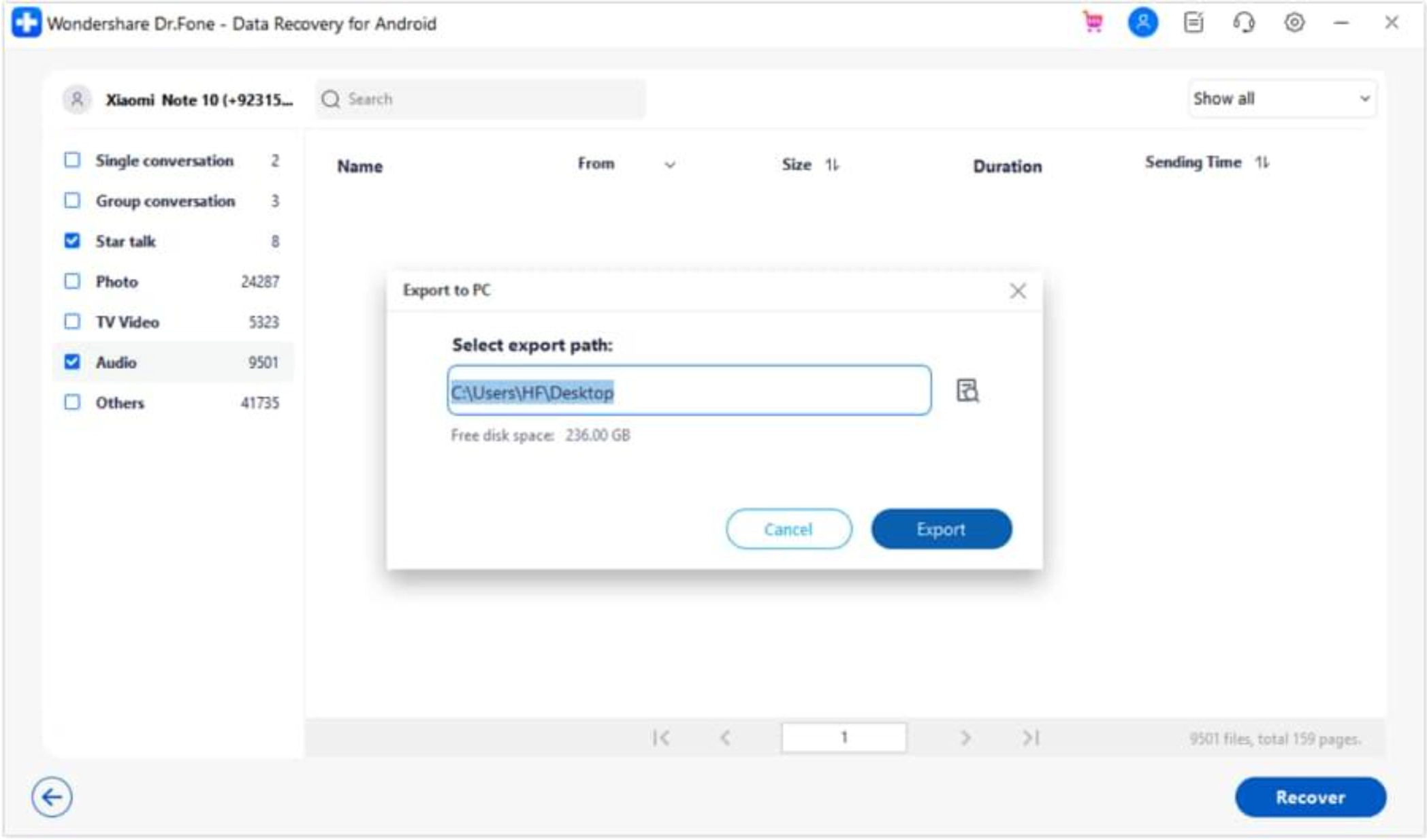
Step 4. Dr.Fone will check and show the available category of WhatsApp data. Pick which one you want saved, click on “Recover“, find where you want it stored on computer, and then click “Export“.
Part 5. How to Handle Recovered Files Safely
Finding a deleted file is only the first step. Once you recover it, save it somewhere safe and check that the file opens and works properly.
- Recover a file and save it in a computer or external storage. Don’t save it back to the same storage where it was deleted.
- Extract only the needed content. It is better and faster for you to find what you want among the recovered data if you minimize what has been recovered, besides not affecting the phone excessively with extra writing.
- Test the recovered files. View images, movies, read documents, and open chats for assurance of their recoverability and completeness.
- Make sure you have two versions of the crucial files. It will help if you have another copy when the recovered file gets spoiled or is mistakenly deleted once more.
Closing Words
The data that you deleted from your Android might still be recoverable through other ways such as Trash Folders, app storage, or backups. If the available solutions do not work, Dr.Fone – Data Recovery (Android) will scan your device or supported recovery sources for deleted files and display a list of recoverable files so that you can select what you want to recover beforehand. One way or another, it is important to recover deleted data as soon as possible and refrain from any unnecessary phone usage that might potentially overwrite the deleted data.