

We all know that Internet Explorer 9 comes with some of its inbuilt functions which helps us to browse the web with more security and safely way. No doubt Internet Explorer 9 is best ever edition among all its predecessors. So most of Windows users prefer it and me too.
Page Contents
Enable ActiveX Filter & Tracking Protection In IE 9
Today, in this article, I’m going to share you two basic yet most missed tips concerning about tracking protection on IE 9. You can turn on Tracking Protection in Internet Explorer 9 to help prevent websites from gathering information about your web browsing. You can also turn on ActiveX Filtering to help prevent programs from accessing your computer without your consent.
Here are the screenshot ways to enable ActiveX Filtering and Tracking Protection…
Enable Tracking Protection
When you visit a website, some content might be provided by a different website. That content could be used to gather information about which pages you visit on the Internet.
Tracking Protection blocks this content from websites that appear on Tracking Protection Lists. There’s a Personalized Tracking Protection List included with Internet Explorer that’s generated automatically based on sites you visit. You can also download Tracking Protection Lists, and then Internet Explorer will periodically check for updates to the lists. To enable:
1. Open Internet Explorer 9.
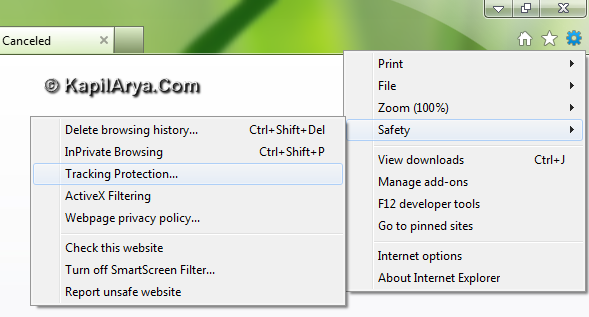
2. Click the Tools button or press  + X keys together, point to Safety, and then click Tracking Protection.
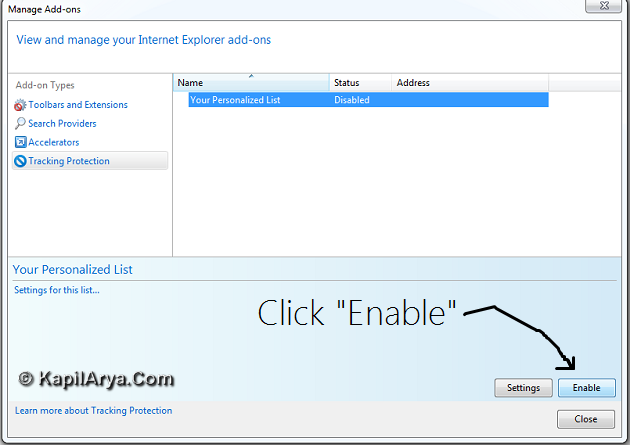
3. In the Manage Add-on dialog box, click a Tracking Protection list, and then click Enable.
Enable ActiveX Filtering
ActiveX controls and web browser add-ons are small programs that allow websites to provide content such as videos. They can also be used to collect information from your computer, damage information on your computer, install software on your computer without your consent, or allow someone else to control your computer remotely.
ActiveX Filtering prevents websites from installing and using these programs. To enable:
1. Open Internet Explorer 9.
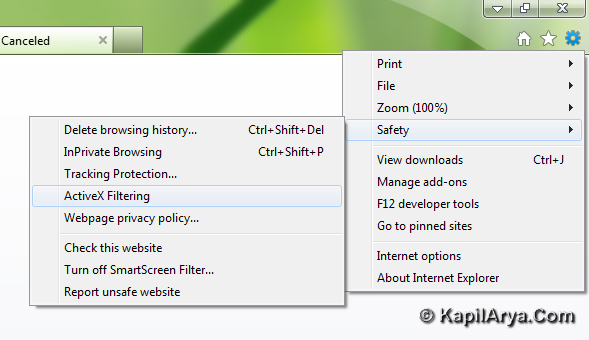
2. Click the Tools button or press + X keys together, and then click ActiveX Filtering.
Most of you were familiar with this feature while there are some users who don’t point out at first. This article is for those users.
Enjoy the tip!

hi,
how to uninstall ie10 in windows 8?
@ Exein,
unfortunately there is no way to uninstall ie 10 :(
I already knw dese options bt nevr hv mean for them, thnks for explaining their utility :)