

Recycle Bin is the temporary recoverable garbage collection we often refer to save useless files (that can be reclaimed). By default, Windows shows the Recycle Bin icon on to allow or prevent its display on Desktop and Explorer. So if by any manner you are not getting this option to work, you’d not be able to display Recycle Bin icon on Desktop. Lets imagine the scenario:
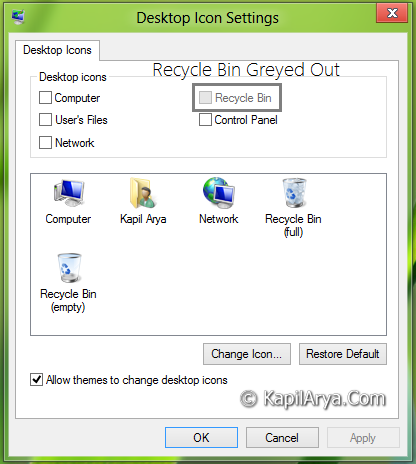
This issue then will relate you to Explorer as you can’t find the Desktop icon there. So how to fix up, how to make the option visible so that you can modify it to display the Recycle Bin icon. Here are the way:
Page Contents
FIX : Recycle Bin Icon Greyed Out Using Registry Editor
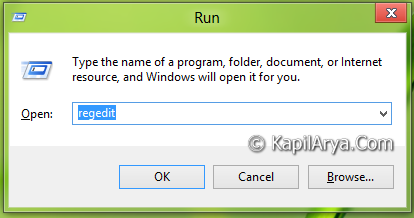
1. Press  + R and put regedit in Run dialog box to open Registry Editor (if you’re not familiar with Registry Editor, then click here). Click OK.
2. Navigate here:
HKEY_CURRENT_USER\Software\Microsoft\Windows\CurrentVersion\Policies\NonEnum

3. In the right pane, click on (or create, if non exist) DWORD {645FF040-5081-101B-9F08-00AA002F954E} and double click on it to modify, you’ll get this:

4. If its Value data consists 1 then the option for Recycle Bin in the first image is greyed out, so make it visible again or restore it to default, put the Value Data equals to 0.
5. Configure step 3 and 4 for this location as well:
HKEY_LOCAL_MACHINE\SOFTWARE\Microsoft\Windows\CurrentVersion\Policies\NonEnum
That’s it. Close the Registry Editor and get results.
FIX : Recycle Bin Icon Greyed Out Using Local Group Policy Editor
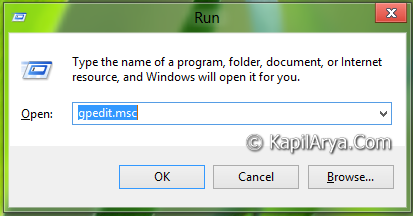
1. Press + R and put gpedit.msc in Run dialog box. Click OK.
2. Navigate here:
User Configuration ->Administrative Templates -> Desktop
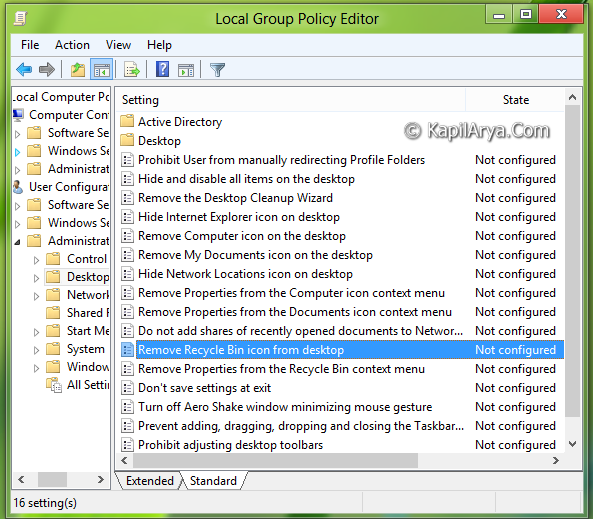
3. In the right pane, click on the Remove Recycle Bin icon from Desktop and you’ll get this:

4. Set following parameters for the display of Recycle Bin icon:
To Allow Display – Not Configured / Disabled
To Prevent Display – Enabled
Close the Group Policy Editor and get the issue fixed. This trick will work on Windows 7, Windows Vista, Windows XP as well!



I have lost the recycle bin icon, glad that i fixed it after reading it..:))
Thankx…
Awesome work this time kapil…
Off topic : How can i reduce rcycle bin size…
nice.. I’ll configure for HKEY_LOCAL_MACHINESOFTWAREMicrosoftWindowsCurrentVersionPoliciesNonEnum and this works fine :D