

For most of the tasks you perform on new smartphones these days require a web connection. Whether you’re chatting, or making a video call, or uploading your data to cloud or just simply browsing web, for each operation, you’ll be able to access Internet. Now to access web, WiFi looks a handy option for most of us. Till Windows Phone 7, I have found that the phone remain connected to a WiFi network after the screen times out or you phone is locked. But in Windows Phone 8, this is not true and the WiFi connectivity immediately in the same.
This is due to introduction of an additional setting in Windows Phone 8. Actually, to avoid the data wastage and prevent you from paying the extra charges for excessive data consumption, Microsoft has allowed Windows Phone 8 to get disconnected from WiFi network automatically after screen times out. Thus, as consequence of which, you can’t download large files over web as the connectivity is lost after even screen timeout event. Here is how to fix this:
FIX : WiFi Connectivity Lost After Screen Times Out In Windows Phone 8
1. Go to Start Screen, tap Settings tile.
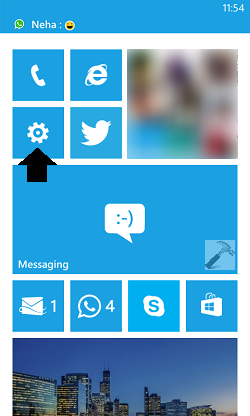
2. Moving on, in the SETTINGS screen, tap the WiFi option.
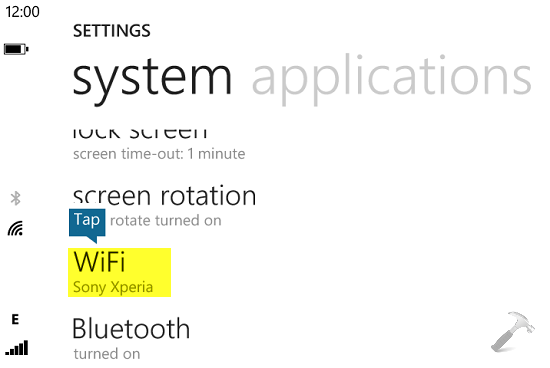
3. Next, now in WiFi SETTINGS screen, tap on advanced button.
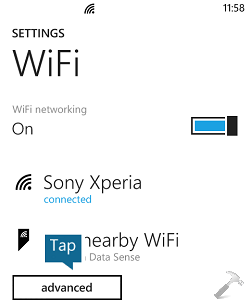
4. In the following screen, check or enable the option Keep WiFi on when screen times out.
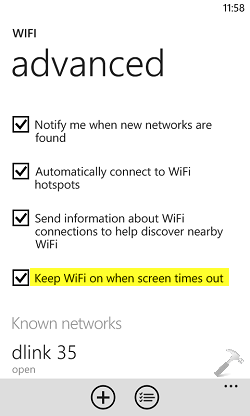
This will immediately allow your Windows Phone 8 to keep connected to the WiFi network, even after screen times out.
Hope you find the tip useful!





Thanks for nice trick :)
Looking for this and glad to find it.
Great fix, it helped :)