Want to learn how to download and install Windows 11 Insider Builds? Well, you’ve come to the right place to learn so.
Windows Insider Builds offer pre-release updates for new features, UI changes, security fixes and experiments that could be months away from landing in the stable version of Windows 11.
From developers testing the latest applications, to IT people checking out new software versions, to users just wanting to find out about the new Windows, there’s no better way to stay up to speed than by signing up for the Windows Insider Program.
In this guide, we will cover all the information you need to know about installing the Windows 11 Insider Builds via Windows Update or through an official Windows 11 ISO file. Additionally, you’ll get to know the various Insider channels, system requirements and essential tips to consider before installing preview builds.
Page Contents
What Is the Windows Insider Program?
Microsoft’s official testing environment for Windows, the Windows Insider Program lets you install preview versions of Windows before they enter the public domain. Meanwhile, the builds assist Microsoft in soliciting feedback, catching bugs and enhancing future updates.
If you’re interested in trying the latest preview release, you can also read our guide, which explains how to download the newest Insider Preview Build.
To enroll in the Windows Insider Program, you first need to update to Windows 11 if your computer is still running Windows 10 for a better experience. Follow the step-by-step tutorial on how to upgrade Windows 10 to Windows 11 to get detailed instructions on the process.
Also, if you are not already a part of the Insider Program, you may want to check out our guide, which goes into detail about the process of being enrolled in the Insider Program and the Insider channels.
Which Windows Insider Channel Should You Choose?
Depending on your needs, you can choose one of the following Insider channels:-
| Insider Channel | Best For | Stability | Features |
| Experimental (Future Platforms)
Earlier:Canary |
Advanced users | Low | First to get the latest features and is likely to have major bugs. |
| Experimental
Earlier: Dev |
Developers | Moderate | For developers to test up-coming Windows features. |
| Beta | Enthusiasts | Good | Channel for more stable preview builds for regular testing. |
| Release Preview | Everyday users | High | Updates that are almost ready for public release and pose little risk. |
The Release Preview or Beta Channel is typically the most secure option for users who are using their main computer.
Although. if you later decide to move from one Insider channel to another, follow our detailed tutorial.

Things to Know Before Installing Windows 11 Insider Builds
Consider the following before trying out the Windows 11 Insider Preview builds:
- Make sure to back up important files because there is a possibility of data loss.
- Make sure your PC meets the Windows 11 system requirements.
- Sign in with a Microsoft account.
- Ensure that you are running the latest stable Windows patch.
- Leave sufficient free space for downloading and installing preview versions.
- The preview builds might have bugs, performance problems, or missing functionality.
How to Download and Install Windows 11 Insider Builds?
Once you register yourself on the Windows Insider program on the official website – “https://insider.windows.com“, follow the methods below.
Method 1: Install Windows 11 Insider Preview Build Using Windows Update
This feature enables you to get preview versions from Microsoft without downloading installation files. After enrolling your device in the Windows Insider Program, you’ll also receive future Windows Insider updates automatically via Windows Update.
Step 1: Link Your Account & Install
Therefore, use the steps below to download and install the latest Windows 11 Insider Build via Windows Update:-
1. To open the Settings app, press the Windows + I keys. Click on Windows Update in the left navigation pane.
2. Tap Windows Insider Program. If you’re unfamiliar with these options, check our complete guide to Configure Windows Insider Program settings on Windows 11 before proceeding.
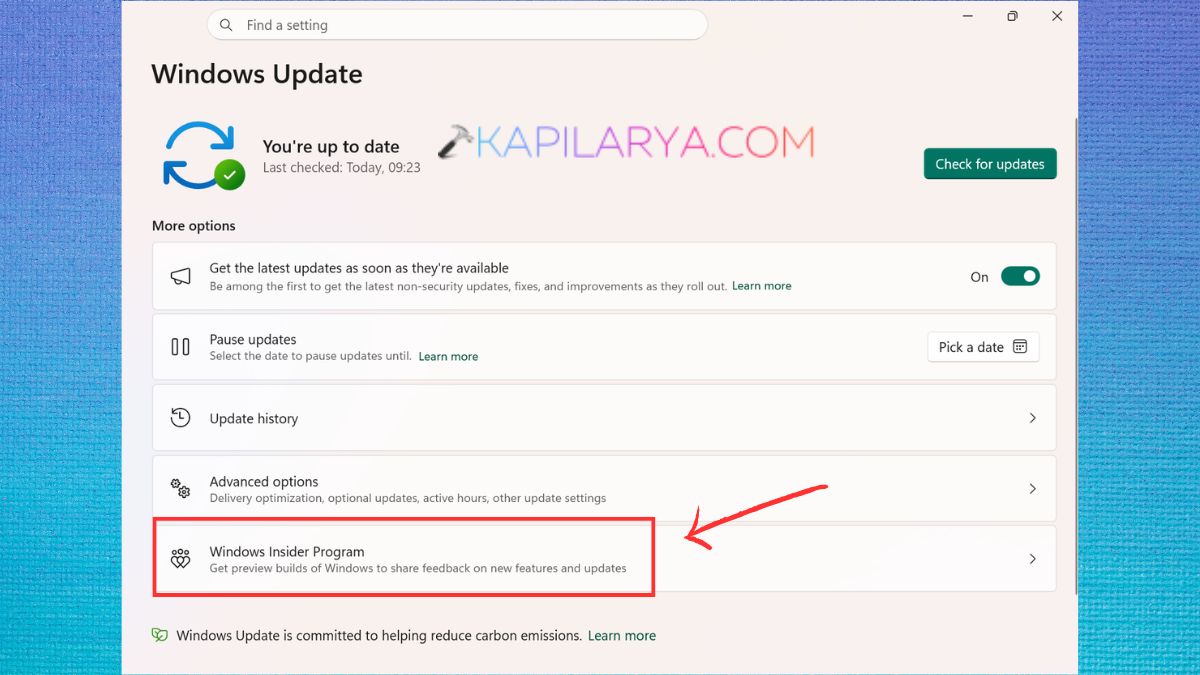
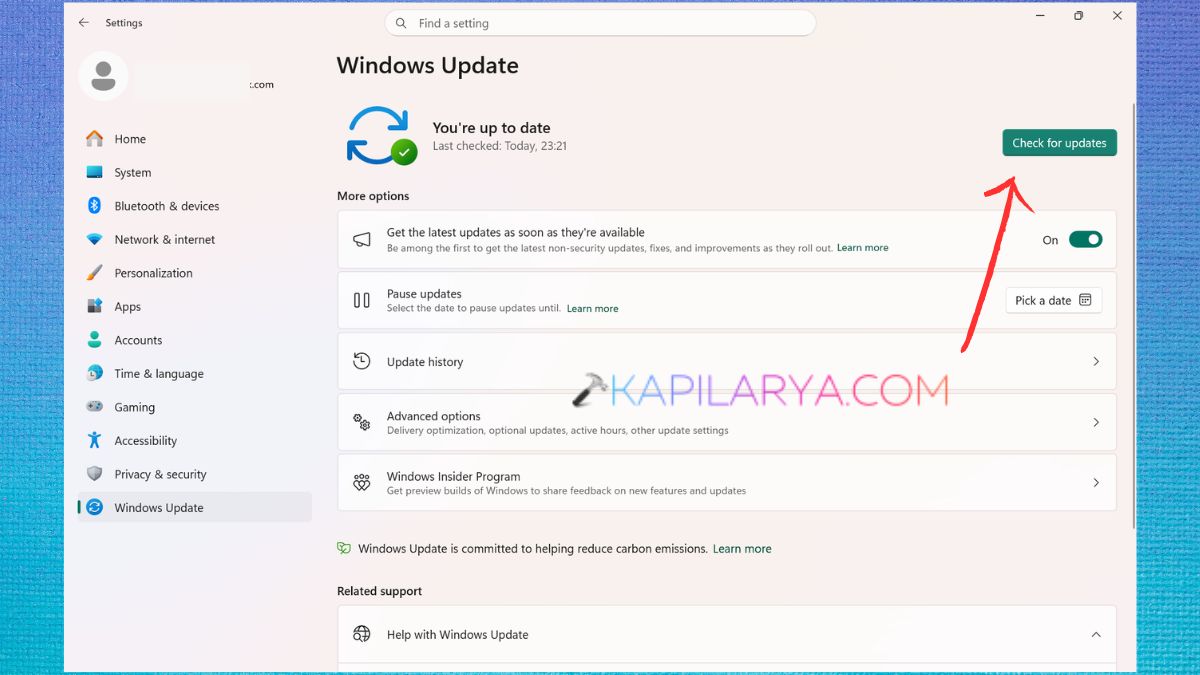
3. Though, if this option is not available, download and install all Windows updates by clicking on “Check for updates” and restart your computer.
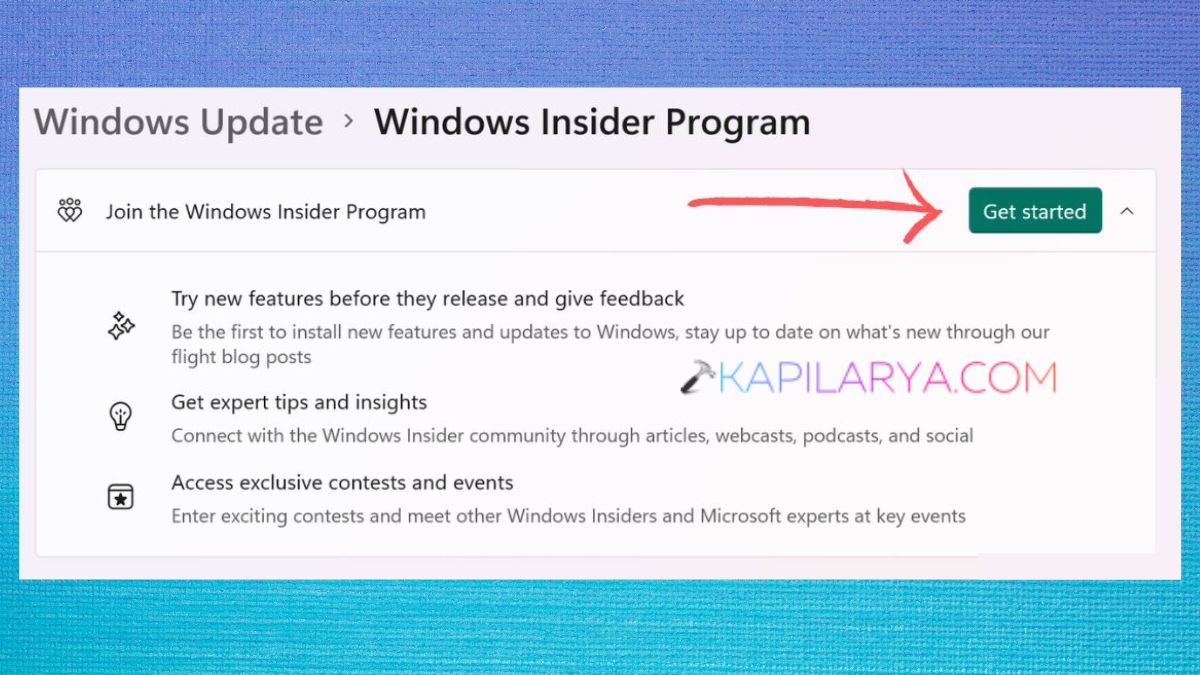
4. To register, click the “Get Started” button.
5. Then click on “Link an account”.
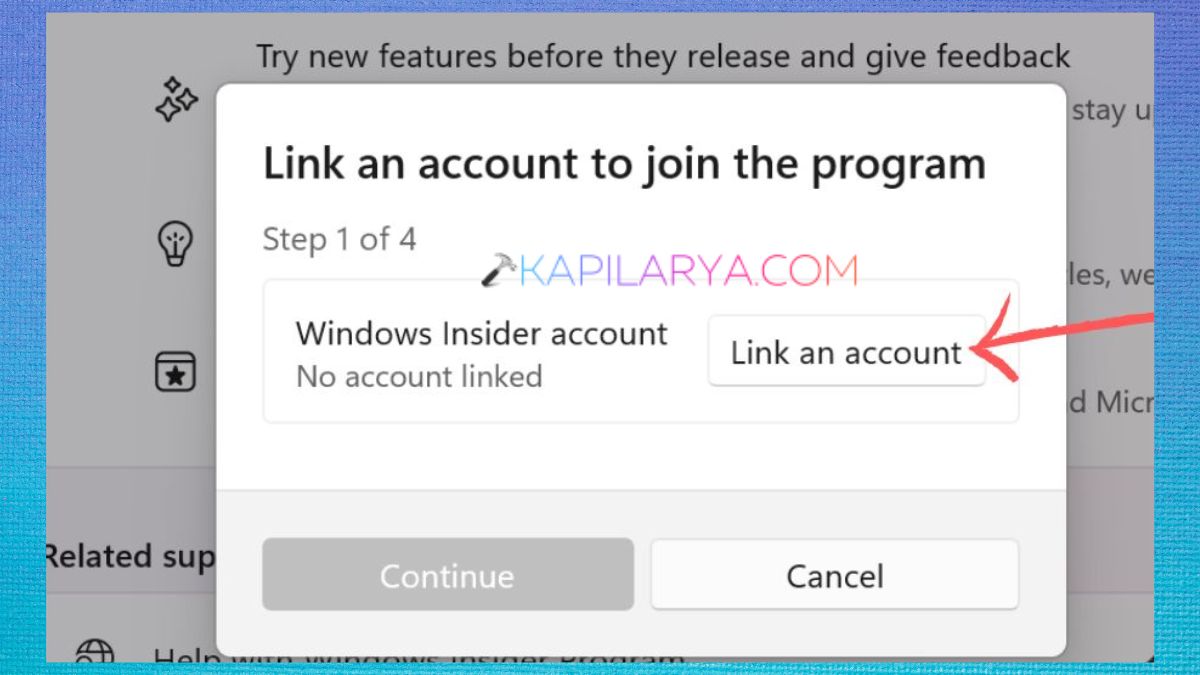
6. Sign in with your Microsoft account. If you already have an account with the Windows Insider Program, it will be identified. If your account is not registered, you will be asked to join the Windows Insider Program in order to continue. Here, Insider channels are available for Windows. Pick the right one that you need. Choose your preferred channel and then click Continue.
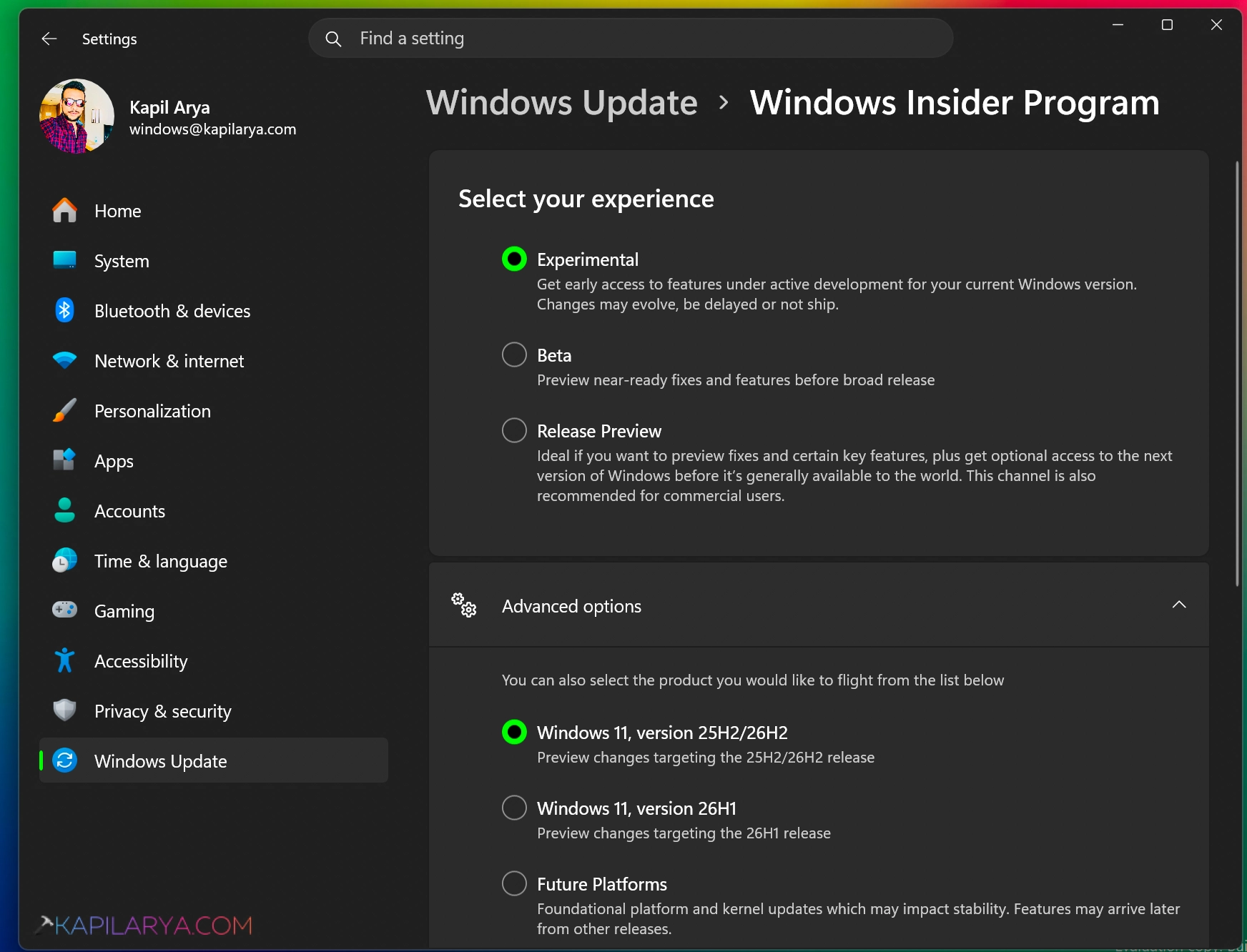
7. The Windows Insider Program Agreement will be shown by Microsoft. Carefully read the information. Then click on the Continue button to accept the terms and go on.
8. Windows needs to restart your PC to complete the enrollment process. Once you restart, your device will be a member of the Windows Insider Program.
Step 2: Verify Available Windows Insider Update
9. When your computer restarts, go to Settings. Click on Windows Update. Tap Check for updates button again.
10. Now, Windows will try to find the most recent Insider Preview Build of your chosen channel. If the update is showing, click Download & Install. Please wait until Windows installs the necessary files.
The installation will automatically start. Furthermore, this will take about 20 minutes to an hour, depending on your internet connection and PC speed. Then, once the Insider Preview Build is installed on Windows, log into your computer and finish any additional setup.
Method 2: Install Windows 11 Insider Preview Build Using an ISO File
If you desire to do a fresh install, upgrade multiple computers, or install Windows without having to wait for Windows Update, then you can use the official Windows 11 Insider Preview ISO from Microsoft. This way you’ll have more control over how the installation unfolds and, if you’re testing Windows Insider Builds on a separate machine, it will be very useful.
Use the detailed instructions below to install Windows 11 Insider Preview from an ISO image:-
1. First, follow this guide to download the latest Insider Preview ISO from Microsoft’s official Windows Insider website – “https://www.microsoft.com/en-us/software-download/windowsinsiderpreviewiso“.
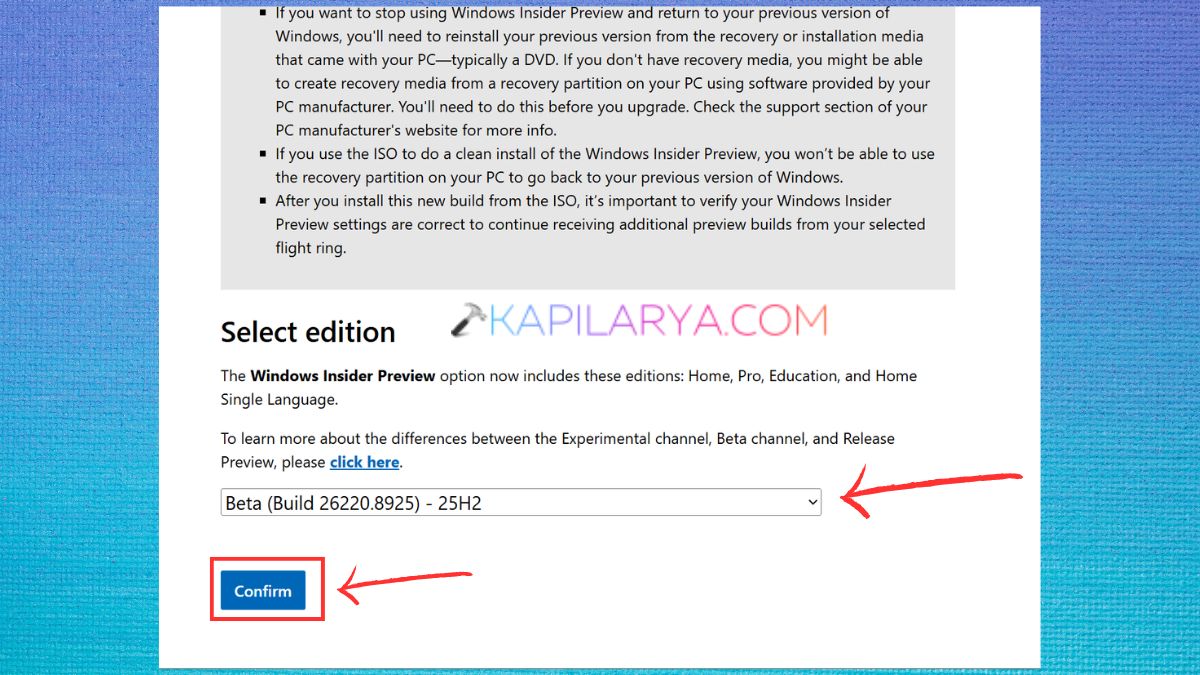
2. Herein, I chose the Windows 11 Client Insider Preview – 64-bit download.
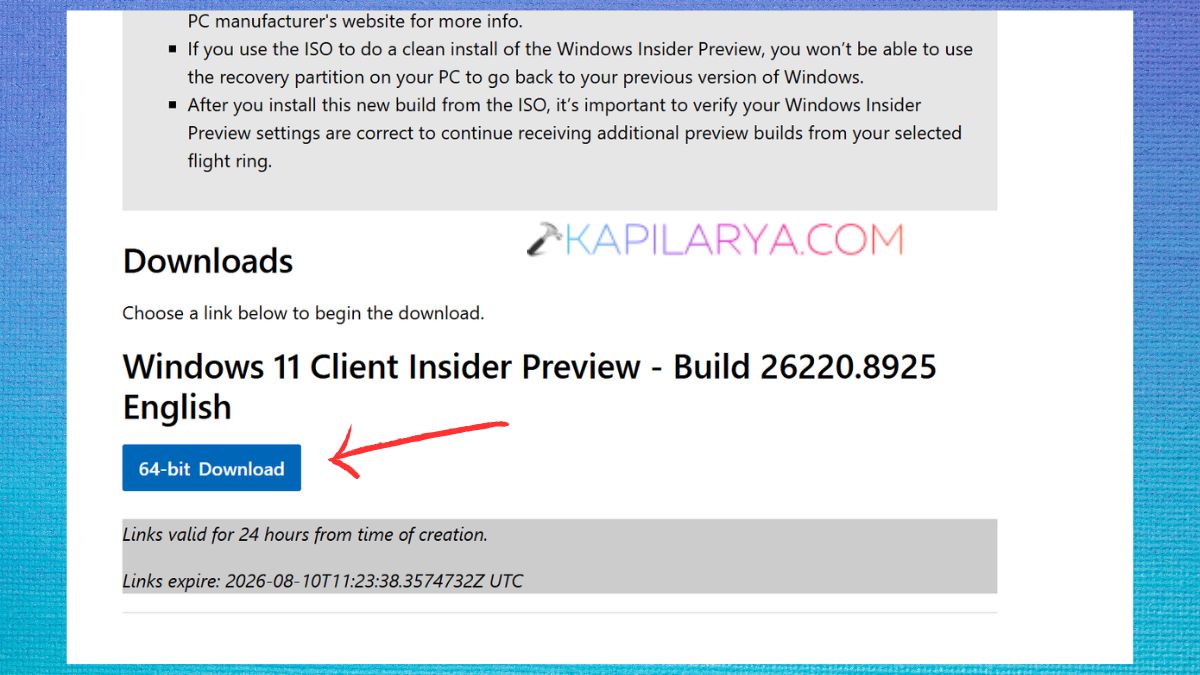
3. If you’re upgrading to a new version of Windows, find the downloaded ISO file. Right-click the ISO. Select Mount.
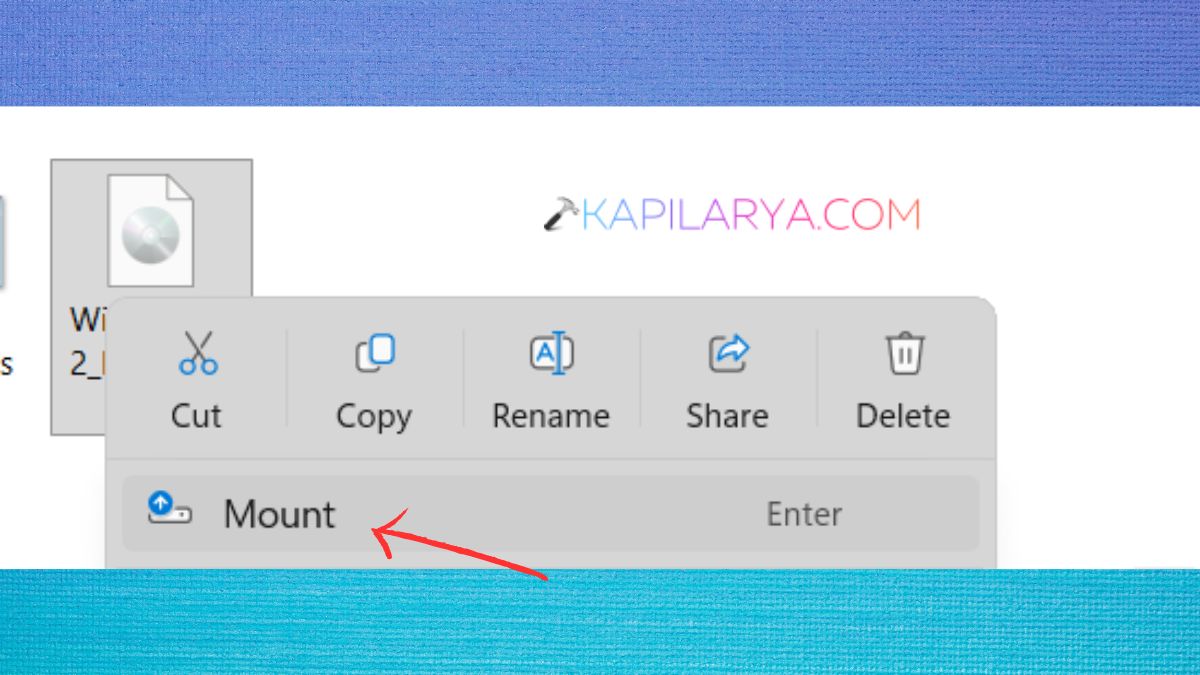
4. Open the new virtual disc (mount). Double-click Setup.exe. The Windows Setup wizard will appear.
5. The installation wizard will prompt you if Windows should download the latest updates before installation. Afterwards, select the option you wish to choose and click Next.
6. Then, follow all the preferred on-screen actions and install. There will be several reboots of your computer as part of the installation process.
DO NOT pause the installation or power off your computer!
7. After installation finishes:-
- Select your country and keyboard layout.
- Connect to a network.
- Sign in with your Microsoft account.
- Configure privacy settings.
- Wait until Windows is finished installing.
Finally, you’ll be taken to the Windows desktop running the latest Windows 11 Insider Preview Build.
How to Check If You’re Running an Insider Build
1. To check if the installation is successful, press Windows + R, and type this in the Run box. Click OK.
winver
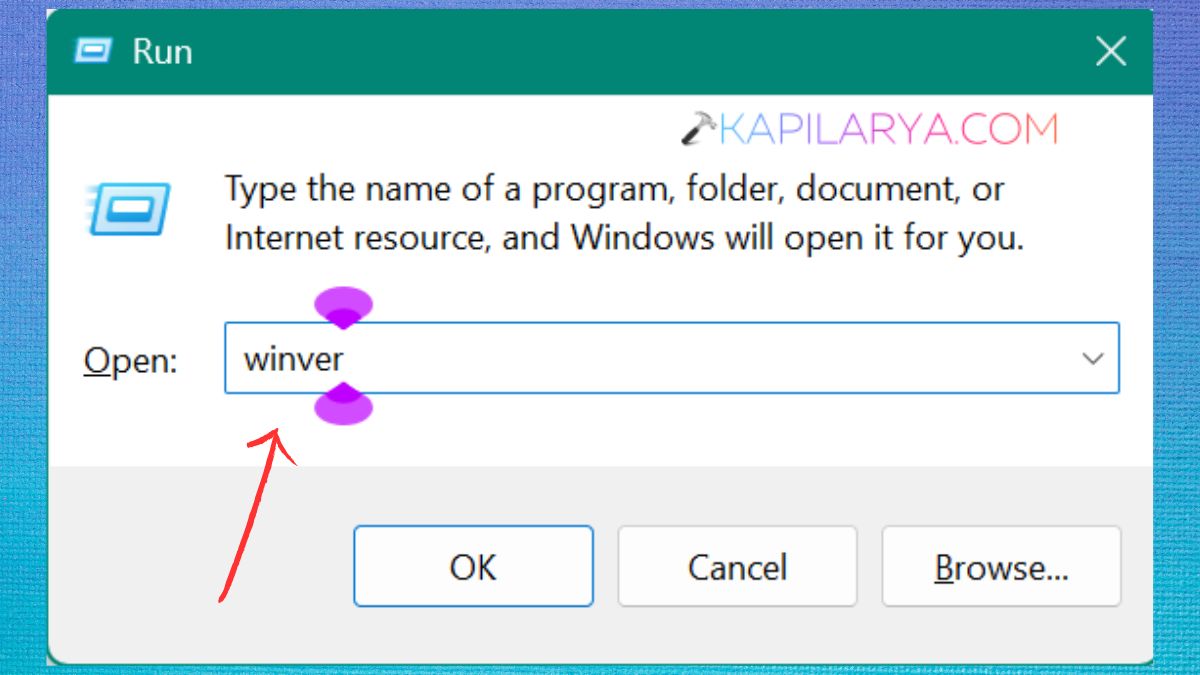
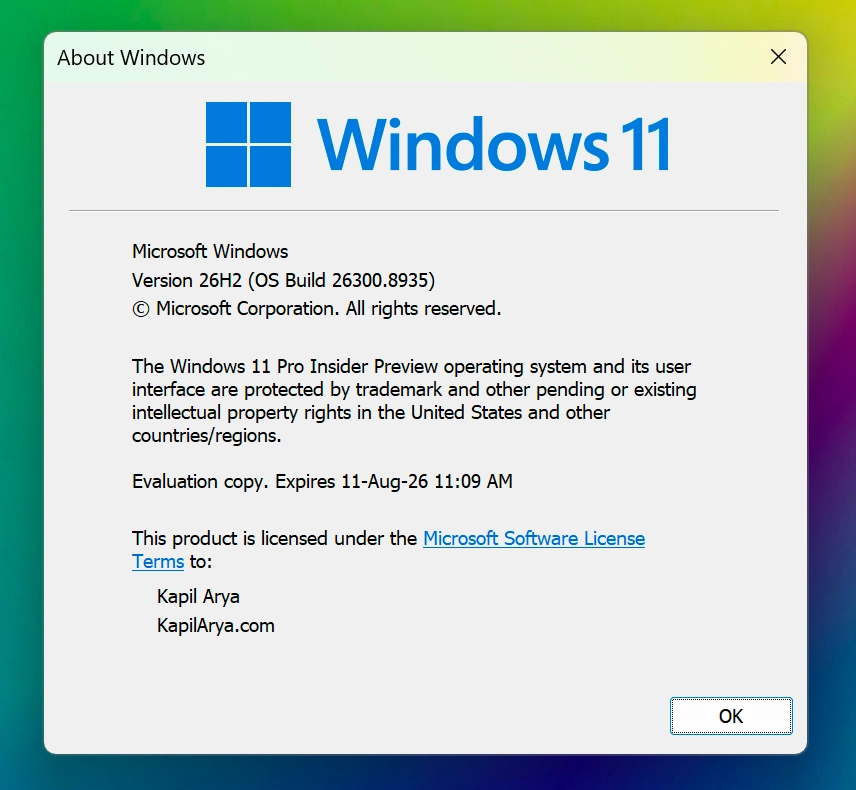
2. You should see a dialog box with your Windows version, OS build number and Insider Preview information, which will confirm that the latest Windows 11 Insider Build is installed successfully.