If you are running many programs at startup, then boot up the system will spend a considerable amount of time. To expedite this process, you can use boot-only fetching system that aims to focus on the boot process, and ignoring the run of the application process. You can make this possible using the Registry Editor tool.
Use Boot Only Fetching To Speed Up Your Windows 7, 8
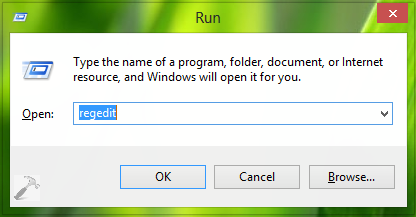
1. Press  + R and put regedit in Run dialog box to open Registry Editor (if you’re not familiar with Registry Editor, then click here). Click OK.
2. Navigate here:
HKEY_LOCAL_MACHINE\SYSTEM\CurrentControlSet\Control\Session Manager\Memory Management\PrefetchParameters

3. In the right pane, double click on the entry EnablePrefetcher. Change the Value data to 2, and click the OK. Note that default Value data is 3. Close the Registry Editor and reboot to get results.

That’s it!