If you too got a shock viewing the Code 3 driver error, the driver for this device might be corrupted, and looking for ways to fix this problem, you are in the right place. The error has become one of the most frequent driver errors on the latest versions of Windows. As you keep installing new Windows 11 versions, features or even hardware, your drivers need to keep up and adapt, otherwise new errors like Code 3 start to pop up.
Drivers are the translators between your PC’s hardware and operating system. If this translator runs old, faulty or gets bogged down, communication stops. This is when your computer throws up its hands and comes up with this code.
Page Contents
Fix Code 3 driver error: The Driver for This Device Might Be Corrupted
Rather than trial and error or some guesswork, we present a complete step-by-step guide to fixing the Code 3 error and stopping it from happening again.
Fix 1: Update or Repair the Corrupted Driver
Most of the time, Code 3 occurs due to a faulty driver.
To update the driver, do the following:
1. Press the Windows + X keys, click Device Manager.

2. Find the faulty device (it will have a yellow triangle next to it). Right-click > Update driver.

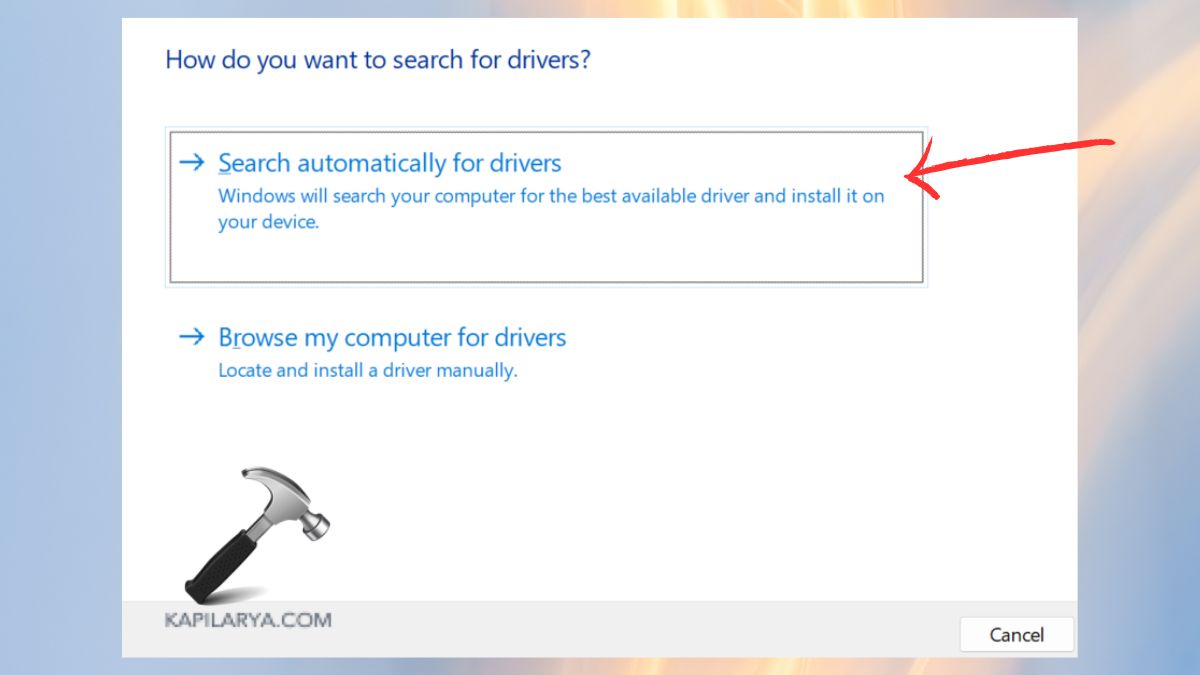
3. Select Search automatically for drivers. If this doesn’t work, see if you can repair the driver.
4. Go to the device manufacturer’s website.
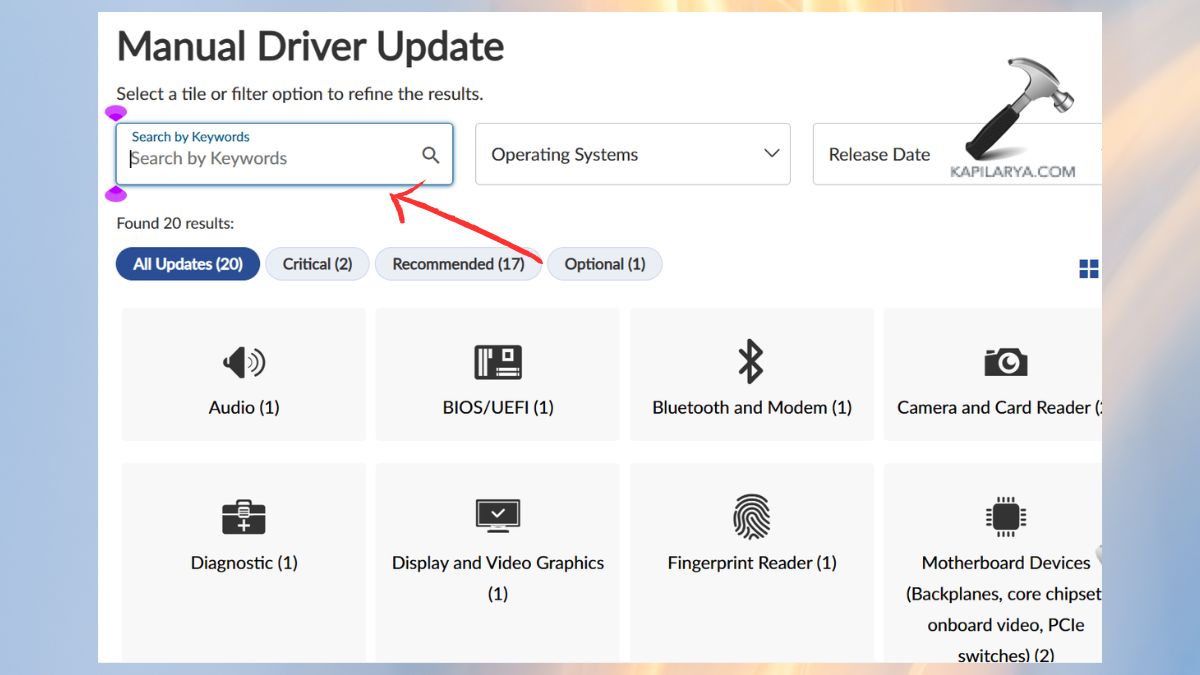
5. Download and install the latest driver. Install and reboot your computer.
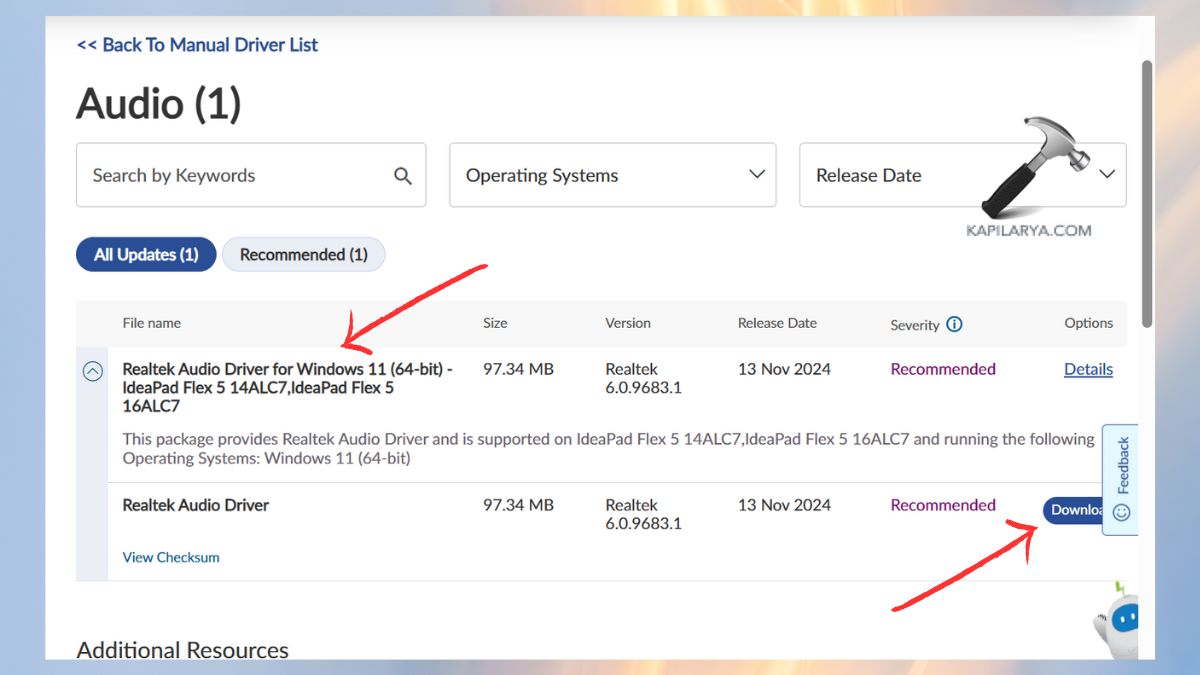
This will keep drivers up-to-date with the latest Windows updates, such as KB5083769 and those that follow.
Fix 2: Reinstall the Device Driver
If the problem’s not fixed, the next step is to do a fresh installation.
1. Open Device Manager.

2. Select the device that is causing issues > Uninstall device. Choose the option “Delete the driver software for this device” > OK.

3. Restart the computer. The driver will be automatically reinstalled. This will replace any corrupt files and allow Windows to make new driver settings.
Fix 3: Free Up System Memory (RAM)
Sometimes Code 3 doesn’t indicate the driver is bad; it means your computer does not have sufficient memory to load the driver.
1. Close all unused apps.
2. Turn off unnecessary startup programs.
3. Clear temporary files.
4. Restart Windows. If your computer is frequently running out of memory, then consider adding 8GB or 16GB of memory instead of 4GB.
Consider reading this detailed guide to free up disk space in Windows.
Fix 4: Use Windows’ Built-in Troubleshooter
Windows has a hidden Hardware Troubleshooter that is able to automatically diagnose and resolve the Code 3 problem.
1. Open Command Prompt (Admin).

2. Enter this command. Do the scan and any fixes.
msdt.exe -id DeviceDiagnostic
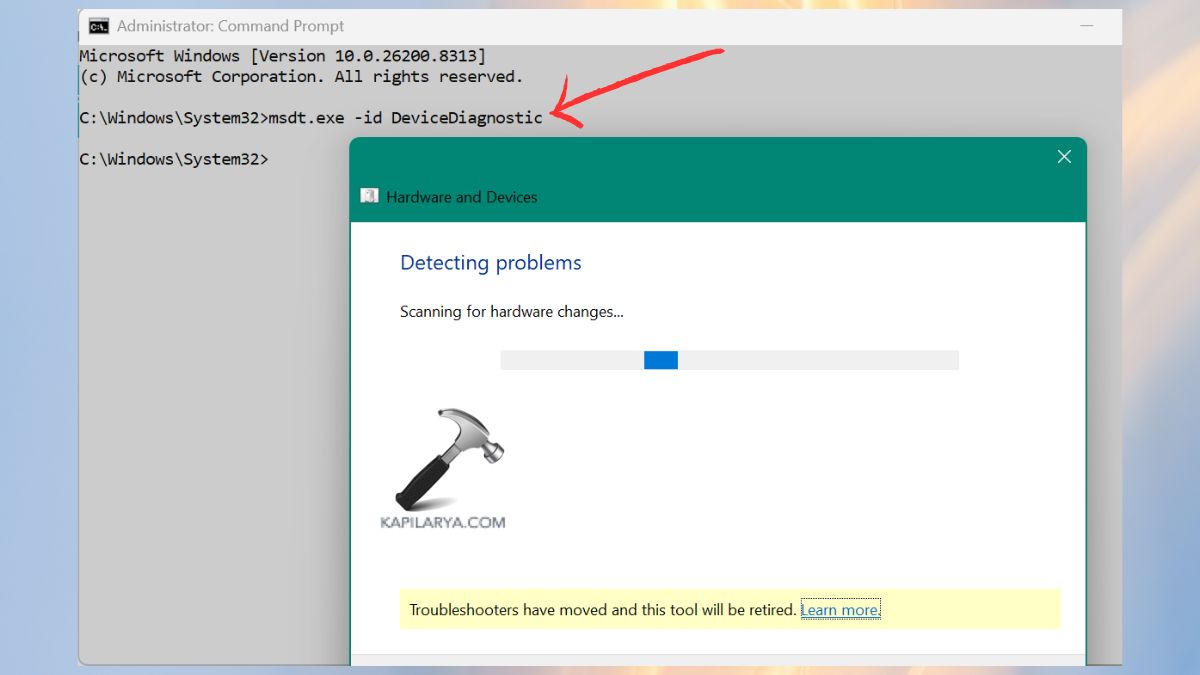
It resets and checks drivers for conflicts and hardware problems.
Fix 5: Stop Conflicting Background Programs
Drivers cannot initialise properly if high-CPU or high-memory programs are running.
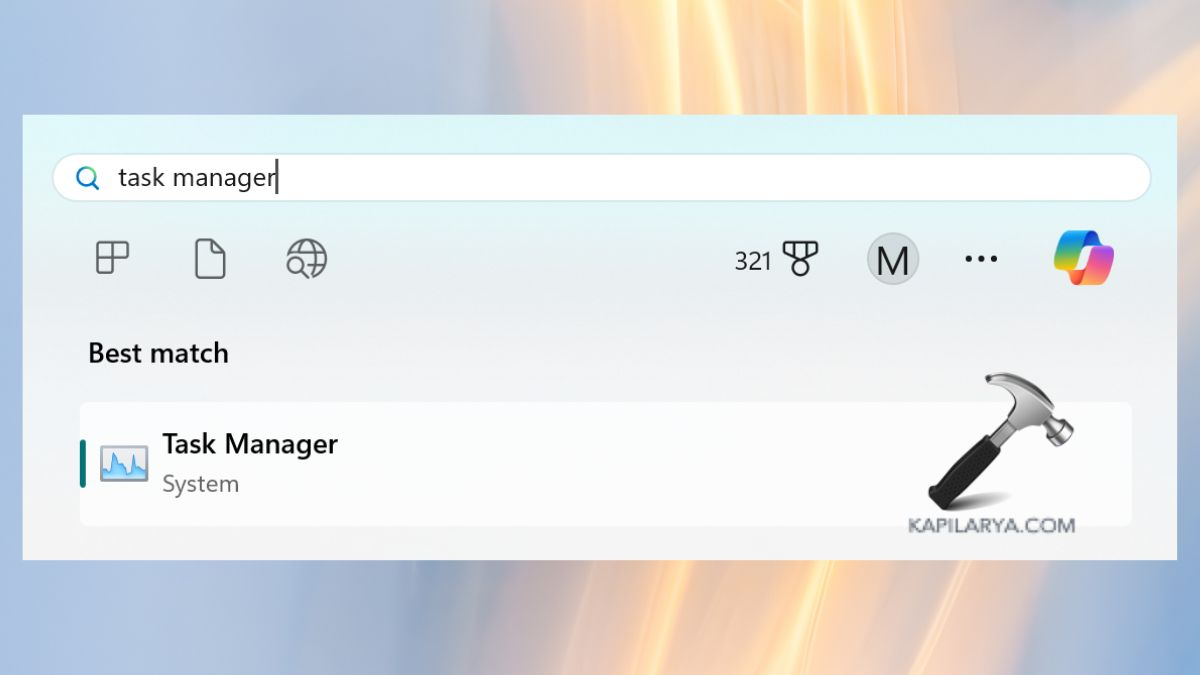
1. Open Task Manager by pressing “Ctrl + Shift + Esc”. Or by Start Menu.
2. Click the “Processes” tab. Tap on the excessive apps > End task.
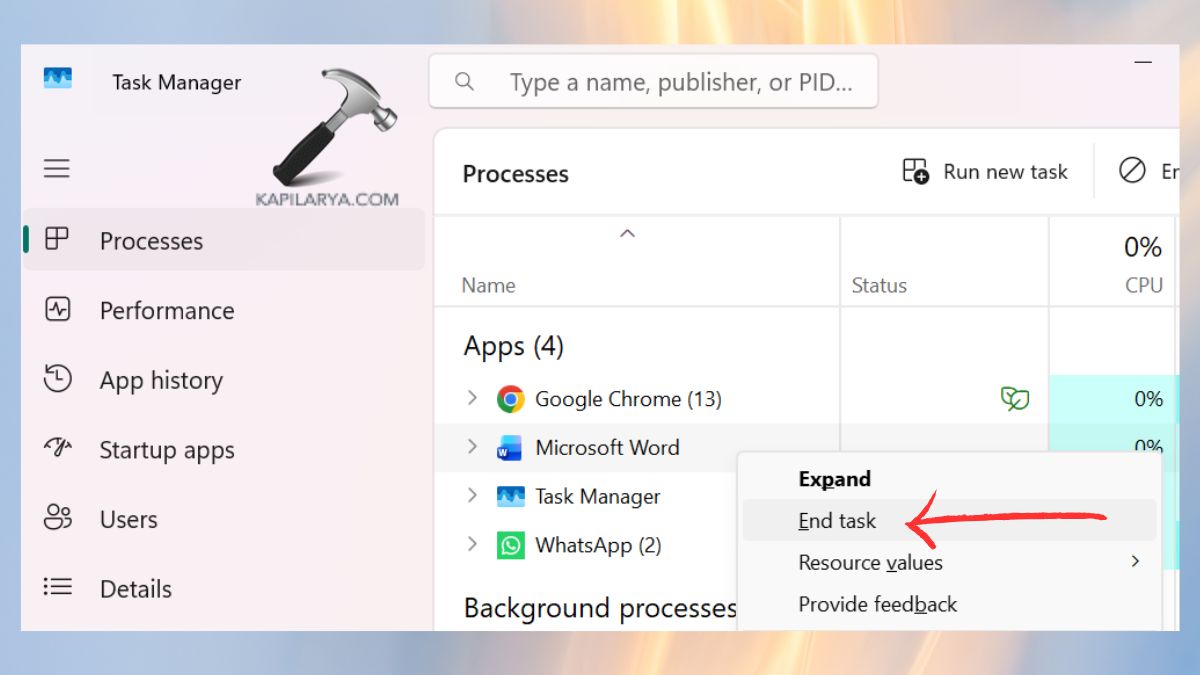
Restart the PC. Code 3 errors often occur with antivirus software, game or photo editors.
Fix 6: Perform an SFC and DISM Scan (Fix Corrupt System Files)
Damage to Windows files can cause device drivers to malfunction. You can follow this guide to know how to use DISM to repair Windows 11.
1. Open Command Prompt (Admin).
2. Enter the following lines one at a time.
sfc /scannow
DISM /Online /Cleanup-Image /RestoreHealth

Restart your system afterwards.
Fix 7: Install Windows Updates Fix Code 3 Error
Driver updates and bug fixes are common in new updates.
1. Open Settings > Windows Update.
2. Click Check for updates. Install all pending updates.

This will make sure your computer is up-to-date with fixes.
Frequently Asked Questions (FAQs)
What does Code 3 Error mean in Device Manager?
Code 3 error indicates that the device driver cannot be loaded by Windows, typically because it is corrupt, missing, or the system has insufficient memory.
Is this error harmful to my PC?
Not usually. It just stops a device (such as sound, USB, Bluetooth or graphics) from functioning until it is repaired.
How do I know which driver is corrupted?
Go to Device Manager and look for devices with a yellow exclamation mark. That is the malfunctioning driver.
Can Windows updates fix Code 3 errors?
Yes, if the malfunction is due to bugs or outdated drivers, the latest updates should fix the problem.
That’s it!