Remote desktop is useful when you want to access another PC from home or work. But sometimes, instead of the desktop, you only see a black screen. This remote desktop black screen issue is common in Windows 11.
It can happen after a Windows update, due to incorrect display settings, or because of graphics driver problems.
Page Contents
Fix: Windows 11 Remote Desktop Black Screen
Let’s see the fixes; there are several simple ones you can try.
Fix 1: Restart Windows Explorer
Explorer.exe controls many Windows display functions. You can try to restart it by these steps:
1. Open Task Manager by right-clicking the Start button.
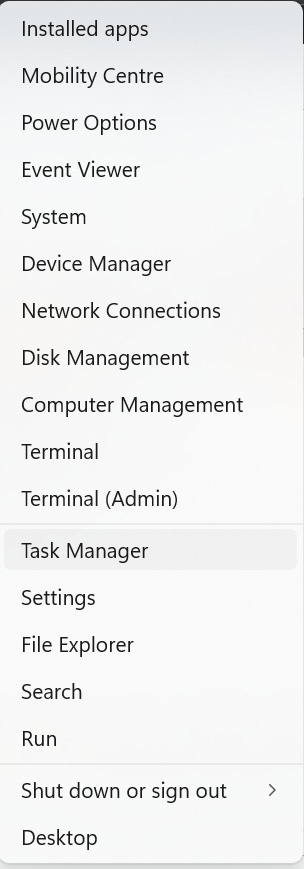
2. Find explorer.exe under the Details tab.
3. Right-click it and select End task.
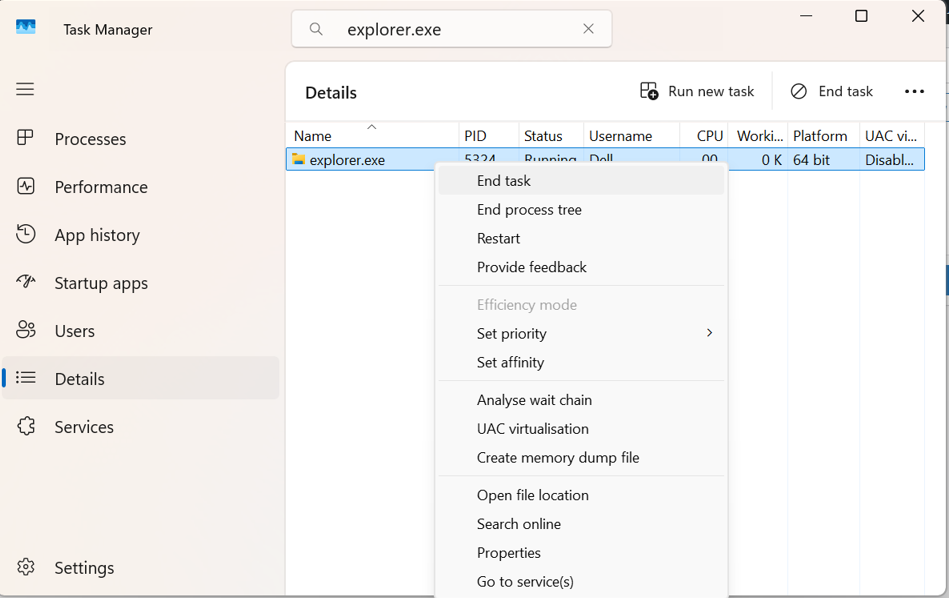
4. Click File > Run new task.
5. Type explorer.exe and press Enter.
Fix 2: Run An SFC Scan
System file corruption may also cause Remote Desktop problems. Steps are:
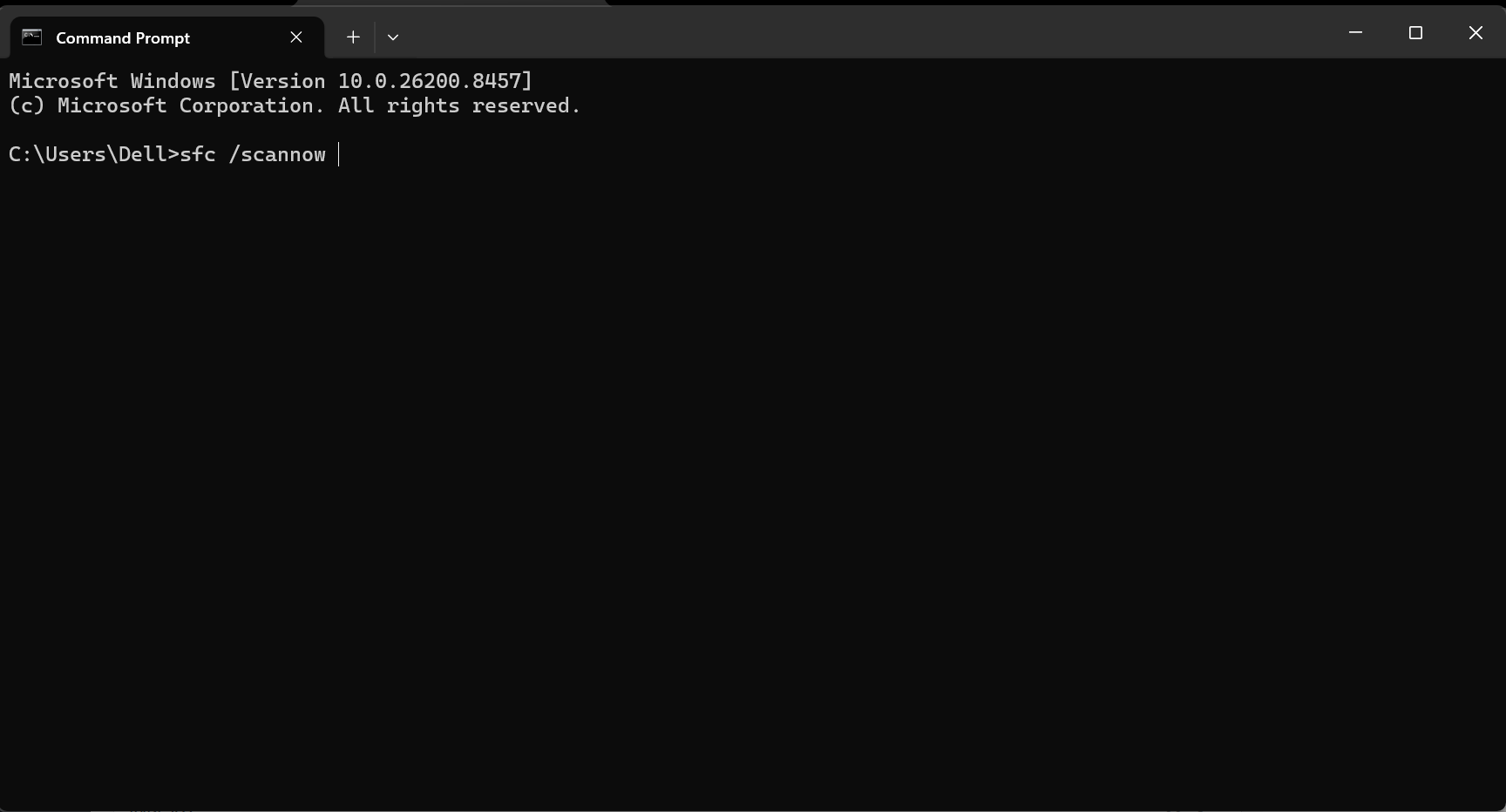
1. Click the Start button to open Command Prompt.
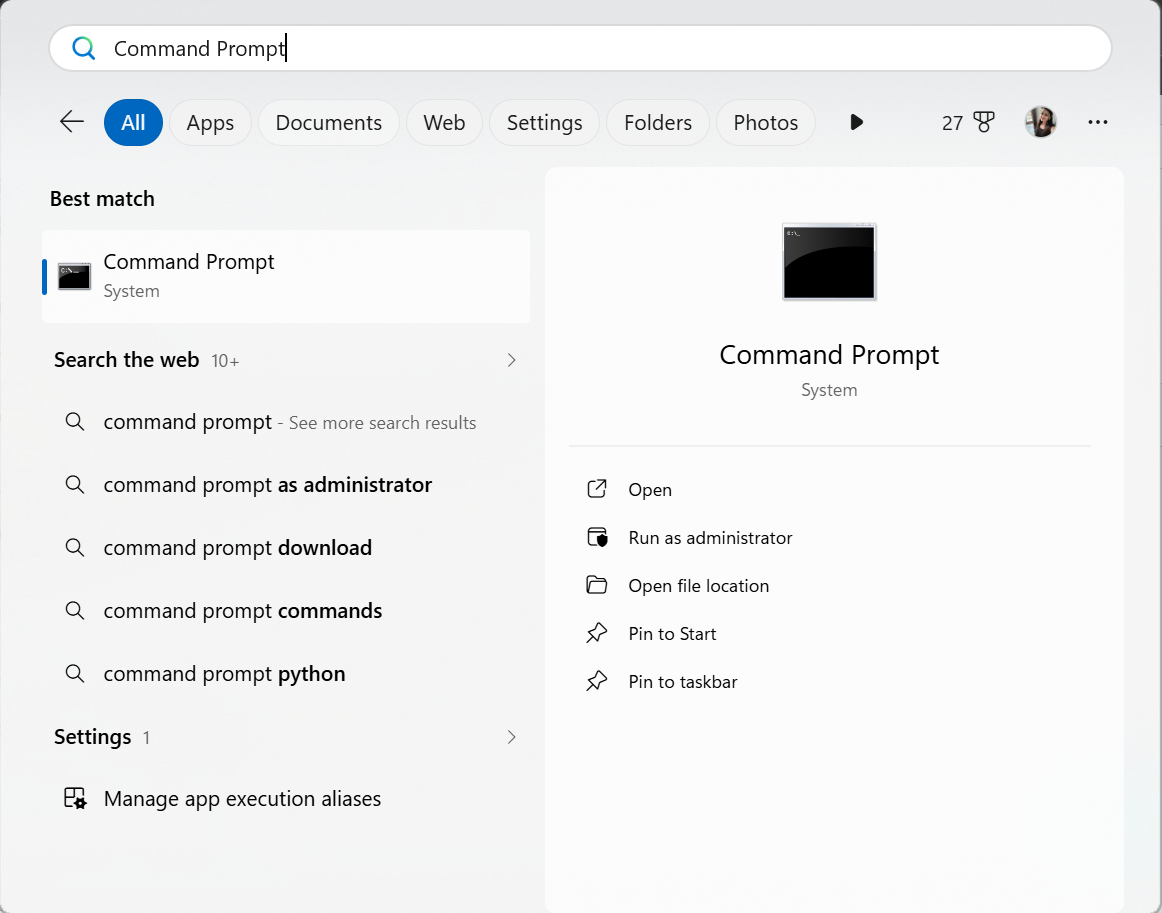
2. Type sfc /scannow command and press Enter and wait for the scan to finish.
Fix 3: Restart Remote Desktop Services
Sometimes the Remote Desktop service stops working properly. Here are the steps you need to follow:
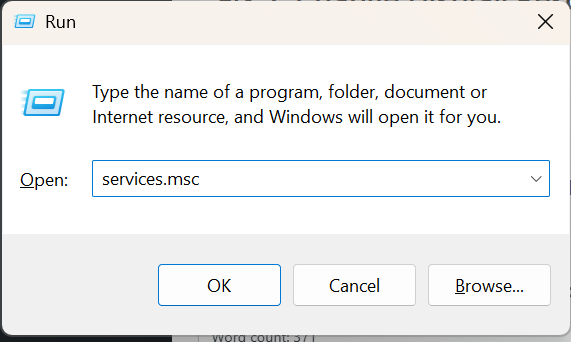
1. Press Windows + R to open Run.
2. Type services.msc and press Enter.
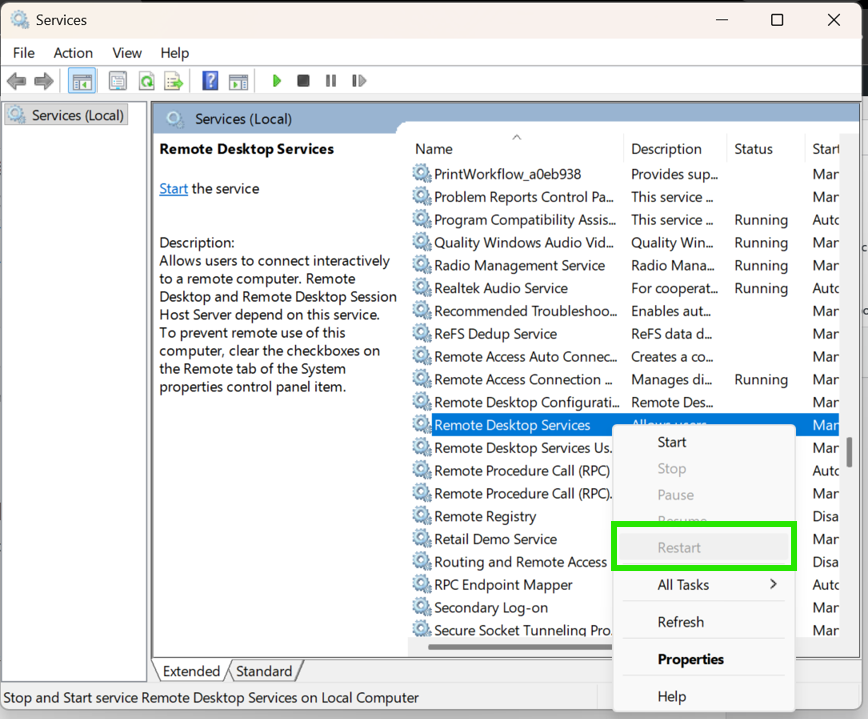
3. Find Remote Desktop Services.
4. Right-click it and choose Restart.
Fix 4: Change Display Resolution
Incorrect display settings can cause a black screen. Let’s see how to fix it:
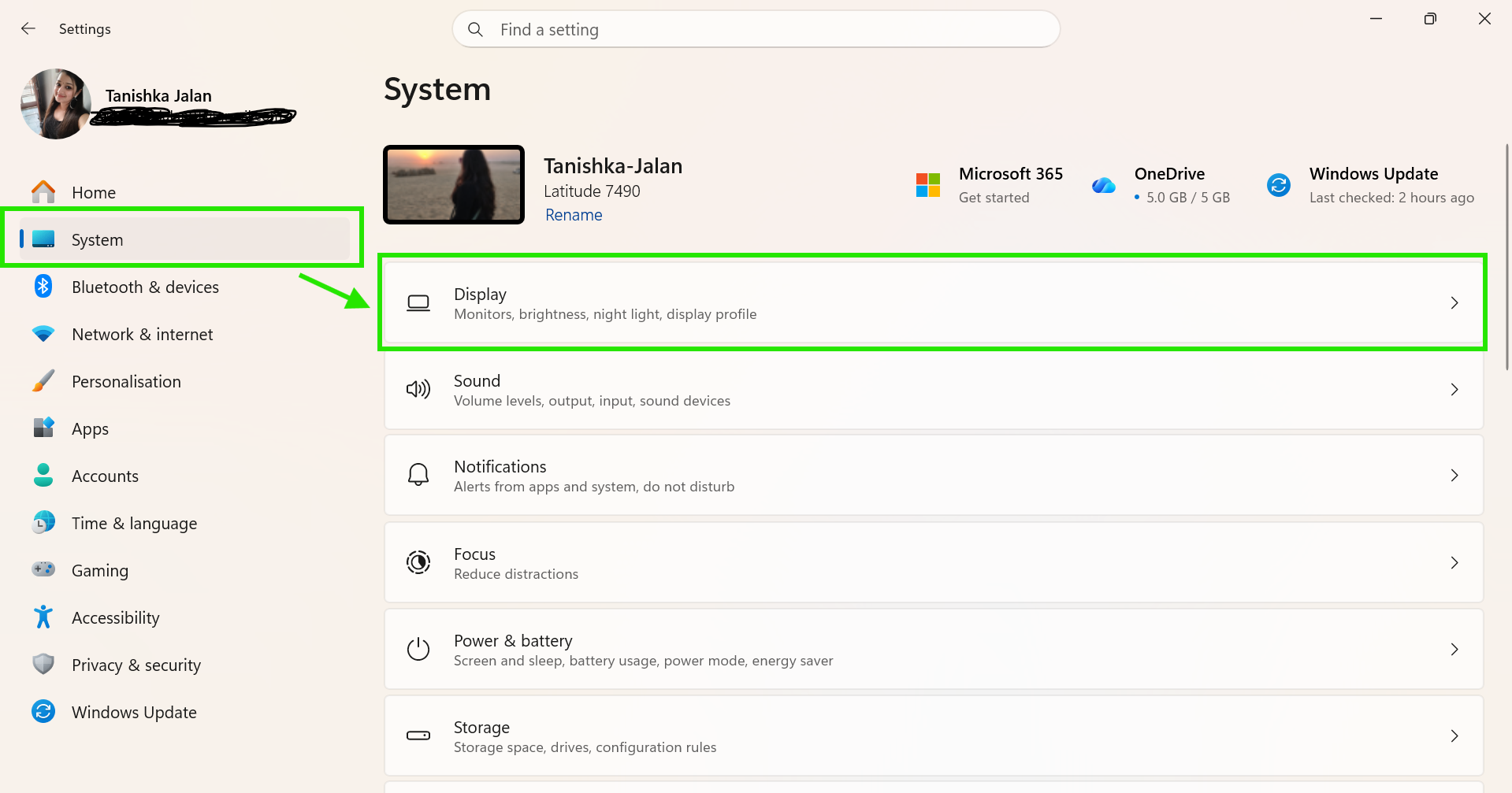
1. Press Windows + I to open Settings.
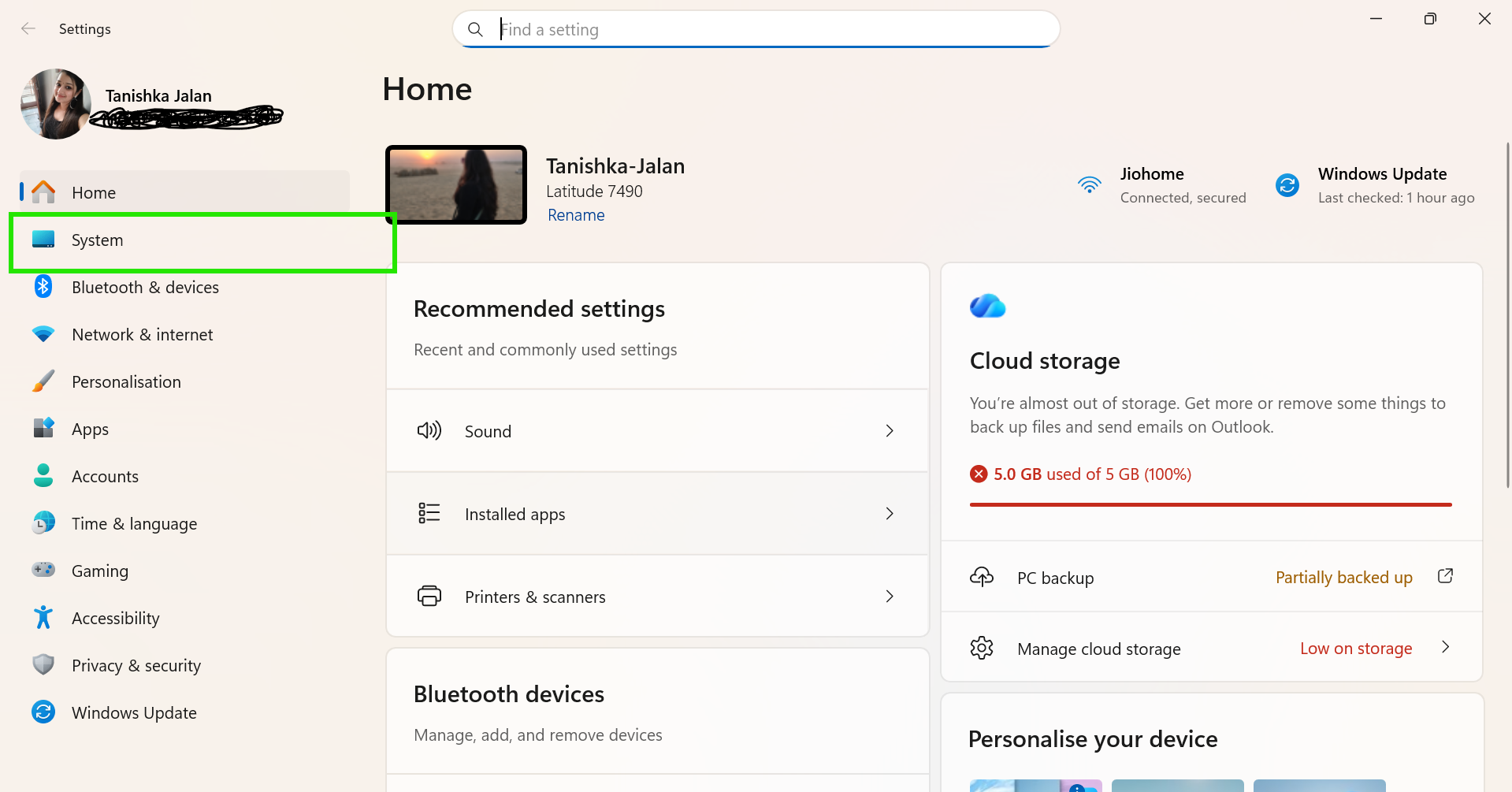
2. Go to System > Display.
3. Under Display resolution, choose a different resolution.
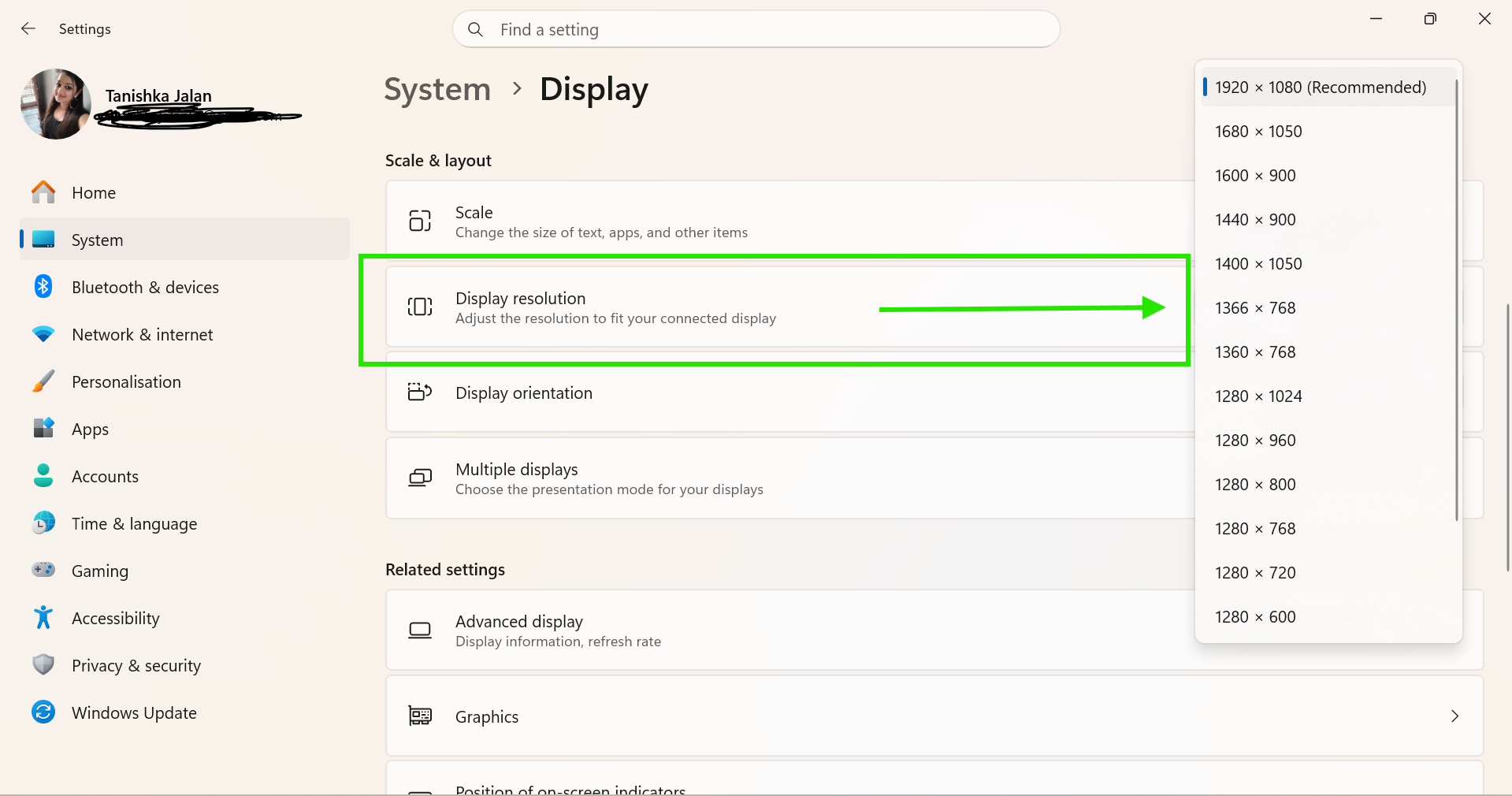
4. Reconnect the remote session.
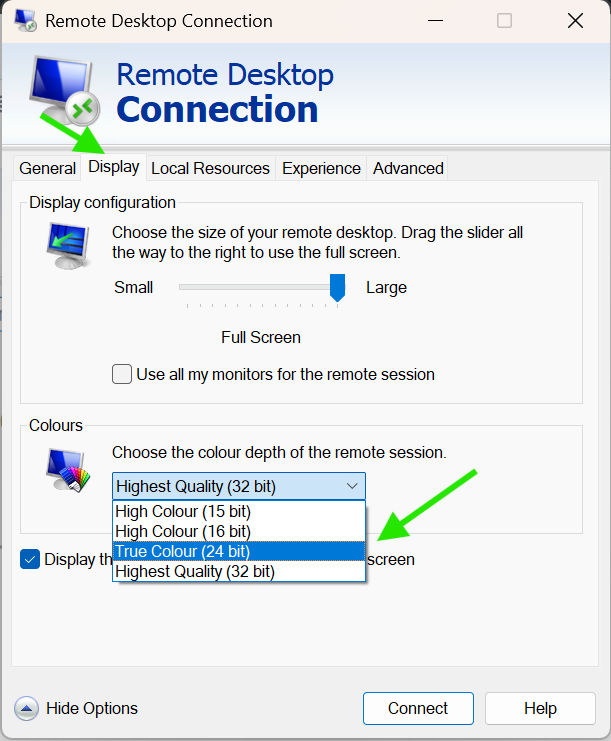
Fix 4: Change Remote Desktop Colour Settings
Lower colour settings may create display problems. Steps you should follow are:
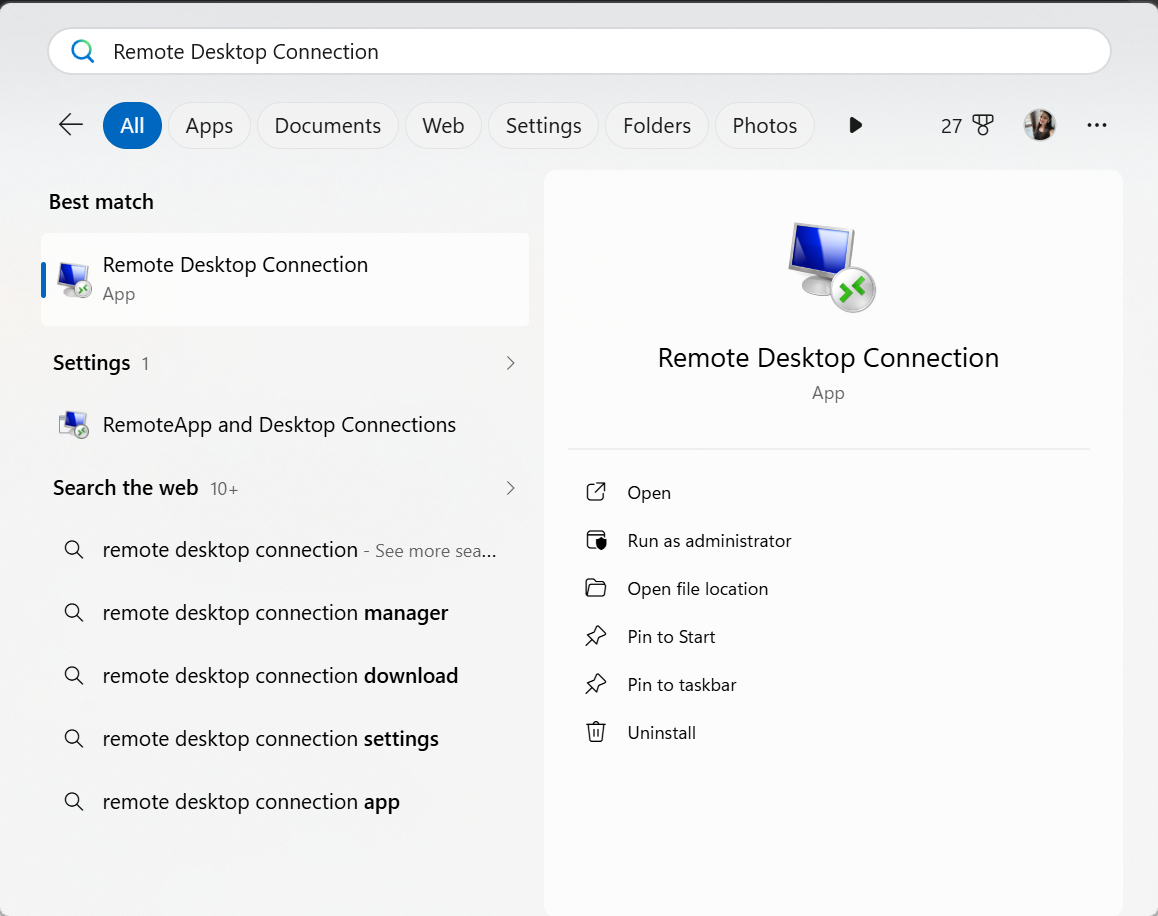
1. Click the Start button, search for Remote Desktop Connection, and open it.
2. Click Show Options.
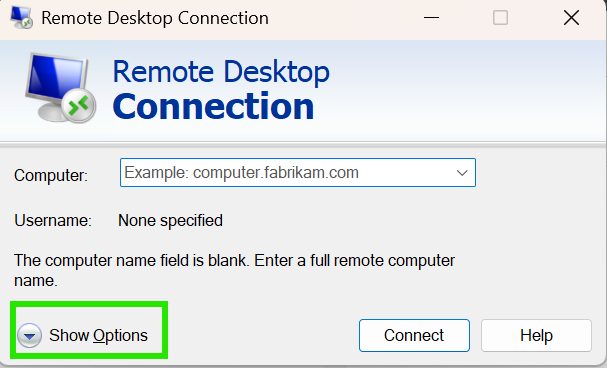
3. Open the Display tab.
4. Set Colours to True Colour (24-bit).
5. Click Connect.
Fix 5: Disable Persistent Bitmap Caching
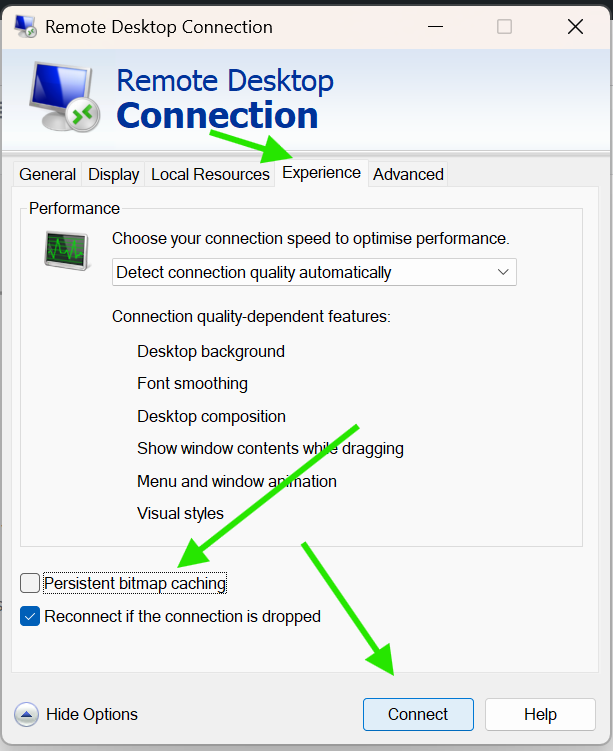
Corrupted cache files may lead to a black screen. Follow the steps listed below:
1. Open Remote Desktop Connection by clicking the Start button.
2. Click Show Options.
3. Go to the Experience tab.
4. Uncheck Persistent bitmap caching.
5. Save the changes and reconnect.
Fix 6: Update The Graphics Driver
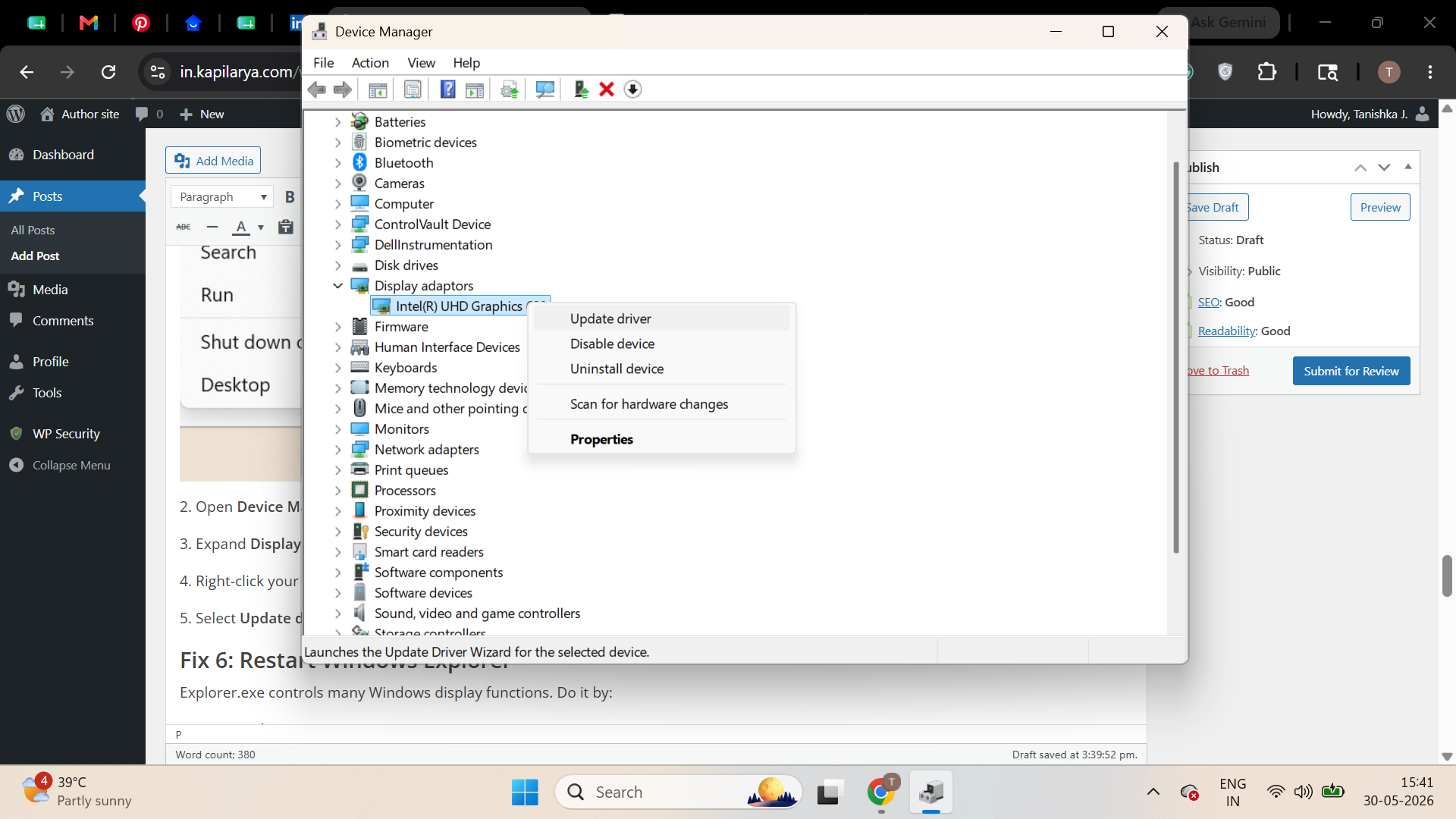
An outdated GPU driver can also trigger this issue. Steps are:
1. Right-click the Start button.
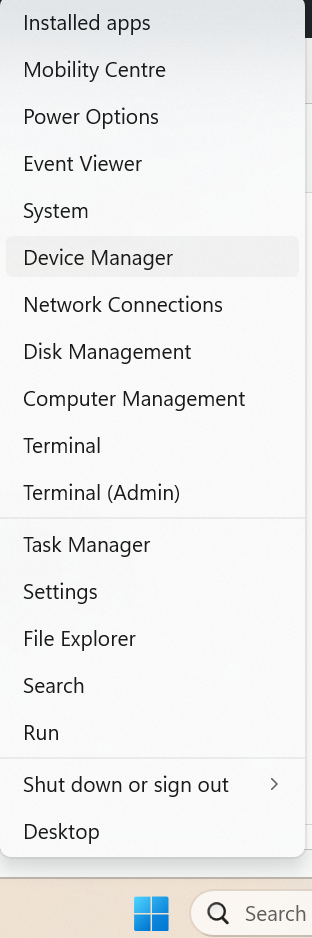
2. Open Device Manager.
3. Expand Display adapters.
4. Right-click your graphics card.
5. Select Update driver.
So, that’s how you can fix the Windows 11 Remote Desktop black screen issue.
Still, if you have any queries, please comment below.
![Remote Desktop Keeps Freezing or Disconnecting [6 Fixes]](https://www.kapilarya.com/assets/remote_dekstop_icon_1781340032.jpg)