“What needs your attention” error in Windows 11 pops up when trying to install the latest Windows version. This message typically implies that some apps or drivers, or system files, cannot be compatible with the update. You will find out the reason why the “What needs your attention” error happens in Windows 11 and how to correct it by using simple but step-by-step procedures in this article. The manual is easy to understand, so that you can solve the problem in less time without getting confused with technical terms.

Page Contents
What is the ‘What needs your attention’ Error in Windows 11?
The “What needs your attention” error in Windows 11 can occur when Windows can identify software, drivers, and system files that are incompatible. Microsoft blocks the update because it can save your system from possible crashes or performance errors.
The typical causes of this error are-
- Third-party applications are incompatible.
- Old or unsupported drivers.
- Software incompatibility in the virtual machines.
- Old system files of programs that were not beamed.
- Malfunctioning Windows update.
Signs That an App or File Is Blocking the Windows 11 Update
In the event that Windows fails to explicitly identify the bad app, search for these red flags:-
- At the same percentage, the update will halt continuously.
- Some indistinct message, such as “action needed” or “what needs your attention”.
- Windows 11 update continues to roll back.
- The PC reboots, but does not have the installation done.
This normally represents some hidden system, incompatible programs, or system remnants.
Fix: ‘What needs your attention’ error in Windows 11
The “What needs your attention” Windows 11 error might seem annoying to you, yet you should understand that it is a protection mechanism that helps to safeguard your system. You can fix the problem easily and install Windows without any difficulties by removing unneeded programs, leftover files, and finding the conflicts that are hidden. Take the following step-by-step guidelines.
Method 1: Find the Incompatible File or Program Manually
In case Windows does not explicitly state the malicious app, it can be located manually.
1. Activate the Run box with keys “Win + R”, enter the following, and press Enter.
appwiz.cpl

2. Sort programs according to the date of installation. Search the old or unknown software.
Delete some dubious or unnecessary software. Restart your PC.

Method 2: Remove the VirtualBox.exe File
The update may still be blocked by remnants of VirtualBox, such as VirtualBox.exe, even after the uninstallation of VirtualBox.
1. Open File Explorer. Go to this path.
C:\Program Files\Oracle\
Find a VirtualBox folder.
2. Erase the folder in its entirety.
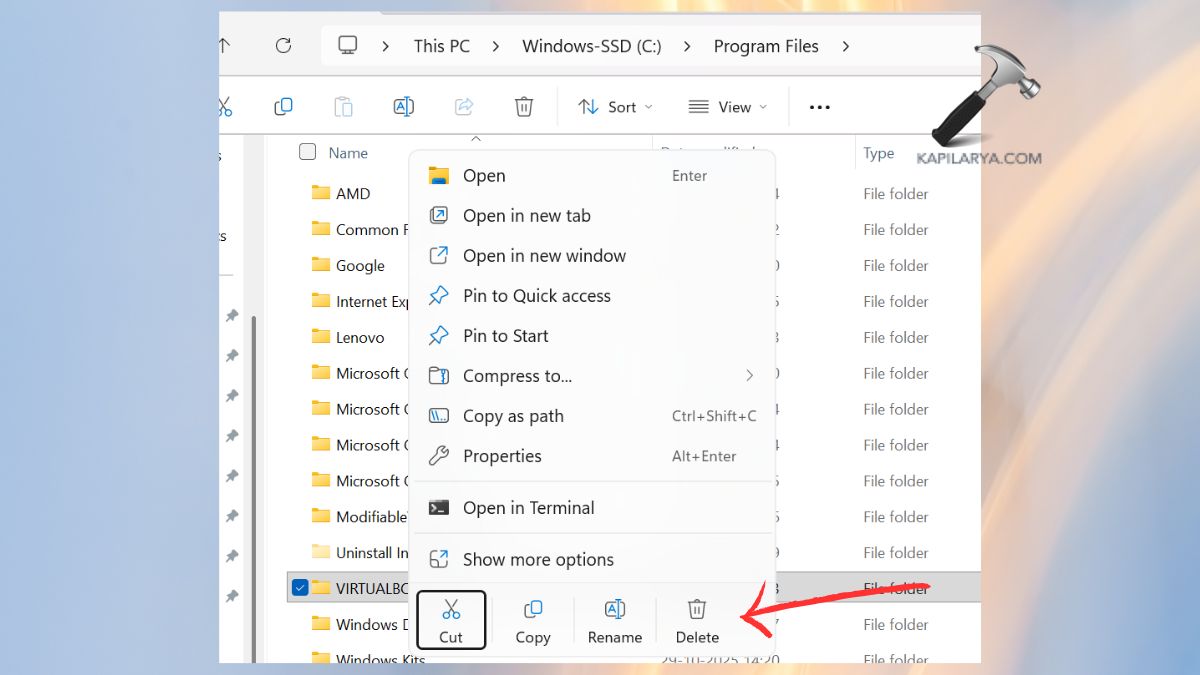
3. Then, empty the Recycle Bin.

Restart your system. This eliminates its unseen conflicts, which can cause the Windows 11 error “What needs your attention”.
Method 3: Uninstall Known Incompatible Programs and Devices
There are applications that have been known to exhibit conflicts when being updated to Windows 11.
1. Click on “Windows + I” to get into Settings. Go to Apps > Installed apps.
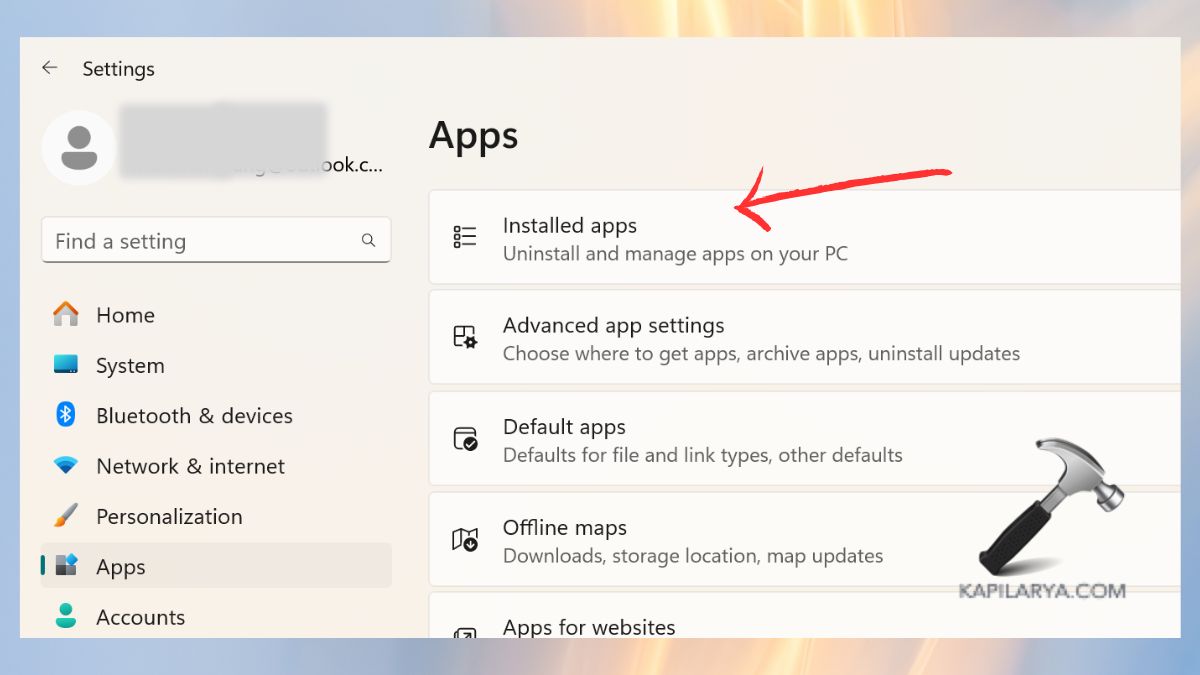
2. Look for programs such as:
- VirtualBox
- VMware
- Old antivirus software
- Legacy disk or driver tools
Select and click on the app and choose “Uninstall”.
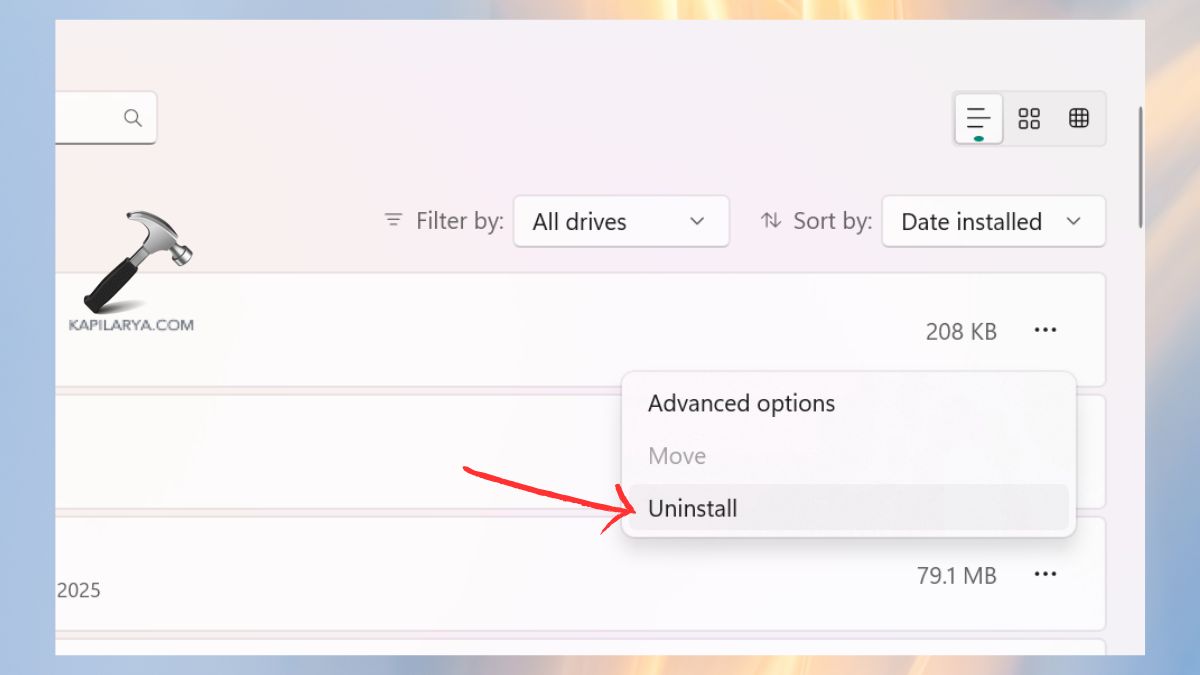
Restart your PC. Try updating Windows 11 again.
Method 4: Run Windows Update Troubleshooter
In some cases, this is brought about by corrupted update components.
1. Open Settings. Click on System > Troubleshoot > Other troubleshooters.
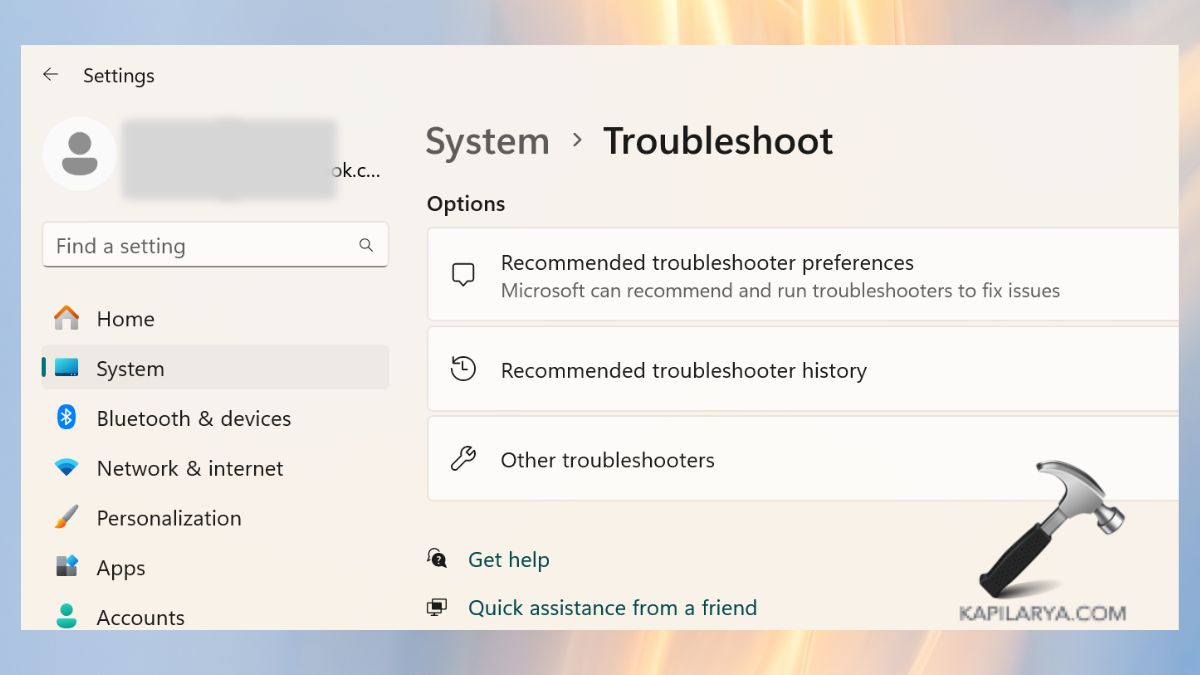
2. Click on “Run” next to Windows Update. Take instructions on the screen. Restart and retry the update.

Why You Should Not Ignore the ‘What Needs Your Attention’ Error in Windows 11
By disregarding the error of “What needs your attention” in Windows 11, you may encounter a severe breakdown of the system. This could result in failure to update, slow down, unreasonable crashes, or malfunction of drivers.
Correcting the problem at an early stage will guarantee:
- More compatible Windows 11 update.
- More stability and performance of the systems.
- Upgraded security with up-to-date upgrades.
- Reduced number of errors related to with updates in the future.
The appropriate correction of this mistake will save time and avoid poor perspectives.
Frequently Asked Questions (FAQs)
That’s it!