[How To] Prevent Modern Apps To Use Webcam In Windows 8

It is well known that we’re covering helpful articles for Windows 8 to help out readers like you. We’re regularly posting about new features, tips a

Kapil Arya
11x Microsoft MVP · Admin
1 min read
Add as a preferred
source on Google

It is well known that we’re covering helpful articles for Windows 8 to help out readers like you. We’re regularly posting about new features, tips and troubleshooting articles on this.

Today we’re going to discuss about the permissions options for a Modern App. Most of Modern Apps in Windows 8 have built in feature to use webcam. We will now discuss the way to prevent Modern Apps using webcam.

So without wasting your time lets move to the method:

How To : Prevent Modern Apps To Use Webcam In Windows 8

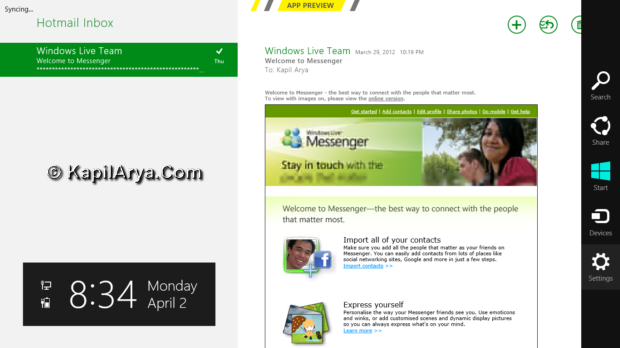
1. Firstly open a Modern App, for example let us opened Mail Modern App. Press Windows Key + C to bring the Charms Bar. Click on Settings.
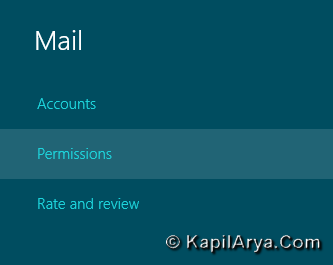
2. Pick Permissions from options.
3. Now bring slider to left for Webcam and Microphone option under Permissions sidebar.
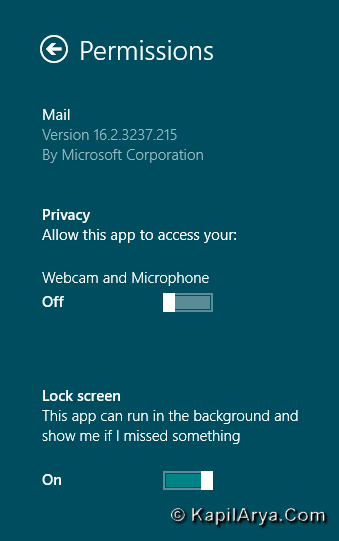
That’s it. Now this Modern App will not able to use webcam on itself. You can implement same method for other apps as well!

Share this article
https://www.kapilarya.com/how-to-prevent-metro-apps-to-use-webcam-in-windows-8

Shareable URL

Article by

Kapil Arya
11x Microsoft MVP · Admin

Kapil holds Microsoft MVP title in Windows IT Pro expertise, 11-times in a row (2014-2025). He is 8-times Windows Insider MVP as well, and author of 'Windows Group Policy Troubleshooting' book. In 2015, Microsoft India accomplished him as 'Windows 10 Champion'. Being passionate Windows blogger, he loves to help others on fixing their system issues. Kapil has worked with official Microsoft Community Engagement Team (CET) on several community projects. You can subscribe him for news/updates and fixes for Windows.

2 Comments
loquacious

I knew it already.. nice tip though!

mspwre12

@ loquacious, so why dont u read it out u knw already!

Leave a Comment

Your email address will not be published. Required fields are marked *