If you’re a Windows 10 device seller, retail demo mode is for you. Retail demo mode is nothing but a feature that let you show off Windows 10 to the buyer. Most of the Microsoft Stores or computer sellers prefer to enable retail demo mode and leave their machine working under this mode, until buyer gets impressed by it and buys it.
So if you’re wondering how to use this retail demo mode on your home machine, this guide will definitely help you.
Before you experience retail demo mode, understand these points first:
- When you go to retail demo mode from normal mode, all the customization and your user accounts and their associated data will be removed for ever.
- If your system is part of domain, retail demo mode won’t work on it. So disconnect your Windows 10 from domain to have retail demo experience.
- Your Windows 10 must be connected to the Internet to enable retail demo mode.
Now let us see how to work with retail demo mode on your Windows 10.
Page Contents
How To Use Retail Demo Mode In Windows 10
Part 1 – Enabling Retail Demo Mode
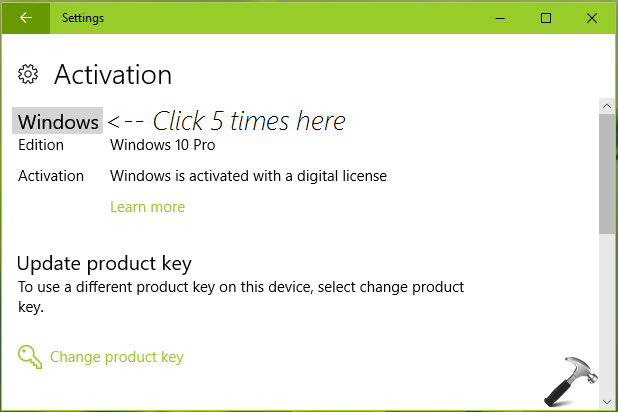
1. Open Settings app and go to Update & security > Activation. In the Activation screen, click on Windows repeatedly for 5 times (refer below shown screenshot).
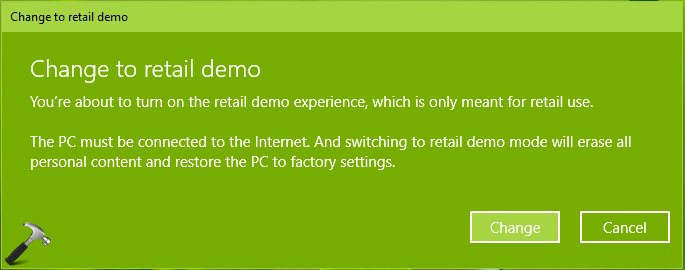
2. You’ll now see an confirmation prompt asking to change your machine to retail demo mode. Click on Change button here.
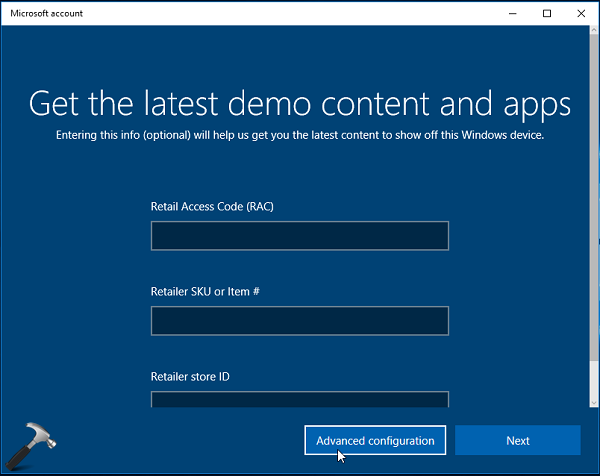
3. Then in next window, you’ll asked for Retail Access Code, Retailer SKU or Item # and Retailer store ID. If you’ve these details with you, fill them, else leave them empty and click Next.

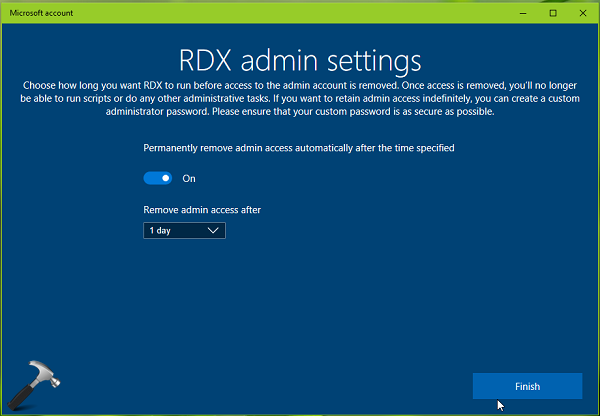
4. Moving on, in the RDX admin settings screen, simply click Finish.
5. Your machine will now restart and you’ll be logged into Darrin DeYoung‘s account. This will let you in under retail demo mode. After few minutes, your machine will automatically restart and in this way, your Windows 10 is completely utilizing retail demo mode. You’ll now realize that there is another user account named RetailAdmin whose password is trs10.

So this is all about activating retail demo mode in Windows 10.
Part 2 – Disabling Retail Demo Mode
To go back to normal or user mode, try these steps:
1. Open Settings app and go to Update & security > Activation. In the Activation screen, click on Windows repeatedly for 5 times (refer below shown screenshot).

2. Next, click Advanced configuration button in Microsoft Account window.
3. Finally, click on the Remove button to take yourself out of retail demo mode.

4. Your system will restart now and you’ll be asked to set up your user account so that you can continue using Windows 10 in normal mode.
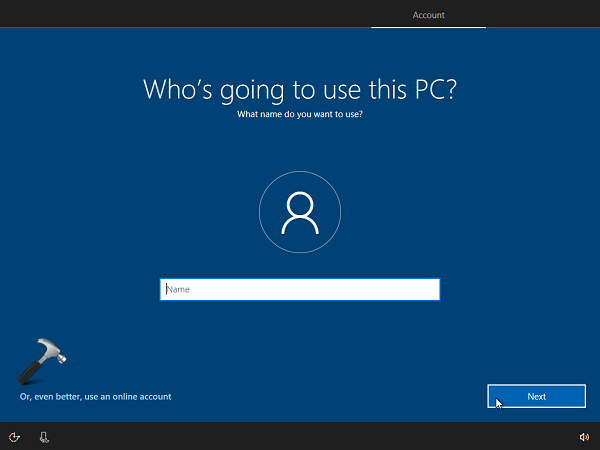
Once your account is ready to use, you’re out of retail demo mode.
That’s it!