

In Windows 10, Microsoft has worked hard to improve the user interface. With the newer builds available, users are getting more and more added to their favorite operating system. In the recently released public build there is a new style logon screen, which is hidden by default. Windows 10 builds are basically shipped with following style logon screen by default:
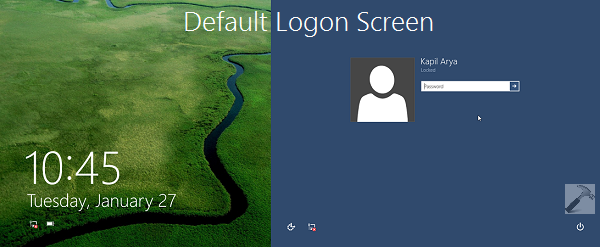
But if you’re a customization lover, then you can easily manipulate the registry and enable a new kind of logon screen for you. The new logon screen, which is obviously much better than the default one, can’t be enabled directly from the options available manually to users.
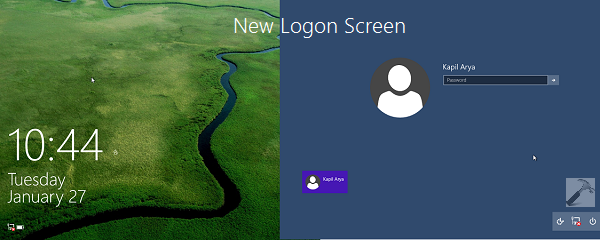
However, with few steps of registry manipulation, you can unlock this awesome logon screen. So without wasting your time, let us see the how-to part.
How To Enable New Hidden Logon Screen In Windows 10
Registry Disclaimer: The further steps will involve registry manipulation. Making mistakes while manipulating registry could affect your system adversely. So be careful while editing registry entries and create a System Restore point first.
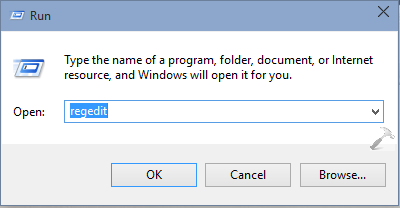
1. Press  + R and put regedit in Run dialog box to open Registry Editor (if you’re not familiar with Registry Editor, then click here). Click OK.
2. In the left pane of Registry Editor, navigate here:
HKEY_LOCAL_MACHINE\SOFTWARE\Microsoft\Windows\CurrentVersion\Authentication\LogonUI\TestHooks
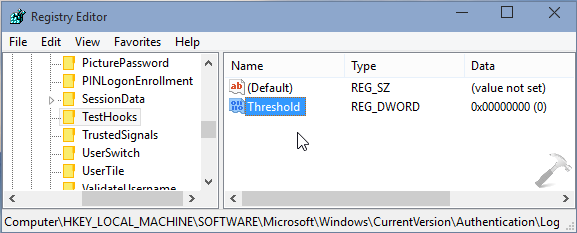
3. In the right pane of this registry location, look for the registry DWORD (REG_DWORD) named Threshold, it must be having 0 as its Value data. You need to double click on this DWORD to modify its Value data:
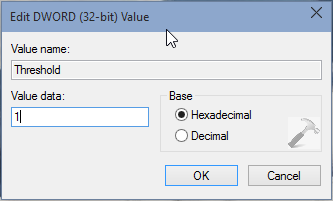
4. Finally, in the shown box, change the Value data to 1 and click OK. You can now close the Registry Editor and lock your system. Thus you should now be able to see new logon screen.
Enjoy the tweak! You might also interested to read how to change default lock screen image for multiple users in Windows 10.
![Windows needs your current credentials [Fix]](https://www.kapilarya.com/assets/password_icon_1783831080.jpg)






I dont knw my the new login screen is visible to an end user if at last they have to use it :S
I cannot see the Testhooks folder under LogonUI in the Registry Editor. Perhaps I dont have it. Please help. Thanks!
^^ You can right on LogonUI key, select New > Key and name the newly created key as TestHooks. Then you can proceed as directed.