

This morning happened something weird with one of my Windows 10 running device. Actually, the machine was not able to connect any networks. Also there were no networks detected. Upon checking Network Connections under Control Panel, I found that the device was missing all Network Adapters as well.
In this case, the empty Network Connections window says this:
Page Contents
The Network Connections Folder was unable to retrieve the list of Network Adapters on your machine.
Please make sure that the Network Connections service is enabled and running.
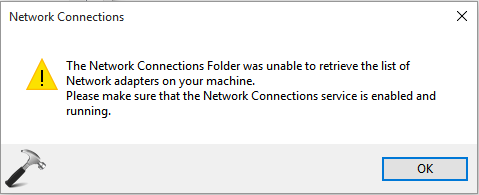
As suggested by the error message, I checked Network Connections service in Services snap-in (run services.msc command to get this). Here, I found that Network Connections service wasn’t running and another warning appears when I try to start this service:
Windows could not start the Network Connections service on Local Computer.
Error 1083: The executable program that this service is configured to run in does not implement the service.
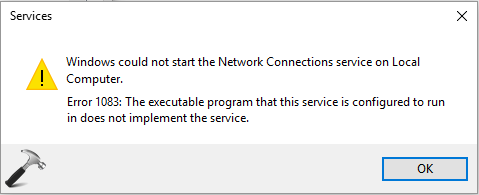
So what to do in this condition? As you can see that there is no support link or help article on this, which could help us to solve this issue except the error message. After investigating a bit on this, I found that this is supposed behavior when Network Connections service is missing from network configurations under registry key for Service Host (SvcHost) i.e. the process managing multiple services in Windows. If you add netman to SvcHost key, the problem gets solved.
So here is how to fix it:
FIX : Windows Could Not Start The Network Connections Service On Local Computer In Windows 10/8.1/8/7/Vista
Registry Disclaimer: The further steps will involve registry manipulation. Making mistakes while manipulating registry could affect your system adversely. So be careful while editing registry entries and create a System Restore point first.
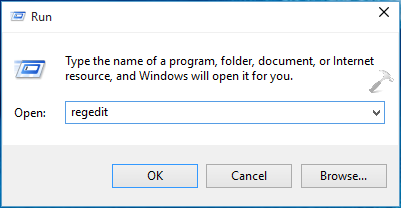
1. Press  + R and put regedit in Run dialog box to open Registry Editor (if you’re not familiar with Registry Editor, then click here). Click OK.
2. In the left pane of Registry Editor, navigate to following registry key:
HKEY_LOCAL_MACHINE\SOFTWARE\Microsoft\Windows NT\CurrentVersion\SvcHost
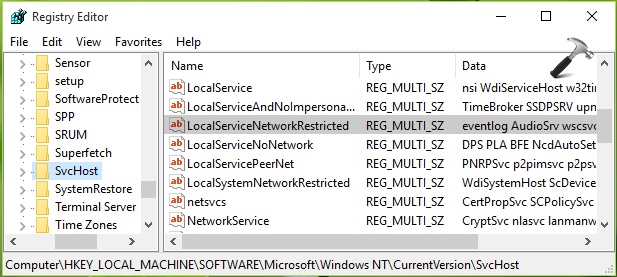
3. In the above shown window, highlight SvcHost key and come to its corresponding right pane. Here, look for the multi-string value registry string (REG_MULTI_SZ) named LocalServiceNetworkRestricted. Double click on this string to modify its Value data:
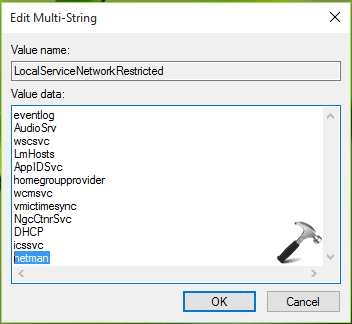
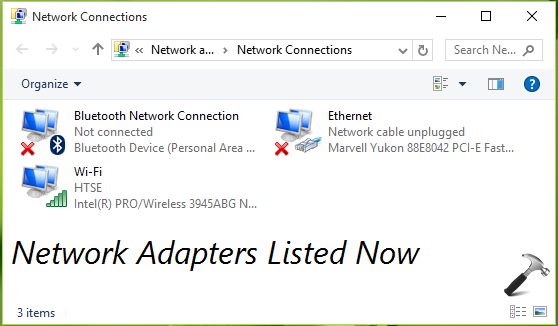
4. Since you’re facing this issue, the netman term should be missing in the Edit Multi-String window. So simply add netman to the list and click OK. Close the Registry Editor and reboot. After restarting your machine, you’ll find that the issue is resolved now and you can locate Network Adapters under Network Connections:
That’s it!






This fix does not seem to apply to error 1068. The dependancy service out group failed. Please help
^^ For that error, you need to check services properties. On Dependencies tab, make sure that services listed are running.
Hello, Sir, i am facing exactly same issue with my laptop with Windows 10 OS,
but while I try to start the Network Connection Service which is not running it gives and error
Windows Could not start the Network Connections Service on Local computer.
Error 1075: The dependency service does not exist or has been marked for deletion.
Please help me with this.
^^ For error 1075 (The dependency service does not exist or has been marked for deletion), see following fix: https://www.kapilarya.com/the-dependency-service-does-not-exist-or-has-been-marked-for-deletion
Thanks! It works on my pc!
^^ Glad we could help 😎
Hi Kapil
From almost 2 weeks my windows 10 Remote desktop gets disconnected and if I try to connect it says “Could not connect to Remote Server”. After restarting the remote machine it works find for sometime and then disconnects again and same thing happens. Is there some solution to this issue.
^^ You posted at wrong page 😊 Anyways, check following fix and see if it helps you: https://www.kapilarya.com/remote-desktop-connection-has-stopped-working-in-windows-10
i have the same issue,bu my error message code is 1068,the dependency service or group failed to start.
^^ For error 1068, refer: https://www.kapilarya.com/error-1068-the-dependency-service-or-group-failed-to-start-windows-10
Hello, i have the same problem but with error 1058: The service cannot be started, either because it is disabled or because it has no enabled devices associated with it.
Will it solve the same way or there’s something else i can do? Thanks
^^ Nope, it wouldn’t solve same way. Run SFC scan and see if it helps you: https://www.kapilarya.com/how-to-use-system-file-checker-to-repair-windows-10