

We all have used Internet Explorer (IE) for years. Now its the age of Microsoft Edge and we have already covered the review of this browser under following link:
Review: What’s new in Microsoft Edge browser
One of the benefits of using IE was that you can reset it anytime you started facing issues with it. Whenever you have multiple problems with this browser, you can go ahead and reset it to factory defaults by following steps mentioned here:
Learn how to reset IE to factory defaults
However, there is no such feature to reset Microsoft Edge. But there exists a workaround using which you can use to reset this newly arrived browser to factory defaults. It is obvious that completely resetting Edge will remove all of your passwords, favorites, browsing history, form data etc. So if you’re facing issues like Edge freezing often or becomes unresponsive, closes or minimizes itself when you open it, here is how to reset it:
How To Completely Reset Microsoft Edge To Default Settings In Windows 10
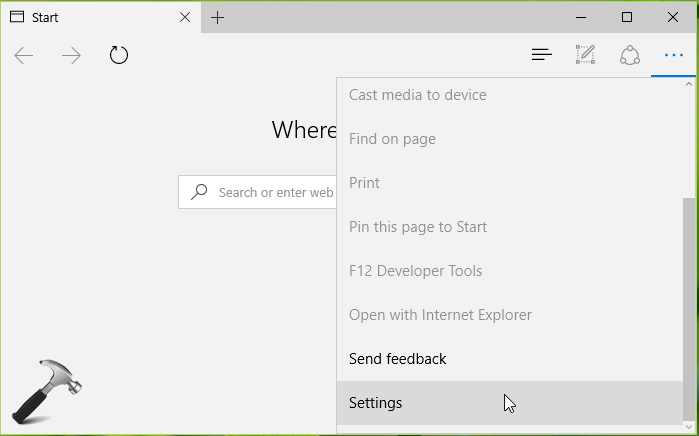
1. Open Microsoft Edge and click on three dots (…) to open settings. Click Settings.
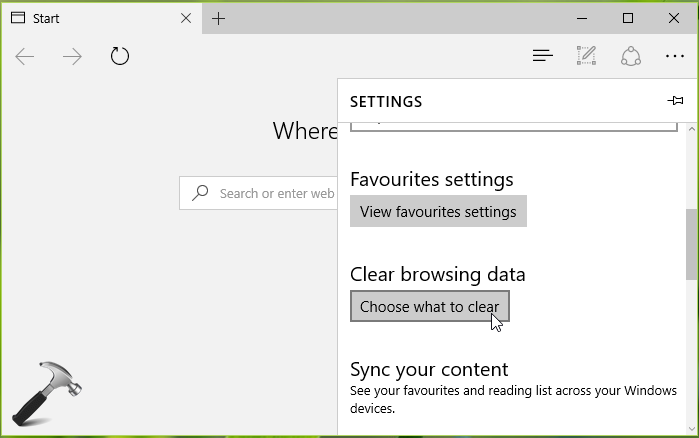
2. Then in SETTINGS pane, scroll down and hit Chose what to clear under Clear browsing data heading.
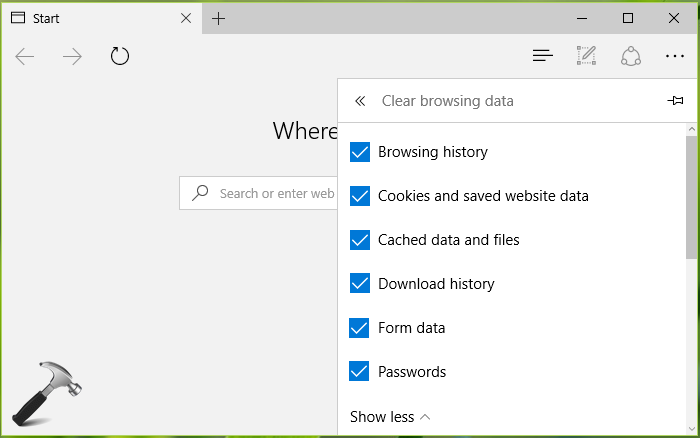
3. Next, put a check mark against available options and hit Clear button to erase all selected content from the browser.
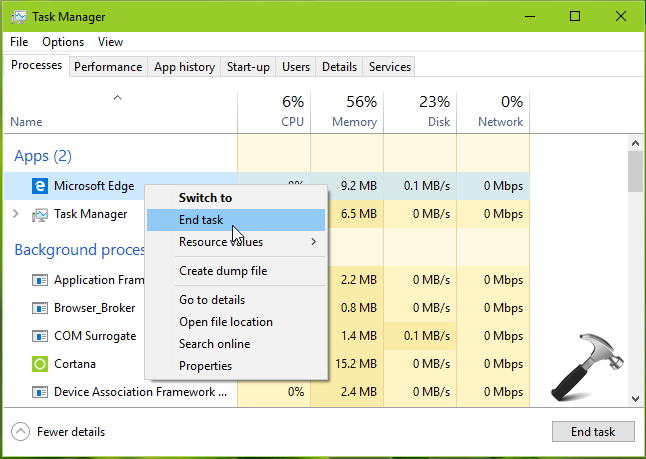
4. Now close Microsoft Edge and press Ctrl+Shift+Esc keys to open Task Manager. Right click on Microsoft Edge process here and select Open file location. Do a right click again and select End task option this time. Close Task Manager.
5. In the SystemApps folder opened in previous step, rename Microsoft.MicrosoftEdge_8wekyb3d8bbwe to Microsoft.MicrosoftEdge_8wekyb3d8bbwe.old sub-folder. Close File Explorer.
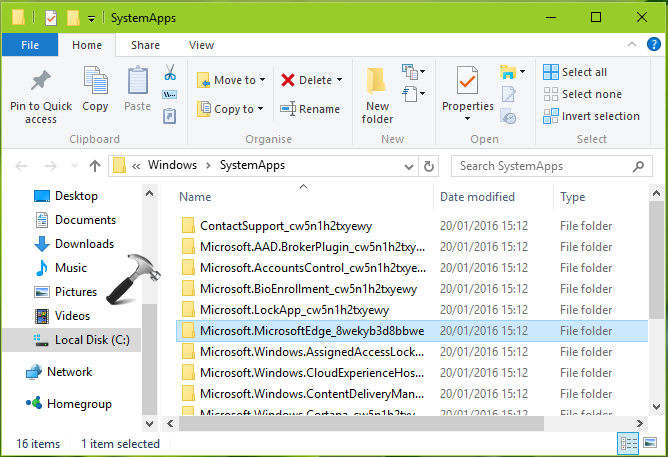
6. Moving on, now open administrative Windows PowerShell. Type following command and hit Enter:
Get-AppxPackage | Select Name, PackageFullName
This will show you the list of all apps installed on your machine along with their full package name (under PackageFullName column). Note down the full package name for Microsoft Edge as highlighted in below screenshot.
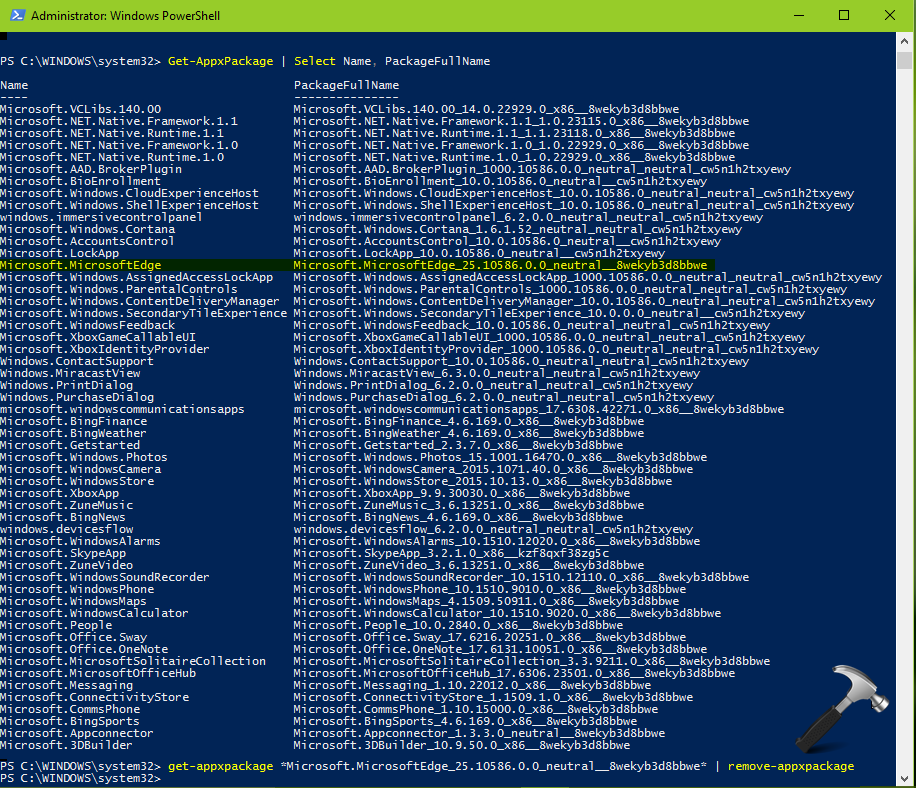
7. Now type this command and hit Enter key:
get-appxpackage *Microsoft Edge PackageFullName* | remove-appxpackage
NOTE: Substitute Microsoft Edge PackageFullName name with the appropriate package name on your machine. For example, Microsoft.MicrosoftEdge_25.10586.0.0_neutral__8wekyb3d8bbwe.
8. Finally, re-register Microsoft Edge in the same Windows PowerShell window using steps mentioned here:
Steps to re-register Microsoft Edge
In this way, you’ve completely reset Microsoft Edge browser. Close Windows PowerShell. You can now re-start machine and hence Edge, the issues you were facing with it, would no longer appear. The steps mentioned here are illustrated in this video:
Hope you find the guide useful!





Can you please remove this package Microsoft edge for me please, so that I can use my printer again. Or change it back to where it was.
Another possible cause might be Use TLS 1.0, Use TLS 1.1 or Use TLS 1.2 disabled in internet options.
^^ Thanks for your inputs!
Am I going to lose all of my Favorites?
Why has new version of microsoft edge deleted all of my favorites . How can i retrive all my
favorites System restore does knot work????