Consider a scenario, that you’ve Windows 10 machine. You’ve your Office 365 account that is well connected with Azure Active Directory (AD). Now you signed into your system but after that you’re asked to setup PIN.
Once you click to set up your PIN, you receive following message immediately:
Page Contents
Something went wrong
We can’t connect to the server to set up your PIN right now. You can try again, or you can skip and do this later. Error code: 0x80070490
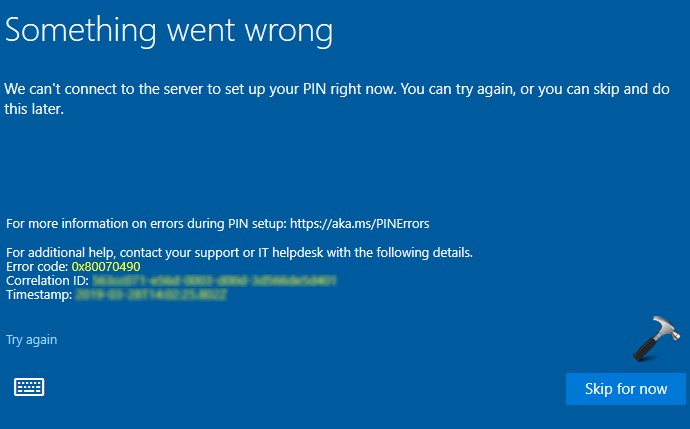
If you’re facing this issue, here is how you can resolve the error.
FIX: We Can’t Connect To The Server To Set Up Your PIN Right Now
FIX 1 – General Suggestions
1. PIN errors are usually transient, so you can reboot your system and then try to set up PIN again and see if that works.
2. Try to add PIN manually via Settings app > Sign-in option > PIN > Add.
3. Make sure Turn on convenience PIN sign-in GPO setting is set to Enabled. You can refer this fix to get this setting enabled using registry manipulation.
4. Refer this fix to reset ACLs on NGC folder or change NGC permissions to see if that helps you to resolve this error.
FIX 2 – Reconnect To Azure AD
If above suggestions didn’t helped, you can try to reconnect your machine with Azure AD to get this solved. No data should be affected by this, as per our testing.
Try these steps:
1. First of all, create a local administrator account.
2. Now convert this local administrator into Microsoft account.
3. After switching the account to Microsoft account, sign out (from user account) and then login back to Azure AD account.
4. Open Settings app and go to System > About and for Manage or disconnect from work or school account, click Disconnect. So now your machine should be disconnected from Azure AD account.
5. Restart your machine and this time sign into your Microsoft account we setup in step 2 above.
6. Open Settings app, go to System > About and click Join a domain/Azure AD, and setup your machine.
7. Restart your system and sign in with Azure AD account and setup PIN and it should work this time.
8. Once you setup organizational PIN, you can delete Microsoft account we setup in step 2.
Hope this helps!