If you can’t set up a PIN in Windows 11 in Windows 11, the issue is usually related to Windows Hello errors, corrupted PIN data, or system/security conflicts. You may see messages like Something went wrong or PIN isn’t available. In most cases, the problem is caused by corrupted system files or misconfigured security settings rather than a hardware issue.
Page Contents
Fix: Can’t Setup PIN in Windows 11
Below are 6 effective fixes to resolve this problem.
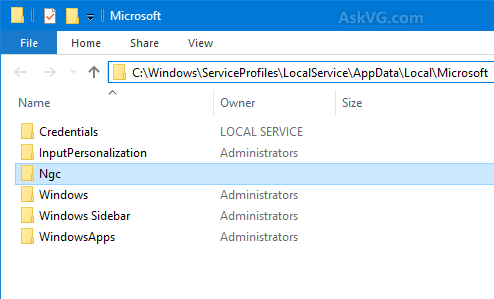
Fix 1: Delete the NGC Folder (Most Effective)
This is the most powerful fix because the NGC folder stores all PIN-related data in Windows. If this data becomes corrupted, Windows cannot create or verify a PIN. When you reset, it forces Windows to rebuild the entire PIN system from scratch.
1. Open File Explorer and go to:
C:\Windows\ServiceProfiles\LocalService\AppData\Local\Microsoft
2. Delete the NGC folder contents.
3. Restart your PC after that.
4. Try setting up the PIN again.
Fix 2: Reset Your PIN
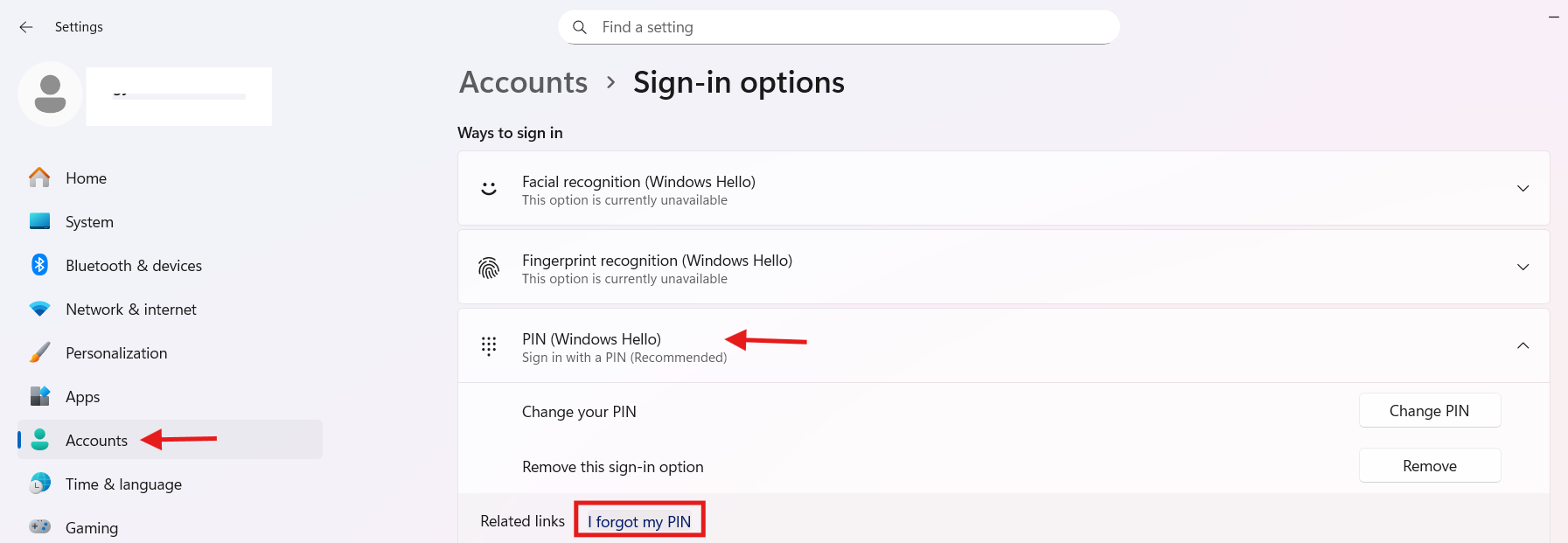
If a PIN was previously created but is now broken, resetting it is the quickest solution. This method works especially well when you see errors, but still have access to your account. It re-links your PIN with your Microsoft account securely.
1. Open Settings and click on Accounts. Choose Sign-in options.
2. Click PIN (Windows Hello).
3. Select I forgot my PIN.
4. Follow on-screen steps.
Fix 3: Run SFC Scan (Repair System Files)
Windows Hello depends on several system files to function properly. If any of these files are corrupted, PIN setup can fail unexpectedly. Running an SFC scan helps detect and repair these hidden issues.
1. Open Command Prompt (Admin).
2. Type the following and press enter:
sfc /scannow
3. After that, restart your PC.

Fix 4: Enable Windows Hello via Group Policy
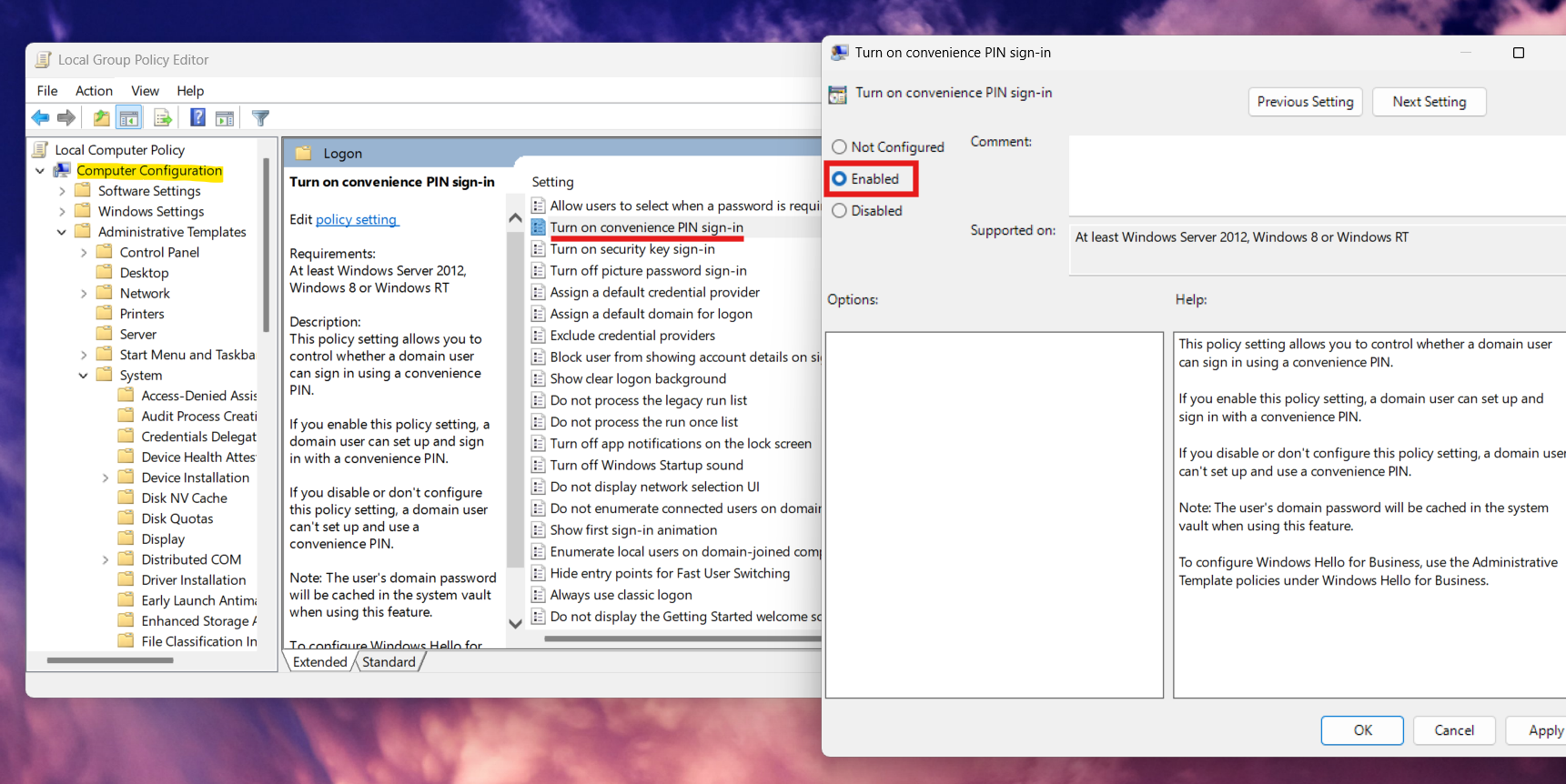
In some systems, especially work or managed devices, policy settings disable PIN sign-in. If this option is turned off, you will not be able to create a PIN. Enabling it restores the required permission.
1. First, press Win + R, and type gpedit.msc.
2. Go to Computer Configuration, then click on Administrative Templates. And then choose System, and select Logon.
3. Then, enable Turn on convenience PIN sign-in.
Fix 5: Check or Reset TPM
Windows Hello uses TPM (Trusted Platform Module) to store security keys for PIN authentication. If TPM is disabled or misconfigured, PIN setup may fail. Ensuring TPM is working properly is critical.
1. Press Win + R and type tpm.msc.
2. Ensure TPM is enabled.
3. If needed, reset TPM (advanced users only).
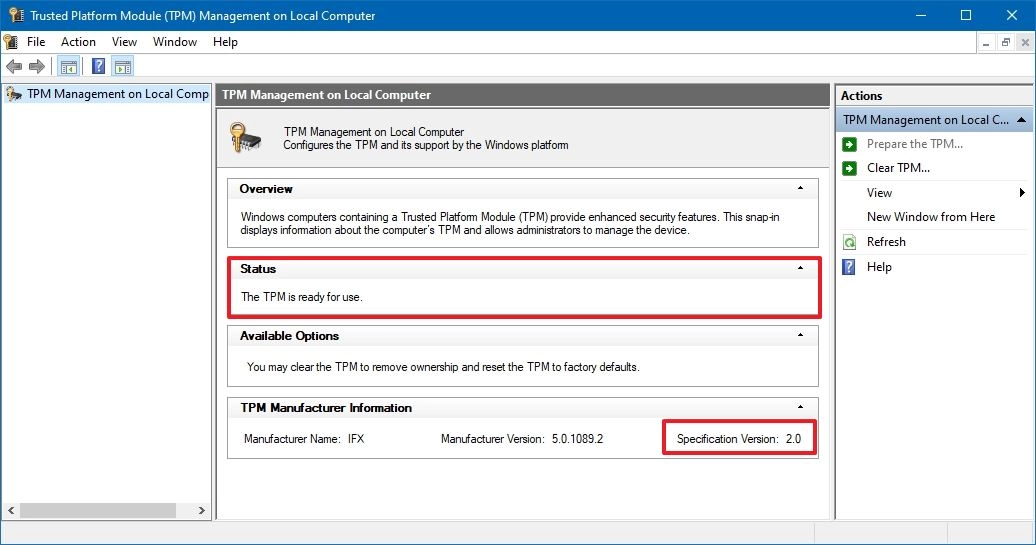
Warning: If you have BitLocker encryption enabled on your drive, ensure you have your BitLocker Recovery Key saved elsewhere before resetting the TPM. Otherwise, you may be permanently locked out of your PC.
Fix 6: Sign Out and Restart
Sometimes the issue is not complex but may be caused by a temporary system glitch. Background services or pending updates may interfere with PIN setup. A simple restart can refresh everything.
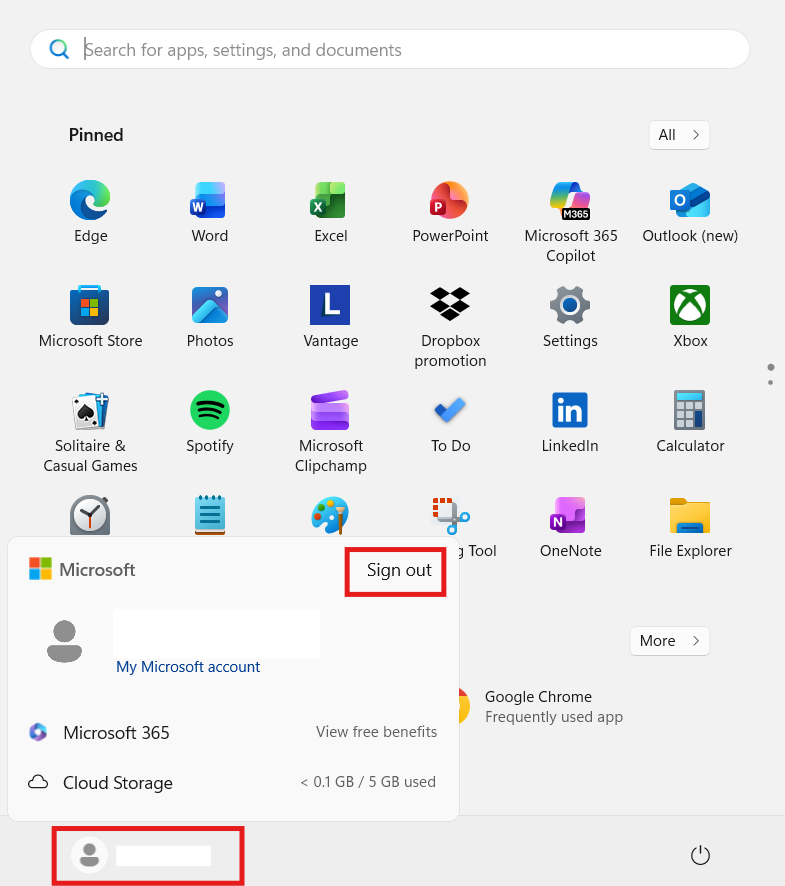
1. Sign out of your account.
2. After that, restart your PC.
3. Then, sign back in and try again.
Video fix
Here’s a video fix to help you more on this:
Summary
If you can’t set up a PIN in Windows 11, the issue is usually due to corrupted NGC files, system errors, or security settings. In most cases, one of the solutions given above will restore Windows Hello functionality and help you to get this resolved.