In Windows operating system, User Profile service (ProfSvc service) plays the leading role in loading or unloading users profiles/accounts. So every time when you’re about to login or logout from your system, the User Profile service should be running in the background. When Windows boots, it will load this necessary service so that login process can be attempted.
When this service is down for any anonymous reason, you may face these issues mainly:
- There will be no user on login screen
- Login screen doesn’t displays
- If login screen displays and you sign in to user account, this message will be displayed:
Page Contents
Windows couldn’t connect to the ProfSvc service.
Please consult your system administrator.
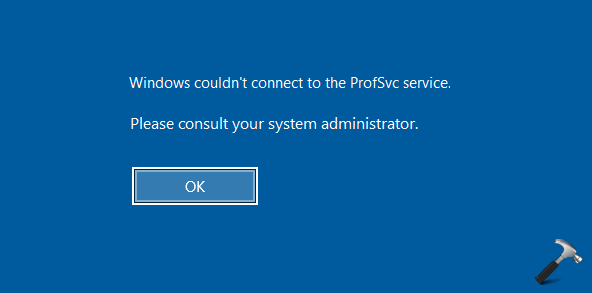
If you’re the administrator of the system and if other users are facing this issue, you can start the User Profile service in Services snap-in to correct this. However, if you’ve a single account on the system and you’re facing this problem, you need to correctly start User Profile service using registry which you’ve to access from Advanced Recovery Options.
FIX: Windows Couldn’t Connect To The ProfSvc Service
1. Start your system and access Advanced Recovery Options.
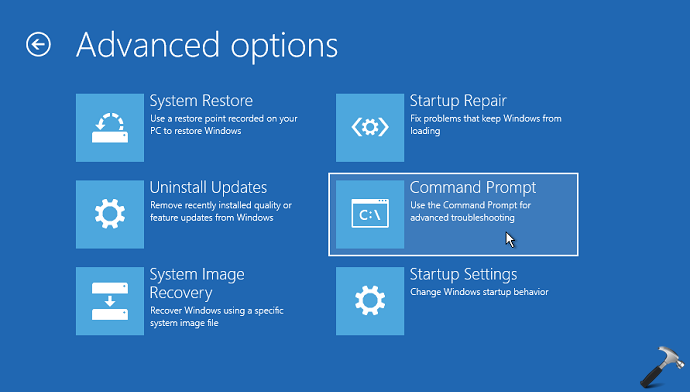
2. Select Command Prompt option. In Command Prompt window, type regedit and press Enter key to open Registry Editor.
Registry Disclaimer: Further steps will involve registry manipulation. Making mistakes while manipulating registry could affect your system adversely. It is always recommended to create a System Restore point before editing registry.
3. In Registry Editor, go to following registry key:
HKEY_LOCAL_MACHINE\SYSTEM\CurrentControlSet\Services\ProfSvc
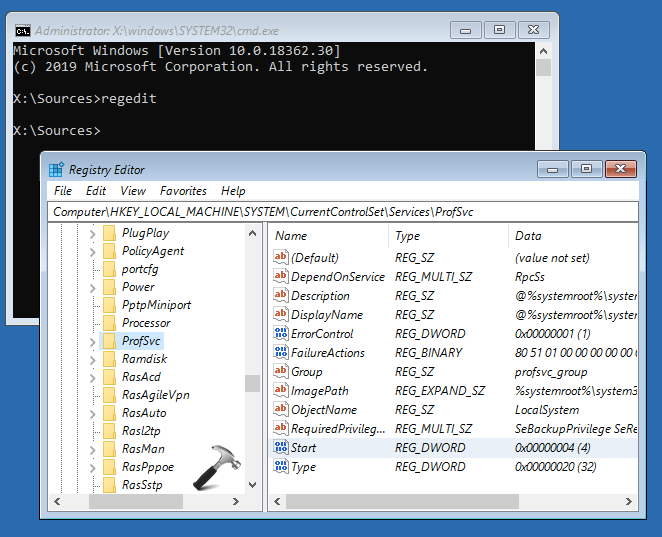
4. In the right pane of ProfSvc registry key, double click on registry DWORD (REG_DWORD) named Start to modify its Value data:
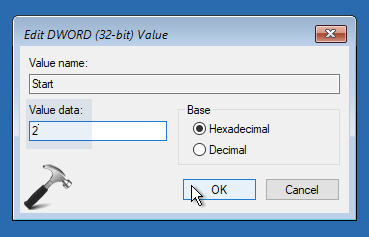
5. Set the Value data from existing value to 2 and click OK.
6. Now close Registry Editor and restart the machine.
After restarting your system, the issue will no longer persist.
Hope this helps!
Related: Windows couldn’t connect to the Group Policy Client service.
![Windows needs your current credentials [Fix]](https://www.kapilarya.com/assets/password_icon_1783831080.jpg)