

When you access network drive or mapped drive in Windows 11/10, you must have thumbnails displayed by default. But if you’re not shown thumbnails anyway, this article is for you. Below mentioned screenshot shows the network drive, with thumbnail preview disabled.
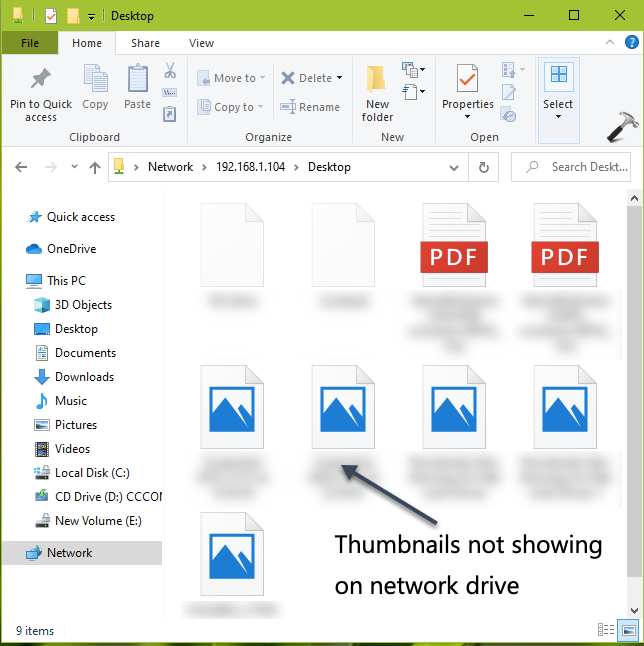
This issue could occur if your IT administrator or system administrator has applied setting to hide thumbnails. You can try either of the below mentioned methods to revert those settings and allow Windows to show thumbnails.
Page Contents
Fix: Thumbnails not showing on network drives in Windows 11/10
Method 1: Via Group Policy Editor
1. Press  + R and put
 gpedit.msc in Run dialog box to open GPO snap-in. Click OK.
2. Next, in the GPO snap-in window, navigate here:
User Configuration > Administrative Templates

> Windows Components > File Explorer
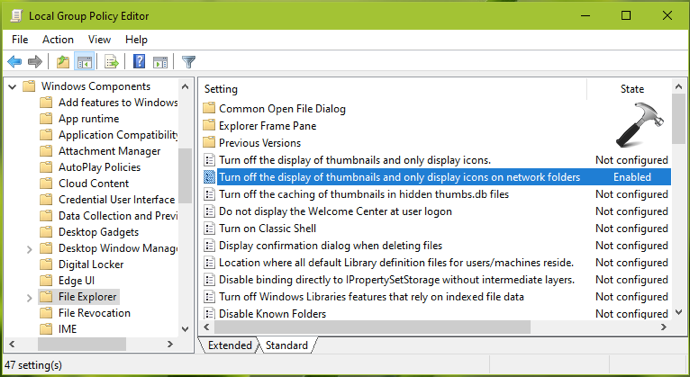
3. In the right pane of Windows Update, look for the policy setting named Turn off the display of thumbnails and only display icons on network folders. The policy might be Enabled and it is the cause for this issue. Double click on it to modify its status:
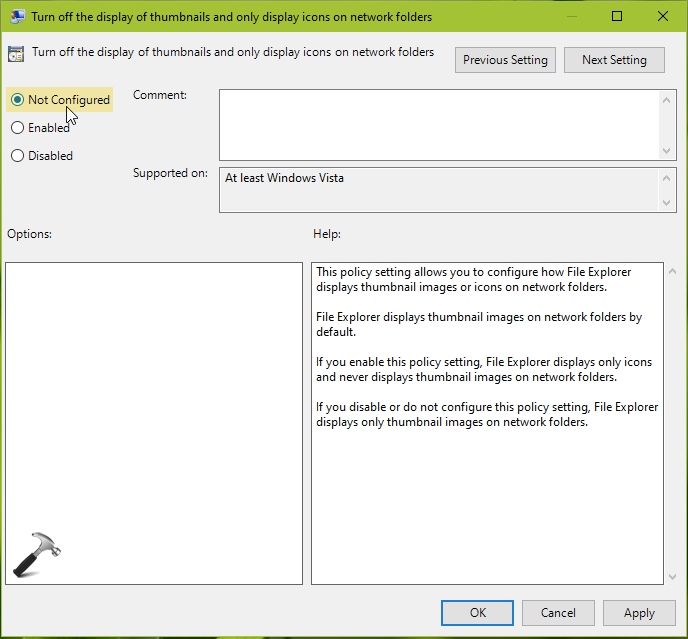
4. On the policy configuration window, set the policy to Not Configured and click Apply, followed by OK. Close GPO snap-in.
5. Run gpupdate /force command to update Group Policy engine and then check the status of problem, it must be resolved now.
Method 2: Via Registry
1. Open Registry Editor by running regedit command.
2. Go to HKEY_CURRENT_USER\Software\Microsoft\Windows\CurrentVersion\Policies\Explorer.
3. In right pane, double click on DisableThumbnailsOnNetworkFolders registry DWORD and set it to 0 as Value data.
4. Close Registry Editor and reboot your system to make changes effective.
After restarting your system, thumbnails on network drives should be visible now.
To illustrate this method, checkout following video:
Hope this helps!
Originally written on Feb 11, 2020. Updated for Windows 11.





my reedit cant found the key “DisableThumbnailsOnNetworkFolders”
^^ You can create it manually.
how to create it manually?
^^ Go to HKEY_CURRENT_USER\Software\Microsoft\Windows\CurrentVersion\Policies\Explorer, in right pane, do a right click and select New > DWORD Value. Rename it to DisableThumbnailsOnNetworkFolders.
Your article worked well and was helpful.
If a file created with IThumbnailProvider is not deleted when each other is looking at the folder in the network folder, do you know how to fix it?