When you connect a shared printer to Windows, its driver must be locally install on your Windows computer. By default, Windows allows any user can install printer drivers on Windows.
But if you’re on multi-user system and do not want other users to install printer drivers, this article is for you. To block users from installing printer drivers, you can configure the relevant security policy setting or registry setting. Once these settings are in effect, only administrators can install printer drivers while any member belonging to local user group will be blocked from doing so.
Here’s how you can configure the settings.
Page Contents
How To Prevent Users From Installing Printer Drivers
Method 1 – Using Security Policy Snap-in
1. Press  + R and put
 secpol.msc in Run dialog box. Click OK to open Security Policy snap-in.
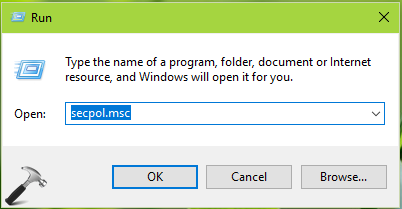
2. Then in Security Policy snap-in window, navigate here:
Security Settings > Local Policies > Security Options
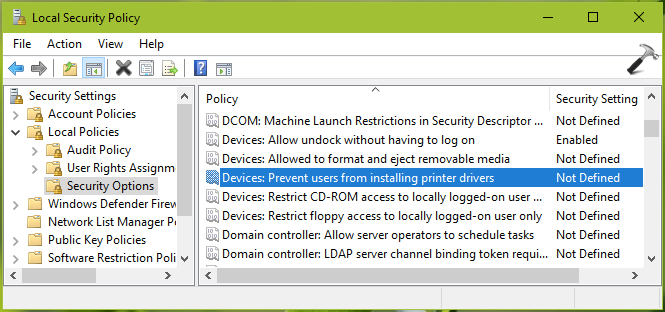
3. In the right pane of Security Options, look for policy setting named Devices: Prevent users from installing printer drivers policy setting. Double click on it to modify its status.

4. Set it to Enabled. From the policy explanation, only Administrator can install a printer driver as a part of connecting to shared printer, when this policy is enabled. Click Apply, OK and close Security Policy snap-in.
Method 2 – Using Registry
1. Run regedit command to open Registry Editor.
2. In left pane of Registry Editor window, go to HKEY_LOCAL_MACHINE\SYSTEM\CurrentControlSet\Control\Print\Providers\LanMan Print Services\Servers.
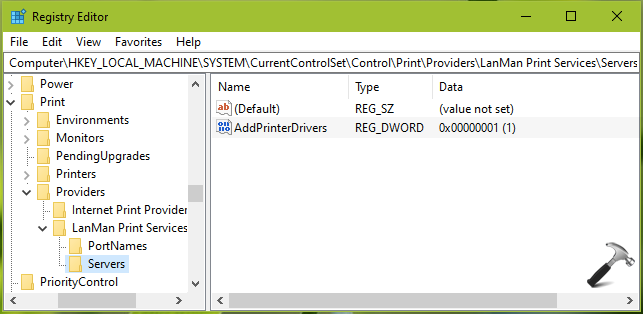
3. In the right pane of Servers key, create a new registry DWORD (REG_DWORD) named AddPrinterDrivers and double click on it, set its Value data to 1.
4. Close Registry Editor and reboot the machine to make changes effective.
That’s it!