We all know that OneDrive comes pre-installed on Windows 10. You can use it to sync your files to cloud and keep fewer files on your system to save disk space. Usually, OneDrive client can start with Windows. This means when you complete login, OneDrive will start automatically. However, if OneDrive won’t start automatically or manually, this article will help you to fix that.
If you’ve already tried restarting your system, signing out from OneDrive and sign-in back, resetting OneDrive but still you face the issue, you can easily fix it with either of fixes mentioned below.
Page Contents
FIX: OneDrive Won’t Start In Windows 10
FIX 1 – Using Registry Editor
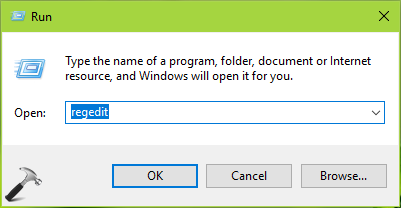
1. Press  + R and type
 regedit in Run dialog box to open Registry Editor (if you’re not familiar with Registry Editor, then click here). Click OK.
2. In left pane of Registry Editor window, navigate to following registry key:
HKEY_LOCAL_MACHINE\Software\Policies\Microsoft\Windows\OneDrive
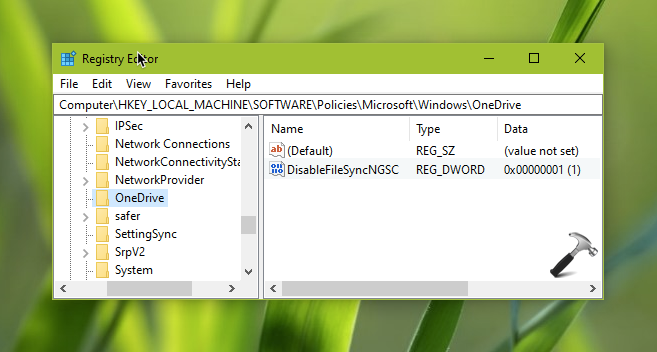
3. In the right pane of OneDrive registry key, locate the DisableFileSyncNGSC registry DWORD. As you’re facing this issue, it might be set to 1. Double click on the DWORD to modify its Data:

4. Finally, set the Value data to 0 and click OK. Close Registry Editor, and reboot.
After restarting your system, you should be able to start OneDrive without any problem.
FIX 2 – Using Group Policy
1. Open Local Group Policy Editor snap-in by running gpedit.msc command.
2. In the GPO Editor window, go to following location:
Computer Configuration > Administrative Templates > Windows Components > OneDrive
3. Locate the Prevent the usage of OneDrive for file storage policy setting. If it is set Enabled, set it to Not Configured instead and click Apply, OK.
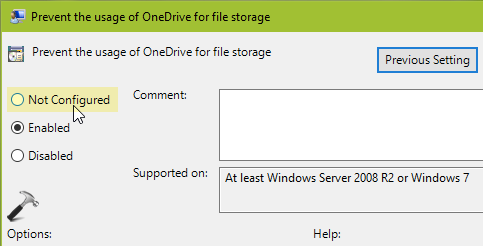
4. Close Local Group Policy Editor snap-in and reboot the machine.
After reboot, the issue will no longer present.
Check this video, to illustrate this fix:
Hope this helps!