It is always recommended that you install latest updates in your Windows 10. Installing the latest updates ensures that your system is safe and secure to use. You can track about latest updates in this article. While installing an update, Windows will usually do a check on available system storage. If your system is low on disk storage, you may not be able to install updates anymore. In that case, you may receive Windows needs space to update message. This article will show you how you can update Windows 10 using external storage device, when you’re low on disk space.
As you can see in the screenshot mentioned below, the system is not having enough more storage. And under this case, Windows refused to install new updates until more free space is made available. It mentions Updates are available, but we temporarily need some space to download.
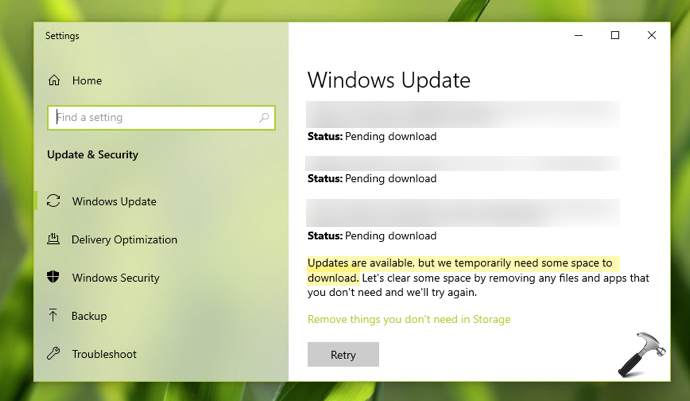
Here, you can use either Storage Sense or Disk Cleanup (in Version 1809 or above) to make more space available for new updates. You might also want to delete Windows.old folder to remove files from previous version. But still, if you can’t make space for updates, here is the ‘plan B’. You can make use of Windows Update tool and install the updates temporarily to external storage.
Update Windows 10 using external storage device
To fix this problem, Windows will automatically offer you the option to use external storage device. You can connect external storage device such as hard drive, which is more than 10GB in storage. Or you may need an external device with storage equivalent to required for updates. Windows will mentioned the required storage value, as seen in this screenshot.

Once you connect the external storage device with required space for updates, you should see a Continue button on above shown window. Click on that button and you can then install updates without any error or message.
That’s it!