If you are using same Microsoft account on your multiple devices, you can sync your settings in Windows 10. This will help you to synchronize your passwords, language preferences and other Windows settings such as themes etc. However, if the sync settings not working as expected in your Windows 10, this article will help you to fix that.
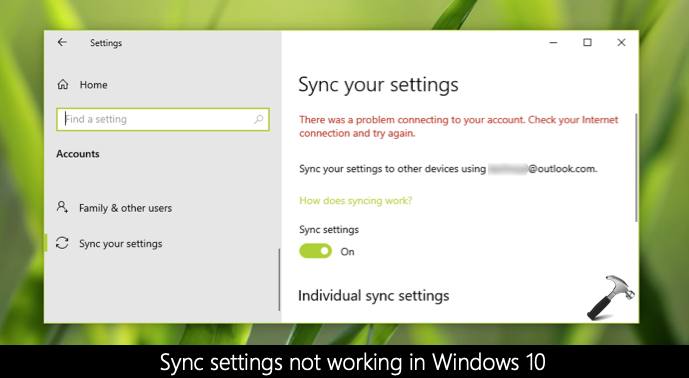
As you can see in the screenshot above, Sync settings are turned on. Still there is a message at the top of right pane. It says There was a problem connecting to your account. It suggests to check the Internet connection and try again. However, the Internet was working perfectly on that machine from which the screenshot is taken. Due to this reason, the sync settings was not working on that machine. If you are also facing this problem on your system, here is how to fix it.
Page Contents
Fix: Sync settings not working in Windows 10
FIX 1 – Make sure to verify your Microsoft account identity
Whenever you switch to Microsoft account from your local account, you additionally need to verify your identity. Some Sync settings such as passwords etc. requires you to verify yourself, as you can see in screenshot below. The setting is greyed out and there is an error mentioning:
Your passwords won’t sync until you verify your identity on this device.
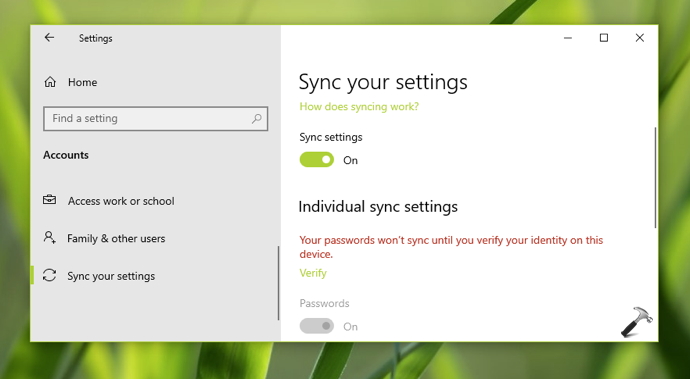
There is a Verify link below the message, using which you can verify your identity. You can also verify your identity using this step-by-step guide. After verification, the issue will no longer persist.
FIX 2 – Delete existing sync settings from cloud and re-sync
Here is another solution, if FIX 1 doesn’t helped you. Turn off sync settings on your Windows 10 devices and delete existing sync settings stored in cloud. Once you delete existing settings, you can re-sync all of your devices and that should work.
Follow these steps:
1. Turn off sync settings on all of your Windows 10 devices.
2. From any one device, go to https://onedrive.live.com/win8personalsettingsprivacy and if asked, sign in to your Microsoft account.
3. Under Delete your personal settings for the cloud, click on Remove button at bottom of page. Note that clicking Remove will erase all sync data settings from cloud.
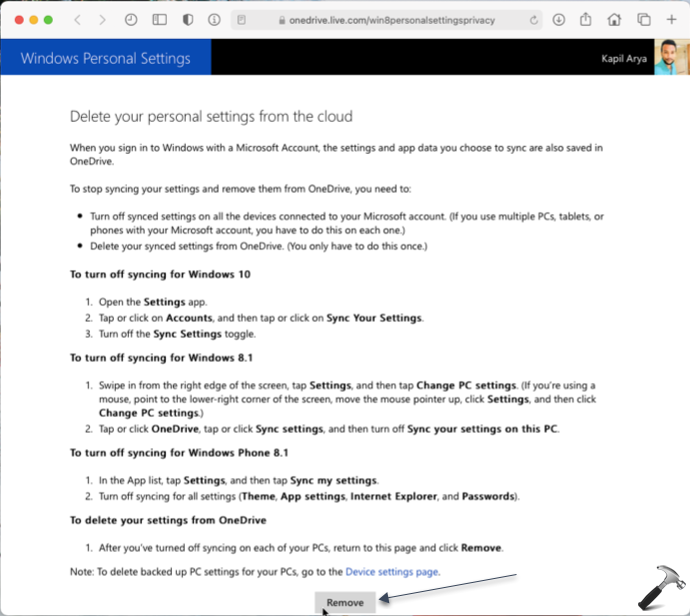
4. Finally, enable sync settings on all your Windows 10 devices and this should resolve the problem.
Hope this helps!