

On Windows 11/10 PC, System Restore is quite a useful characteristic. At times, this feature could be a real life-saver. However, you may come across issues while trying to use this feature. So, how to fix System Restore not working in Windows 11/10?
In this post, learn how to fix this annoying issue. So, here are some troubleshooting steps that you can follow if you are unable to restore your Windows system.
Page Contents
Fix: System Restore not working in Windows 11/10
Fix 1: By disabling security software temporarily
Before you move on, it is suggested that you disable the security software or antivirus on your system. Once you have disabled the antivirus program, try creating a system restore point. If this fix does not work for you, keep reading on.
Fix 2: By creating a system restore point manually
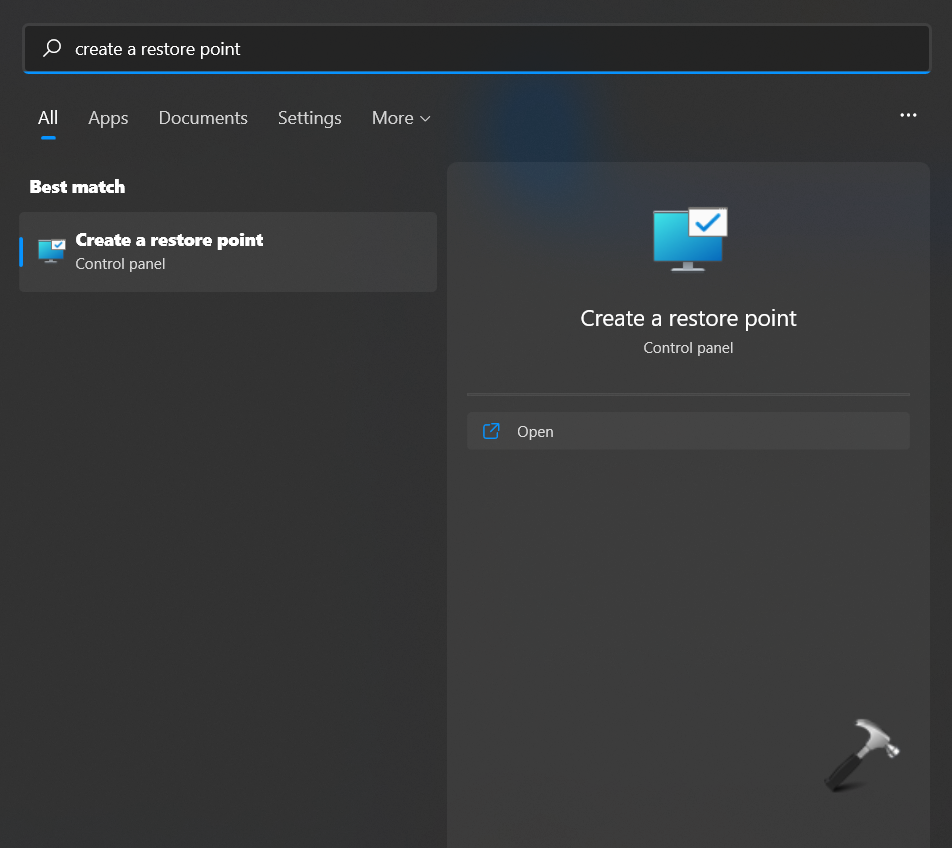
1. In the first place, open the Windows Start menu and search Create a restore point. Once done, click on Open.
2. After that, go to the System Protection tab and click on Create.
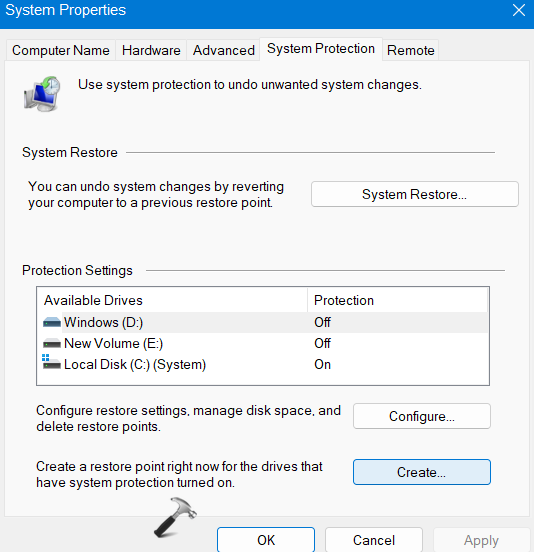
3. Next, provide it a name and click on Create again for confirmation.
4. Now, you have successfully created a restore point. Lastly, check if the issue has been resolved.
Fix 3: By running Check Disk
1. Open Command Prompt with admin privileges.
2. In the elevated Command Prompt, execute the following command:
chkdsk /f /r
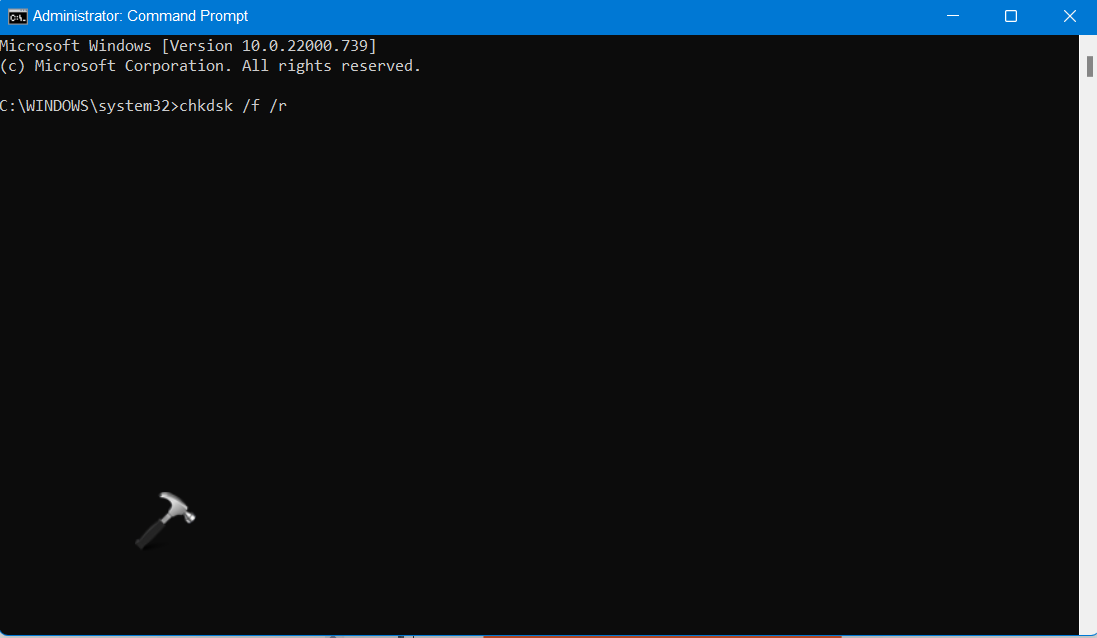
3. Once executed, try creating a system restore point.
Fix 4: By running System File Checker
1. Open Command Prompt with admin privileges.
2. In the elevated Command Prompt, execute the following command:
sfc /scannow
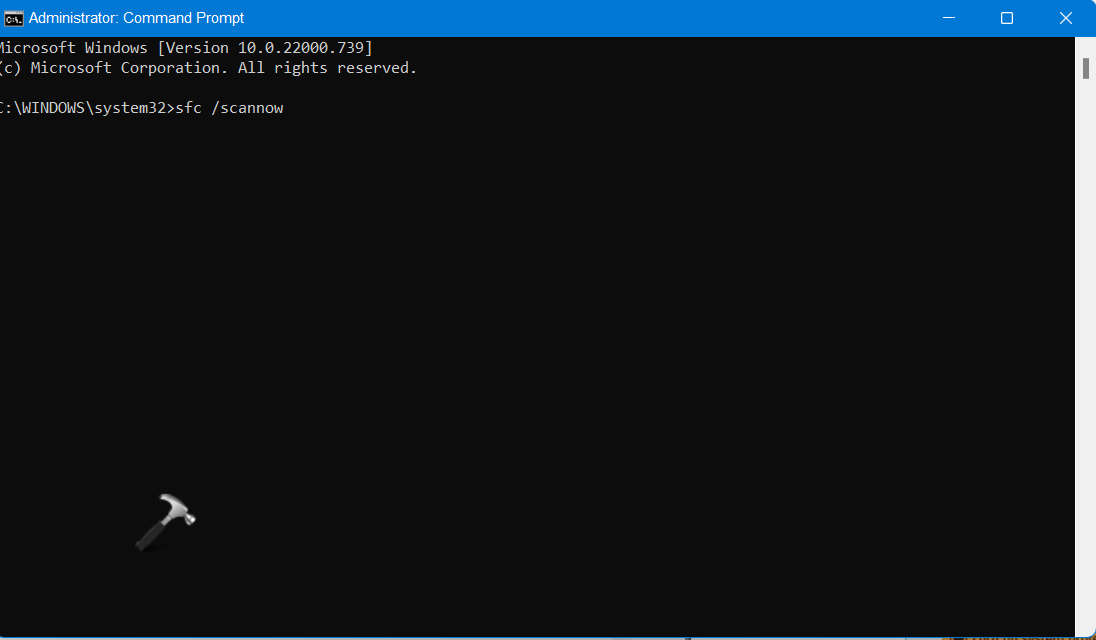
3. Once executed, reboot your system and try now.
Fix 5: By ensuring that System Restore is enabled
1. Open Control Panel and go to System and Security. After that, click on the System tab.
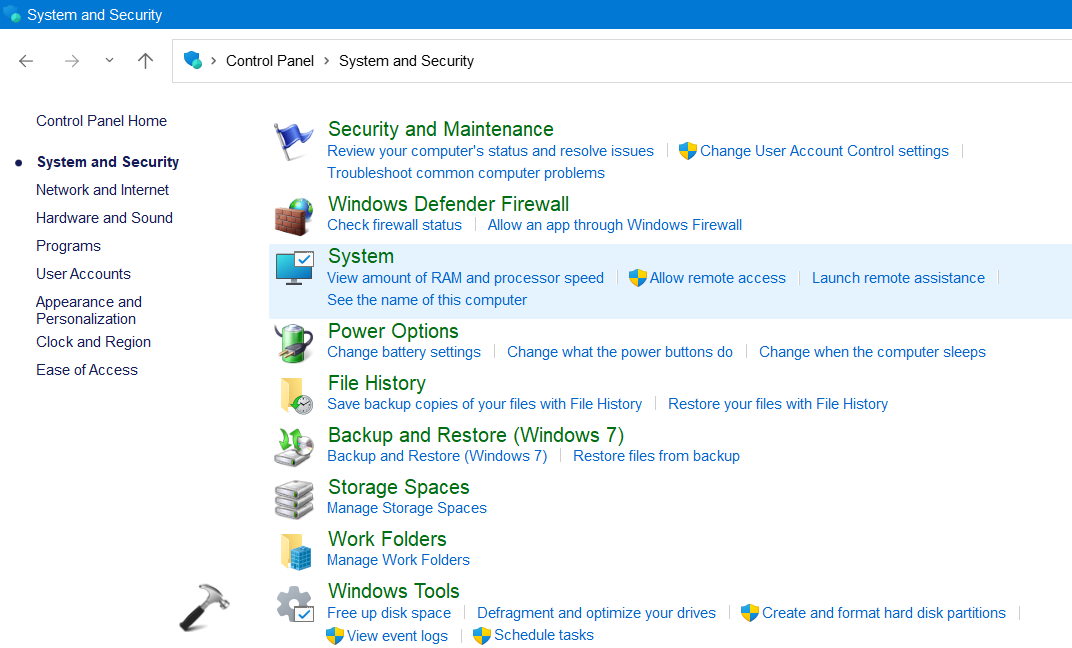
2. After that, click on the System Protection link.
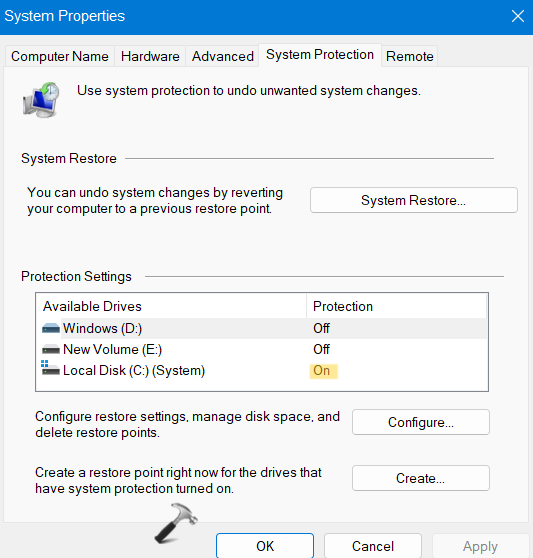
3. In the System Protection tab, check if the System Restore is enabled.
Fix 6: By checking the status of Services
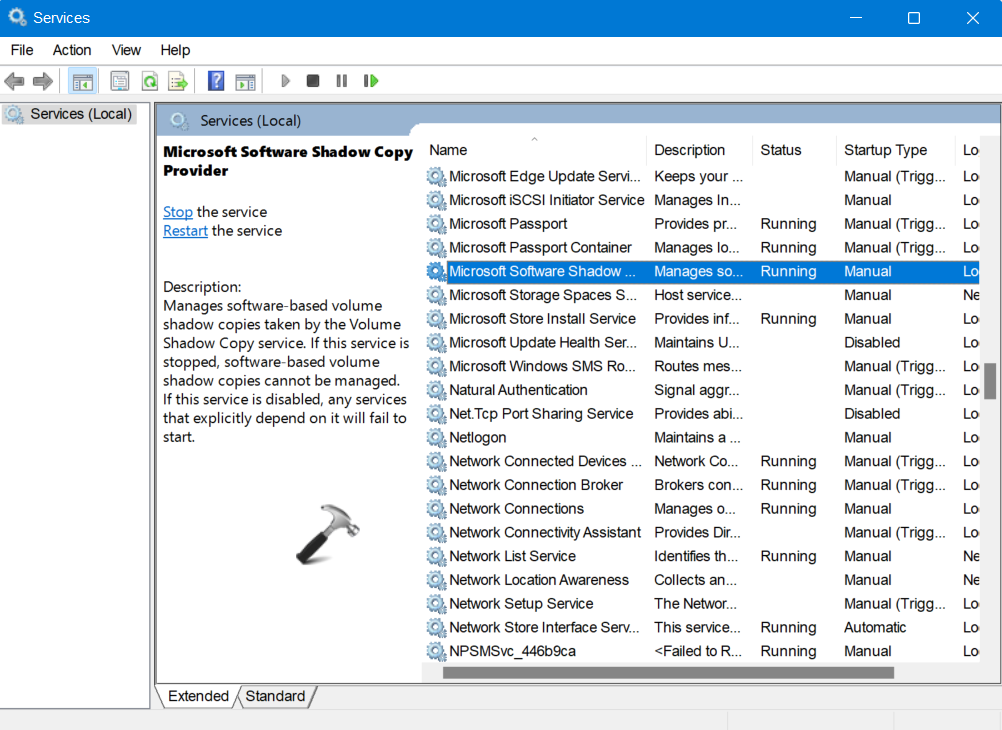
1. Open Run and search services.msc to open the Services tab.
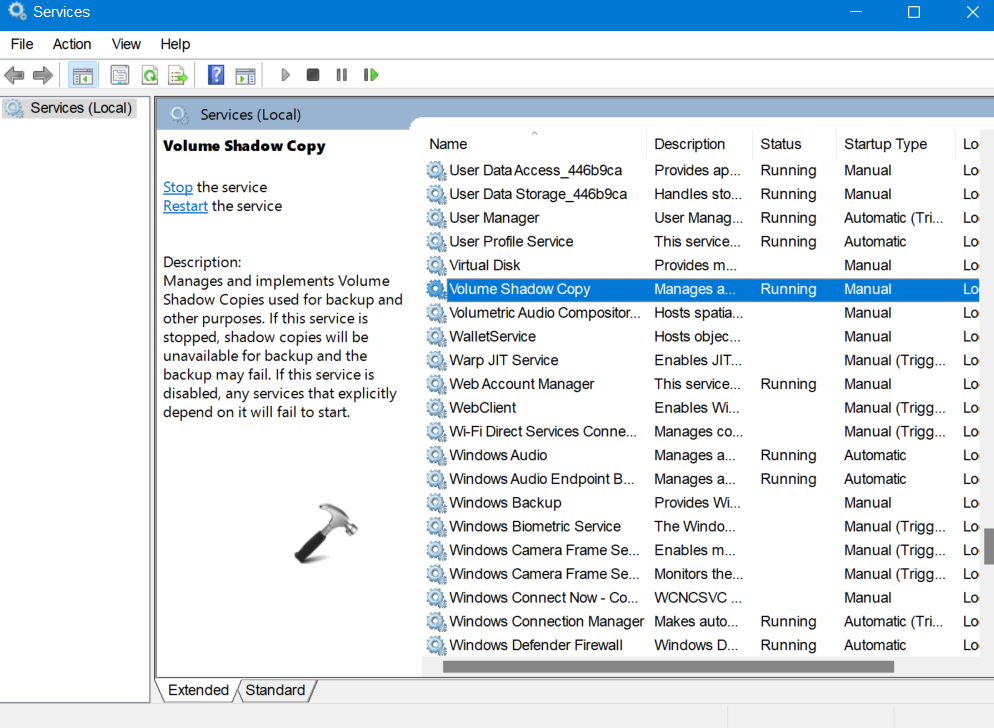
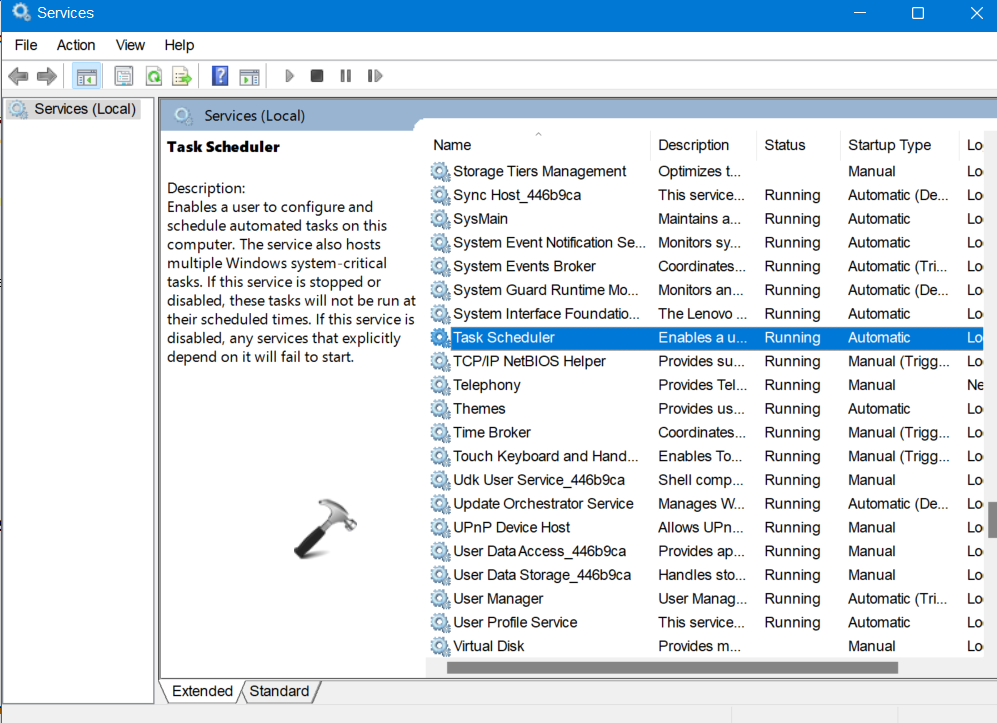
2. Now, check if the following services are running:
- Volume Shadow Copy (Startup type – Manual)
- Task Scheduler (Startup type – Automatic)
- Microsoft Software Shadow Copy Provider Service (Startup type – Manual)
So, this is how to fix System Restore not working in Windows 11/10 in different ways.
Related: The System Restore Is Still In Progress Or Did Not Complete.




Hello Kapil,
Thanks a lot for sharing information.
I have a question for you.
If you are backing up my desktop documents with Onedrive, system restore fails. Have you had any experience with this?
^^ Didn’t experienced that. But if you continue to see it, make sure to report via Feedback hub.