

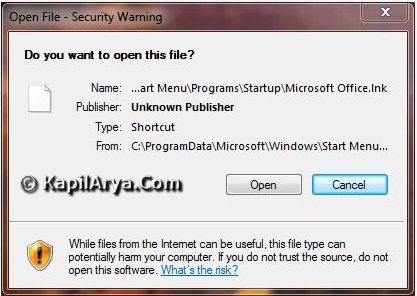
It is the most usual thing which happens when we open a shortcut that a pop up message is displayed about the security warning. This pop up box is similar to that one, which pops when we install an application.
The basic and important difference between them is the Always ask before opening this file option. Following screenshot illustrate the situation:
You can change a Group Policy setting to fix this issue. Here is how…
Disable “Open File – Security Warning” Prompt In Windows Vista, 7
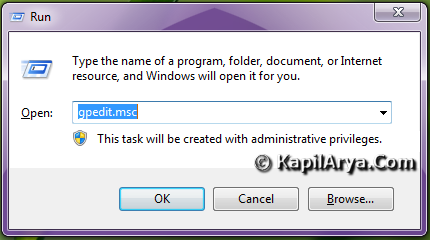
1. Press  + R combination and put gpedit.msc in the Run dialog box, hit Enter key.
2. Navigate here :
User Configuration -> Administrative Templates -> Windows Components -> Attachment Manager
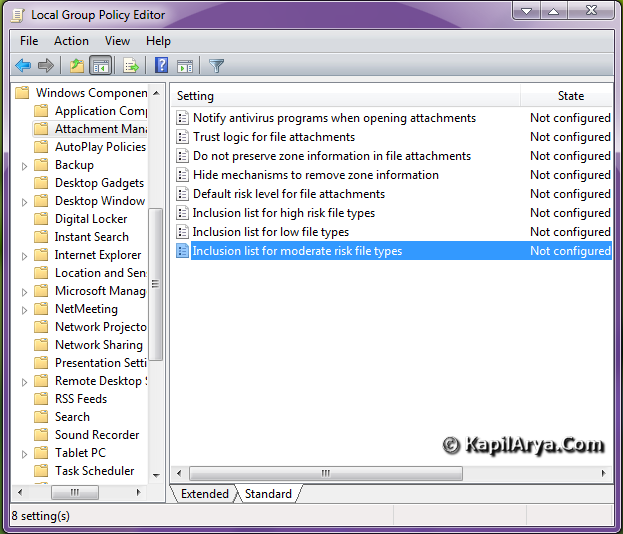
3. In the right pane, look for Inclusion list for moderate risk file types. Double click on it. A new window for Inclusion list for moderate risk file types will appear.
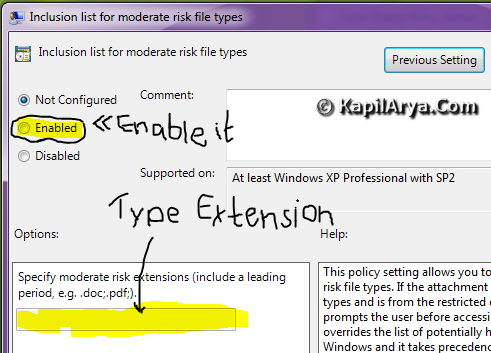
4. Now click on Enabled to enable the settings. In Specify moderate risk extensions type .lnk;.msc. Click on Apply followed by OK. Reboot to get fixed.
That’s it!



Works on XP?
^^ Not checked. Since I’m not using XP anymore hence can’t commit about it. Check yourself :)
i have seen this article on askvg? Is it same,.
^^ Problem is same but solution is different!
Huh.. I think this is typical problem & caused due to antivirus
you must add .msc in 4th point otherwise it won’t work.
hope this also work as well: use msconfig then services tab & then hide all MS services. apply it and reboot. (assuming any MS product is responsible for error), you can then check manually by starting programs one by one. don’t worry it wont affect the OS.
^^ Nice Observation :)
@ Vivian, Added!
Great post!
good job on screenshots..