If you’ve RDS server installed but clients can’t connect to it because of certificate error, this post may interest you. To realisation, the error Remote Desktop Gateway server’s certificate has expired may be encountered. In this case, you have have to ensure that the certificate is valid, and not expired. If you’ve a valid certificate installed, still sometimes you may encounter this message:

Here are some suggestions to troubleshoot this issue.
Page Contents
Fix: Remote Desktop Gateway server’s certificate has expired
As a test, on the client machine, follow these steps to check certificate revocation issue. This is only temporary test to see if problem is related to revocation checks and should be changed back after test.
1. Run inetcpl.cpl command.
2. Go to Advanced tab.
3. Under Settings, remove tick from Check for server certificate revocation. Click Apply, OK.
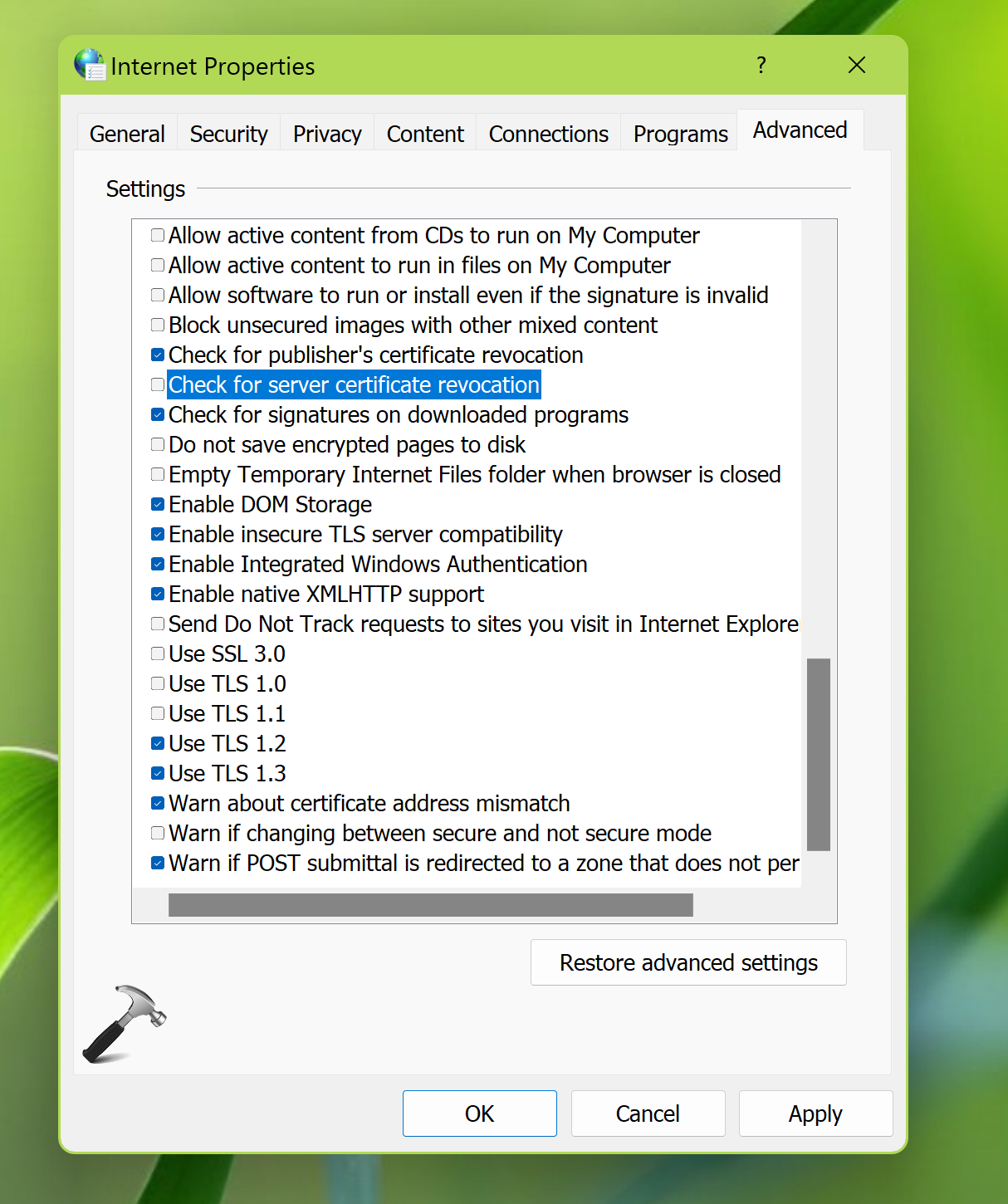
Restart the PC and test to see if error still occurs. If issue still occurs, carry on troubleshooting further.
FIX 1 – Using Command Prompt
If this is a security package error occurred in the transport layer, you can fix it using below steps:
1. Open Command Prompt.
2. Paste this command and press Enter key:
reg.exe Add "HKCU\Software\Microsoft\Terminal Server Client" /V "RDGClientTransport" /T REG_DWORD /D "1"
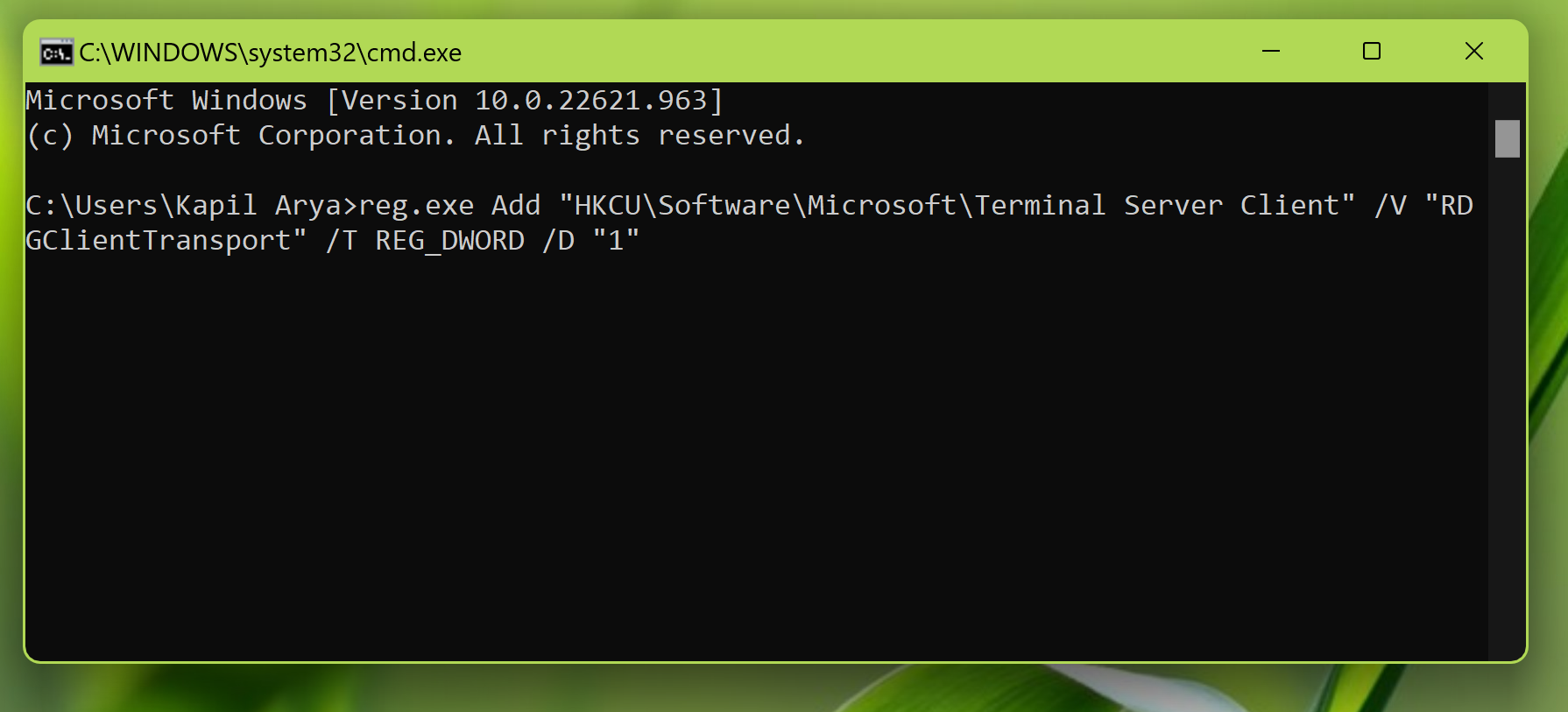
3. Once the command completed successfully, close Command Prompt.
4. Sign out and sign in back or restart the system/client.
FIX 2 – Generate new certificate
This issue is expected, when the RDP self-signed certificate is expired or missing. Worth to mention here, Windows usually recreates the self-signed certificate upon expiration. But if this isn’t happening, you can follow these steps:
1. Erase or remove expired certificate(s) from the Centralized Certificate Store (CCS) on the server using the Certificates snap-in within Microsoft Management Console (MMC).
2. Stop the Remote Desktop Services service.
3. Go to C:\ProgramData\Microsoft\Crypto\RSA\MachineKeys.
4. Take ownership of the f686 key file referenced above and give owner user account Full Control permissions to this file.
5. You may also need to change the Administrators group permissions for the MachineKeys folder to apply to “This folder, subfolders and files” as it is defaulted to “This folder only”.
6. Delete file f686aace6942fb7f7ceb231212eef4a4_.
7. Start back Remote Desktop Services service.
8. You can now verify that a new certificate has been generated via Certificates snap-in.
These steps should help you to resolve this issue, finally!
![Remote Desktop Keeps Freezing or Disconnecting [6 Fixes]](https://www.kapilarya.com/assets/remote_dekstop_icon_1781340032.jpg)