

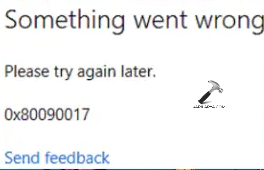
The Windows Update error code 0x80090017 may sometimes occur on the PC screen causing hindrance in the process of Windows Update in Windows 11. This may happen due to various reasons such as corrupted Windows update components, interference of anti-virus software, etc. Thus, this blog consists of the detailed solutions for fixing the problem without any complexities.
Page Contents
Fix Windows Update error code 0x80090017
The detailed fixes for solving the issue are given below.
Fix 1: Performing System Restore
The first fix that the users can try is performing a System Restore. Follow the steps for doing the same.
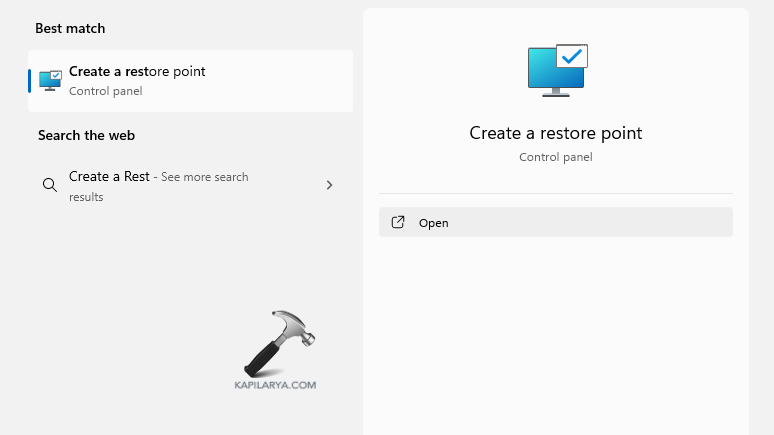
Step 1- Primarily, go to Start and search Create a Restore Point. Open the first result.
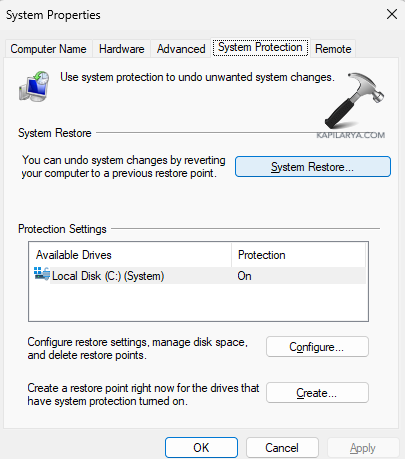
Step 2- Next, navigate to System Protection > System Restore > Next.
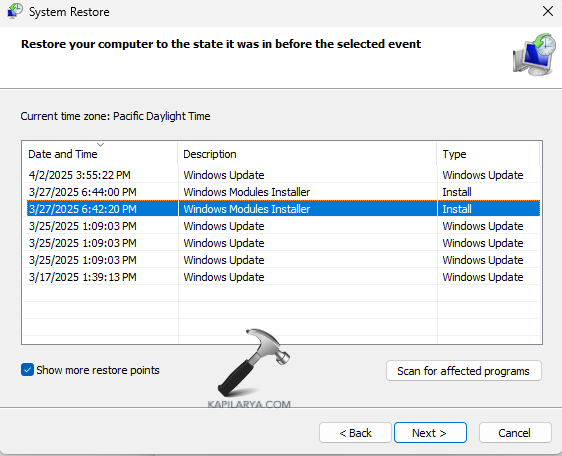
Step 3- Now, from the restore points, choose the desired one for restoring the PC to and press Next.
Step 4- Lastly, follow any prompt appearing on the screen for successfully restoring the PC.
Fix 2: Restarting Windows Update Service
Restarting Windows Update Service can also help in fixing the problem. Follow the steps for restarting the same.
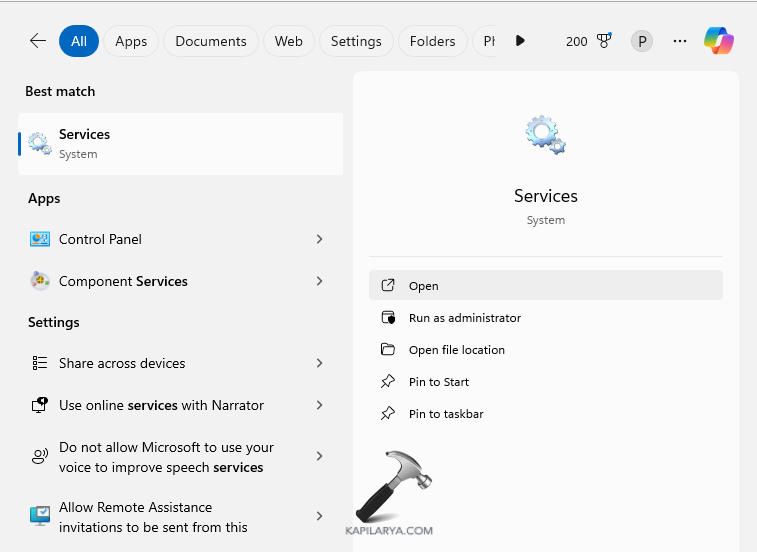
Step 1- At first, press Start and search for Services. Then, press Enter.
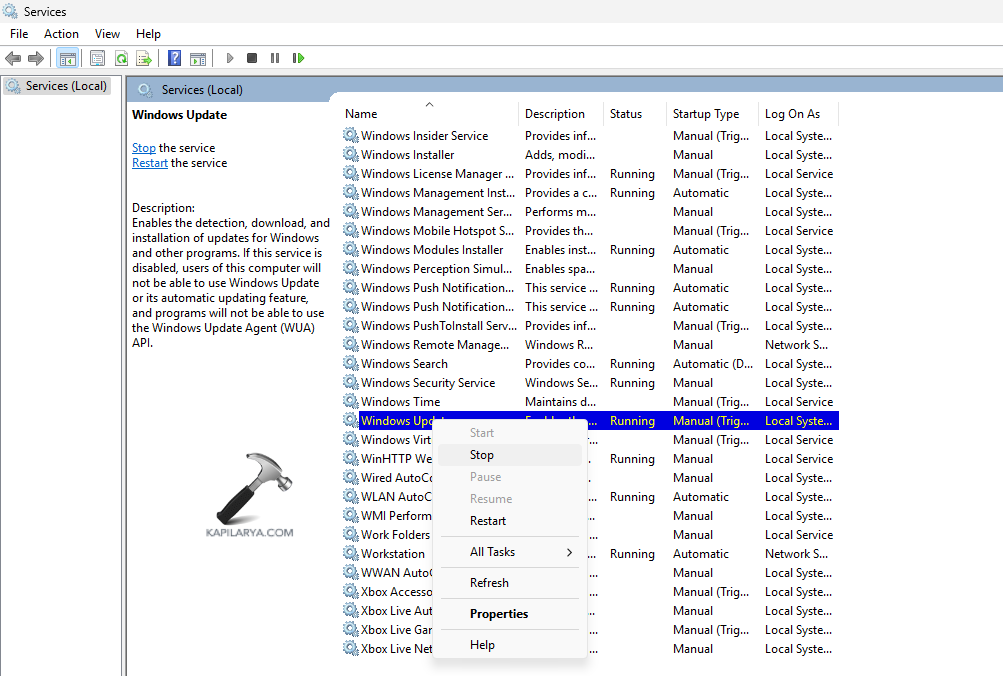
Step 2- Next, go to Windows Update Service. Right-click it and press Restart.
Fix 3: Resetting Windows Update Components
If the above fixes don’t work, the users can also try resetting Windows Update Component using the steps provided below.
Step 1- Open Command Prompt as an administrator.
Step 2- Now, copy and paste the prompts given below one by one and press Enter-
net stop bits
net stop wuauserv
net stop appidsvc
net stop cryptsvc
ren %systemroot%\SoftwareDistribution SoftwareDistribution.old
ren %systemroot%\system32\catroot2 catroot2.old
net start bits
net start wuauserv
net start appidsvc
net start cryptsvc

Fix 4: Temporarily disabling third-party Antivirus Software
The existence of Anti-virus software can also lead to the mentioned issue. Thus, follow the steps for disabling it.
Step 1- At first go to Windows Security > Virus & Threat Protection.

Step 2- Next, select Manage settings. 
Step 3- Lastly, turn off Real-time protection settings

Fix 5: Running Windows Update Troubleshooter
Windows Update Troubleshooter is another built-in feature of Windows which aids in scanning solving any kind of problem related to Windows Update. Thus, to run this troubleshooter, follow these steps-
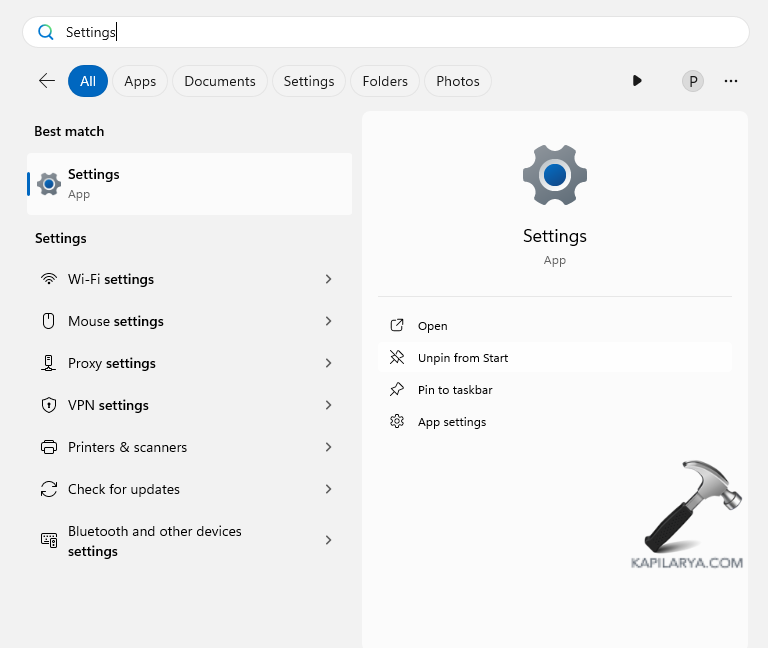
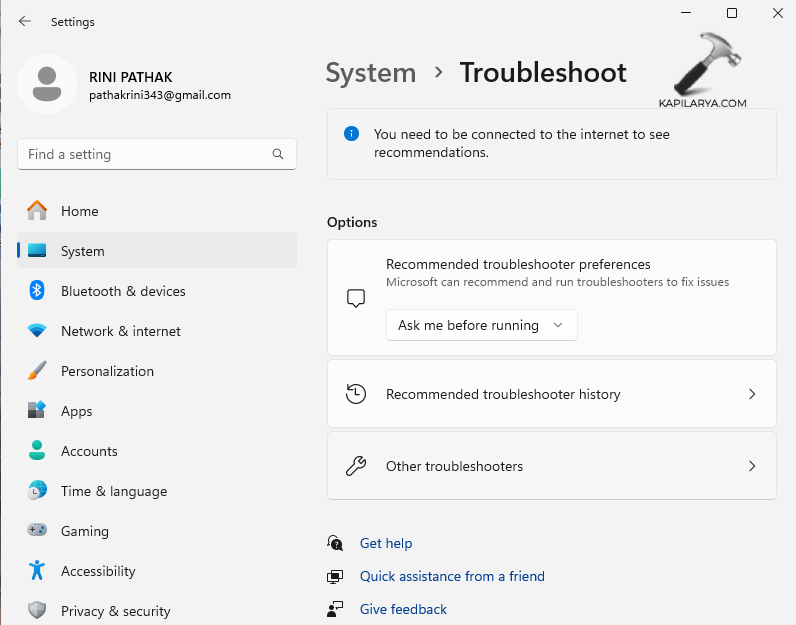
Step 1- First go to Start > Settings.
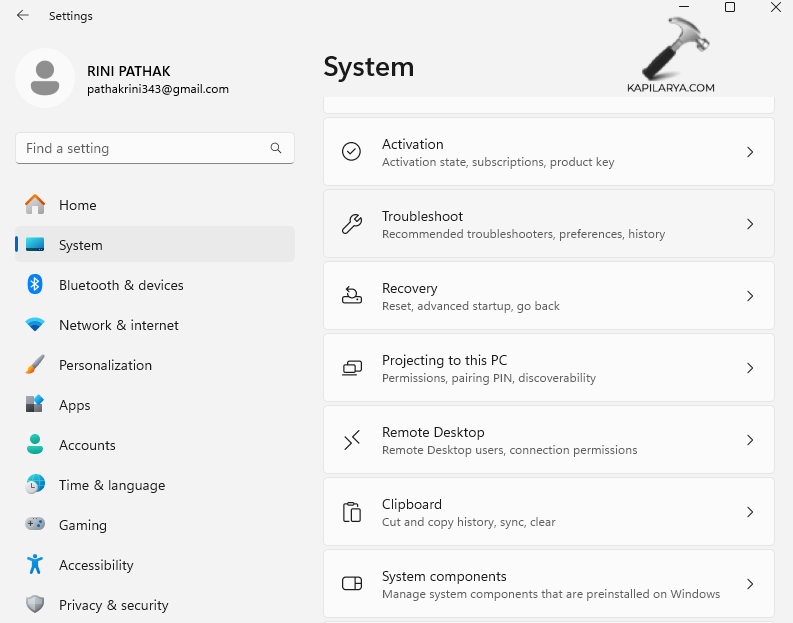
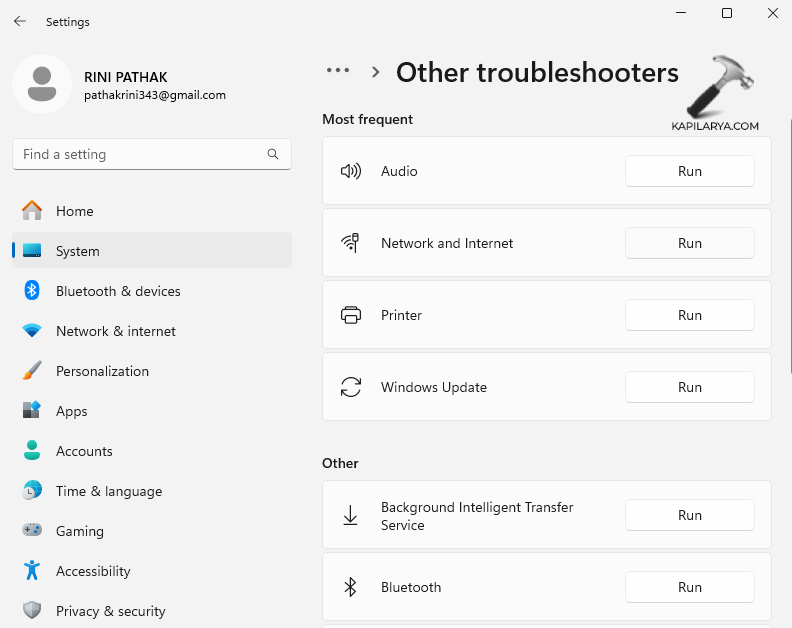
Step 2- Next go to System > Troubleshooter > Other troubleshooters.
Step 3- Lastly, below Most frequent, click Windows Update and Run.
Fix 6: Manually installing Windows Updates
If the above fixes do not work, the users can also try manually installing Windows Updates using the instructions below.
Step 1- Firstly, go to Settings > Windows Update.
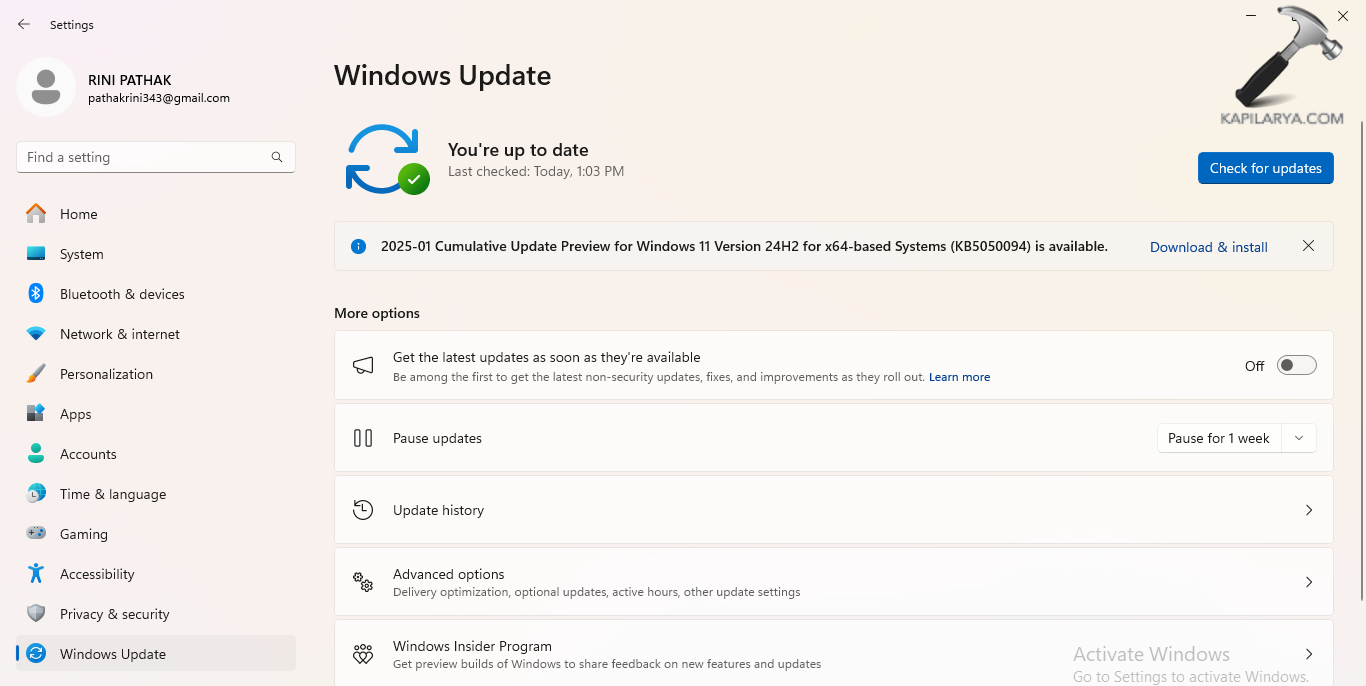
Step 2- Next, select Check for updates. It will manually run the Windows Updates.
Step 3- Lastly, restart the device. This should reset the Windows update components.
Hoping that all the fixes mentioned in this article will allow users to fix the aforementioned issue.





