Windows 11‘s users can come across the error message of There are no more BitLocker recovery options while accessing a drive which is locked with BitLocker. BitLocker is a security tool of Microsoft which protects the data of its users through encryption. The recovery key is a crucial part of Windows and hence losing it can cause hindrance in the operation of the PC. Thereafter, in this article we will check out the primary solutions which will allow us to solve this particular problem.

There may exist several reasons for appearance of the issue of “There are no more BitLocker recovery options on your PC”. These reasons may include non-backup of the key, altering recovery options, hardware issues, etc. Now, without any further delay, let us check the main fixes for solving this problem in detail.
Page Contents
Fix: There are no more BitLocker recovery options
Fix 1: Using Command Prompt in Recovery mode
The users should first try using the Command Prompt in recovery mode for fixing the issue of no more BitLocker recovery options. Thus, following the instructions provided below will allow the users to do the same.
Step 1- Firstly, restart the PC and press F8 or Shift+F8 (this key may differ as per the manufacturer) for entering into recovery option.
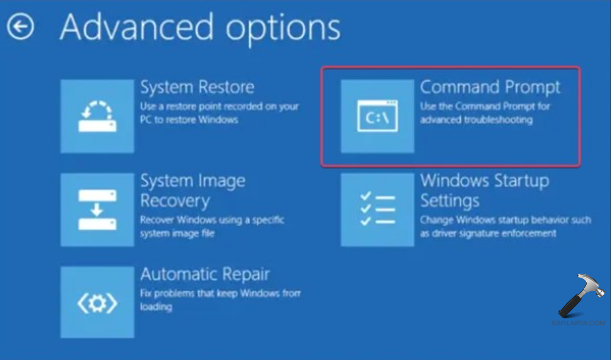
Step 2- Next, select Troubleshoot > Advanced options > Command Prompt.
 .
.
Step 3- Now, copy and paste the command below for unlocking the drive-
manage-bde -unlock X: -RecoveryPassword YOUR-RECOVERY-KEY
Step 4- Here, replace X with the encryption drive letter and YOUR-RECOVERY-KEY with the 48-digit recovery key of the PC.
Step 5- Lastly, press Enter.
Fix 2: Checking the Microsoft Account
If the recover key is set with the Microsoft Account while setting up then it should appear online. Hence, follow the steps for getting the key from Microsoft account.
Step 1- At first, visit the Microsoft account website (https://account.microsoft.com/devices).
Step 2- Sign in with the Microsoft account used while setting up BitLocker.

Step 3- Now, go to the Devices section or to the BitLocker recovery keys page.
Step 4- Here, the recovery key should appear.
Fix 3: Resetting or restoring the PC
The users can also consider resetting or restoring the PC if above solutions are not working. However, this may cause loss of data and therefore the users should think twice before doing it. Follow the steps below for adopting this fix.
Step 1- Restart the PC and enter into recovery options.
Step 2- Now, select Troubleshoot > Reset this PC. Here, select either Keep my files or Remove everything.

Step 3- Remember to back up all the files before resetting the PC.
Fix 4: Checking for a backup of the recovery key
While creating a recovery key, the users are asked to back up the recovery key to any of the options given below. Hence, the users should check according for retrieving the key.

- Saving the key as a file, look for backups or cloud storage for the .txt file which consists of the recovery key.
- Saving the key to a USB drive, insert the USB into the PC and check the files on the USB.
- Printing the recovery key, look for the paper copy of the key.
Fix 5: Checking the Active Directory
Business devices have BitLocker recovery keys backed up to Active Directory (AD) as a security policy. Thus, in case of the error of no more BitLocker recovery options on a work device, the users should contact the IT administrator. Administrative tools will allow them to recover the key from AD promptly.

Wishing that the users can fix the issue with these solutions!