The users of Windows 11 can face the issues of troubleshooting, connectivity issues, system configuration problems, etc. Resetting the Microsoft Defender Firewall can help the users in fixing these issues. The default Firewall consists of various features which protects the PC from various external threats. But, due to various reasons, this setting is changed causing unwanted consequences in the Windows OS. Thereafter, this blog provides all the methods using which the users can reset firewall settings to prevent any networking or user related issue making it a safe troubleshooting option.
Page Contents
How to reset Firewall settings on Windows 11
Now, let us check the various ways with the help of which the users can easily reset firewall settings in detail.
Method 1: Resetting Firewall using Advanced Security
The first way using which the users can reset firewall settings is using the advanced security. For doing that, follow the steps below.
Step 1- Firstly, open Windows Security. Select Firewall & network protection > Advanced settings.


Step 2- Now, right-click the “Windows Defender Firewall with Advanced Security on Local Computer. Then, press Restore Default Policy.

Step 3- Lastly, press Yes > OK.

Method 2: Resetting Firewall settings using Command Prompt
The users can also reset firewall with the help of Command Prompt using the instructions below.
Step 1- At first, Run Command Prompt as an administrator.
Step 2- Now, copy and paste the command below and press Enter.
netsh advfirewall reset

Method 3: Resetting Firewall using Windows Security
Windows Security will allow the users to easily reset firewall to its default settings. Follow the steps below for doing the same.
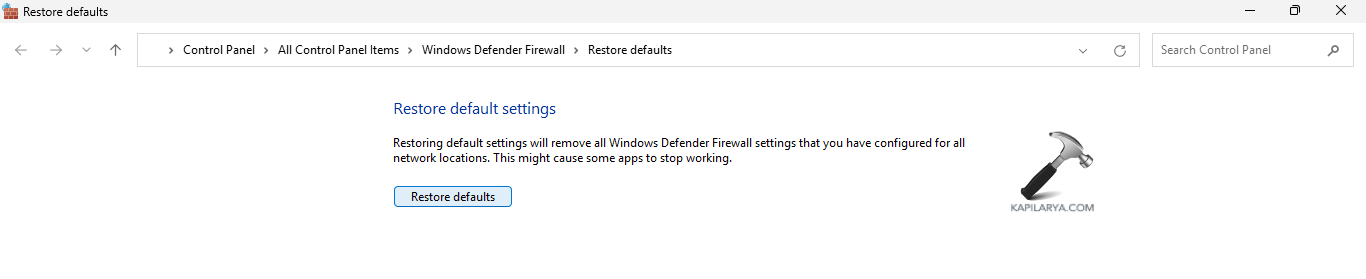
Step 1- Go to Windows Security. Press Firewall & network protection > Restore firewall to default.

Step 2- Press Restore default > Yes.
Method 4: Resetting Firewall using PowerShell
The last slot using which the users can reset firewall is PowerShell. For that follow the steps provided below.
Step 1- Run PowerShell as an administrator.
Step 2- Now copy and paste the command below and press Enter.
(New-Object -ComObject HNetCfg.FwPolicy2).RestoreLocalFirewallDefaults()

That’s it!