Werfault.exe – Application error is a significant issue which can appear in Windows 11 and cause problems in the Windows process. The occurrence of this problem can consume system resources. This as a result may reduce the overall performance of the PC. This problem may occur due to several reasons. These may include outdated Windows system, existence of malware in the system, system file issues, etc. Hence, this post delves into the issue and suggests solutions for solving the same.

Page Contents
Fix: Werfault.exe – Application error in Windows 11
Now, let us check at all the solutions for fixing the problem of Werfault.exe – Application error in detail.
Fix 1: Updating Windows
The users can at first try updating the Windows and see if it solves the problem Werfault.exe – Application error. To do that, follow the steps below-
Step 1- At first, open Settings.
Step 2- Next, select Windows Update.

Step 3- Now, Click on Check for updates. Hereafter, Download and install any available updates. Then, restart the PC for applying all the changes.
Fix 2: Updating/Roll-backing Drivers
Updating or roll-backing the drivers is another way which can solve the issue. The users can try doing any of them to fix the issue with the following steps-
Step 1- Go to Device Manager.
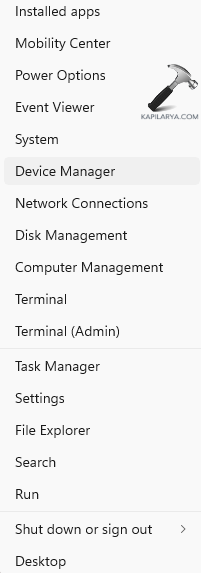
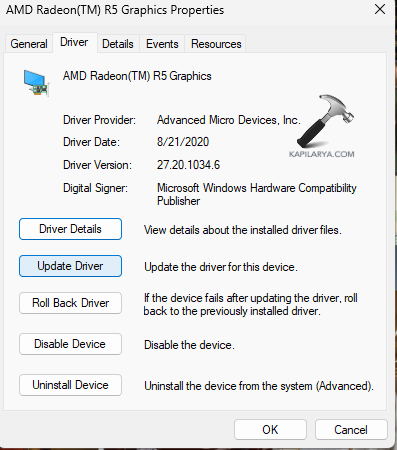
Step 2- Now, for updating the driver, find the device category for which the driver was recently updated. Thereafter, right-click on it and select Update driver.

Step 3- Further, select Search automatically for drivers. This will allow Windows to find and install the latest drivers.

Step 4- Again, for roll backing the driver to previous version, right click the driver and go to properties. Now, select Roll Back driver. However, if the option is greyed out, then the driver does not have a previous version.
Fix 3: Running SFC and DISM
Bugs in system image files may also lead to Werfault.exe – Application error. Therefore, running System File Checker and the DISM tool will help in scanning and repairing these system files. Let us now take a look at how to run these tools.
Step 1- Firstly, go to start and type cmd. Next, right-click on Command Prompt and press Run as administrator.

Step 2- Next, in the command prompt window, type the command given below to run the SFC scan and press Enter.
sfc /scannow
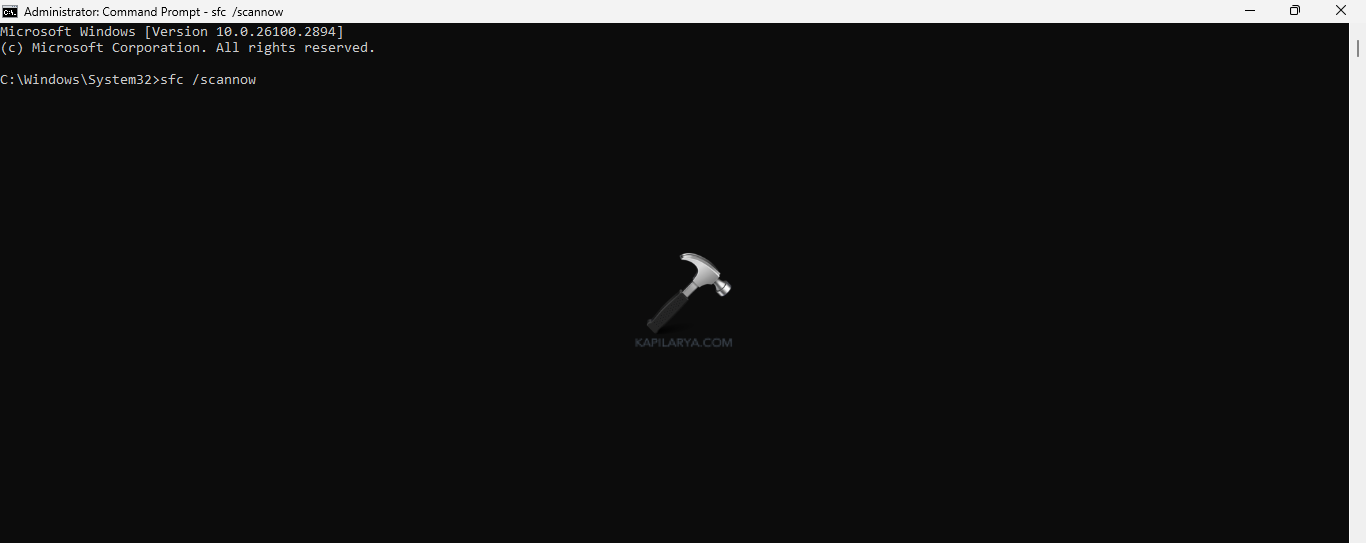
Step 3- Again, to run the DISM tool scan, type the commands given below one by one and press Enter after each command:
Dism /Online /Cleanup-Image /RestoreHealth

Step 4- Lastly, after the scan runs, restart the PC.
Fix 4: Running CHKDSK
Damaged disks may too cause the issue. Thus, for checking and repairing the errors of the drive, we need to run the CHKDSK command. Follow the steps given below to do the same-
Step 1- Primarily, run the Command Prompt as an administrator.
Step 2- Now, copy and paste the prompt given below to run the CHKDSK command and press Enter.
chkdsk /f

Step 3- Now, the CHKDSK command will scan any error in the system and repair it. Again, if it asks for scheduling a disk check next time, press Y on the keyboard. Thereafter, press Enter and reboot the PC to allow the CHKDSK command to run.
Fix 5: Running a System Scan
The existence of virus or malware in the system can lead to various problems in the PC. Solving it using the steps below can help in fixing the problem.
Step 1- Open Settings. Then go to Privacy & Security > Windows Security.

Step 2- Next go to Virus & threat protection.

Step 3- Open Current threats and press Scan options.
Step 4- Now, press Microsoft Defender Offline scan and select Scan now.

Step 5- When the PC reboots, Microsoft Defender Offline will perform a scan.
Step 6- After the scan is finished, the PC will restart. This should fix the issue.
Fix 6: Rolling back to a System Restore
Using an already created restore point when the PC was running successfully will aid in restoring the computer to its earlier point. This will also ensure to solve the mentioned issue. Now, complete the given steps to perform System Restore-
Step 1- Go to the Start menu. Next, type create a restore point and open the result.
Step 2- From the System Properties window, select the System Restore option.

Step 3- Select Next on the System Restore Window.

Step 4- A list of all the previously created Restore points will appear on the screen. Choose the required restore point.
Step 5- Furthermore, choose the Restore point and select Next as per the date, name and time. Moreover, if the desired restore points are not visible, select Show more restore points.

Step 6- Choose the desired drive that is to be restored and click Next.
Step 7- A final pop-up window will appear. It will consist of the selected restore point. It will also contain a warning telling to create a password reset disk. Moreover, to see which applications will be affected, click Scan for affected programs.

Step 8- After checking the affected programs, close it. Finally, select the Finish button. This will restart the Windows 11 PC and begin the process of System Restore. After the restoration process, see if the issue is resolved.
Fix 7: Restarting the PC
The users can also attempt simple restarting for fixing the issue.
- For Restarting Desktops, press the physical power button on the CPU unit for shutting it down. If necessary, unplug it. Wait for some time, then power it on again.
- For Restarting Laptops, press and hold the Power button for forcing a shutdown. Wait for some time. Next, press the Power button again for starting the laptop.

Fix 8: Performing a Clean Boot
Performing a clean boot is another fix which the users can try when the above fixes are not working. To perform a clean boot, follow the steps given below-
Step 1- At first, press Windows + R and open the run dialog box. Now, copy and paste the command given below and open System Configuration.
msconfig
Step 2- Now, go to General tab of the System Configuration windows and deselect Load startup items under Selective startup. Additionally, select Load system services and Use original boot configuration.

Step 3- Further, visit the Services tab and select Hide all Microsoft Services.
Step 4- Next, select Disable all and disable all Microsoft services.

Step 5- Again, navigate to Startup > Task Manager > Startup apps. Thereafter, disable all the startup items.

Step 6- Lastly, select Apply > OK and save all the changes. Also, reboot the PC if necessary.

Fix 9: Resetting the PC
Apart from the fixes above, the users can also try factory resetting the PC using the steps below and see if this solves the error.
Step 1- Primarily, open Windows Search and search Reset this PC. Open the result.
Step 2- Now, press Reset PC under Recovery.

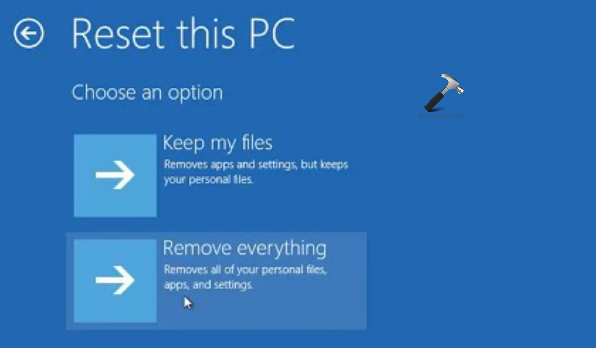
Step 3- Next, select Keep my files/ Remove everything as required when prompted.
Step 4- Here, select either Cloud download or Local reinstall for resetting Windows 11.

Step 5- Further, select Change settings in Additional settings dialog box for changing any setting.

Step 6- Enable all the options and press Confirm.

Step 7- Finally, press Next > Reset for resetting the PC.

Fix 10: Running Windows Memory Diagnostics
The users can also try running Windows Memory Diagnostic for fixing the issue. Follow the steps for doing the same.
Step 1- Firstly, type Windows + R and open the Run dialog box.
Step 2- Next, copy and paste the prompt below and select OK.
mdsched.exe

Step 3- Now, select any of the options appearing on the window screen as per requirement. Finally, restart the PC and wait for the memory check to run.

Fix 11: Disabling WerFault.exe
Lastly, if any of the other solutions are not working, the users can try disabling the WerFault.exe and see if this fixes the problem of Werfault.exe – Application error.
Step 1- Open Services.
Step 2- Now, search Windows Error Reporting Service. Right-click on it and select Properties.

Step 3- Next, in the Properties window, set the Startup type to Disabled.

Step 4- Further, select Apply > OK for saving all the changes.
Step 5- Lastly, restart the PC for applying the changes.
That’s it!