

Windows Installer failure on Windows 11 is one of the error scenarios when installing, updating, or uninstalling software. This can be maddening, particularly when it brings critical software installations to a standstill. The silver lining in this big cloud is that there are several confirmed ways to troubleshoot the Windows installer error without any slurp. In this tutorial, we are discussing six ways to resolve Windows Installer problems in Windows 11.
Page Contents
Fix: Windows Installer not working on Windows 11
Fix 1: “There is a problem with this Windows Installer package”
This error tends to indicate an incomplete or incompatible configuration file.

1. Make sure you are downloading the software program using the official site.
2. See whether the software can be run on Windows 11 (32-bit or 64-bit operating system).
3. Turn off antivirus software temporarily during an installation.

This patch is required to generate compatibility and avoid false blocks by security programs.
Fix 2: Start the Windows Installer Service
In certain cases, the Windows Installer service is disabled or not running, which causes direct installation errors. It can be fixed in the following ways:
1. Search the Services application via the Start menu.
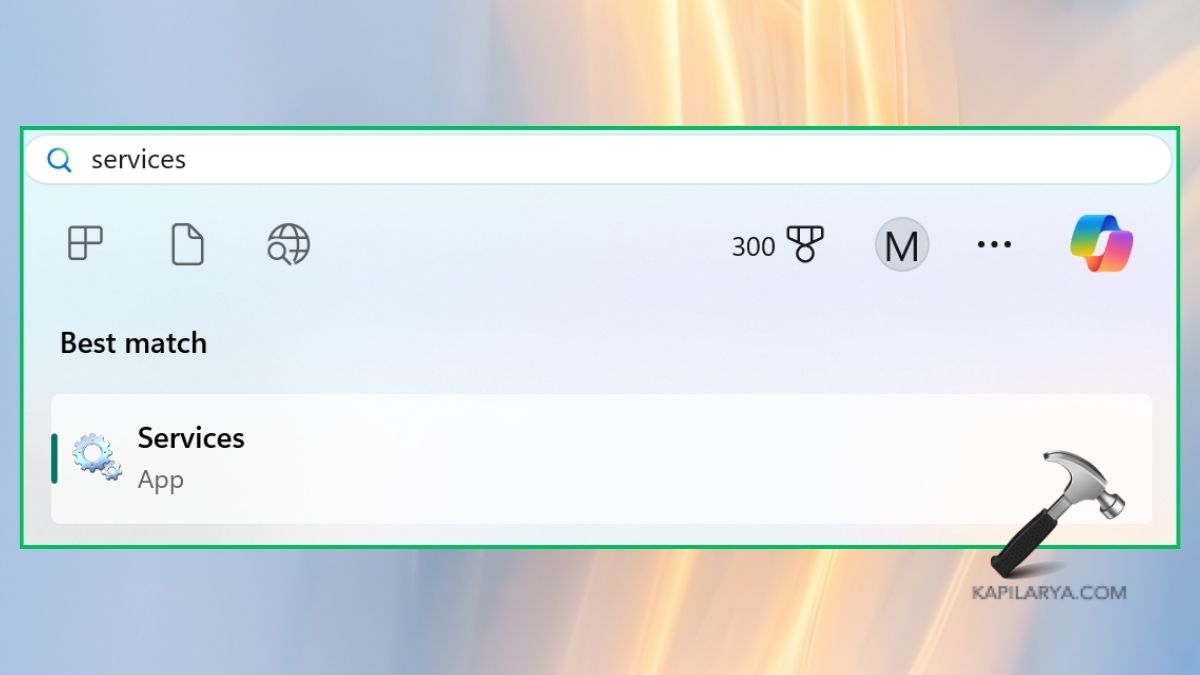
2. In the services window, scroll and select Windows Installer. Right-click on it, select Start. When it is running, press Restart.

3. Restart your computer and then reinstall the app.
Fix 3: Re-register the Windows Installer Service
In the case when all the above options do not help, re-registering the service may often solve some deep-rooted problems.
1. Open Command Prompt as Administrator.

2. Type the following commands one by one and press Enter after each.
msiexec /unregister
msiexec /regserver

3. Restart your PC. This update reconfigures the Windows installer environment and defaults it again.
Fix 4: Run Program Install & Uninstall Troubleshooter
Microsoft provides a special tool known as Program Install & Uninstall Troubleshooter that automatically corrects any problem that prevents the installation or removal of programs.
1. Download the Program Install and Uninstall Troubleshooter from the official Microsoft website (https://support.microsoft.com/en-us/topic/fix-problems-that-block-programs-from-being-installed-or-removed-cca7d1b6-65a9-3d98-426b-e9f927e1eb4d).

2. Extract the downloaded file and choose Run.

3. Select if you have trouble either installing or uninstalling a program.

It will automatically identify and correct the problem following the on-screen instructions.
Fix 5: Resolve “Installation Package Could Not Be Opened” Error
There are cases when Windows cannot accept installer files because of a lack of permission or damaged downloads.
1. Right-click on the installer file and select Properties.

2. In the General tab, look at whether or not there is an Unblock button. If it is available, click on it.

3. Now, install it with Administrator privileges.

In case of the persistence of the error, download the installation file once again but using the official site.
Fix 6: Stop Windows Installer from Repeatedly Popping Up
When the Windows Installer continues to start automatically and spoil the work process, it is rather frustrating.
1. You must hit the keys Windows + R, type in this command and press Enter.
msconfig
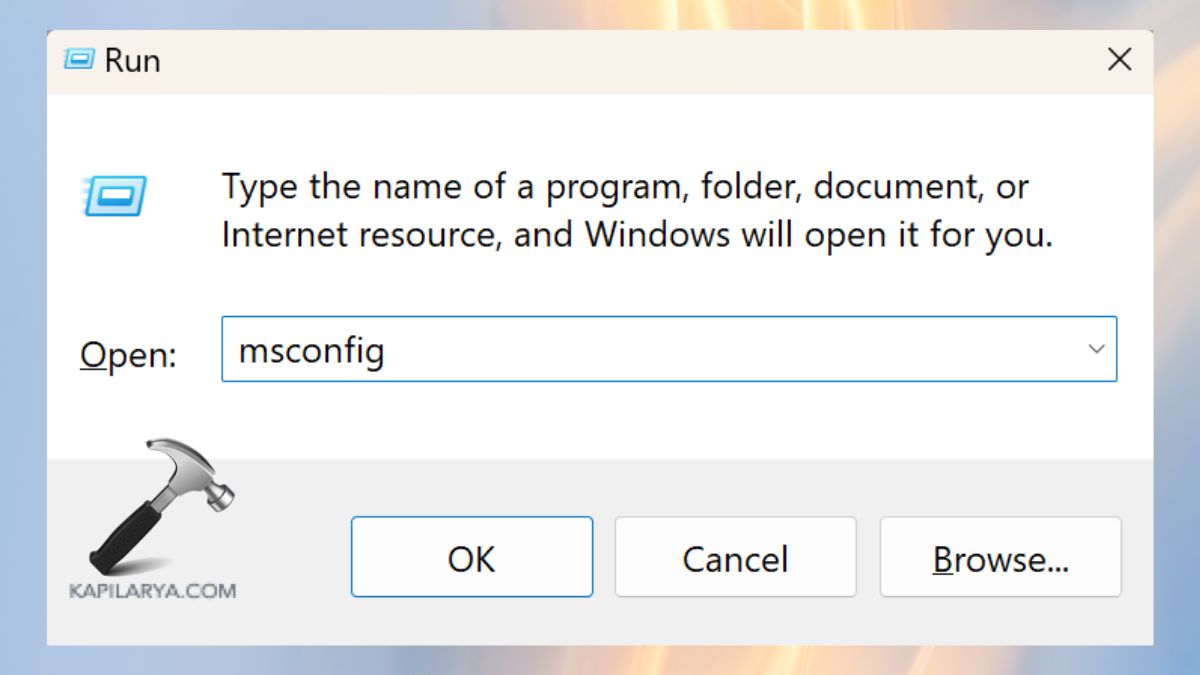
2. To go to the Services tab. Find this “Windows Installer” and unmark the checkbox, in case it runs in the background automatically. Reboot your computer

This avoids all the unwanted pop-ups, yet it also makes use of the service when it is required.
Frequently Asked Questions (FAQs)
#1 Why is my Windows Installer not working on Windows 11?
This normally occurs because of a failed installer regimen, malformed install files, or inaccurate registry records.
#2 How do I know if Windows Installer is running?
Click on Services (services.msc) and list Windows Installer, verify its status. When it is not operating, start or reconfigure it.
#3 Can I reinstall Windows Installer in Windows 11?
There is no individual installer, but problems can generally be ironed out by re-registering it via Command Prompt.
#4 Does disabling antivirus help fix installer issues?
Yes, you can do that by temporarily disabling third-party antivirus software to avoid false positives that prevent the installations.
That’s it!
![[FIX] ‘This Installation Package Could Not Be Opened’ In Windows 10/8/7](https://www.kapilarya.com/assets/settings_icon_windows_10_1705413498-768x432.jpg)

