Is the Copilot Vision not working in Windows 11? According to many users, Copilot simply fails to open or does not load and only hangs.
We will take you step-by-step through the (uncomplicated but efficient) ways of making Copilot Vision work on Windows 11. Regardless of whether it is your Edge browser or your system settings, or the Copilot app settings, these solutions will assist you in putting everything back on track.
Page Contents
What Is Copilot Vision in Windows 11 (25H2 Update)?
The Windows 11 25H2 update comes with Copilot Vision, which is a new AI feature that builds on the current Microsoft Copilot experience. It combines high-end visual recognition and contextual information to enable users to interact more intelligibly with their system.
Using Copilot Vision, one is able to do things such as:-
- Identifying elements on the screen and summarizing what can be seen on the screen.
- Supporting file management with the aid of AI.
- Providing superior catalog services during browsing or working.
- This makes Copilot not a chatbot; it is a visual assistant capable of reading your screen and answering what you want.
Nevertheless, as the Copilot Vision feature is a new one, that is still in the roll-out phase. Hence, a number of users may experience bugs, unavailability, or incompatible errors- the Copilot Vision not working on Windows 11 trouble.
Fix Copilot Vision not working on Windows 11
Having Copilot Vision not working on Windows 11 can be frustrating, but with the right steps, it can be fixed within minutes. So let’s get started.
Fix 1: Update Microsoft Edge and the Copilot App
One of the most frequent causes is the use of outdated versions of software, because of which Copilot Vision cannot work on Windows 11. Microsoft releases updates on a regular basis to enhance compatibility and fix bugs, as well as improve AI performance. It is always important to keep your Windows and Microsoft Edge updated so that Copilot Vision works flawlessly.
1. Open Microsoft Edge. In the upper right-hand corner, click the three dots (⋯).
2. Click Help and Feedback and About Microsoft Edge.

3. Edge will also automatically scan updates and install them. After this update is done, restart your browser by tapping “Restart”.

4. Now, enter Win + I to access Settings. Click Windows Update and “Check for updates” option.

In the event that there are Copilot or any other associated system updates, download and install them.
Restart your PC afterward.
Disable VPN or Proxy (If Applicable)
When you are on a VPN or a proxy, it may not allow the online connection to Copilot. Copilot Vision depends on the internet connection to retrieve AI information and answers.
1. Click Windows + I > Network and Internet. Click VPN on the left sidebar.
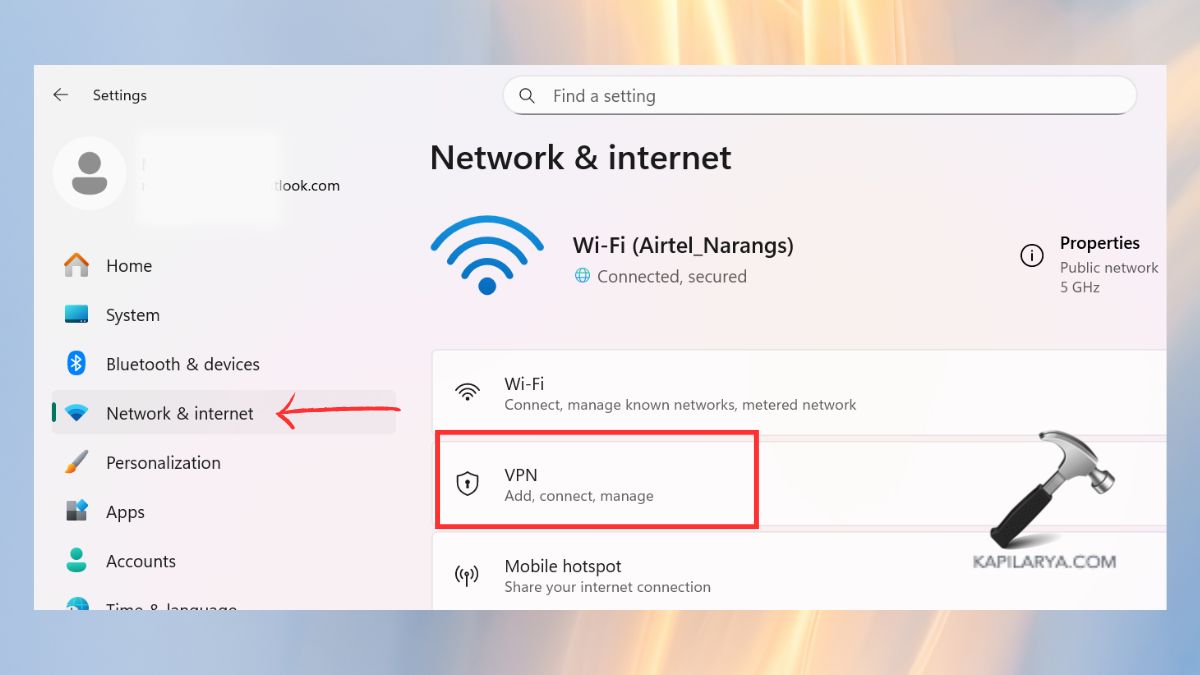
2. In case any VPN is on, then click Disconnect.
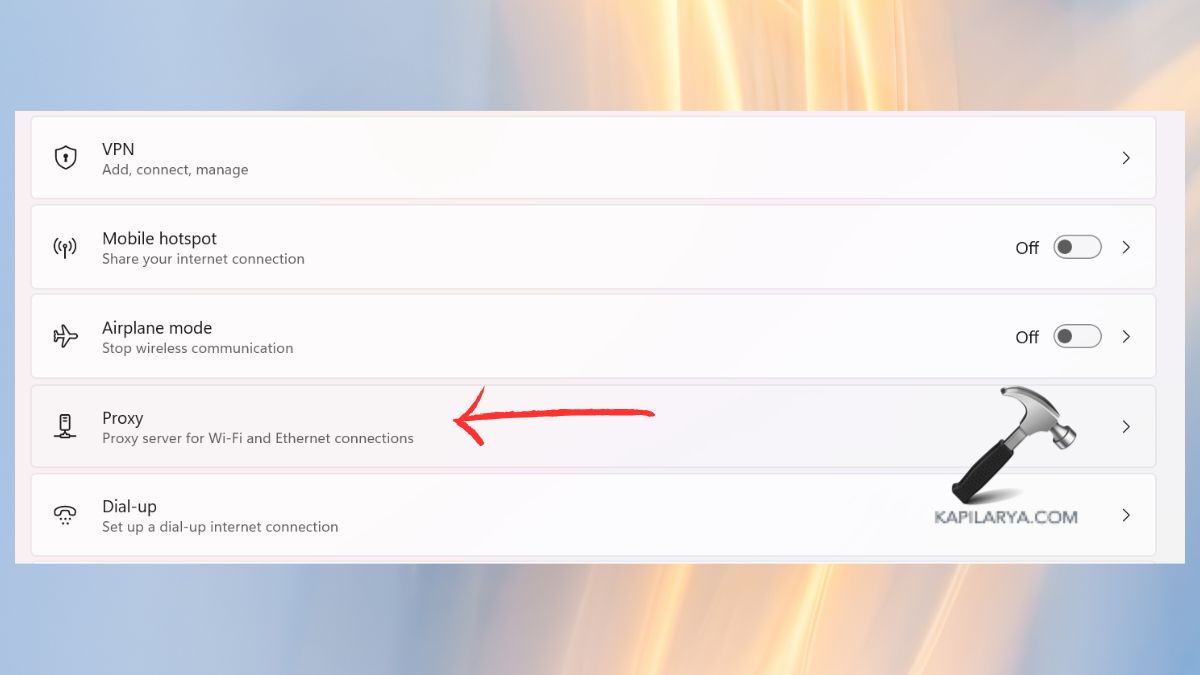
3. In the same menu, go to Proxy.
4. Uncheck Automatically detect settings or any manual proxy setup.
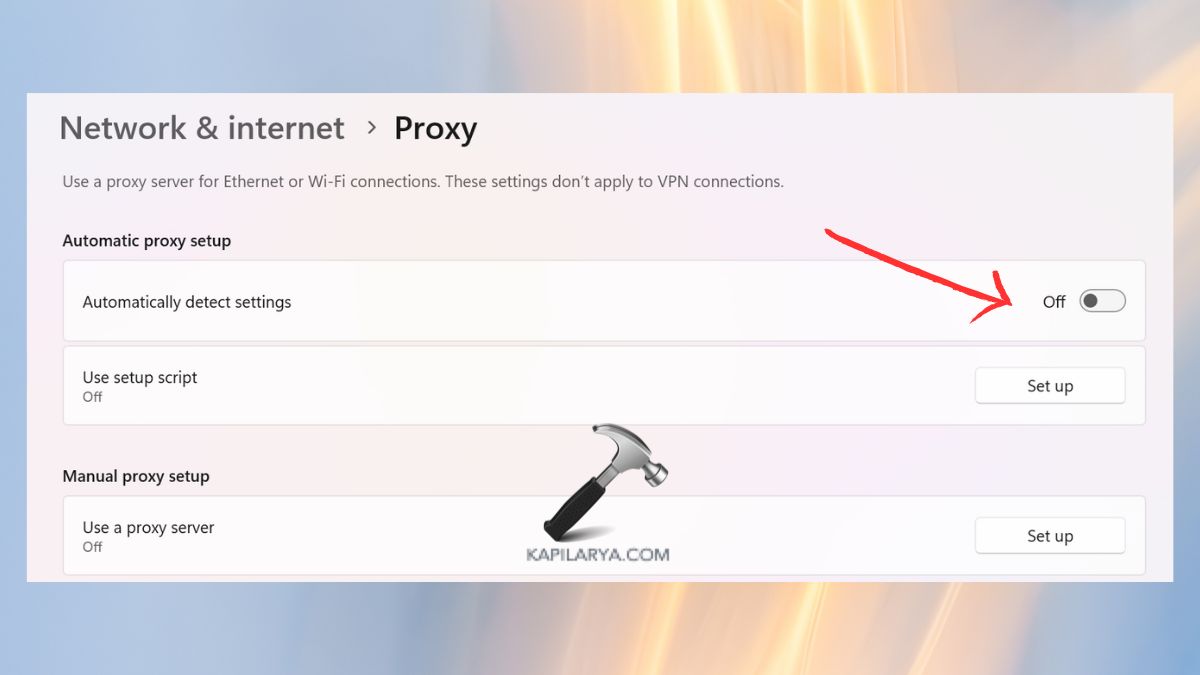
5. After that, restart your PC and see whether Copilot Vision begins working properly.
Verify Your Language and Region Settings
Copilot Vision is currently in the process of global expansion and might not be offered in some areas or languages. The Copilot Vision may fail to work on Windows 11 because of poor language choices or locality settings.
1. Press Win + I keys to open settings. Click on Time & Language > Language & region.

2. Select the Region to a supported country (e.g. United States, the United Kingdom, or Canada).
Shut down your PC and restart Copilot.

Use Copilot in InPrivate (Incognito) Mode
In some instances, browser cache, cookies, and extensions can make Copilot Vision fail to load. The best way to see whether that is the cause is by opening Microsoft Edge in InPrivate mode.
1. Open Microsoft Edge. Tap the keys “Control + Shift + N” to go to InPrivate Mode. Or on the right-hand side, tap the three-dot icon and select “New InPrivate Window”.
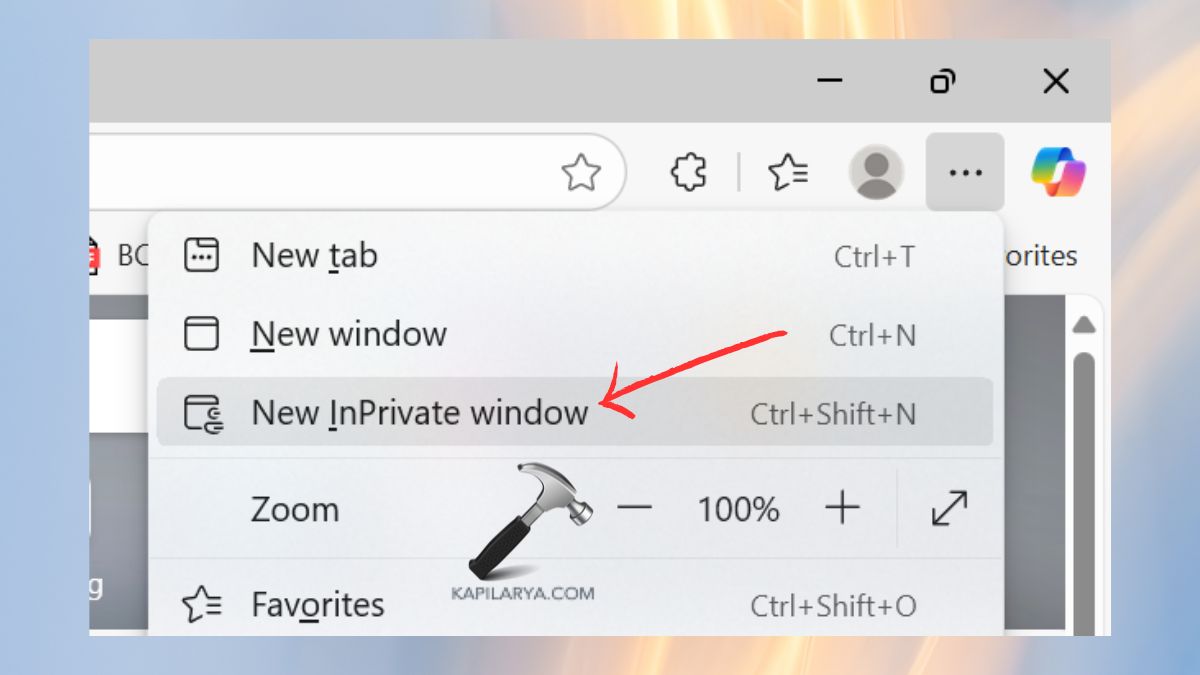
2. To use the Copilot sidebar, either go to the sidebar or press Windows + C. Test whether Copilot Vision is functioning. Should it, then you might have to empty the cache of Edge, or turn off unwanted extensions of your browser.
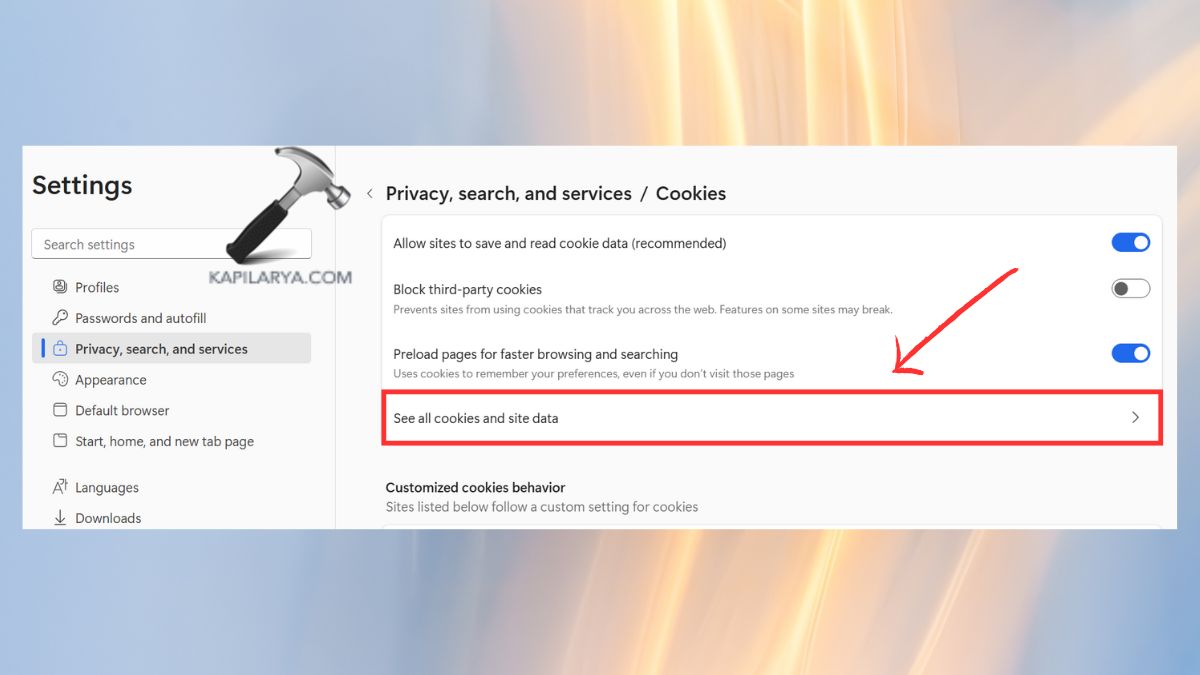
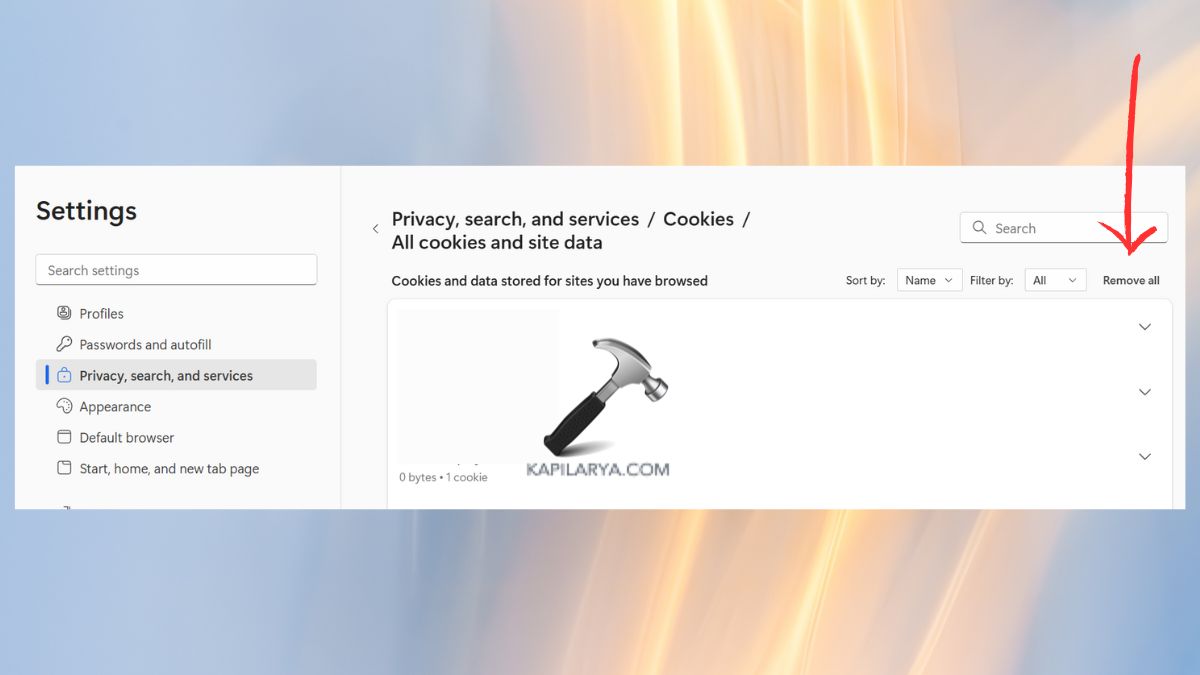
3. To do that, in the Edge one more time you have to click on the three-dot icon and select the Settings option. Then, under “Privacy, search and services” > “Cookies” > “See all cookies and site data”.
3. Touch the Remove All button to delete the cookies.
Repair, Reset, or Reinstall the Copilot App
In case the above fixes fail, the Copilot application is either corrupted or improperly configured. It is normally fixed or reconfigured, and the problem solved.
1. Click on Windows + I > Apps, then on Installed Apps.
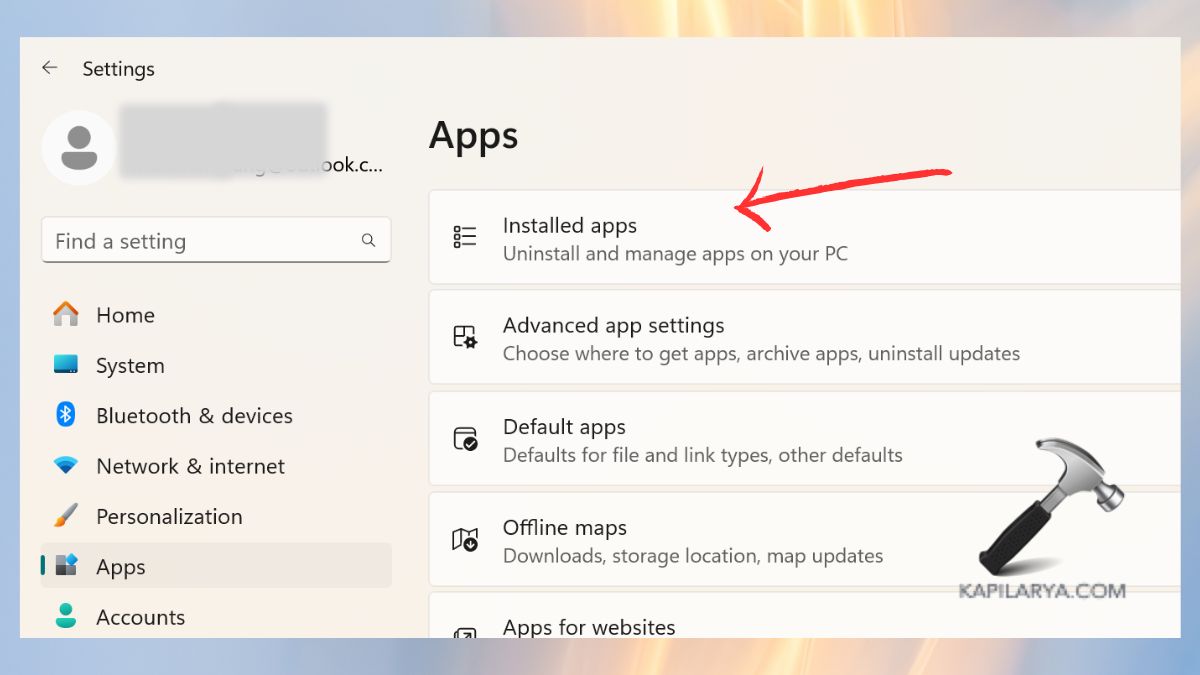
2. Find Copilot in the list. Click Advanced Options.
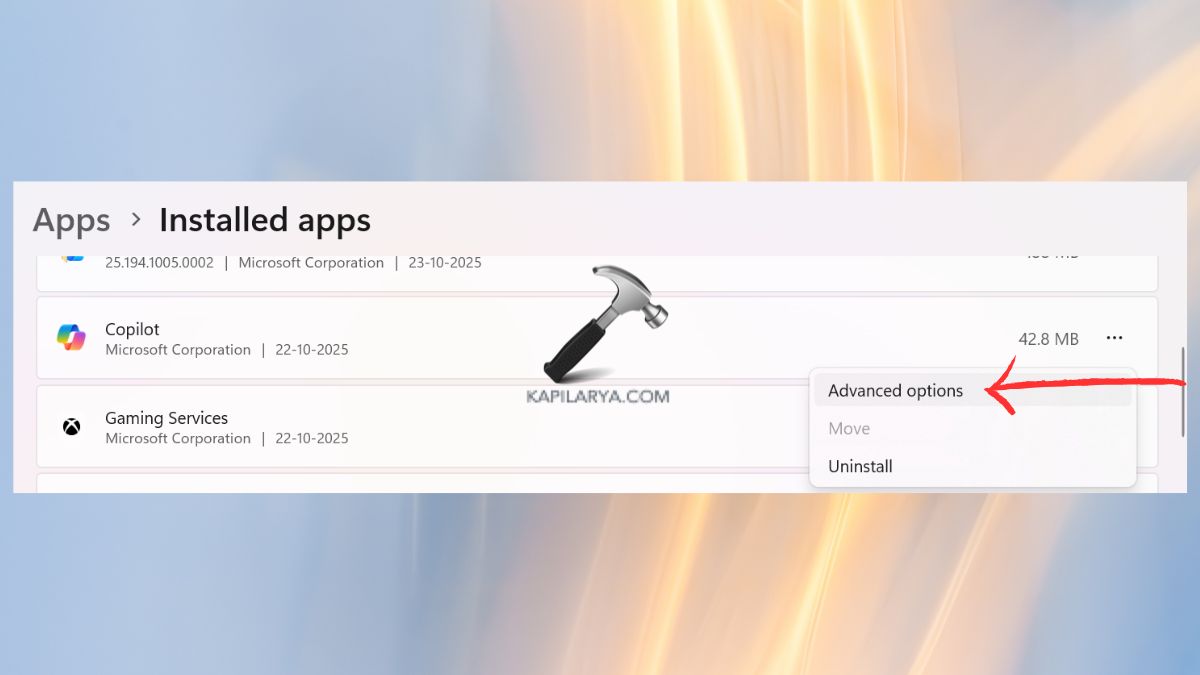
3. Choose Repair first.
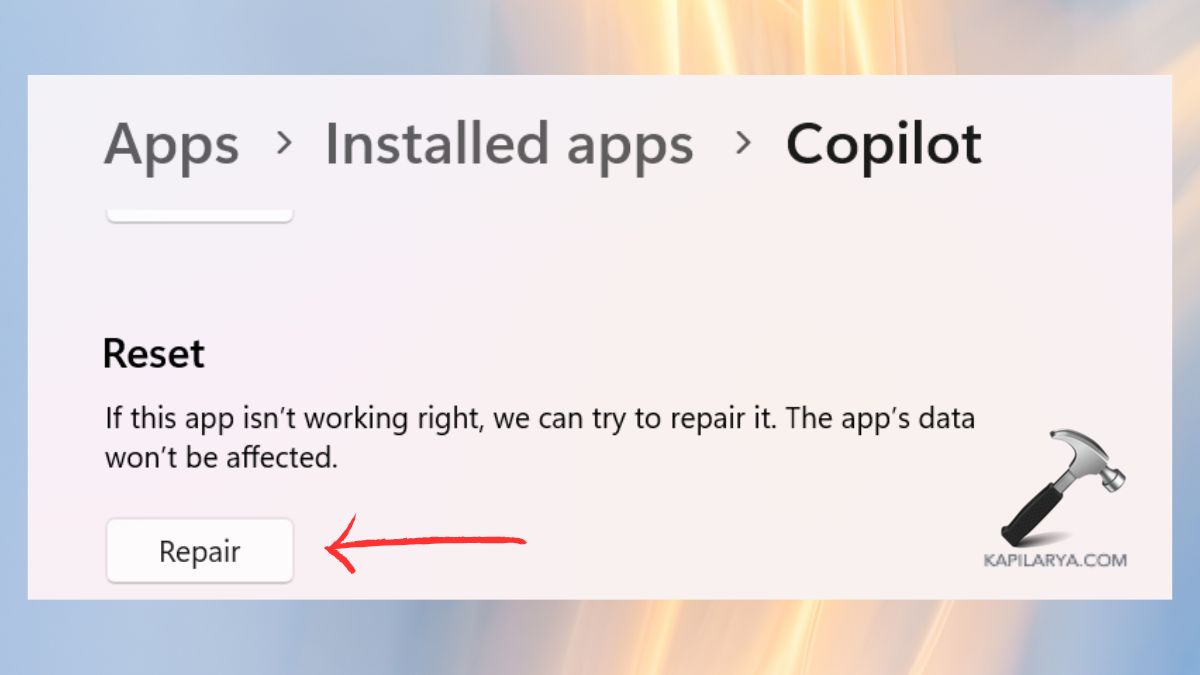
4. Failure to do so, then click Reset.

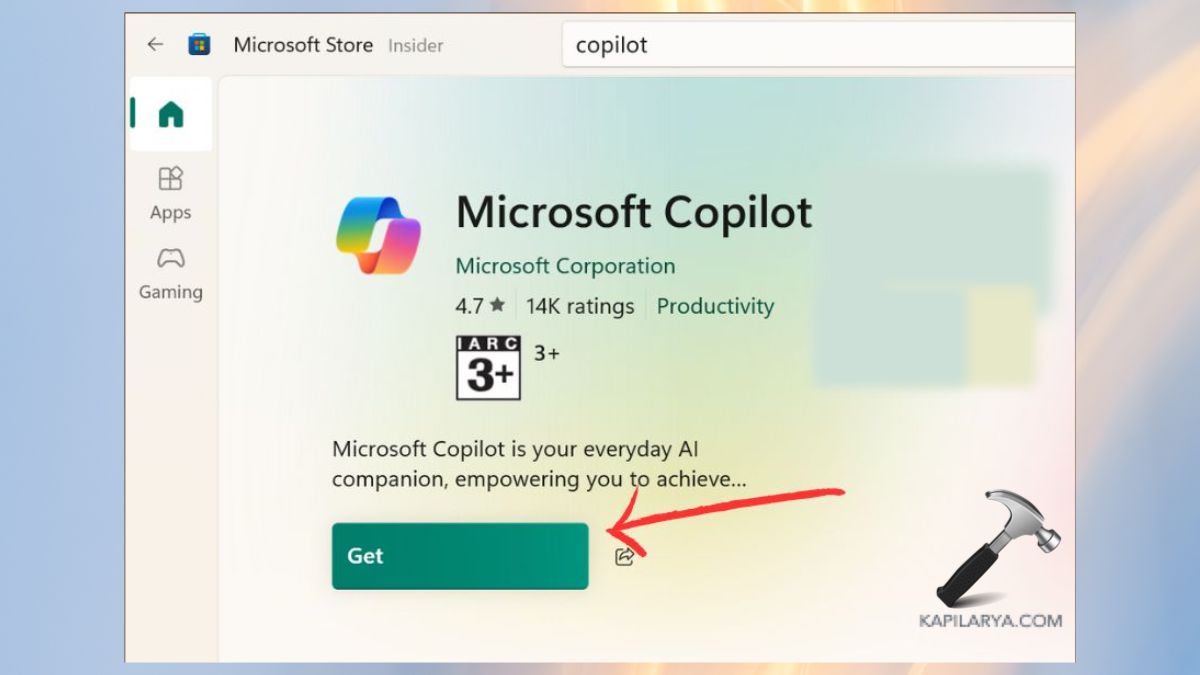
5. When Copilot is closed, click to open it again. And even if that fails, uninstall it from the same settings.
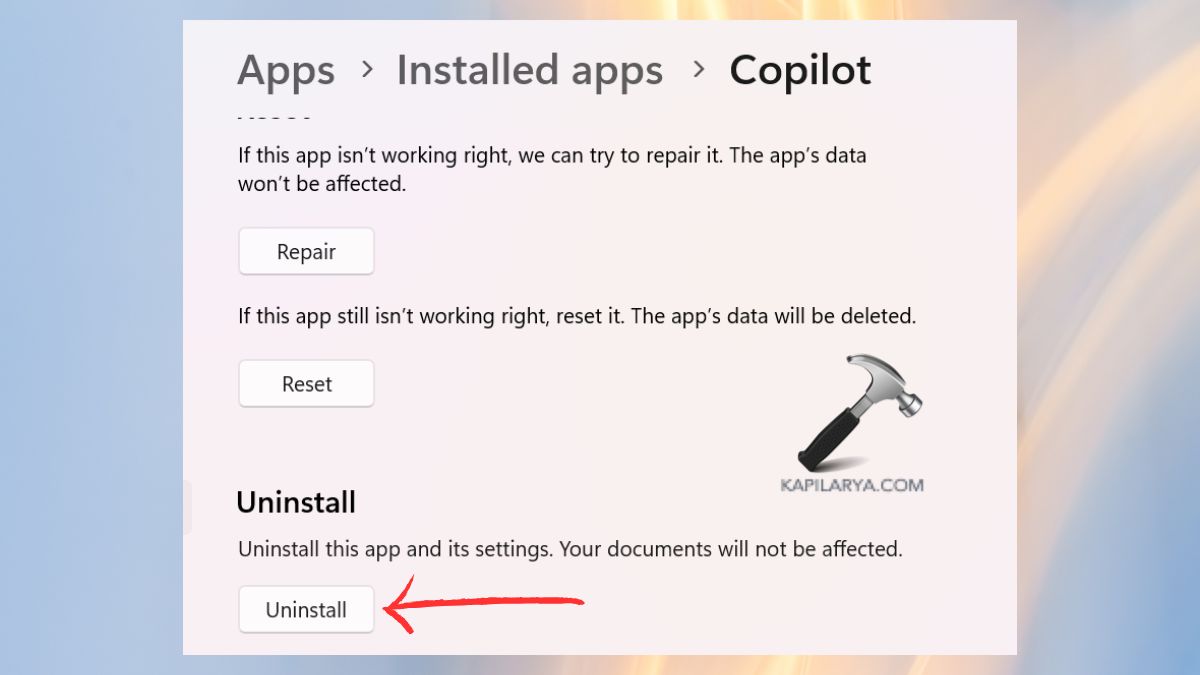
6. Then, reinstall it on the Microsoft Store.
Frequently Asked Questions (FAQs)
That’s it!