

Windows 11 comes with different editions to cater your requirements. These editions are so designed that everyone can get best Windows 11 edition as per their need. Windows 11 Home and Pro editions are the most used end user editions. Usually, most of OEM’s embed Windows 11 Home to new PCs you’ll buy. This is because Windows 11 Home is the cheapest edition. Since it is cheaper, it has limited features. To unlock more features, users simply upgrade to Windows 11 Pro. You can buy this upgrade from Microsoft Store. In case if your Windows 11 Pro upgrade failed with error 0xc004f050, this article will help you to fix.
Recently a random user reached out to me in Microsoft Forums with this message:
Purchased a new laptop that came pre-installed with Windows 11 Home (OEM-Single Language Version). I purchased an upgrade to Windows 11 Pro from the Microsoft Store. However, when I click the upgrade button, the progress jumps from 10% to 100% and then displays an “Upgrade Failed” message with error code 0xc004f050.

If you’re also facing this similar problem, let us see how you can resolve this in less efforts.
Page Contents
Windows 11 Pro upgrade failed with error 0xc004f050
Fix it by changing the product key
If you’ve been already charged for Pro upgrade fees, it is assumed you’ve successfully bought Pro upgrade. In this case, you can simply change your edition to Pro using generic product key. The generic product key never activates your system but it can be used to change to a specific edition.
Try these steps:
1. Make sure to sign in to the Microsoft account you used to purchase the Pro upgrade.
2. Press Windows key + I to open Settings.
3. Select System > Activation > Change product key > Change.
4. Enter the generic product key below:
VK7JG-NPHTM-C97JM-9MPGT-3V66T
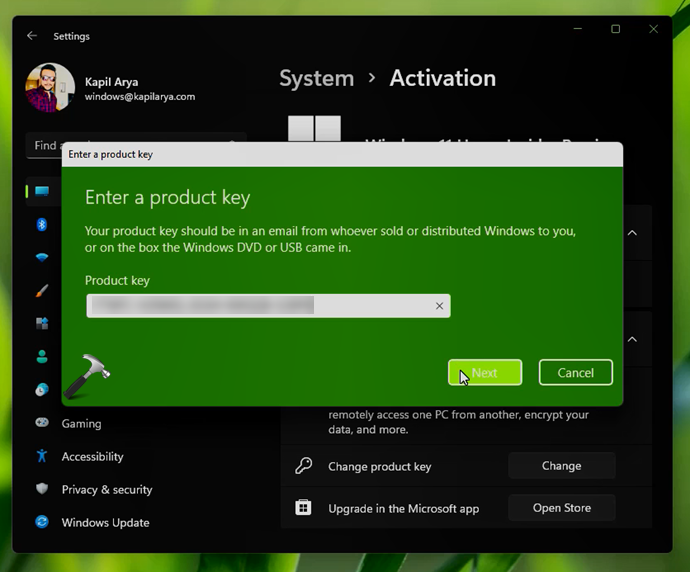
5. When prompted, click Next/Activate Windows. Then click on Start.

6. If you receive Unable to upgrade your edition, simply ignore the message and ensure to restart your system.
7. During restart, you may notice ‘Adding features’ or something like that. If you see this, Pro edition features are being activated.
8. After restart, you’ll have Windows 11 Pro on-board.
Drop me a comment, if this doesn’t work!


Sadly, this did not work for me.