Windows Explorer (also called File Explorer) is the core interface for browsing files, folders, and system elements in Windows 11. When it stops responding, freezes, or fails to open, it disrupts everyday tasks.
Page Contents
Fix Windows Explorer is Not Responding on Windows 11
This can be caused by temporary glitches, corrupt cache, third-party interference, outdated system files, or system resource issues. Below are practical fixes you can try, from quickest to more in-depth solutions, until Explorer is reliable again.
Fix 1: Restart Windows Explorer via Task Manager
The fastest way to fix a frozen Explorer is simply restarting it:
1. Press Ctrl + Shift + Esc to open Task Manager.
2. In the Processes tab, find Windows Explorer.
3. Right-click it and select Restart.
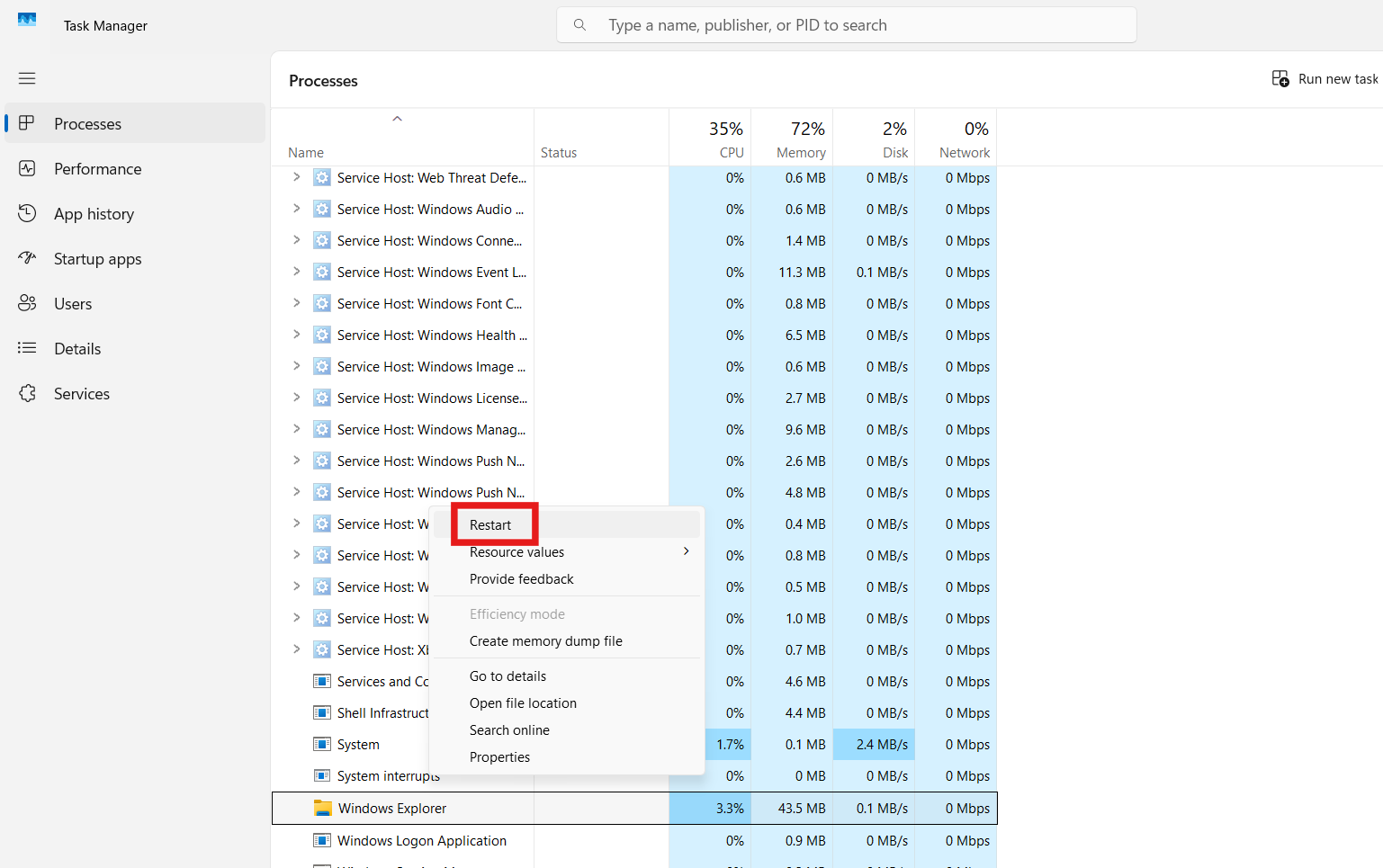
This refreshes the Explorer shell and often resolves minor freezes or glitches immediately.
Fix 2: Clear File Explorer Cache & History
Corrupted cache or Quick Access data can make Explorer hang:
1. Press Win + R, type control folders, and hit Enter.
2. In the General tab of Folder Options, click Clear next to Clear File Explorer history.
3. Click Apply and then OK, and try Explorer again.
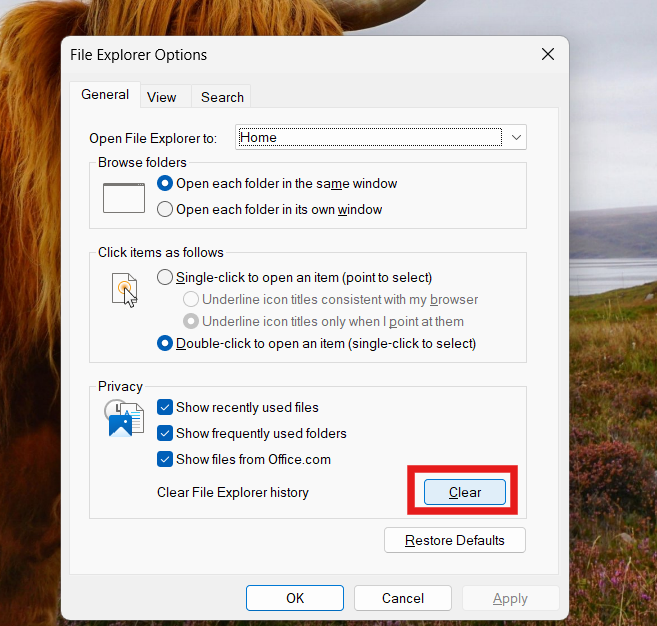
This clears stored paths and preview data that might be causing the unresponsiveness.
Fix 3: Check for Windows Updates
Outdated system components sometimes trigger Explorer instability:
1. Go to Settings and then Windows Update.
2. Click Check for updates and install any available patches.
3. Restart your PC and test Explorer.
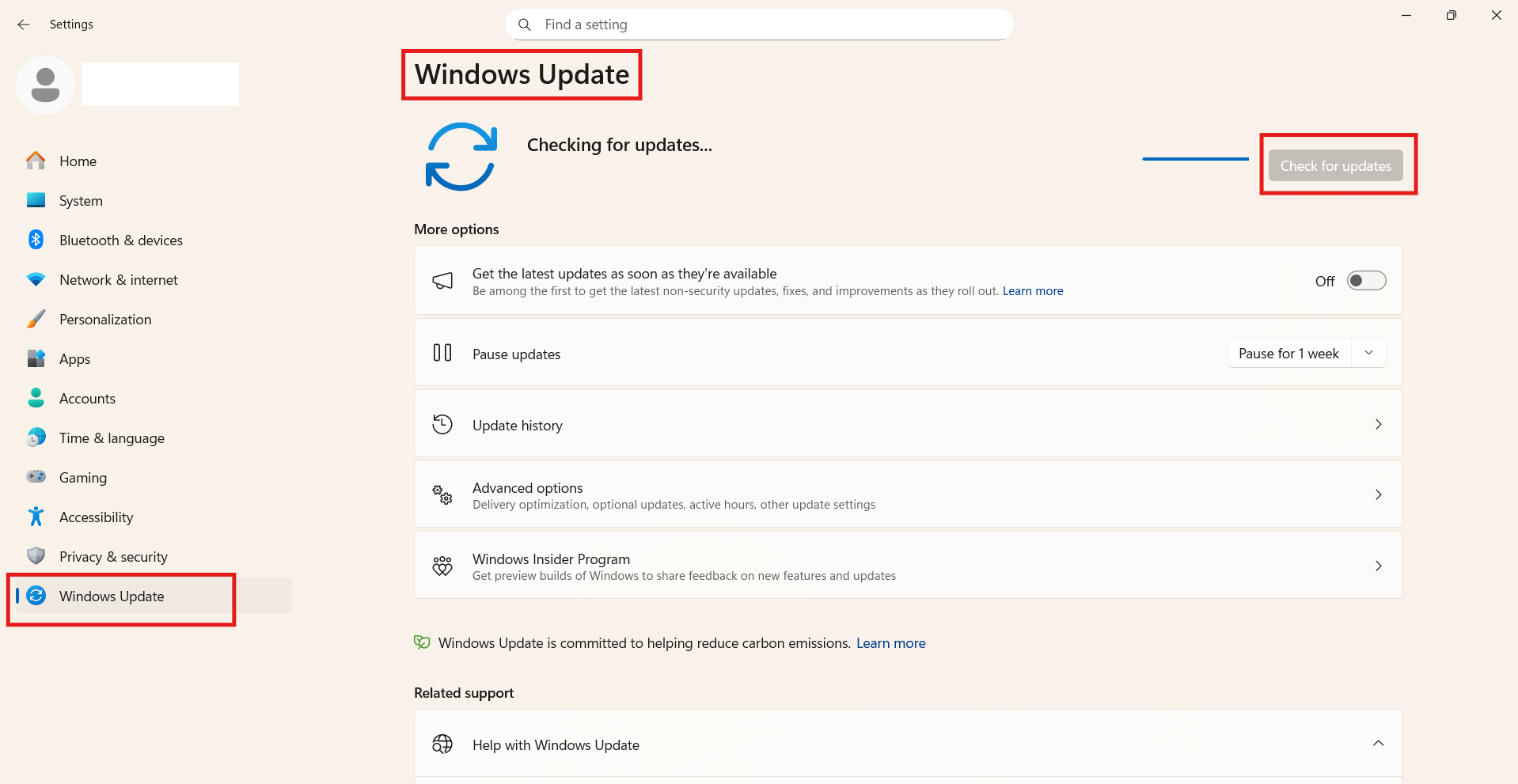
Microsoft regularly fixes bugs that can indirectly affect Explorer behavior.
Fix 4: Run System File Checker (SFC) & DISM
Corrupted system files can lead to interface crashes:
1. Right-click the Start button and open Windows Terminal (Admin).
2. Run:
sfc /scannow
3. After SFC completes, optionally run:
DISM /Online /Cleanup-Image /RestoreHealth
4. Reboot your PC after both scans finish.

These steps repair damaged or missing system files that may destabilize Explorer.
Fix 5: Perform a Clean Boot
Software conflicts from third-party apps or services can freeze Explorer:
1. Press Win + R, type msconfig, and press Enter.
2. Under Services, check Hide all Microsoft services.
3. Click Disable all.
4. Restart your PC and see if Explorer runs normally.
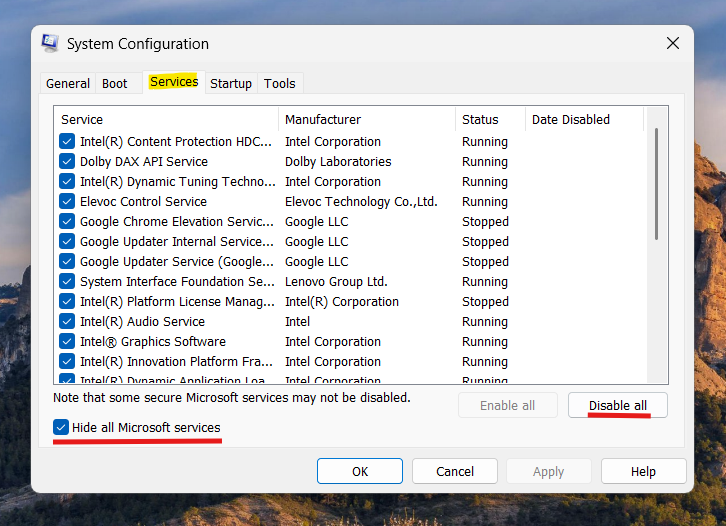
If it does, re-enable services one at a time to find the conflict.
Fix 6: Rebuild Search Index (If Indexed Elements Cause Freezes)
Sometimes the Windows Search index gets stuck, making Explorer unresponsive when searching or navigating folders:
1. Open Control Panel, search for Indexing Options.
2. Click Advanced.
3. In the Troubleshooting section, choose Rebuild.
4. Let Windows rebuild the index and then retest Explorer.
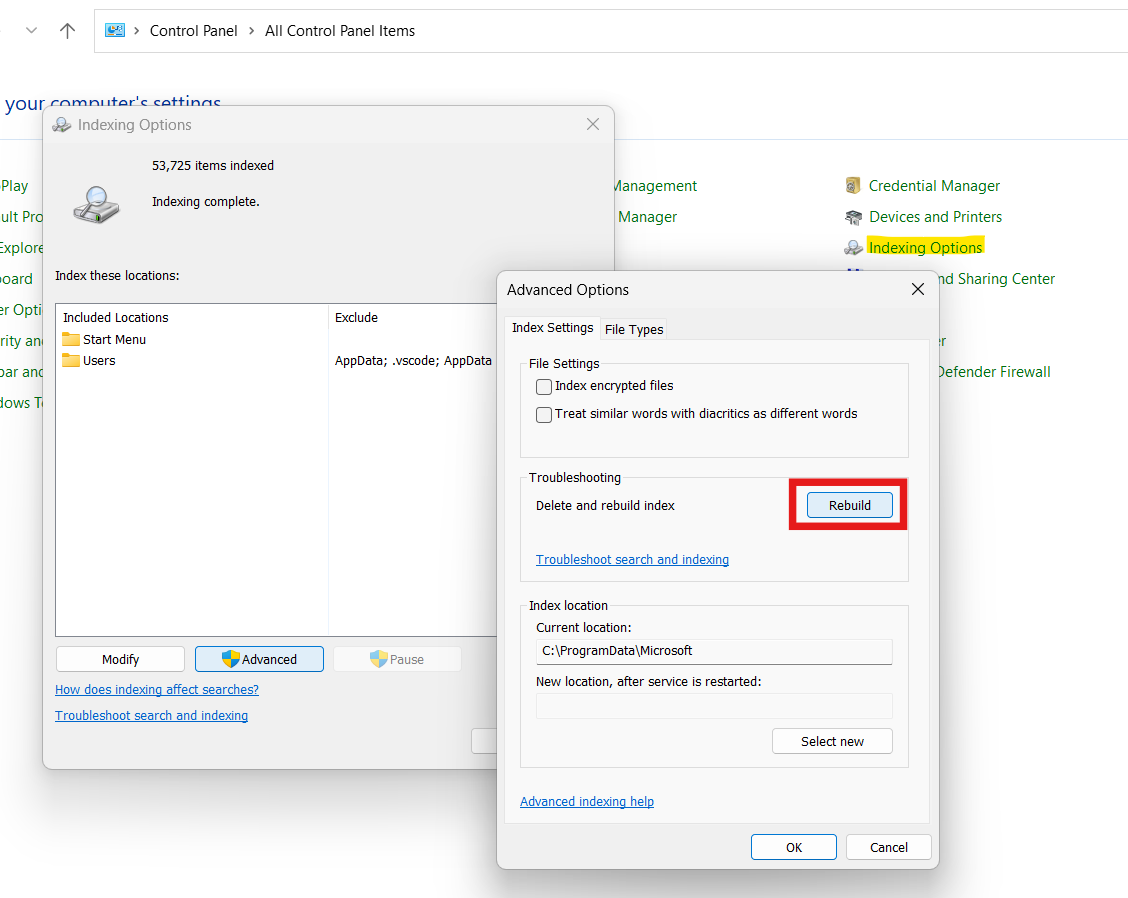
This refreshes search indexing, which Explorer uses heavily during navigation.
Fix 7: Restart Your Computer
Sometimes the simplest step works:
1. Click Start and go to Power and then Restart.
Rebooting flushes memory and background processes that may be interfering with Explorer.
Quick Tips to Reduce Future Explorer Freezes
1. Keep your PC updated, including drivers.
2. Uninstall recently added apps that correlate with the issue’s start.
3. Check for malware or unwanted software with Windows Security or a trusted scanner.