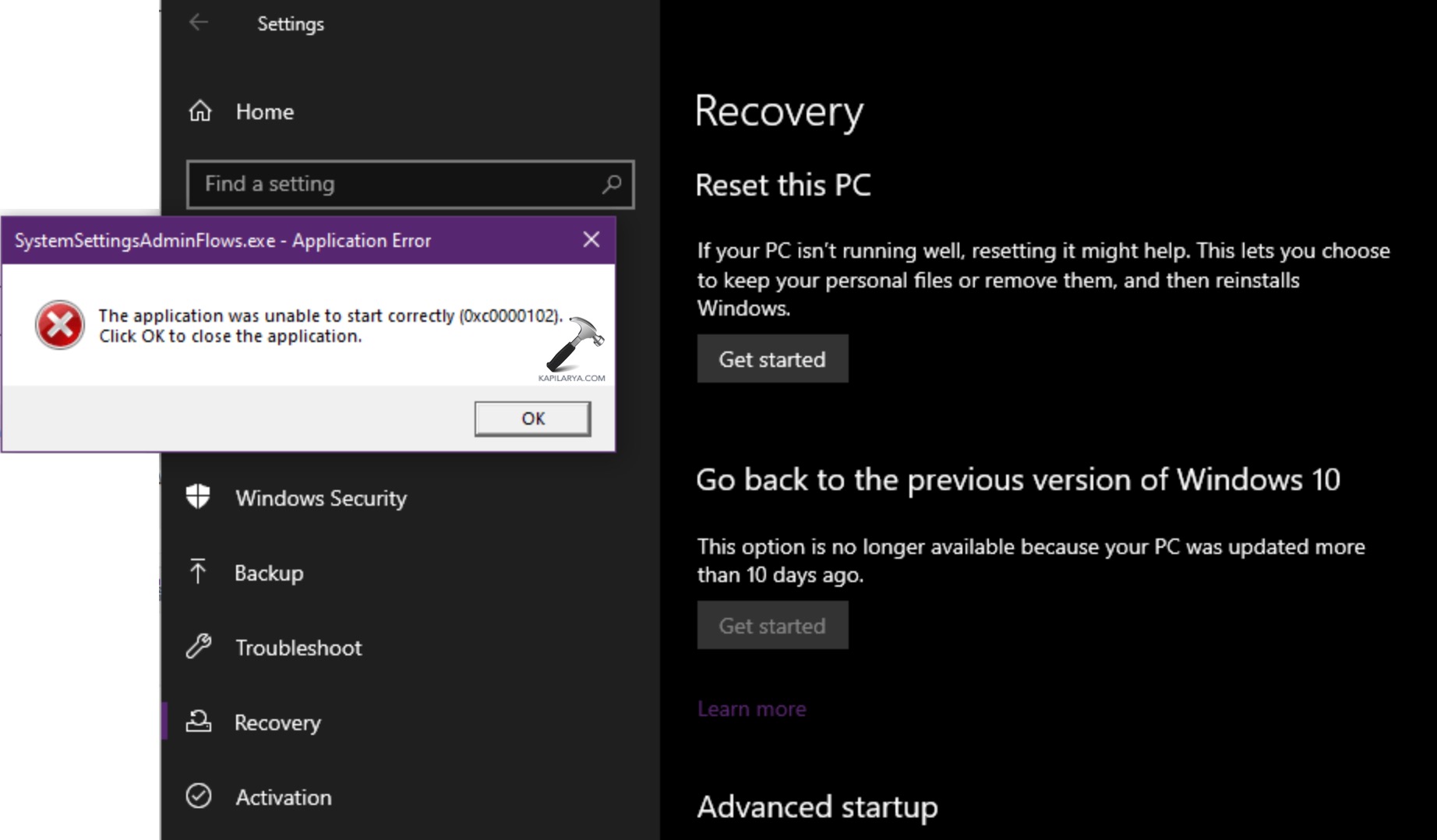
SystemSettingsAdminFlows.exe is a built-in Windows component responsible for handling administrator-level settings tasks. On Windows 11, errors involving this file, like Windows cannot access the specified device, path, or file or Bad Image, typically stem from permission policy misconfiguration, corrupted system files, or underlying OS issues.
Page Contents
Fix: SystemSettingsAdminFlows.exe Error on Windows 11
Below are five practical methods that can help resolve this error. Try each of these one at a time to see which fixes it for you.
Fix 1: Enable Admin Approval Mode
Windows needs proper UAC configuration to handle admin flows. To resolve this issue, you can try to enable admin approval mode.
Note: Making mistakes while editing registry can adversely affect your system. Make sure you make exact changes as described in below steps. If you’re new to registry, create a System Restore point before editing registry.
1. Press Win + R, type regedit, and press Enter.
2. Go to:
HKEY_LOCAL_MACHINE\SOFTWARE\Microsoft\Windows\CurrentVersion\Policies\System
3. Look for a DWORD named FilterAdministratorToken.
4. If it doesn’t exist, right-click > New > DWORD (32-bit) Value and name it FilterAdministratorToken.
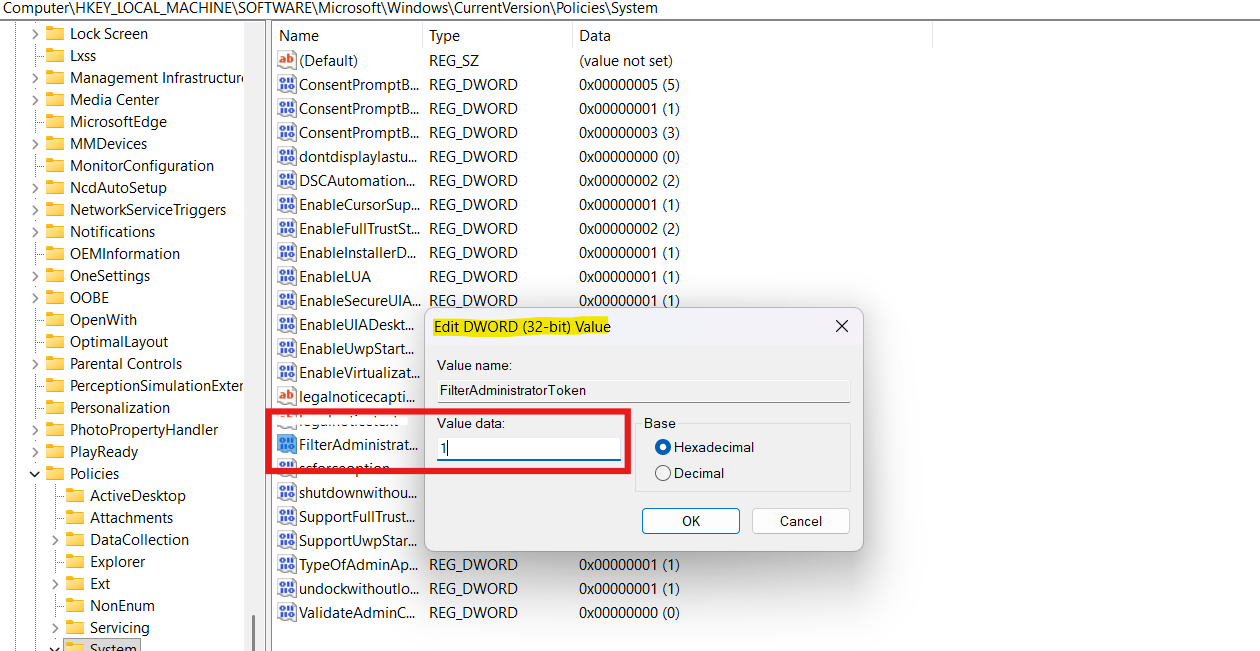
5. Double-click it and set the Value data to 1.
6. Restart your PC.
Fix 2: Update Windows to the Latest Build
Outdated or bugged OS files can trigger this issue:
1. Open Settings and go to Windows Update.
2. Click Check for updates.
3. Let Windows install all available patches, then reboot.
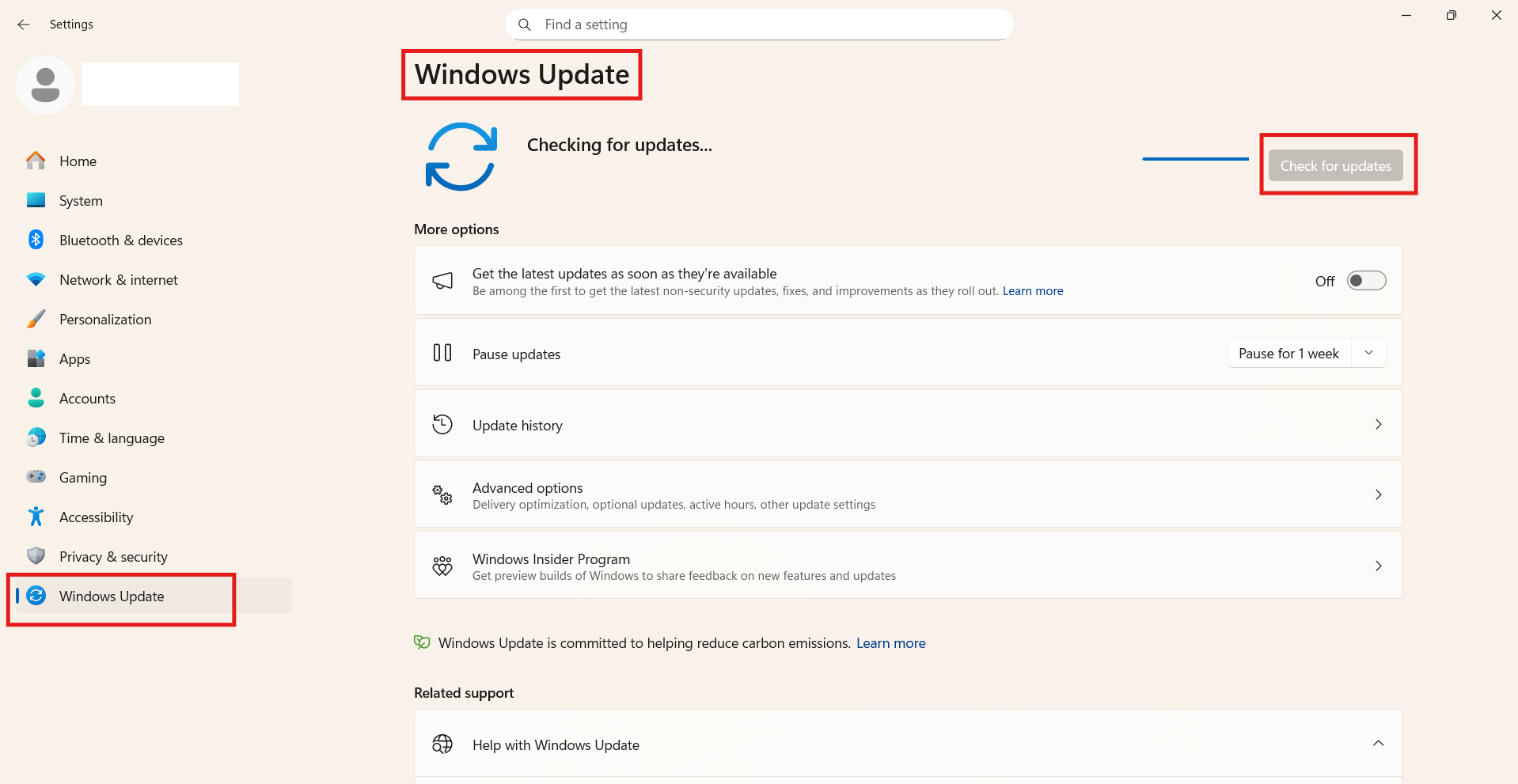
Updating the OS replaces any outdated application frameworks SystemSettingsAdminFlows depends on.
Fix 3: Repair Corrupted System Files
Corruption in system files often leads to this error:
1. Right-click Start and go to Windows Terminal (Admin).
2. Type and run:
sfc /scannow
3. After that finishes, run:
DISM /Online /Cleanup-Image /RestoreHealth
4. When both scans are complete, restart your PC.
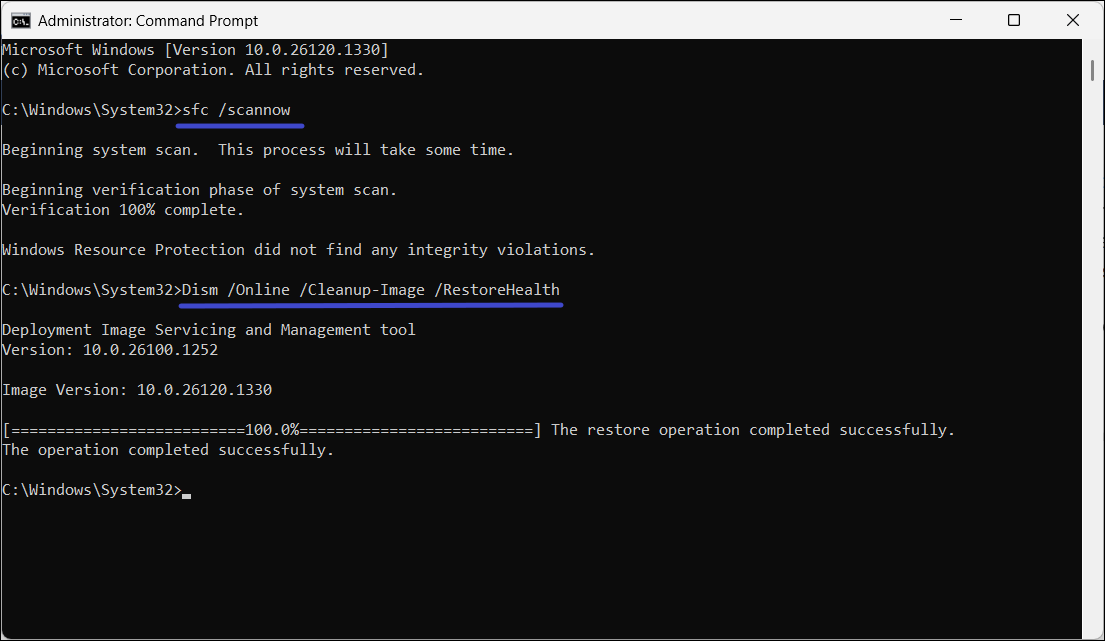
These built-in tools repair missing or damaged Windows files that the Settings app and admin flows rely on.
Fix 4: Perform an In-Place Upgrade (Repair Install)
If SFC and DISM fail, the most effective fix is to overwrite the system files without deleting your data. Startup Repair often won’t fix this error because the computer boots fine; you need a Repair Install instead.
1. Download the Windows 11 ISO from Microsoft’s website.
2. Double-click the ISO file to mount it.
3. Run setup.exe from the folder.
4. Select Keep personal files and apps and let it reinstall Windows over itself.
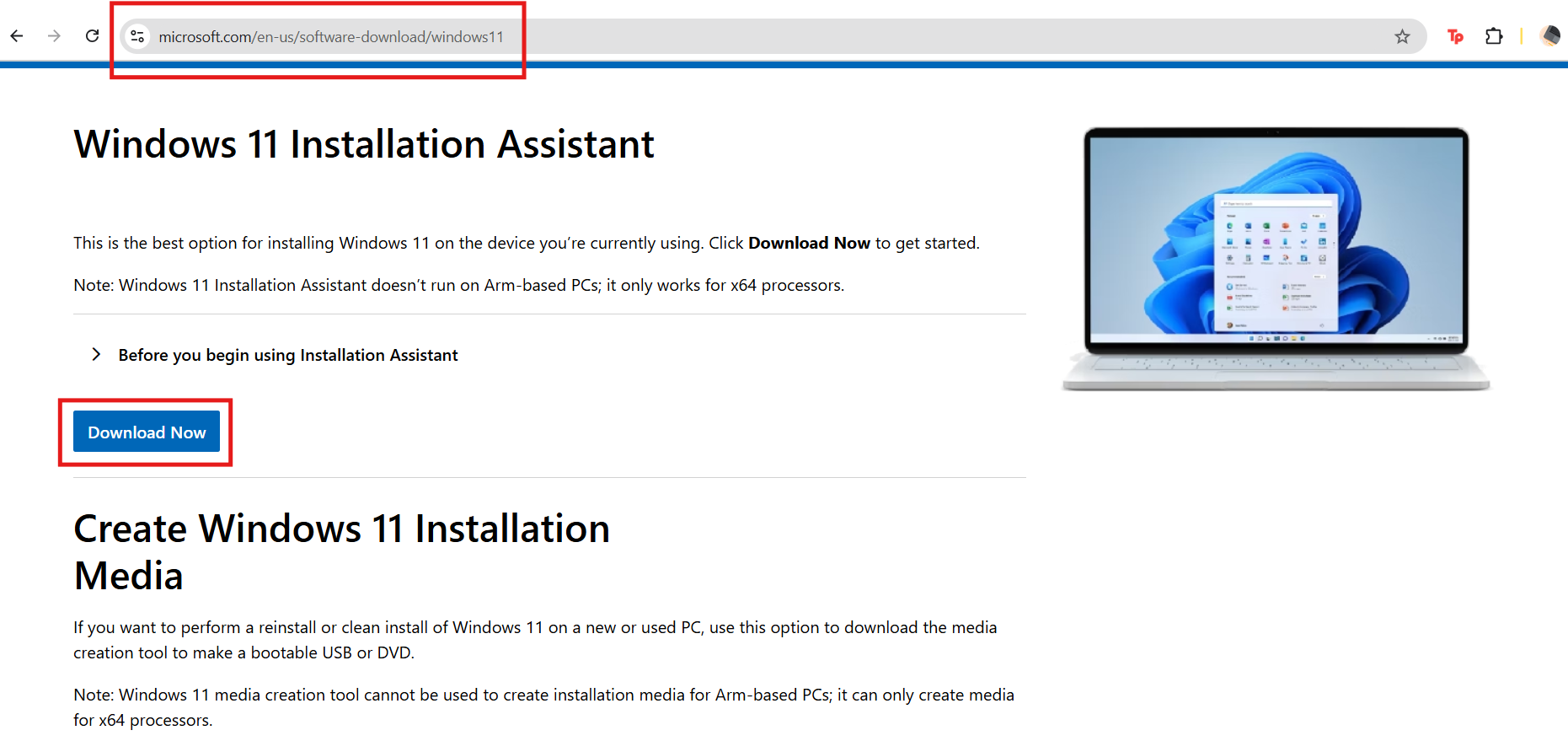
This replaces it SystemSettingsAdminFlows.exe with a fresh, working copy.
Fix 5: Reinstall the Affected App
If the error only pops up when launching a particular app:
1. Go to Settings, and go to Apps, and then Installed apps.
2. Locate the troublesome program.
3. Click the three dots (…) and choose Uninstall.
4. Download a fresh copy from the official source and install it again.
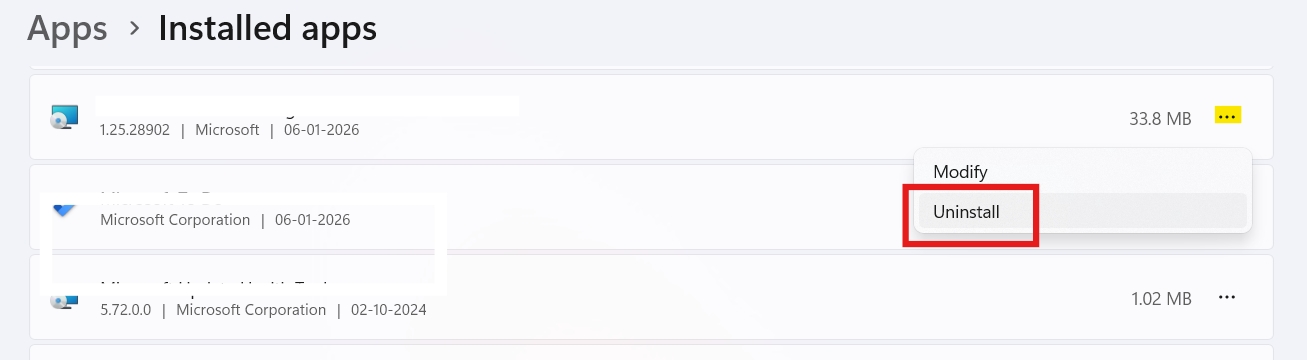
Corrupted app data can cause SystemSettingsAdminFlows to be called incorrectly, so reinstalling the program can resolve it.
Extra Tip to fix the SystemSettingsAdminFlows.exe error on Windows 11
Occasionally, malware or interference from security software can affect system executables. Run a full malware scan using Windows Security and ensure your antivirus isn’t blocking access to system files.
Summary
SystemSettingsAdminFlows.exe Errors on Windows 11 usually point to policy misconfiguration, outdated builds, or corrupted system files. Using the steps above, especially enabling the proper UAC policy (even on Home editions via Registry) and performing a repair install, typically resolves the issue.