The desktop watermark in Windows 11 shows the build number information. On the stable version of Windows 11, you might not see the watermark, unless you enable it. However, if you are using the Insider Preview build of Windows 11, the watermark is very common. While getting the support for Windows 11, the Desktop watermark is helpful. You can share the Desktop watermark information such as build number to the support person so that they can help you efficiently. In case if you need to enable or disable Desktop watermark or build number, this article will show you how to do that.
Usually the Desktop watermark or build number looks like this one:

Page Contents
Enable or Disable Desktop Watermark or Build Number Info in Windows 11
By default, Desktop watermark is enabled on Windows 11 Insider Preview builds. To disable the Desktop watermark, we have two different methods. Either you disable this at an user level and that is for currently logged in user. The second option is to disable this Desktop watermark for all the users present on the system. Let’s see these methods one-by-one.
 Registry Disclaimer: It is recommended to create a System Restore point first, if you’re not familiar with registry editing.
Enable or Disable Desktop Watermark for current user
1. Run regedit command to open Registry Editor.
2. In left pane of Registry Editor window, navigate to:
HKEY_CURRENT_USER\Control Panel\Desktop
3. In the right pane of the Desktop registry key, locate the registry DWORD named PaintDesktopVersion. Double click on it and make sure it’s value data is set to 0 to disable watermark. Setting it to 1, will enable watermark.
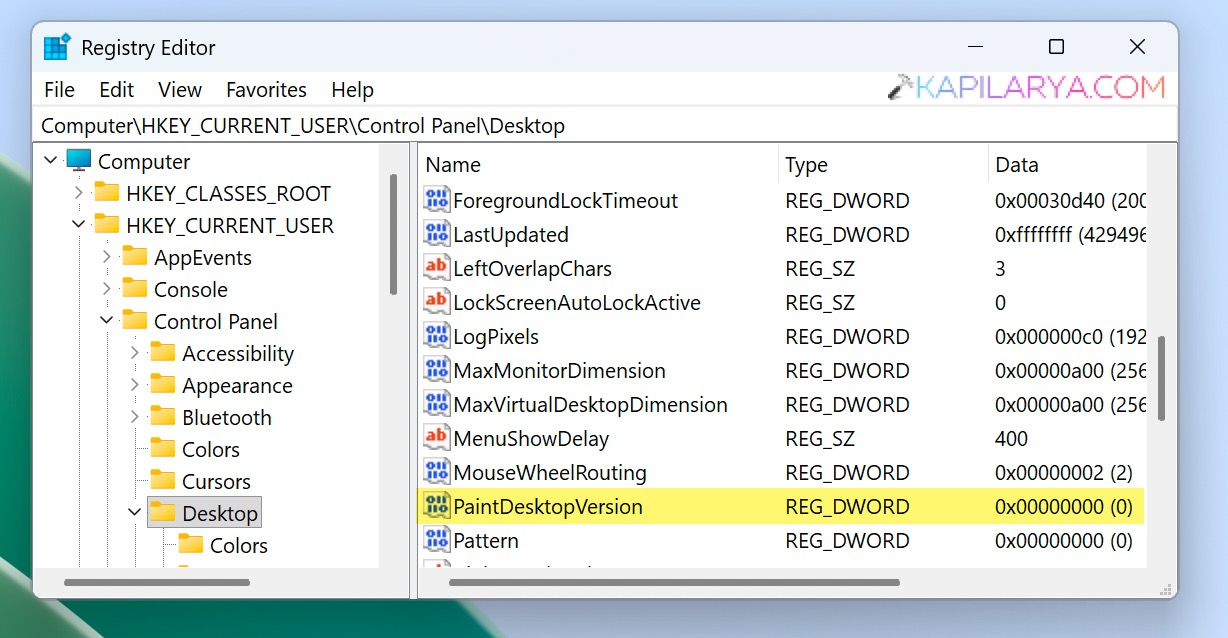
The changes should be immediately reflected on your system.
Disable Desktop Watermark for all users
1.Run regedit command to open Registry Editor.
2. In left pane of Registry Editor window, go to:
HKEY_LOCAL_MACHINE\SOFTWARE\Microsoft\Windows NT\CurrentVersion\Windows
3. In the corresponding right pane of Windows registry key, locate the registry DWORD named DisplayVersion.
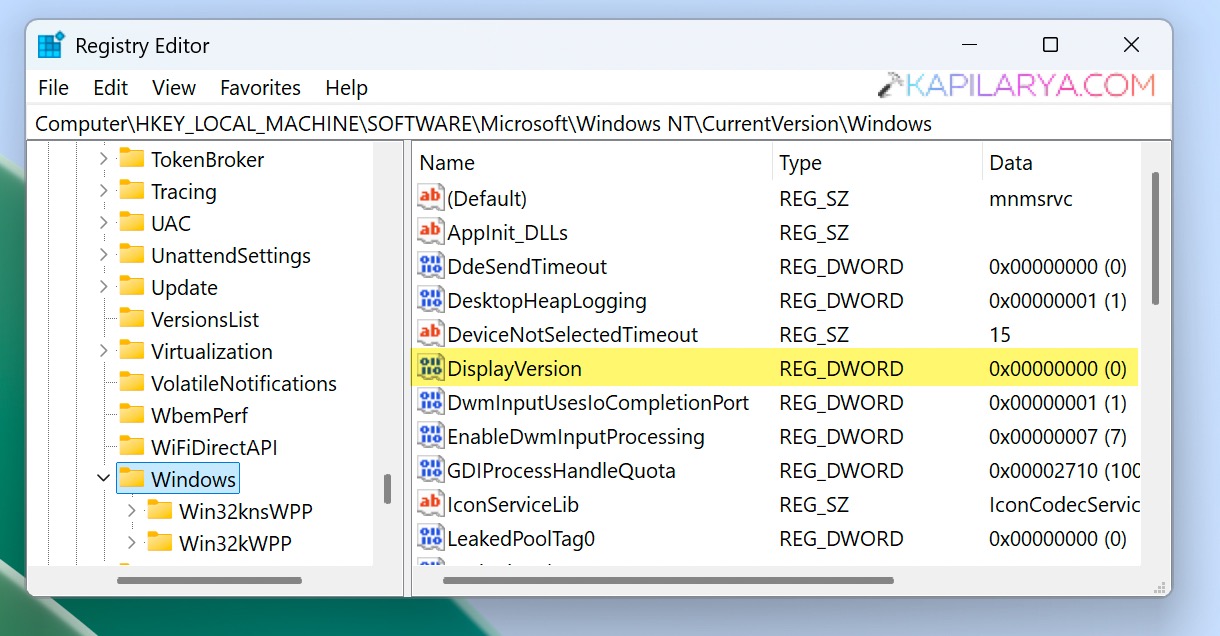
4. Double click on the DisplayVersion to Value data 0 to disable watermark for all users. Setting it Value data 1 will enable watermark.
5. Close the Registry Editor, restart your system to make changes effective.
That’s it!