In Windows 11/10, Outlook Cannot Synchronize Subscribed Folders is the error that appears on your screen and is frustrating when you rely on Microsoft Outlook for your work or personal communication. This synchronization issue usually occurs with IMAP accounts and can stop your emails from updating properly. You can fix this error with simple, effective troubleshooting methods. In this guide, you will find easy, step-by-step eight solutions to help you resolve the problem quickly.
Page Contents
Causes of Error Outlook Cannot Synchronize Subscribed Folders
This error, “Outlook Cannot Synchronize Subscribed Folders” appears when Outlook fails to sync IMAP folder structures. This can be the Inbox, Drafts, and Sent Items with the mail server. Common reasons include:-
- Damaged Outlook profile.
- Outdated Outlook version.
- Corrupted or oversized OST file.
- Incorrect IMAP folder settings.
- Firewall/Antivirus blockage.
- Network or server connectivity issues.
Fix Outlook Cannot Synchronize Subscribed Folders
Below are the most effective eight troubleshooting methods to fix Outlook cannot Synchronize Subscribed Folders.
Fix 1: Rebuild the Outlook Data File
One of the largest causes of the sync error is an oversized or corrupted OST file. It requires rebuilding it, and this will refresh your mail box without removing emails.
1. Close Outlook completely.
2. Select the Control Panel in the menu.
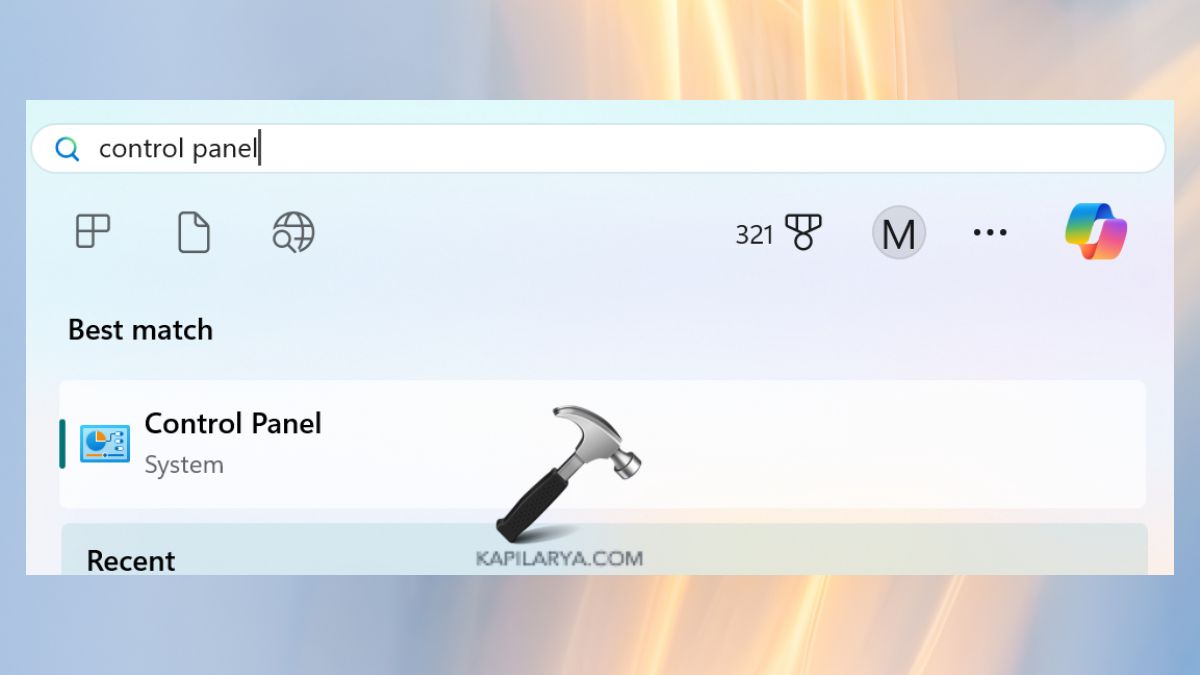
2. Go to Mail > Data Files.

3. Click the “Open file location”, and you should select your IMAP account.
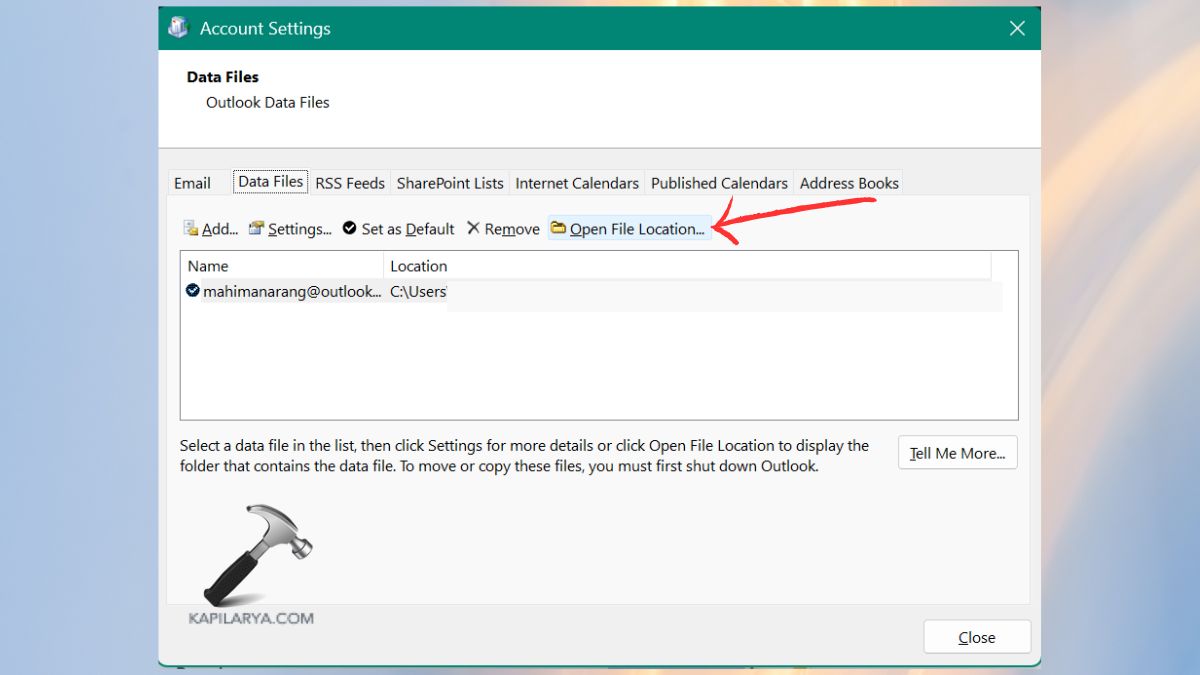
4. Delete the OST file by clicking right-mouse. Close Outlook: this will automatically create a new OST file. The approach fixes the sync error in the majority of cases.
Fix 2: Check Your Network Connection and Mailbox Server Status
Also, make sure that your internet and email server are functioning properly before you make any modifications to Outlook settings. Low connectivity will disrupt IMAP folders syncing.
1. Attempt to open up a webpage to confirm the presence of the internet.
2. When you are on a work email, verify with your sales administrator to ascertain the availability of servers.
3. In the case of email providers that are publicly available (Gmail, Yahoo, etc.), visit the server-status page.
4. Re-use your Wi-Fi network or use a Wi-Fi network on a different connection.
Fix 3: Create a New Outlook Profile
A broken profile is a common culprit for the error that Outlook cannot synchronize subscribed folders. Forming a new profile leaves you with a fresh environment.
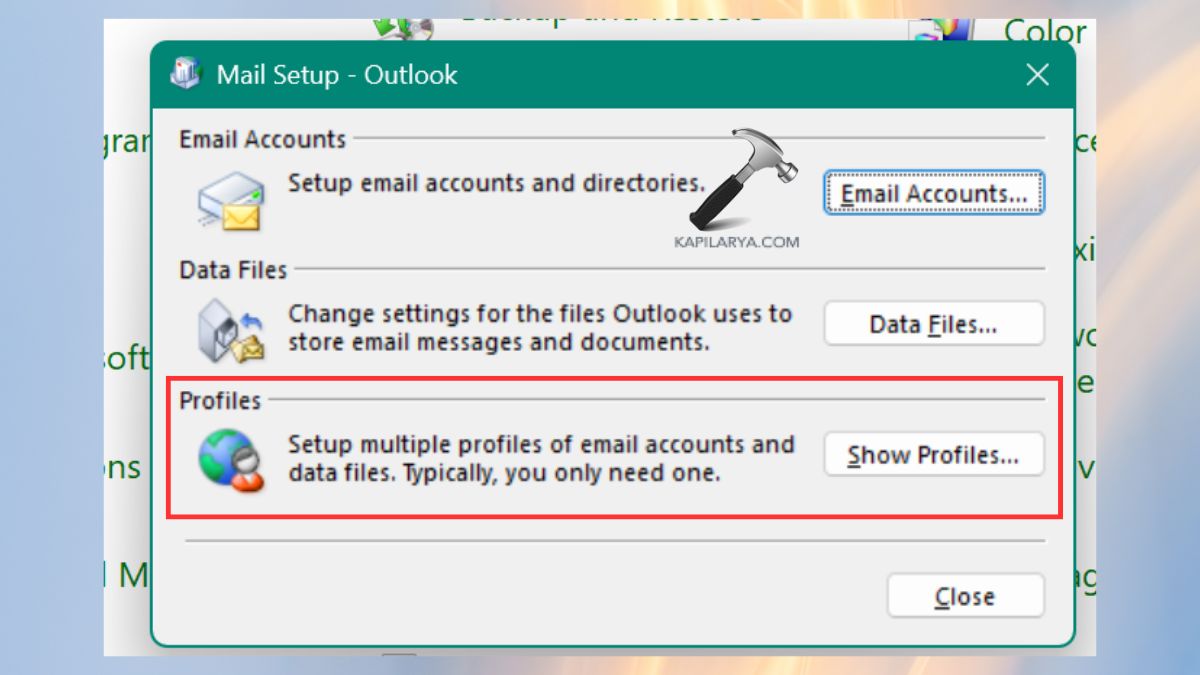
1. To create a New Profile, open Control Panel > Mail.
2. Select Show Profiles.
3. Click Add, and add the name of your profile. Fill in your email details and complete the arrangement.
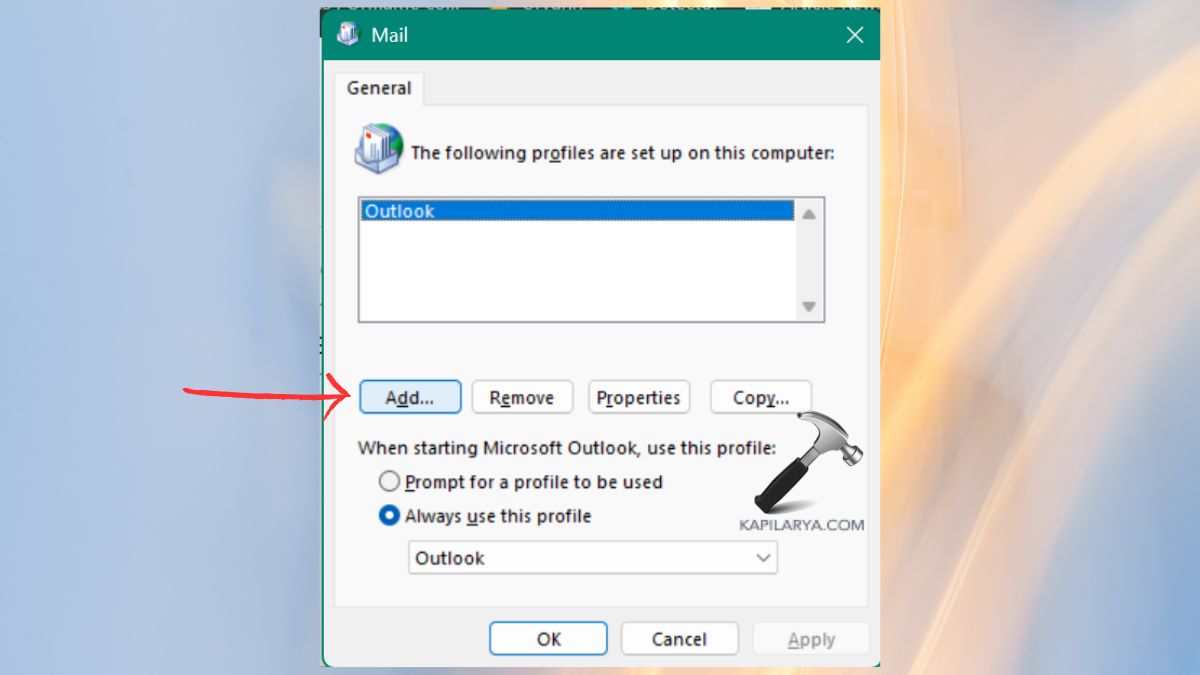
4. Click Select Prompt a profile to be used or make the new profile as the default. You should restart your profile in Outlook, and the syncing will be successful.
Fix 4: Reduce Your OST File Size
Big OST files reduce the speed of the synchronization process and may cause errors.
1. Select Outlook File > Tools > Mailbox Cleanup.
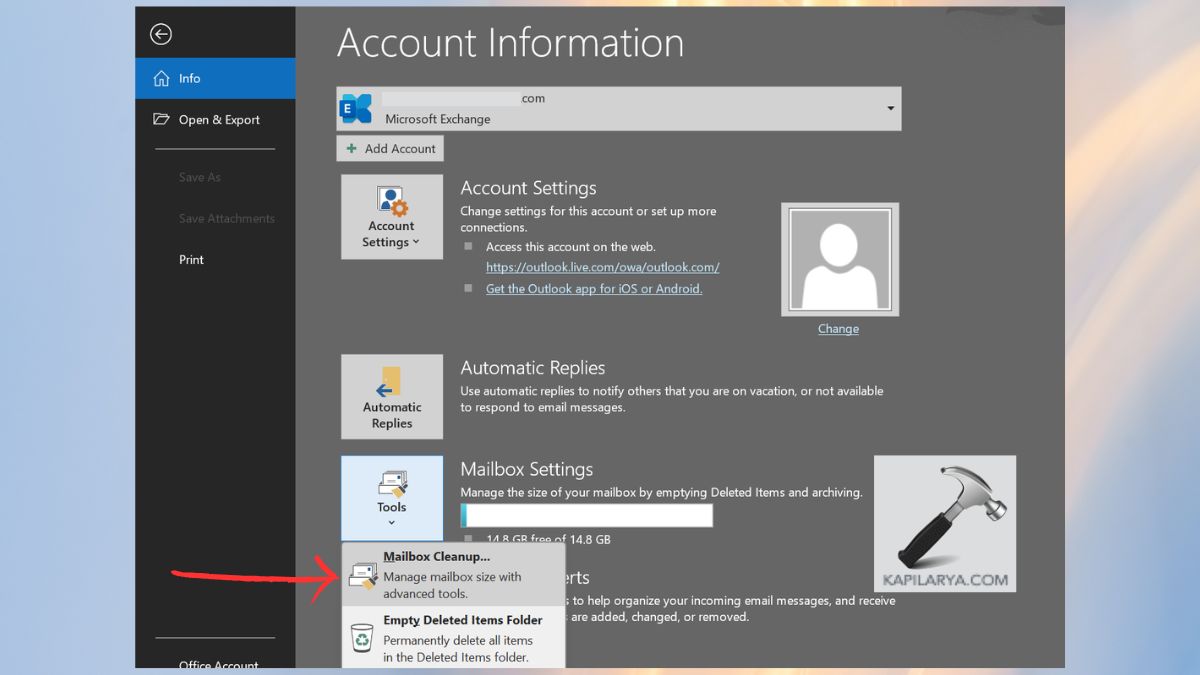
2. Delete Items and Junk Email. Store older emails using AutoArchive.
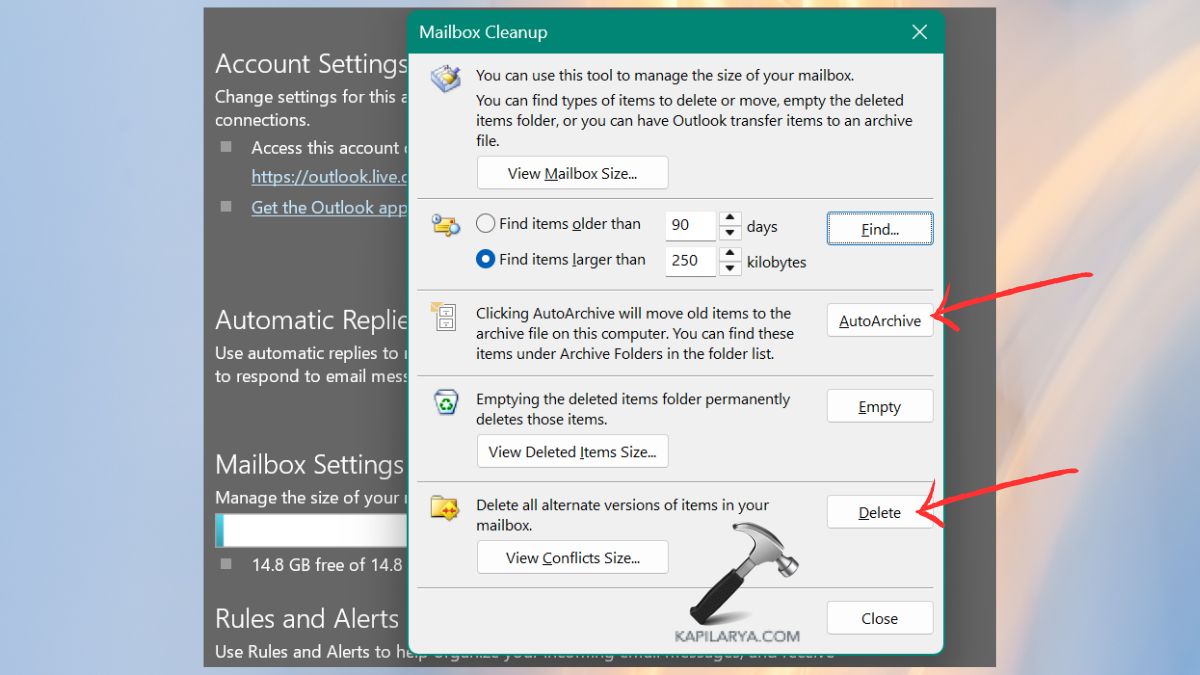
3. Minimize the data file through: File > Account Settings > Account Settings > Data Files > Select IMAP OST > Settings > Compact Now.
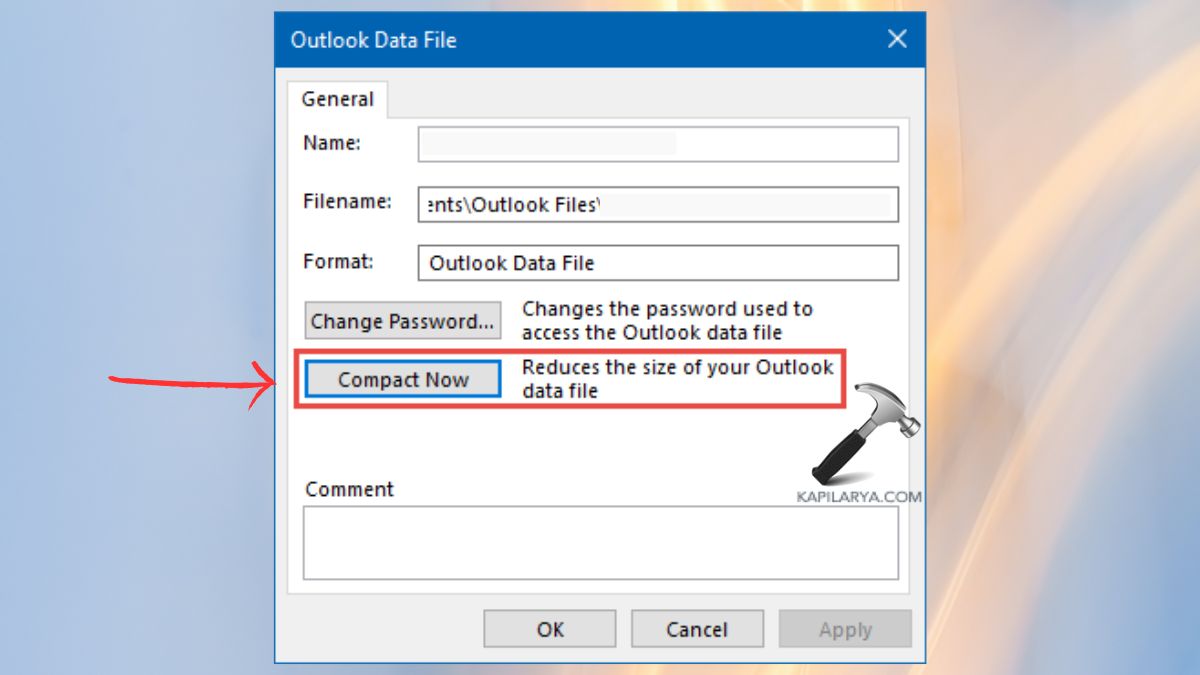
When a lightweight OST file is used, this will enhance the performance of Outlook immediately.
Fix 5: Update the Outlook Application
The bugs in the outdated Outlook builds may not permit IMAP folder syncing.
1. Open Outlook.
2. Go to File > Office Account.
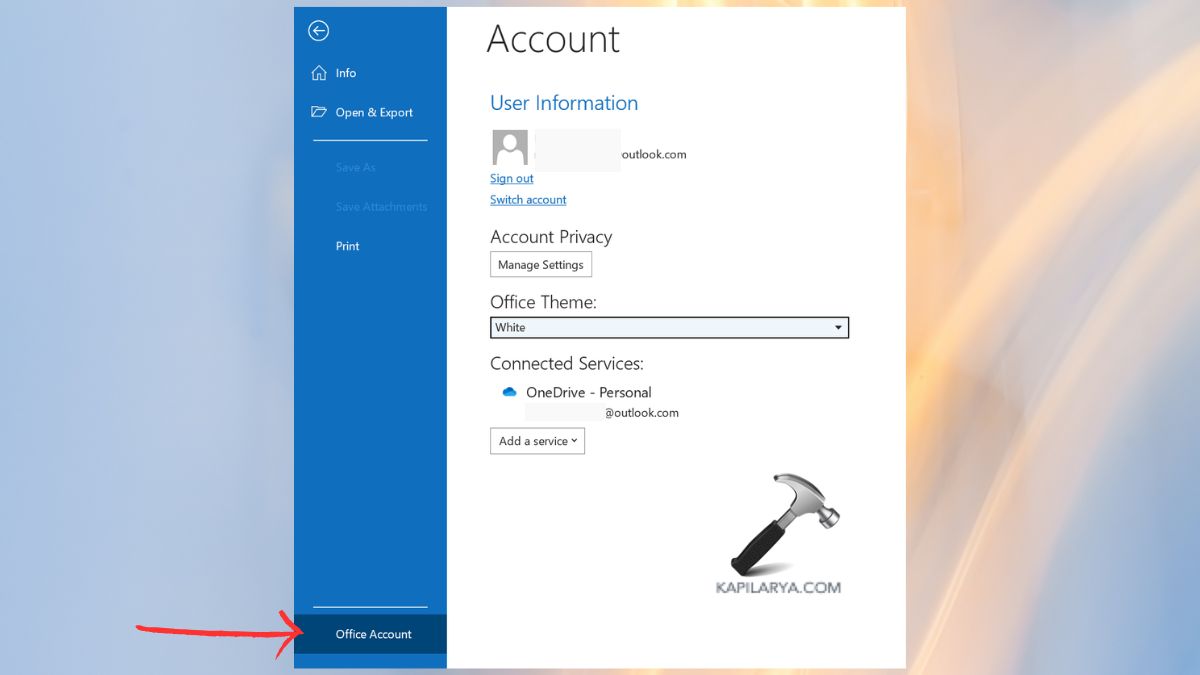
3. Click on the Select Update Options and select Update Now.
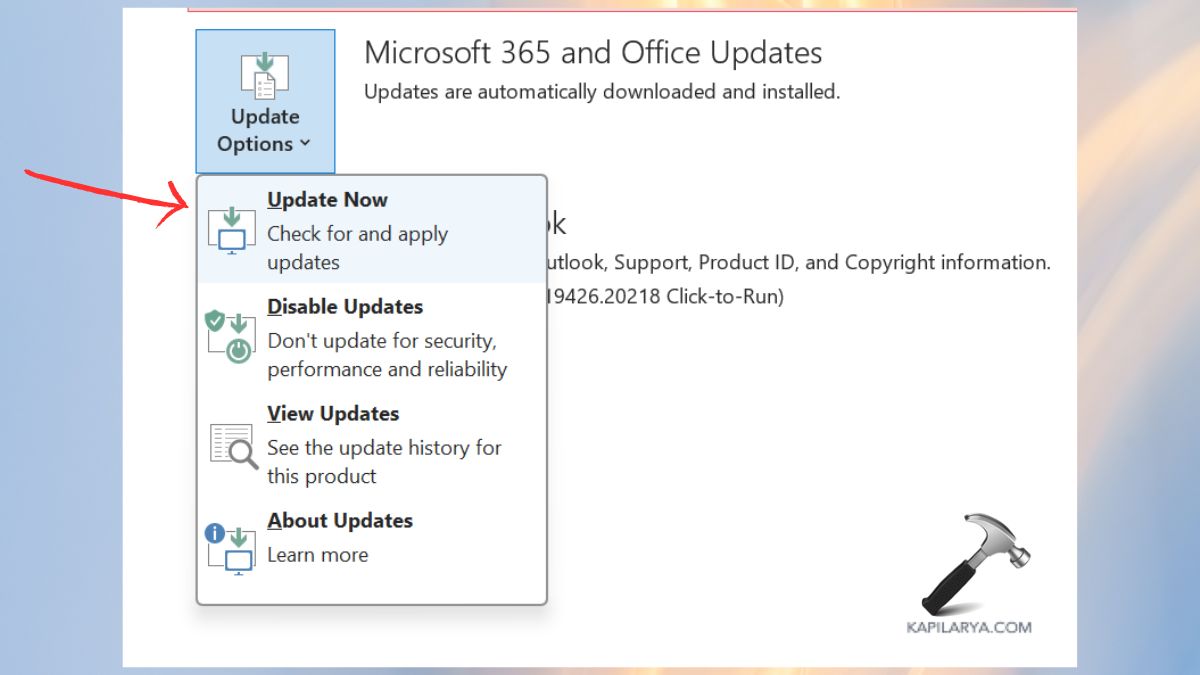
Restart Outlook and install all possible updates. Upgraded patches make syncing to be less problematic and more secure.
Fix 6: Check Outlook Account Settings
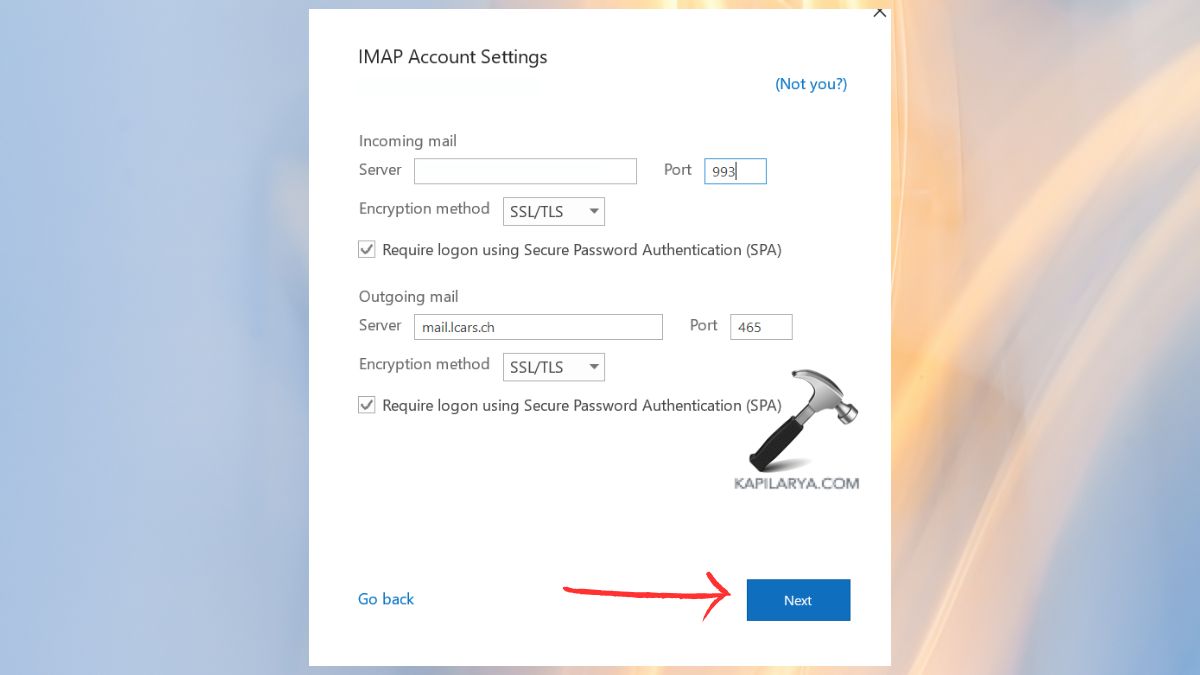
Faulty IMAP settings like incorrect ports, authentication or folder names or paths usually result to sync errors.
1. Open File > Account Settings.

2. Go to the IMAP account change. Confirm these settings:-
- Incoming port (usually 993 with SSL)
- Outgoing port (587 or 465)
- Encryption type (SSL/TLS)
3. Click More Settings > Advanced, get the IMAP folder paths to match the settings of the provider.
A proper configuration is easy on the folder summary.
Fix 7: Disable Antivirus and Firewall Temporarily
There are antivirus programs that block ports of IMAP instances, and this makes Outlook unsuccessful at the synchronization of subscribed folders.
1. Open an antivirus dashboard. Deactivate email security.
2. To disable Windows Defender Firewall: Open Control Panel > Windows Defender Firewall> Turn off Firewall.
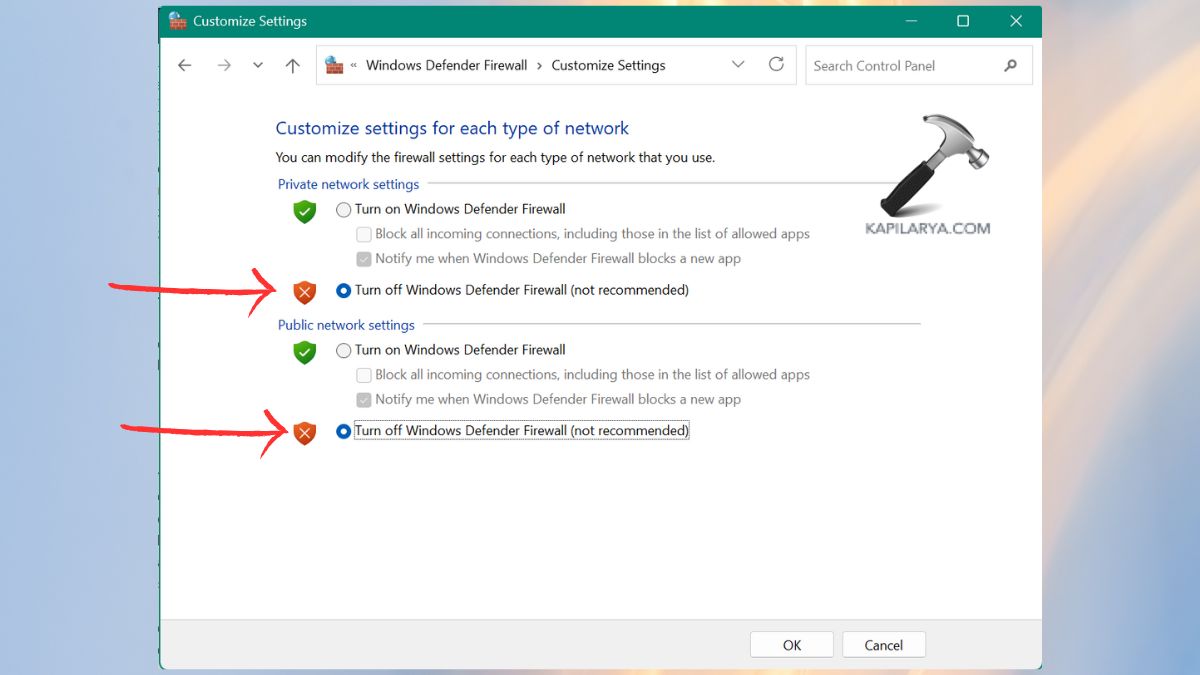
3. Relaunch Outlook and confirm that it is synchronized. In case the problem is fixed, whitelist Outlook rather than having antivirus off.
Fix 8: Re-add Your Email Account in Outlook
Adding and deleting your account reconfigures and removes sync problems.
1. Click on File > Account Settings > Account Settings.
2. Click account IMAP > Click Remove.
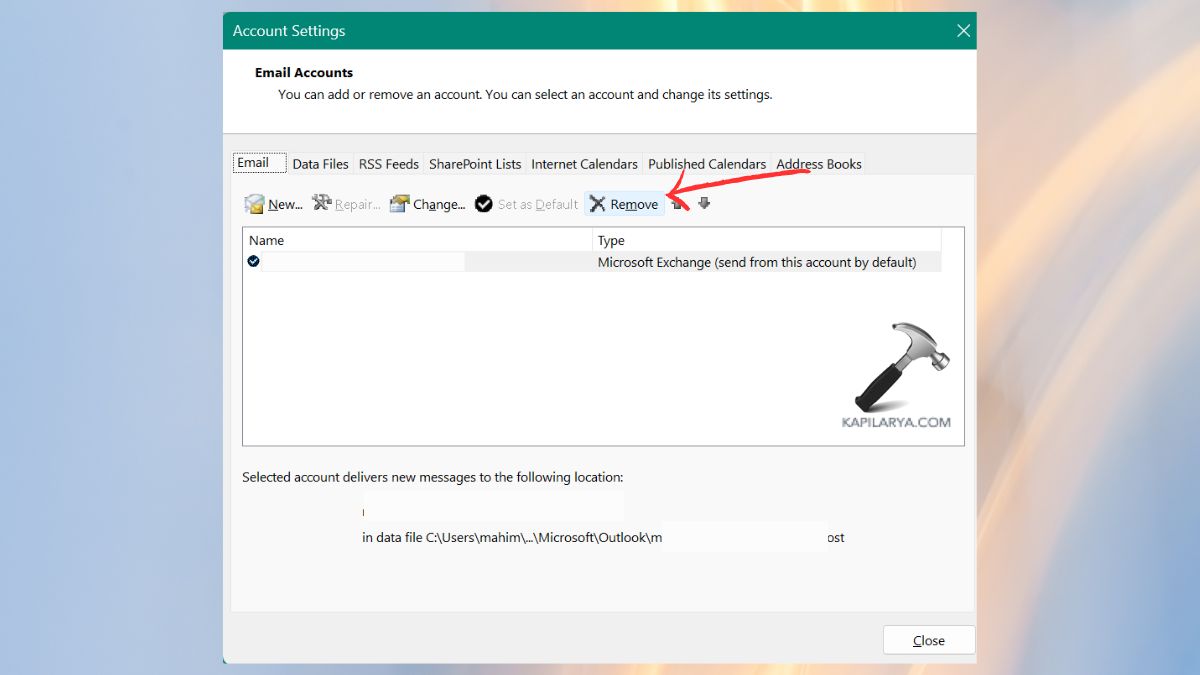
Restart Outlook. Add the account once more and log-in. This is the reset of IMAP folders mapping, and most users fix the error.
Frequently Asked Questions (FAQs)
Why do I get the message “Outlook cannot synchronize subscribed folders”?
This is noticed when Outlook is unable to synchronize IMAP folder hierarchy owing to improper settings and damaged OST file, server problems, or antivirus interference.
How do I fix IMAP folder synchronization in Outlook?
The fastest workarounds are to update Outlook, recreate the OST file, adjust the IMAP settings and finally verify network/server status.
Will deleting the OST file remove my emails?
No. OST files are offline copies that are temporary. Outlook will recover to recreate a new OST file and download once again your emails in the server.
Do I need to recreate my Outlook profile to fix this issue?
Only if other solutions fail, configuration errors are returned off by a new profile, which in many cases fixes the frustrating sync issues.
That’s it!